
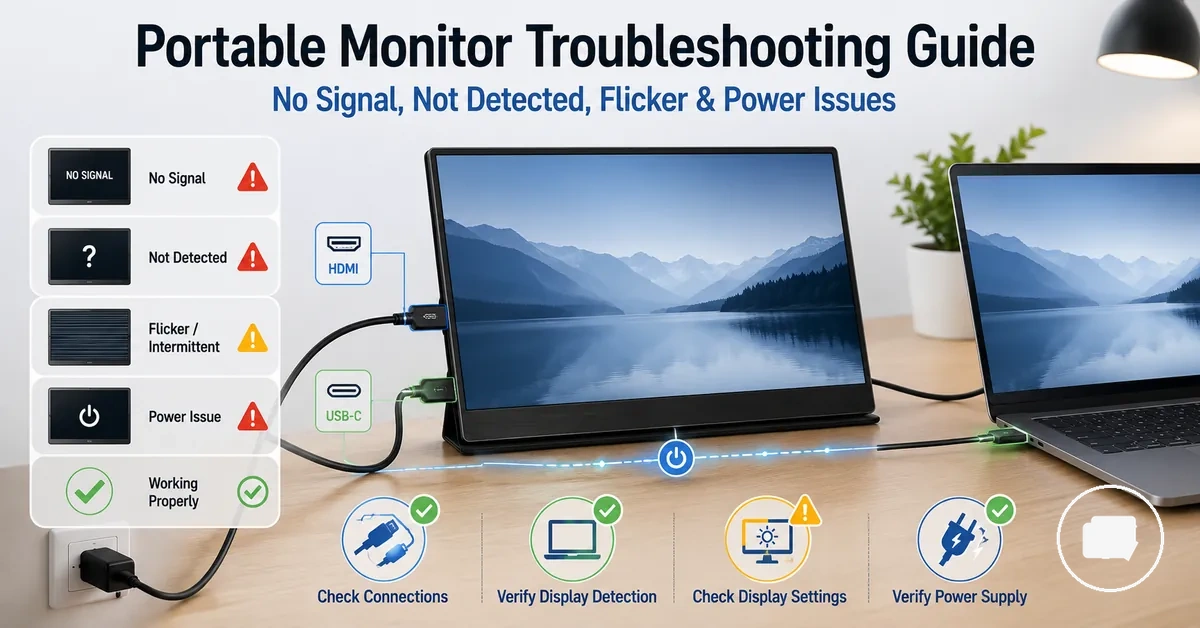
Portable Monitor Troubleshooting for Connection, Display, and Power Failures
When a portable monitor shows no signal, is not detected, flickers, or loses power, the likely issue is usually somewhere in the connection path, display settings, power delivery, or hardware condition. The diagnostic scope should include the source device, cable, port, adapter, power supply, operating-system display mode, and screen behaviour. Most checks start by separating connection, display, and power symptoms before assuming the monitor is faulty.
Work from the safest visible checks toward narrower causes: confirm the portable monitor has power, confirm the source device is sending video output, then check whether the USB-C or HDMI cable and adapter can carry the needed signal for that connection type. A black screen, no signal message, or detection failure may come from the input source, display mode, cable capability, unstable power, or a port that does not support the expected output. This page focuses on troubleshooting symptoms; for broader selection, feature, and category context, use the portable monitor guide.
If the screen is powered on but blank, treat it as a signal-path problem until the power state suggests otherwise. If the external display is not detected, check the source device and display settings before assuming a hardware fault. If flickering appears during movement, refresh-rate changes, or power-source changes, the cause may depend on bandwidth, cable stability, or power delivery. The next checks should follow the visible symptom rather than starting with accessory replacement.
Portable Monitor Symptoms and Likely Failure Points
Portable monitor symptoms are diagnostic signals that usually point to a limited set of likely failure points rather than one fixed cause. A no signal message, a not detected status, flickering, a dim screen, or a shutdown pattern can each narrow the first check. These symptoms are most useful when grouped into signal, detection, power, and display behaviour.
Portable monitor symptoms and likely failure points become easier to interpret when each visible symptom is matched to a probable failure area before deeper troubleshooting. The table below organizes symptoms by likely diagnostic direction rather than a certain cause.
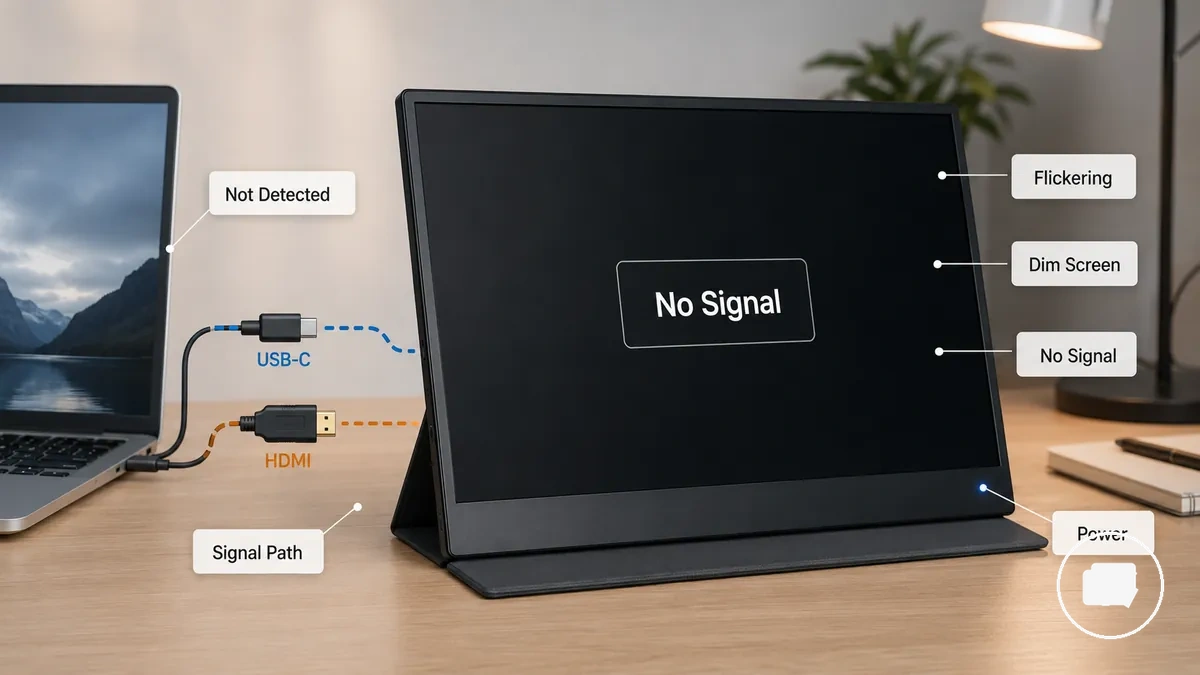
| Symptom | Likely failure area | First check | What it may mean |
|---|---|---|---|
| No signal | Signal path | Check the input source, cable, and source device. | The portable monitor may have power but may not be receiving a usable video signal. |
| Not detected | Operating system or connection path | Check display settings and whether the source device recognizes the external display. | The connection may not be established or the display may not be enabled. |
| Flickering | Signal stability or power | Check cable movement, refresh rate, and power stability. | The symptom may indicate an unstable signal path or inconsistent power. |
| Dim screen | Display settings or power condition | Check brightness, HDR, and low-power mode. | The display may be limited by a setting or the available power. |
| Shutdown | Power delivery | Check the power source and whether shutdown follows changes in operating conditions. | The monitor may not be receiving stable enough power for the current configuration. |
A black screen can result from either a signal problem or a power-related condition. Separating whether the portable monitor remains powered on before investigating the signal path can help narrow the likely failure point without assuming a specific cause.
Powered on with no signal or no display
A portable monitor that is powered on with no signal or no display usually has power but is not receiving or showing a valid video signal. A lit power indicator or a visible no signal message shows the monitor is powered even though no image appears. If this condition is present, check the selected input and cable connection before assuming a hardware fault.
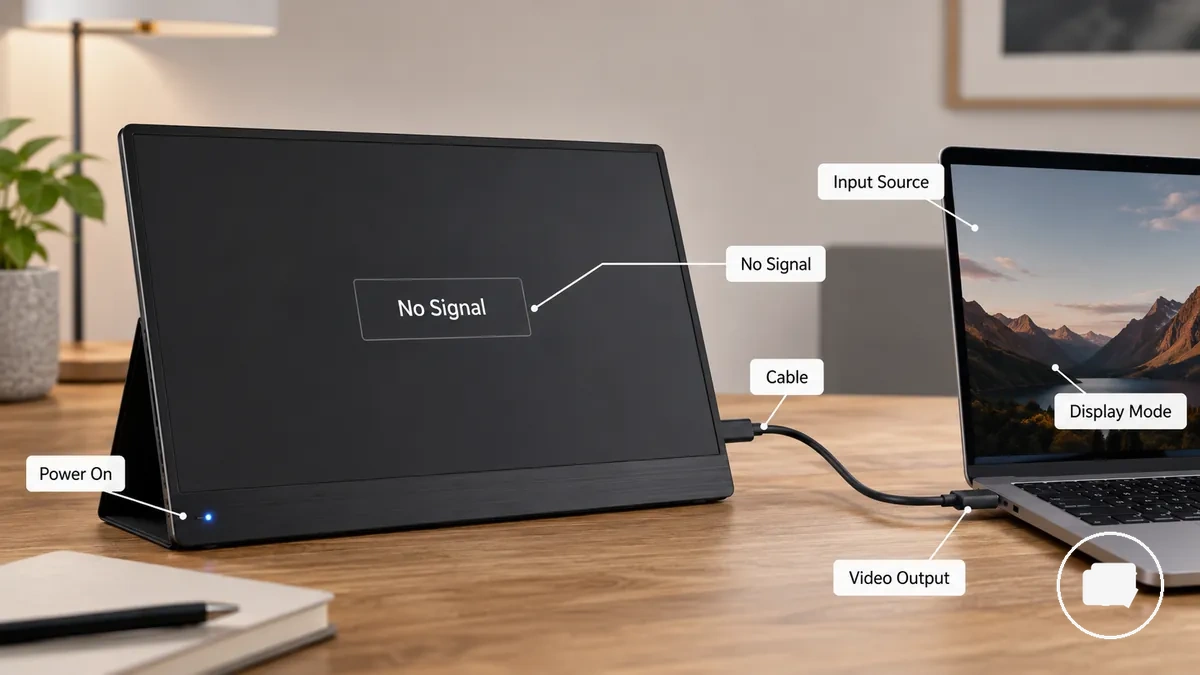
Powered on with no signal or no display should be separated from a monitor with no power because the likely checks are different.
- Confirm the input source matches the connected HDMI or USB-C port. An incorrect selected input can leave the monitor without a video signal.
- Check the cable type and that both cable ends fit securely. A loose or unsuitable cable may prevent video output.
- Verify the source-device output is active. The connected device may not be sending video to the external display.
- Review the display mode on the source device. An inactive or incorrect display mode may leave the monitor with a blank screen.
- Compare the power state with the screen behaviour. A lit no signal screen suggests the monitor has power but no usable video signal, while a completely black screen with no power indicator may point to a power issue instead of a no-signal condition.
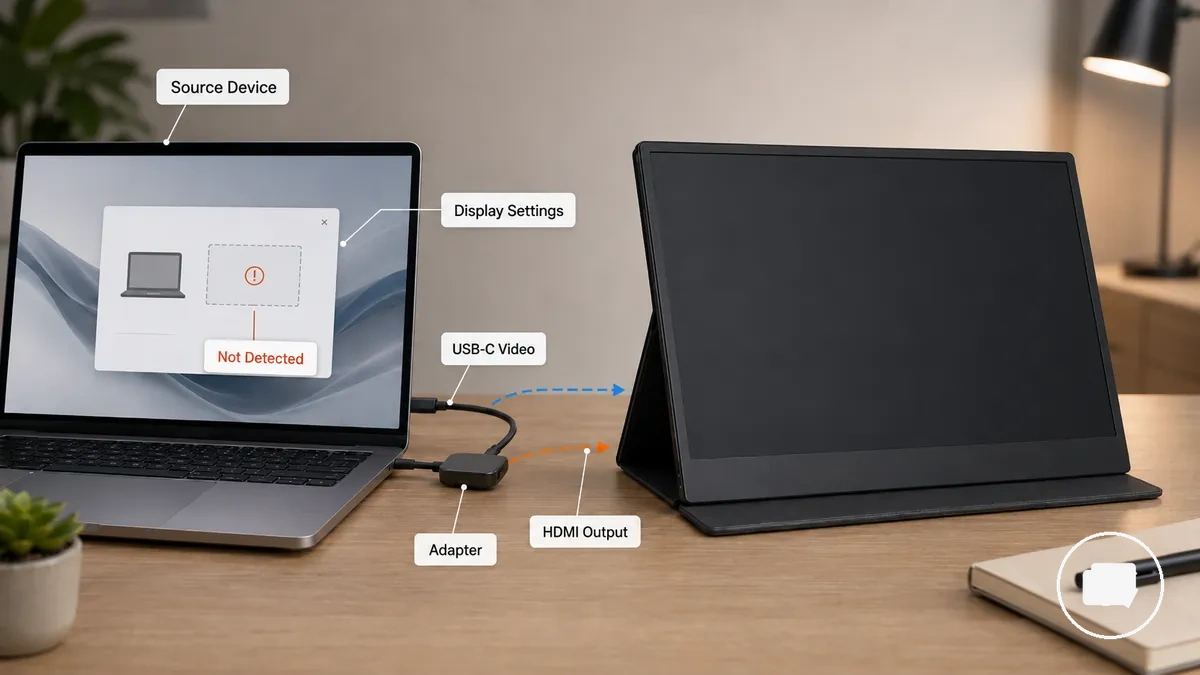
Not detected by the source device
When a portable monitor is not detected by the source device, the source device is not recognizing it as an available external display. This usually indicates a recognition or connection-path issue rather than confirming that the monitor is faulty. Detection failure may originate from either the source device or the connection path.
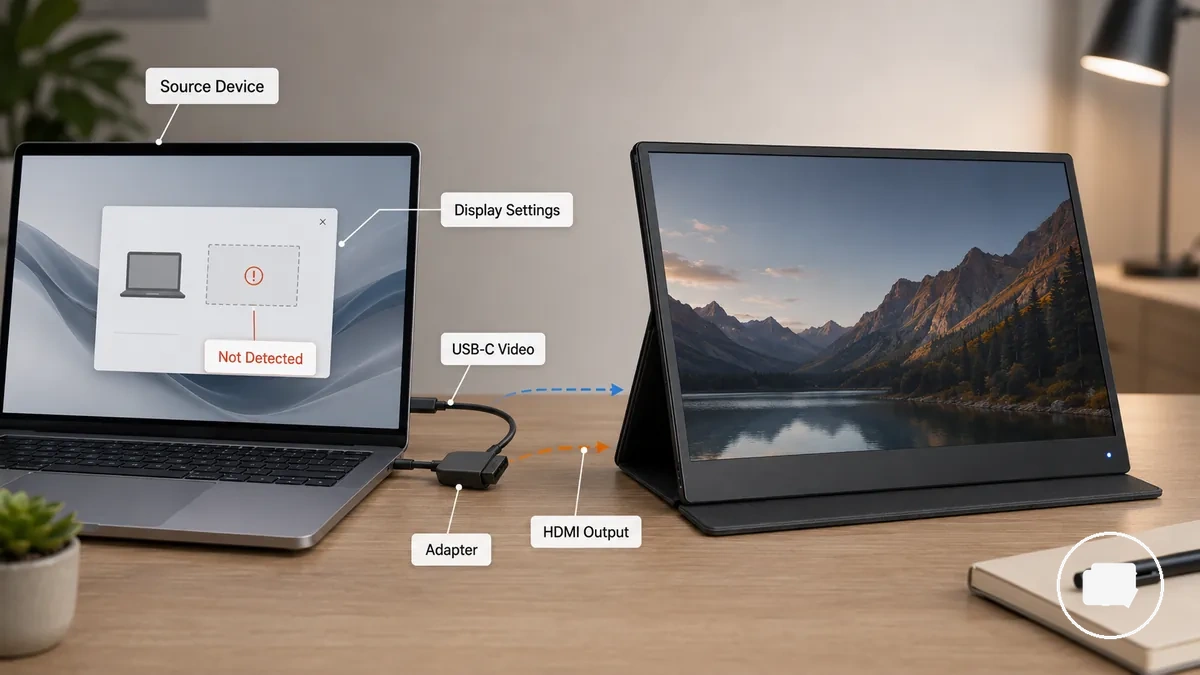
Not detected by the source device should be checked by separating software recognition from connection capability.
- Confirm the portable monitor appears in the display settings as an available external display or refresh the detection process if that option is available.
- Verify that the connected port supports USB-C video when using USB-C, or check that the HDMI output is connected to the correct input.
- If an adapter is part of the connection, ensure it is securely connected and appropriate for the selected video path.
- Restart the source device if the external display may not have been recognized after connection, then check whether it is detected.
- If the monitor remains not detected after these checks, further compatibility investigation depends on the specific device, cable, port, or adapter and is outside the scope of this troubleshooting step.
Flickering, dimness, or intermittent shutdown
When flickering, dimness, or intermittent shutdown occurs, the cause is often an unstable signal, insufficient power, or a display setting conflict rather than a single fault. Flickering, dimness, and intermittent shutdown each point to different checks and should be evaluated separately. The underlying condition may depend on the cable path, refresh rate, power delivery, display setting, or source device.
The comparison below separates flickering, dimness, and intermittent shutdown by likely trigger and the next local check.
- Flickering: May indicate an unstable signal related to cable movement, refresh rate, or connection bandwidth. Check whether the symptom changes when the cable is secured or the refresh rate is adjusted.
- Dimness: May relate to a display setting such as brightness mode, HDR, or power-saving behaviour, or to insufficient power. Check the display setting and available power before assuming a display fault.
- Intermittent shutdown: Can occur when power delivery becomes insufficient or unstable. Check the USB-C power path or other power source to confirm the monitor is receiving consistent power.
Temporary instability that changes with settings, cable position, or power conditions may indicate a connection or configuration issue. If the same symptom continues under consistent conditions after these local checks, further diagnosis may be needed before concluding that persistent hardware failure is involved.