Portable monitor for laptop productivity and mobile work
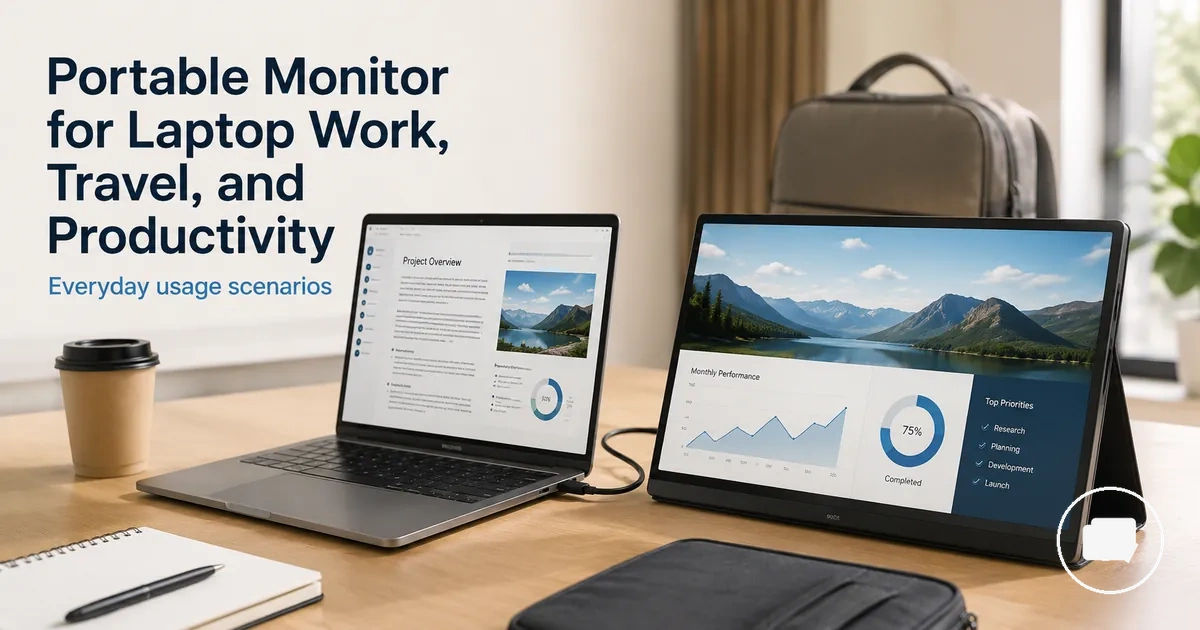
A portable monitor is a mobile second screen that expands the available screen space of a laptop for work, remote work, and travel. It can support laptop productivity by providing additional viewing space while remaining practical for mobile work rather than replacing a permanent desktop setup. This page focuses on how a portable monitor fits laptop productivity and mobile work.
The most suitable portable monitor depends on how and where it will be used. Work style, available desk setup, display comfort, laptop compatibility, available USB-C or HDMI connections, power access, and travel frequency can all influence the right setup. Protection during carrying and regular movement may also become more important for users who frequently work away from a fixed workspace. These conditions provide the basis for later selection decisions.
A portable monitor may provide greater value for users who regularly manage multiple applications, compare documents, attend video meetings, or need extra screen space while working from different locations. The practical benefit still depends on laptop ports, workspace size, display preferences, carrying habits, and connection requirements. While other display options may suit different situations, a portable monitor is intended for users who need a flexible laptop second screen for mobile work and remote work.
The following sections build on this foundation by explaining how compatibility, setup, portability, and protection can influence long-term use in realistic laptop work environments.
What a portable monitor adds to laptop work
A portable monitor adds a second screen to laptop work by expanding the available screen space for related tasks. Instead of relying on a single laptop display, users can keep more information visible at the same time, which may make common work activities easier to manage. The main benefit is the practical value of an additional second screen rather than replacing the laptop.
Laptop work often requires moving between documents, browser tabs, notes, communication tools, and video calls on one display. Limited screen space can lead to frequent window switching when multiple tasks need attention at the same time. A portable monitor provides an external display that can support multitasking when the laptop, available ports, workspace, and setup are suitable for a second screen.
What a portable monitor adds to laptop work is easier to understand when viewed as a practical second-screen arrangement in a realistic workspace. The example below illustrates how a laptop and portable monitor can create two visible work areas without requiring a complex desk setup. For broader information about portable displays, see the portable monitor guide. A portable monitor is usually most helpful when recurring screen-space limitations matter more than matching the size or performance of a desktop monitor.
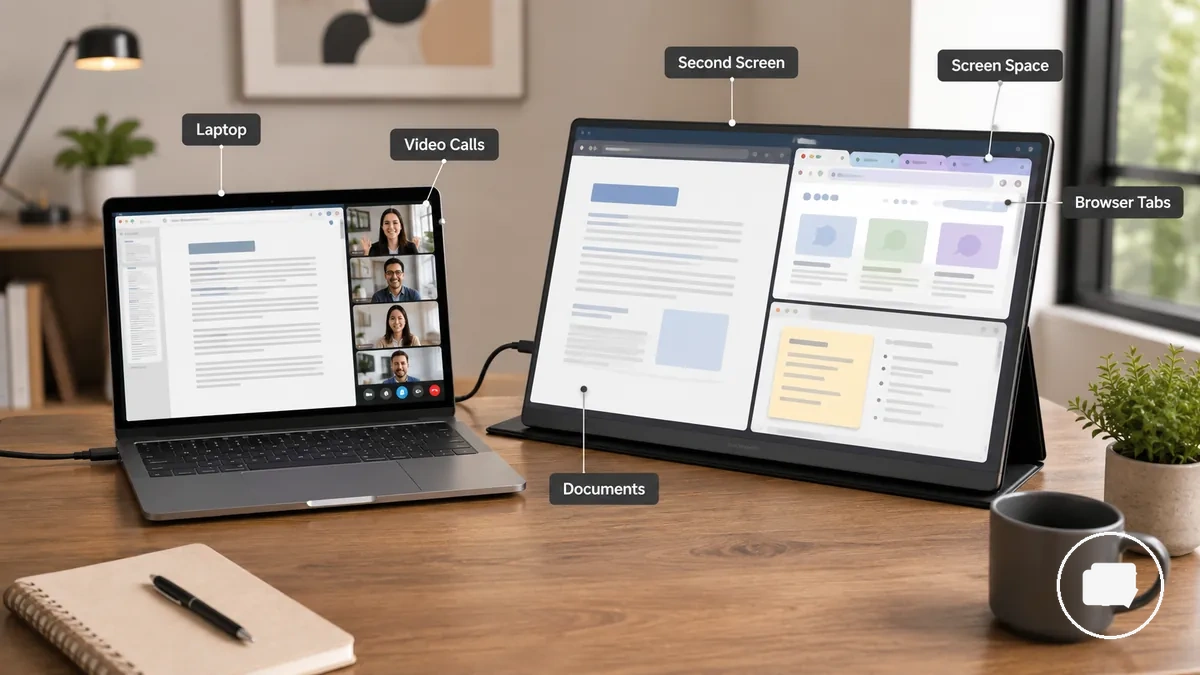
- Compare documents side by side instead of repeatedly switching between windows.
- Keep video calls visible while viewing notes or meeting materials.
- Read research in one window while drafting content in another.
- Monitor communication tools or dashboards while continuing primary laptop work.
- Reduce repeated window switching when extra screen space better fits the current task.
Second-screen space for apps, documents, calls, and research
When laptop work involves multiple windows, switching between apps, documents, browser tabs, and notes can interrupt the flow of a task. Second-screen space allows related information to remain visible across two displays, which may reduce repeated window switching when the laptop and workspace support an extended screen. The main advantage is maintaining a larger visible workspace for connected tasks.
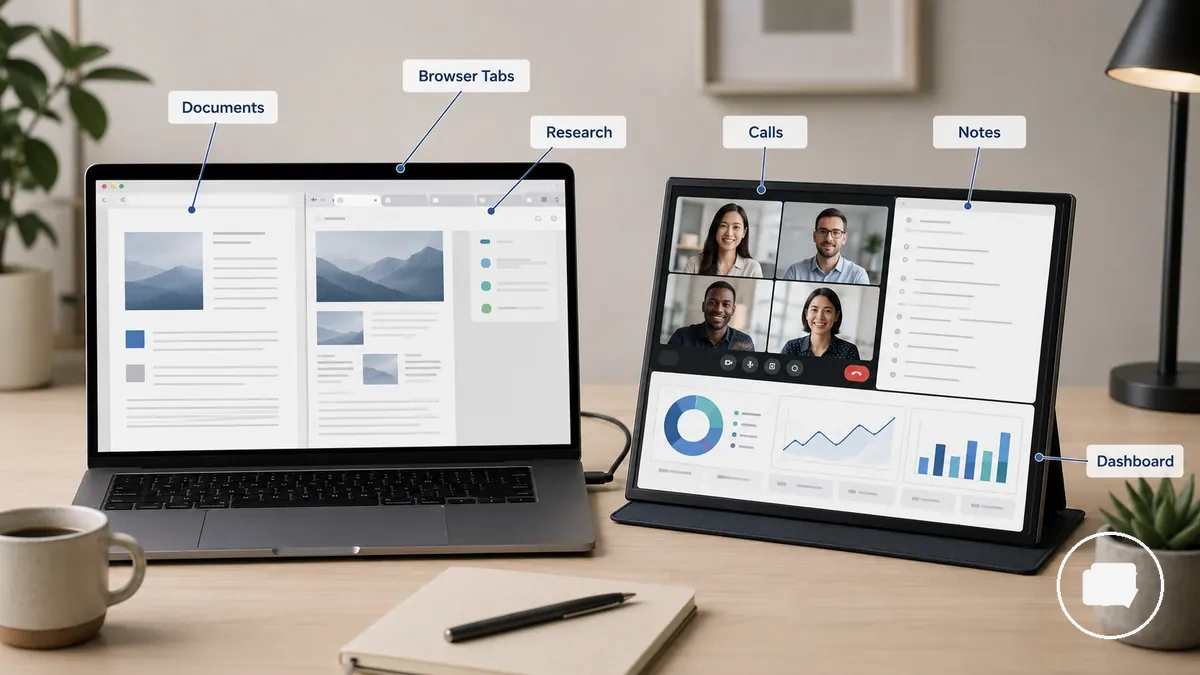
Second-screen space for apps, documents, calls, and research is easiest to understand through practical screen placement. The examples below show how related tasks can be arranged, although the most useful layout depends on the workflow and the information that needs to remain visible.
- Keep active documents on the laptop screen while placing research or reference material on the portable monitor to reduce repeated window switching.
- Display calls on one screen and notes on the other so meeting information stays visible while writing.
- Place frequently used browser tabs on the second display while using the laptop screen for editing or drafting to reduce switching between windows.
- Keep dashboards on the portable monitor while using the laptop display for everyday work, helping important information remain visible.
- Arrange related apps across both screens so each task has a clear location instead of repeatedly replacing one window with another.
Remote work, study, and travel productivity needs
When work or study takes place in different locations, the value of a laptop second screen depends on the working environment. A portable monitor may be more useful for remote work, study, or travel when the available surface, power access, and carrying space support a compact setup. The work context should guide the decision rather than the location alone.
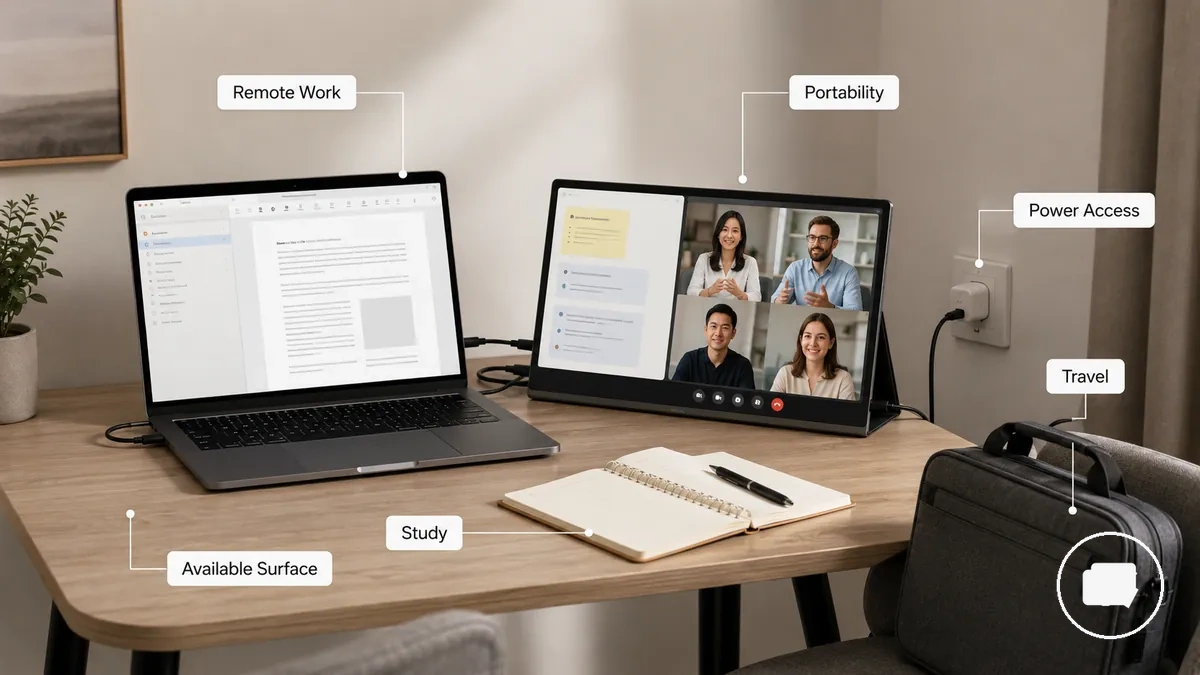
Remote work, study, and travel productivity needs vary because session length, portability, and workspace conditions are different from one situation to another. A laptop second screen may provide more value during longer sessions with a stable workspace, while shorter travel stops or limited desk space may make a simpler arrangement more practical. The decision usually depends on available surface, power access, portability, and the time available for setup.
- Remote work: A stable desk with reliable power access can make a portable monitor useful for keeping video calls, notes, and documents visible.
- Study: A study setup with enough available surface may make it easier to arrange research, readings, browser tabs, and writing across two screens.
- Travel: Limited desk space, carrying requirements, or shorter setup time may reduce the benefit of using a laptop second screen.
- Long sessions: Longer working periods may justify carrying a portable monitor when portability remains practical for the overall workspace.
Work environments that shape portable monitor choice
Portable monitor choice depends on the work environment because workspace conditions change the trade-off between portability, screen size, and comfort. Desk depth, lighting, movement frequency, cable access, and weight tolerance all influence which setup may be the better fit. The most appropriate decision outcome depends on the environment where the monitor will be used most often.
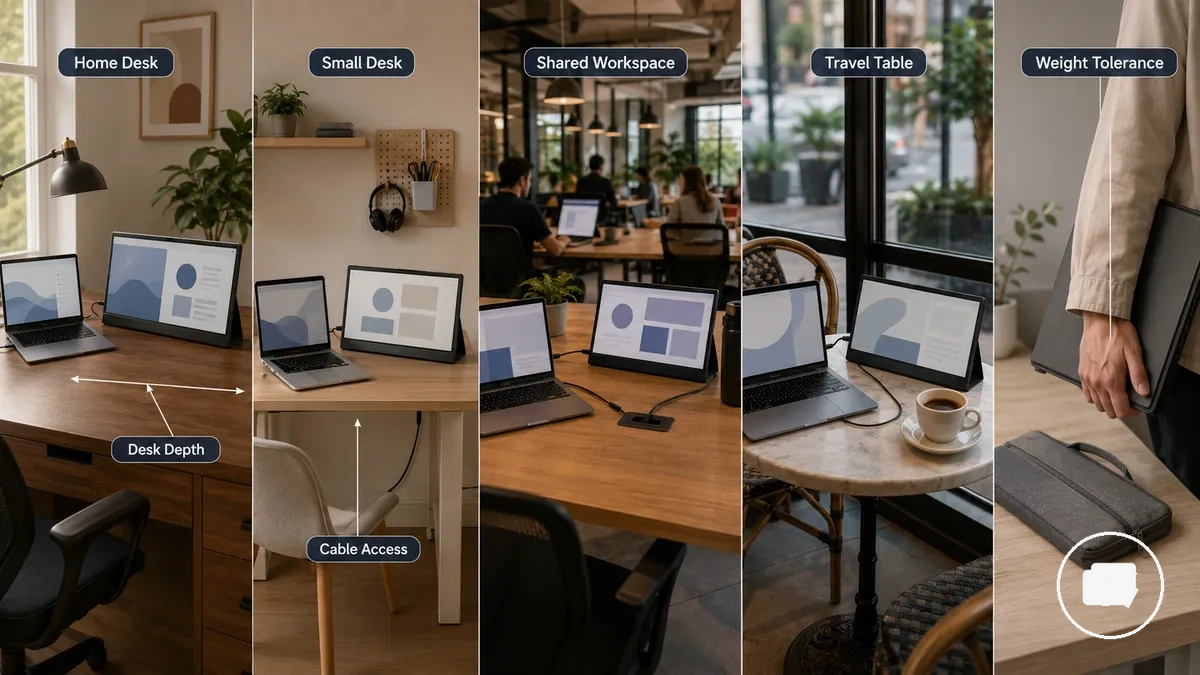
Work environments that shape portable monitor choice become easier to compare when the same criteria are applied across different workspace conditions. The table below organizes the main constraints and monitor attributes to check before making a decision.
| Environment | Main constraint | Monitor attribute to check | Decision signal |
|---|---|---|---|
| Home desk | Comfort during longer sessions | Screen size and desk depth | A larger display may suit a stable workspace with sufficient desk space. |
| Small desk | Limited available surface | Compact size and cable access | A smaller footprint may fit more comfortably in restricted spaces. |
| Shared workspace | Changing setup conditions | Portability and cable access | Frequent setup changes may favor a lighter, easier-to-carry monitor. |
| Cafe or travel table | Restricted desk depth and variable lighting | Screen visibility and compact design | Limited space may make a compact monitor easier to position. |
| Frequent movement | Regular carrying between locations | Weight tolerance and portability | Lighter equipment may better match repeated movement throughout the day. |
Small desks, cafes, trains, and temporary workspaces
Using a portable monitor in a small desk, cafe, train, or other temporary workspace starts with the available surface rather than the display itself. A limited workspace can affect monitor placement, stability, and viewing comfort, so the laptop position and monitor stand may need adjustment to fit the available desk footprint without crowding the work area.
Workspace type influences placement and stability before you begin using the monitor. The conditions below help determine whether the setup suits the available space, and the best arrangement depends on the temporary workspace and its available room, power access, and stability.
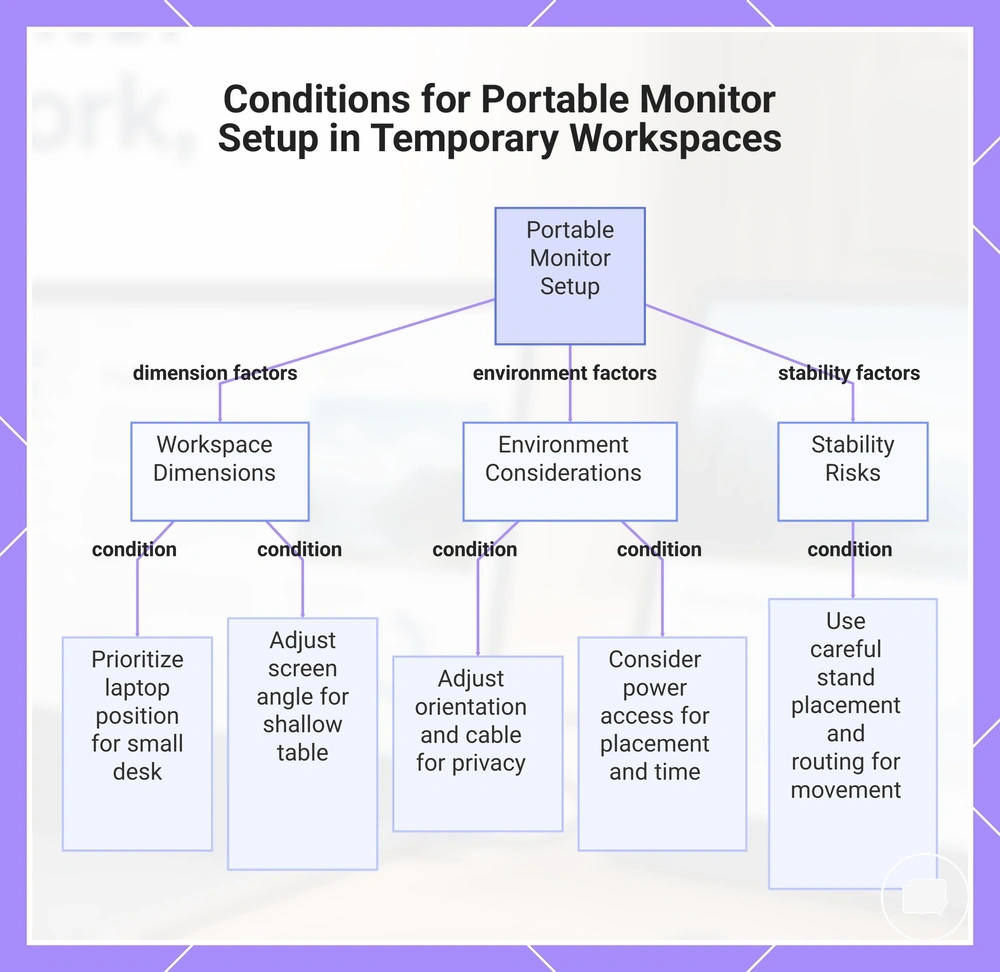
- Desk footprint: A compact desk may leave limited room for both the laptop and monitor stand, making laptop position more important for a balanced layout.
- Table depth: A shallow travel table or shared table can reduce comfortable viewing distance, so adjusting the screen angle may improve visibility and comfort.
- Privacy: In a cafe or at a shared table, a second display may expose more on-screen content to nearby people, so display orientation and cable path deserve consideration.
- Power access: On a train or in another temporary workspace, available power access may vary, which can influence both monitor placement and expected usage time.
- Movement risk: A train or frequently used shared surface may introduce movement risk that affects stability, making careful monitor stand placement and cable routing more appropriate.
This chart outlines the key workspace conditions influencing portable monitor placement, stability, and viewing comfort in temporary environments, covering space constraints, environmental factors, and stability risks.
Size, weight, thickness, and carrying comfort
Size, weight, thickness, and carrying comfort involve balancing screen area with portability for day-to-day laptop work. A larger monitor may provide more viewing comfort, while a lighter and slimmer design can reduce carrying effort and fit more easily into different work environments. The most suitable choice depends on the available desk, workload, and carrying habits rather than a fixed size rule.
Physical dimensions influence more than transport alone. Weight, thickness, and case bulk can affect bag fit, setup friction, and travel fatigue, while screen size influences available viewing area and desk space during use. If portability is an important criterion, the guide to portable monitor size for travel provides additional sizing considerations that can be matched to your bag, workspace, and laptop work routine.
| Option | Portability effect | Workspace effect | Suitable when |
|---|---|---|---|
| Smaller | Lighter carry load with easier bag fit | Uses less desk space with reduced screen area | Carrying comfort and compact workspaces are higher priorities. |
| Mid-size | Balanced weight and thickness | Balances viewing comfort and desk space | Both portability and everyday laptop work are important. |
| Larger | Greater case bulk and carry load | Provides more screen area for viewing comfort | Desk space and workload benefit from a larger display, and carrying conditions allow it. |
Display features that matter for mobile productivity
Display features for mobile productivity depend on the type of laptop work and the environment where the portable monitor is used. Resolution, text clarity, brightness, screen finish, viewing angle, and usable screen space each influence readability, eye comfort, and practical multitasking in different ways. The most suitable combination depends on whether the priority is text-heavy office work, casual travel use, or a balance of both.
Each display attribute supports a different aspect of everyday laptop work rather than offering the same benefit in every situation. The table below compares the main display features so they can be evaluated according to reading comfort, screen visibility, and workspace needs before choosing which attributes matter most for your typical work environment.
| Display attribute | What it affects | Useful condition | Trade-off to watch |
|---|---|---|---|
| Resolution | Text clarity and readable documents | Text-heavy office work with frequent reading | Higher screen clarity may reduce usable screen space when display scaling is increased. |
| Brightness | Screen visibility and eye comfort | Changing indoor lighting or brighter workspaces | Extra brightness may provide limited benefit in consistently dim environments. |
| Screen finish | Glare control and readability | Areas with overhead lighting or reflected light | Screen visibility depends on both the finish and surrounding lighting conditions. |
| Viewing angle | Comfort and flexible screen placement | Changing posture or monitor position throughout the day | Viewing comfort may vary with monitor angle and seating position. |
| Usable screen space | Document layout and practical multitasking | Comparing documents or keeping multiple windows visible | More usable workspace may also require additional desk space. |
Resolution, text clarity, and usable screen space
Resolution, text clarity, and usable screen space depend on the balance between resolution, panel size, and operating-system scaling. Higher resolution can improve text sharpness, but display scaling may reduce the amount of usable screen space available for documents and application windows. The most suitable combination depends on reading preferences and the type of laptop work rather than resolution alone.
For text-heavy work, document readability and spreadsheet width are influenced by both text clarity and the amount of readable workspace on the screen. A suitable balance between panel size, resolution, and scaling can make documents easier to read while preserving enough usable screen space for side-by-side content. If spreadsheets, dashboards, or long documents are used frequently, compare both text sharpness and available workspace instead of focusing on resolution by itself.
| Focus | Sharper text | More usable workspace |
|---|---|---|
| Resolution and scaling | Can improve text clarity and document readability when scaling is appropriate. | May provide less usable screen space if larger display scaling is preferred. |
| Panel size | A larger panel size may make sharp text easier to read. | Can provide a more readable workspace when paired with suitable scaling. |
| Typical work | Useful for reading detailed documents during longer work sessions. | Useful when spreadsheet width or multiple windows need to remain visible. |
Brightness, screen finish, and viewing comfort
When mobile work moves between offices, homes, cafés, or travel settings, brightness, screen finish, and viewing comfort depend on changing light conditions rather than a single display setting. Ambient light, glare, viewing angle, and session length all influence readability, so the most suitable display characteristics vary with the environment. Higher brightness alone does not determine display comfort because screen visibility depends on both the display and surrounding light.
The criteria below connect common viewing conditions with display attributes that influence readability during mobile work. Comparing these factors together can help match display comfort to the lighting and viewing conditions of each workspace.
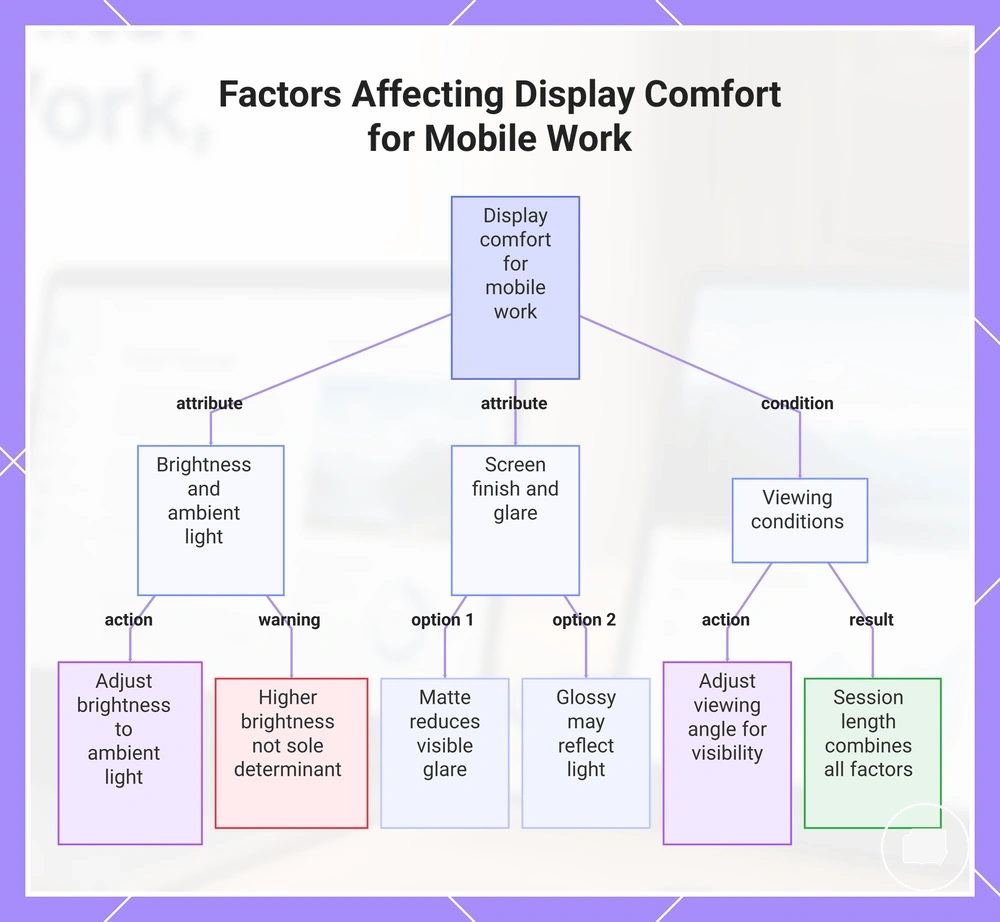
- Brightness and ambient light: Adjust brightness to suit the surrounding light so documents remain readable without relying on unnecessarily high screen output.
- Screen finish: A matte screen finish may reduce visible glare in brighter environments, while a glossy finish may reflect more surrounding light depending on the workspace.
- Viewing angle: Adjusting the viewing angle can improve screen visibility when posture or monitor placement changes during a work session.
- Glare and readability: Reflections from windows or overhead lighting can reduce readability, making screen placement and glare control as important as brightness.
- Session length: During longer work sessions, viewing comfort depends on the combination of brightness, ambient light, screen finish, and viewing conditions rather than a single display attribute.
This chart shows how brightness, screen finish, and viewing conditions influence display readability and comfort during mobile work in varying environments.
Laptop connection and power fit
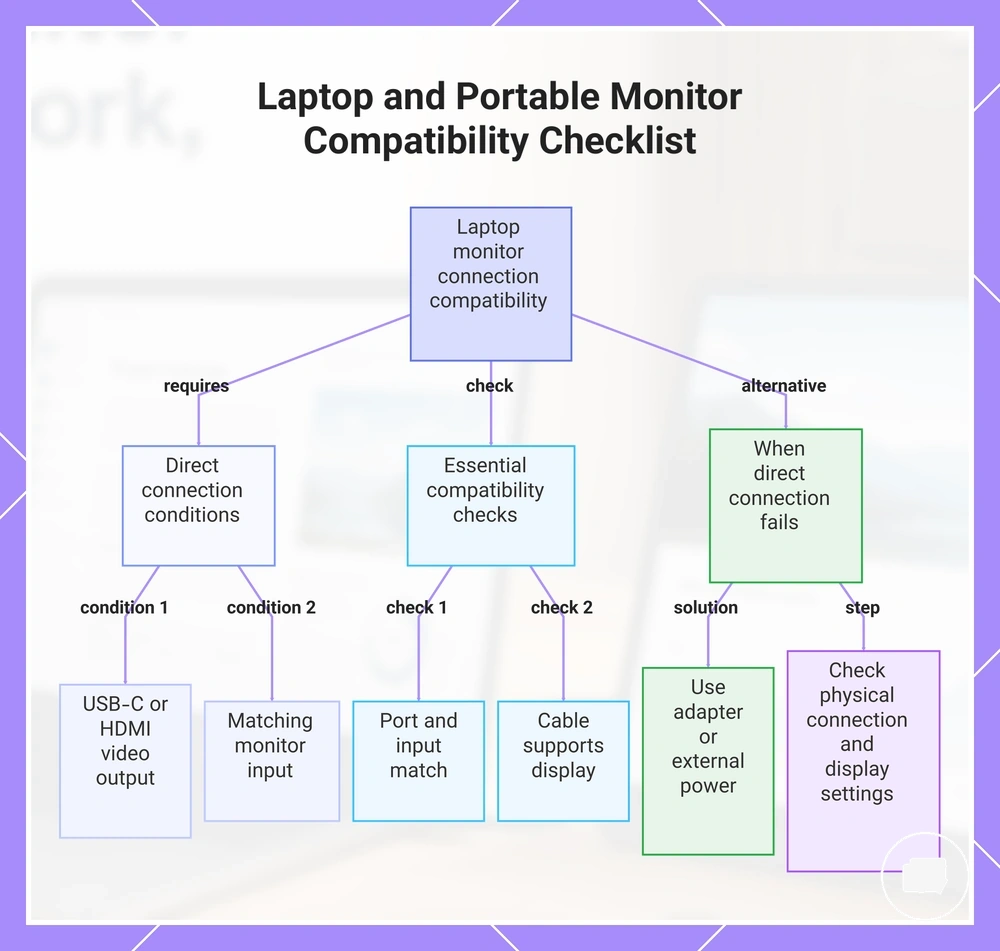
Laptop connection and power fit depends on matching the laptop port, monitor input, cable type, and power requirement. A portable monitor may connect directly when the laptop provides the required video output through USB-C or HDMI and the monitor supports the corresponding display input. If one of these conditions is missing, an adapter or separate power source may be required instead of a direct connection.
USB-C, HDMI, video output, and power requirement should be checked together because they determine both the display connection and power fit. A USB-C port does not necessarily support video output, and an HDMI connection may require separate power depending on the monitor and connection method. If the monitor draws more power than the laptop can supply, battery drain or an extra charger may become part of the setup.
Use the checklist below to verify the main compatibility conditions before connecting a portable monitor.
- Confirm that the laptop port matches the monitor input, such as USB-C or HDMI.
- Check that the laptop connection supports video output as well as power delivery when required.
- Use a cable type that supports the intended display connection rather than assuming every cable has the same capabilities.
- Review the monitor power requirement to determine whether laptop power is sufficient or whether an external charger may be needed.
- If an adapter is required, verify that it supports the necessary display signal for the selected connection.
- If the display reports no signal, confirm the physical connection and review the laptop display settings.
For a broader connection check, see laptop portable monitor compatibility. Compatibility depends on the complete connection path rather than a single port, cable, or adapter.
This chart shows the conditions for a direct connection, essential compatibility checks, and solutions when the connection fails for a laptop and portable monitor setup.
USB-C, HDMI, adapters, and pass-through power
USB-C, HDMI, adapters, and pass-through power depend on the connection method supported by both the laptop and the portable monitor. A single-cable USB-C setup may carry video support and power through one connection when both devices support those functions, while an HDMI connection typically requires a separate power connection. The appropriate option depends on the monitor input, laptop capabilities, and connection hardware rather than the connector alone.
Use the checklist below to compare the main connection conditions before connecting a portable monitor. Matching the connection method, cable quality, and power path can help reduce connection problems, but the final result depends on the supported specifications of the laptop, monitor, adapters, and accessories.
- Check whether the USB-C port supports both video support and power delivery before expecting a single-cable setup.
- If using HDMI, confirm whether the monitor input also requires a separate power connection.
- Use adapters that support the required display signal, as adapter compatibility depends on the intended connection.
- Choose suitable cable quality for the display connection because an unsuitable cable may contribute to a no signal condition.
- If using pass-through power, verify that the charger capacity is appropriate for the combined power draw of the laptop and monitor.
Second-screen modes and laptop display settings
Second-screen modes and laptop display settings determine how a portable monitor functions after the connection is complete. A connected monitor may not match the intended workflow until the appropriate display mode is selected and the display settings are adjusted. These checks focus on local display configuration rather than a full installation guide.
Use the steps below to review the primary display settings after the monitor is connected. Each setting influences how the second screen fits the workflow, and the preferred combination may vary by workspace and display layout. For guidance beyond these local display settings, see portable monitor second screen setup.
- Extend: Select extend when separate workspace across both screens better supports the intended workflow.
- Duplicate: Choose duplicate when the same content needs to appear on both displays.
- Orientation: Check the orientation so the displayed image matches the monitor's physical position.
- Scaling and resolution: Review scaling and resolution together to balance text clarity with usable screen space.
- Screen arrangement: Adjust the screen arrangement so cursor movement follows the physical placement of the laptop and portable monitor.
Portable monitor setup for work and travel
Portable monitor setup for work and travel depends on where the display will be used and how often the workspace changes. A fixed home desk may support a more permanent arrangement, while temporary desks and travel locations often benefit from a layout that is quick to position and easy to pack. Practical use depends on placement, stability, power access, and how consistently the setup can be repeated.
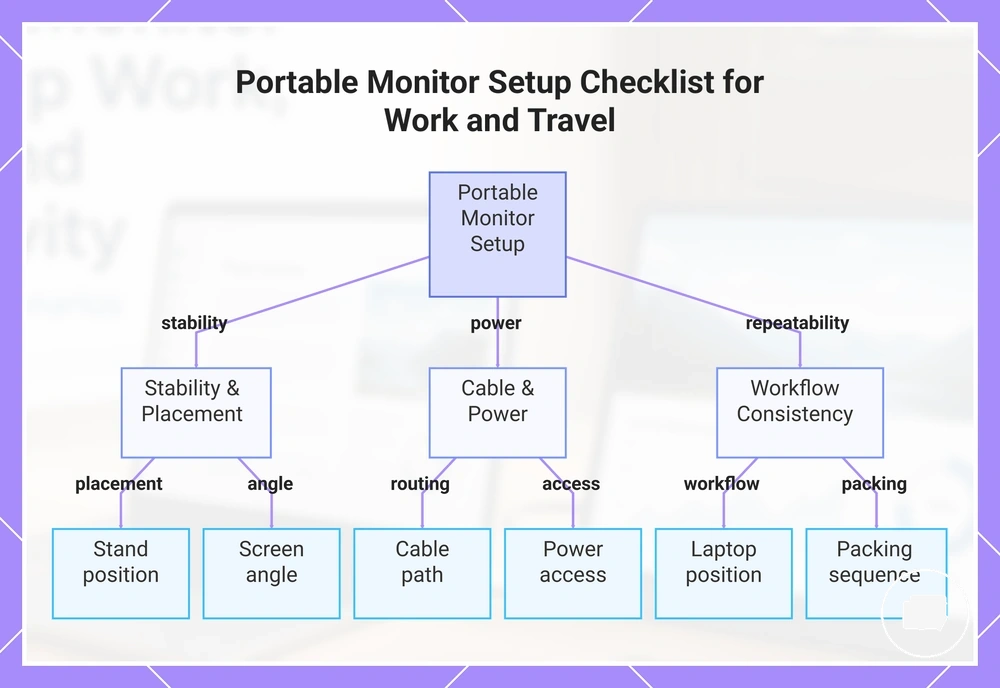
Stand position, screen angle, cable path, and laptop position should work together to support comfortable viewing and stable monitor placement. In shared spaces or temporary work areas, power access and desk layout may require a different cable path or monitor position. A repeatable arrangement can make it easier to recreate the same work setup across different locations.
Use the checklist below to review the main setup variables before starting work. Small adjustments based on the workspace can improve comfort and reliability while keeping the setup easy to repeat during travel.
- Stand position: Place the stand according to the available desk space so the monitor remains stable.
- Screen angle: Adjust the screen angle to suit the seating position and reduce unnecessary viewing strain.
- Cable path: Route the cable path to minimise tension and keep shared work areas easier to manage.
- Laptop position: Position the laptop so the second-screen arrangement supports comfortable viewing and efficient workflow.
- Power access: Choose monitor placement with available power access in mind, particularly in temporary or travel workspaces.
- Packing sequence: Use a consistent packing sequence after each session to help protect the monitor and simplify repeatable travel use.
This chart groups the key setup variables into three main categories: stability and placement, power and cable management, and workflow consistency and packing.
Stand, case, viewing angle, and ergonomic placement
Stand, case, viewing angle, and ergonomic placement affect viewing comfort and display stability during everyday use. A stable stand or support cover can help maintain consistent monitor placement, while the selected viewing angle should match the user's working posture and desk layout. The most suitable arrangement depends on the available workspace and placement conditions rather than the accessory itself.
Use the checklist below to review the main placement factors before beginning work. Small adjustments to support and positioning may improve comfort and stability, but the preferred posture can vary with monitor height, desk surface, and available workspace.
- Stand rigidity: Check that the stand or kickstand remains stable on the desk surface to help reduce wobble risk.
- Case angle: Adjust the case or support cover to create a viewing angle that matches the current seating position.
- Monitor height: Position the display so the monitor height aligns comfortably with the natural eye line when practical.
- Keyboard position: Arrange the keyboard position and laptop placement so typing remains comfortable without unnecessary reaching.
- Stability: On a small desk or in a shared workspace, confirm that the monitor remains stable after positioning because desk surfaces and available space may vary.
Cable control and power access in shared spaces
Cable control and power access in shared spaces reduce the risk of clutter, cable strain, and accidental disconnection during everyday use. A cable layout that suits the available workspace can help maintain a more reliable monitor connection, while accessible power reduces the need for awkward cable routing. The most suitable arrangement depends on the workspace and how the equipment is positioned.
Use the checks below to review cable and power conditions before starting work. Small adjustments to cable routing and charger placement may improve connection reliability, especially in shared spaces or temporary work areas where movement and changing layouts require extra caution.
- Cable length: Choose a cable length that reaches comfortably without leaving excessive slack that may increase clutter or cable strain.
- Connector orientation: Position the connector so the cable follows a natural path, helping reduce strain on the connection during normal use.
- Desk edge: Keep cables away from the desk edge where they may be more likely to catch or become accidentally disconnected.
- Charger location: Select a charger location that allows the power cable to reach the monitor without crossing frequently used areas.
- Pass-through power: If using pass-through power, confirm that it suits the intended setup because battery impact may vary with the laptop, monitor, and available power access.
How to choose a portable monitor for laptop work
Choosing a portable monitor for laptop work depends on the dominant work condition rather than a single specification. The most suitable decision comes from matching your work pattern, travel frequency, laptop compatibility, and display needs to the way the monitor will be used. These criteria provide a clearer decision fit than comparing products alone.
Your work pattern and travel frequency influence the balance between size, weight, and carrying comfort. Frequent travel may favour a lighter monitor with easier transport and clearer protection needs, while a mostly desk-based workflow may place greater value on additional screen area. A mixed work routine often benefits from balancing portability with everyday usability instead of prioritising only one attribute.
Laptop compatibility and display needs should be evaluated together before making a selection. Connection type, such as USB-C or HDMI, should match the laptop's supported connections, while display needs such as text clarity, brightness, and usable screen space should reflect the primary workload. Compatibility and display quality work together because either can limit the monitor fit if overlooked.
The decision table below compares common work situations with the attributes that usually deserve the most attention. Each row highlights the trade-offs that may accompany a particular choice rather than suggesting a universal option.
| Work need | Attribute to prioritize | Trade-off to accept | Better fit when |
|---|---|---|---|
| Travel-first | Lower weight, compact size, protection needs | Less screen area | Travel frequency is higher than desk use. |
| Productivity-first | Display needs, usable screen space, text clarity | Greater size and carrying weight | Long work sessions take priority over portability. |
| Compatibility-sensitive | Connection type and laptop compatibility | Accessory requirements may vary | Available ports or power support differ between devices. |
| Small-desk workspace | Compact size, stand or case design | Reduced viewing area | Desk space is limited or frequently shared. |
| Dual-screen workflow | Display quality and monitor size | Additional desk space and carrying effort | Multiple windows or document comparison are regular tasks. |
Choose a portable monitor by matching selection criteria to the way you actually work instead of focusing on a single feature. When travel, compatibility, display needs, and protection needs are evaluated together, the resulting monitor fit is more likely to support everyday laptop work without unnecessary compromises.
The products below are useful examples for comparing available options. Before buying, check that the compatibility criteria, key features, and product details match your needs.
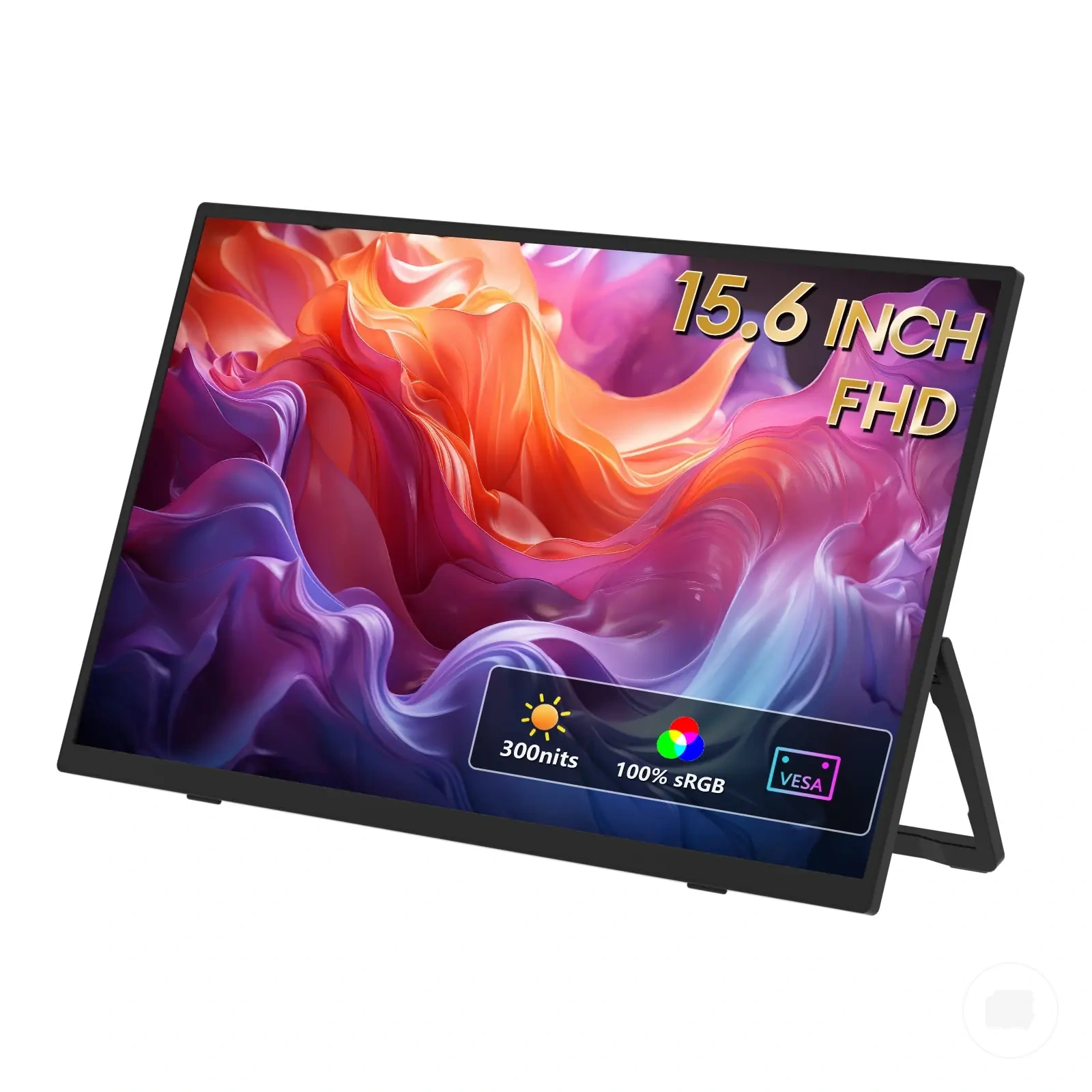
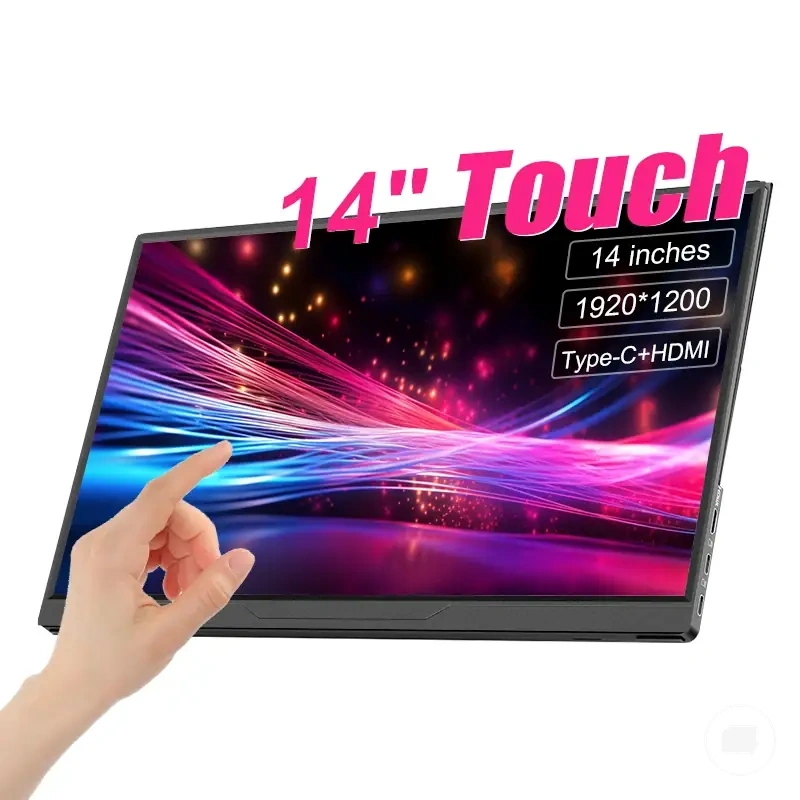
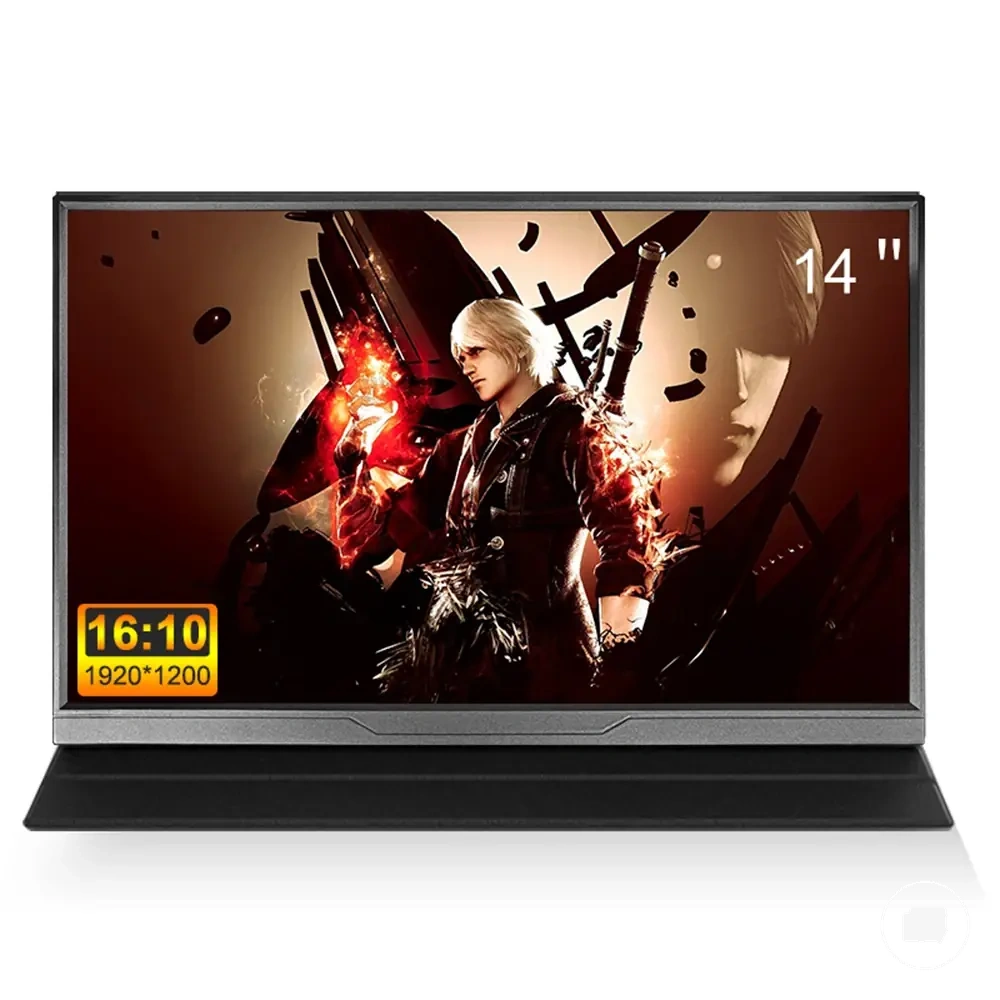
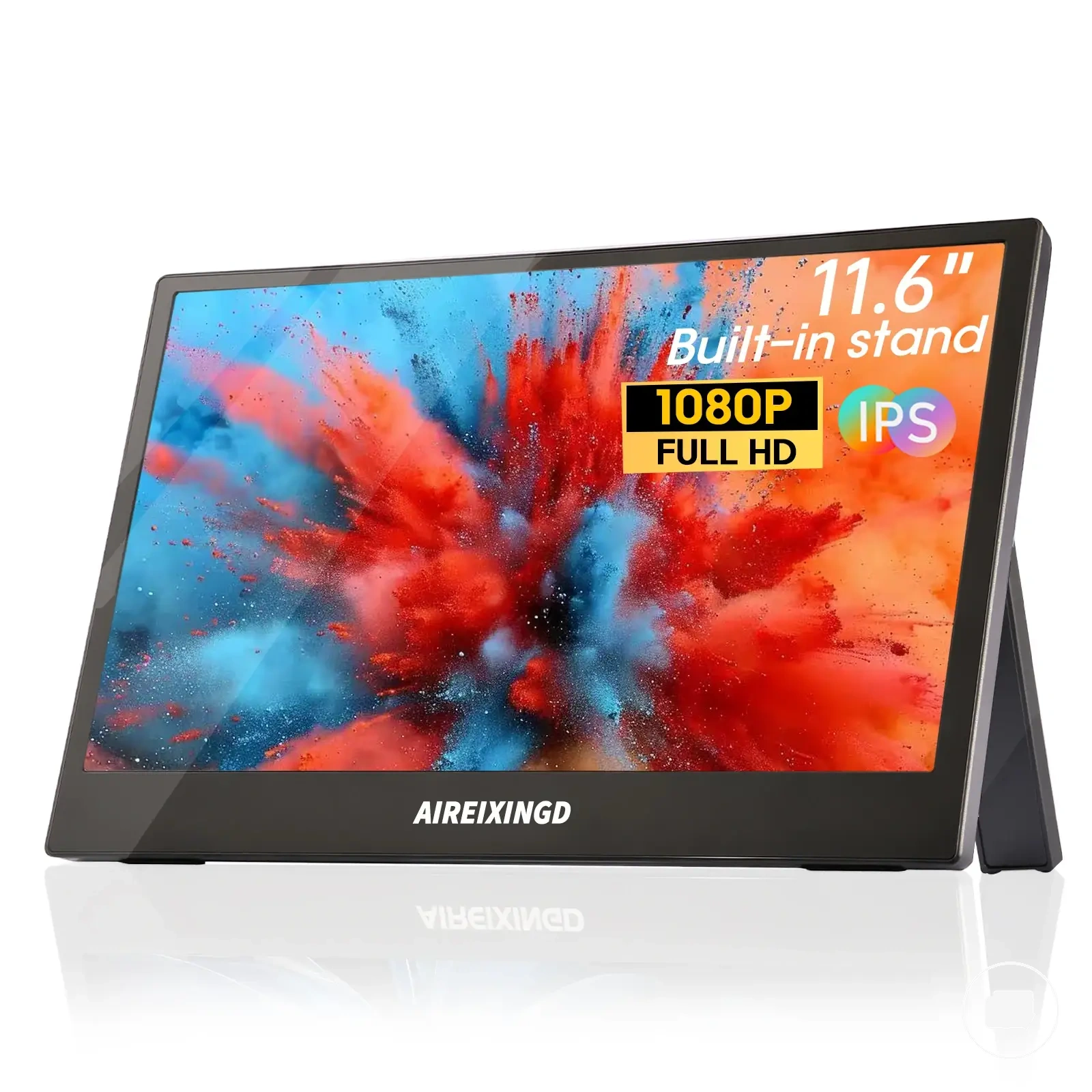
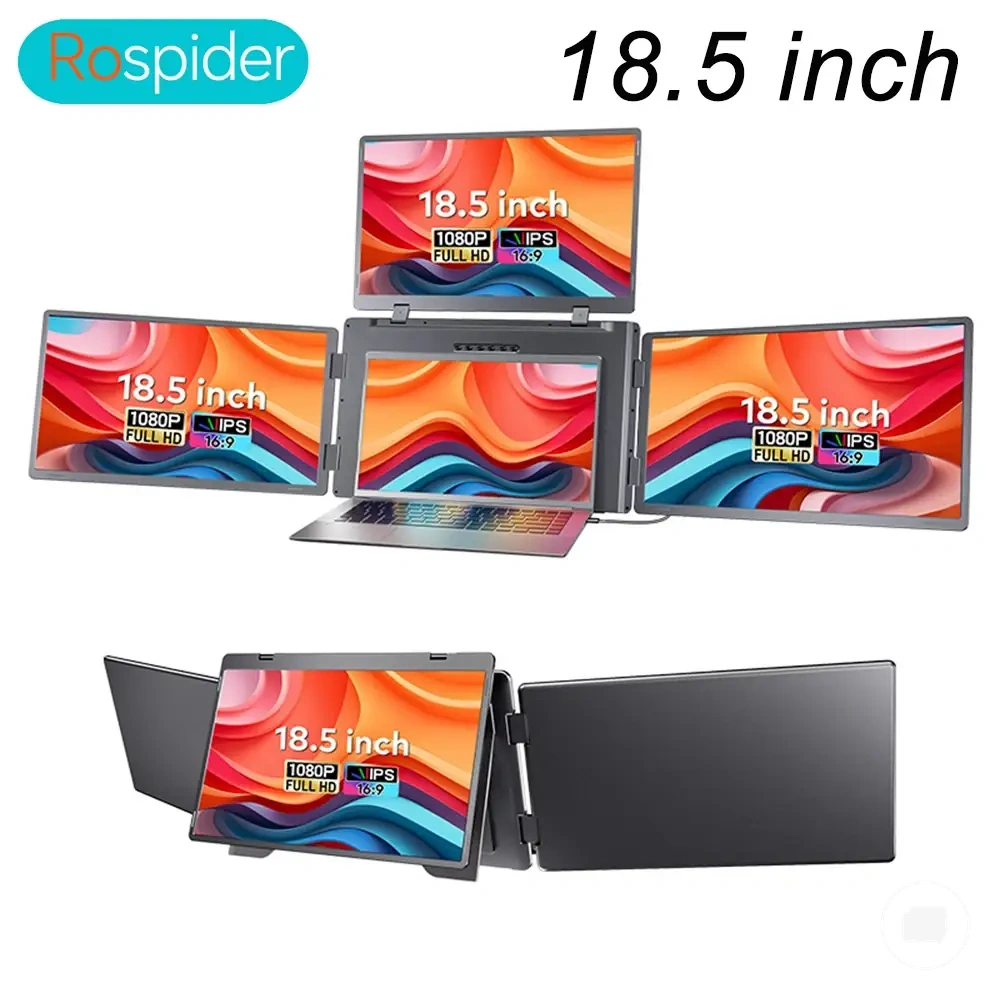
Lightweight travel-first monitor fit
A lightweight travel-first monitor is the better fit when frequent packing and temporary work locations shape how the monitor is used. Weight and thickness become primary selection criteria because they influence carrying comfort, bag fit, and day-to-day mobility. The right decision still depends on balancing portability with the screen space needed for laptop work.
Use the criteria below to compare travel-first attributes with their practical trade-offs. Each attribute can reduce setup friction during travel, but the overall monitor fit depends on how much screen-size compromise is acceptable for the intended work pattern.
- Weight: Lower weight can make carrying easier, but it may be paired with a smaller display or fewer physical features.
- Thickness: A slim portable monitor may fit more easily into a bag, while suitable case protection may add extra bulk.
- Case protection: Better case protection can help during frequent movement, but additional protection may reduce overall compactness.
- Cable simplicity: Fewer cables can lower setup friction in temporary work locations, but the connection method still depends on laptop compatibility.
- Screen-size compromise: A compact monitor can improve portability, while a larger display may provide greater viewing comfort for longer work sessions.
Larger or sharper productivity-first monitor fit
A larger or sharper productivity-first monitor is the better fit when usable workspace and reading comfort are more important than minimising carrying burden. Screen size, resolution, and scaling should be evaluated together because they influence text clarity and day-to-day usability rather than acting as independent advantages. The right decision depends on balancing workspace benefits with the practical limits of bag fit and transport.
The comparison below highlights when a larger or sharper display may justify additional carrying burden. Compare each productivity benefit with its portability trade-off before deciding which monitor fit better matches your work pattern.
| Productivity-first benefit | Carrying or setup trade-off |
|---|---|
| Larger screen size can provide more usable workspace and reduce frequent window switching. | A larger monitor may require more desk space and can make bag fit less convenient. |
| Higher resolution with suitable scaling can improve text clarity and document readability. | The benefit depends on preferred scaling, which may reduce the amount of usable workspace. |
| A sharper display may make extended reading more comfortable. | A sharper display may also increase carrying burden if it is paired with a larger monitor. |
| A productivity-first monitor fit may better support document comparison and multi-window work. | The additional screen area is worthwhile only when the extra size and weight suit the regular work pattern. |
Dual-screen and screen-extender options for laptop workflows
Dual-screen and screen-extender options for laptop workflows are worthwhile only when the workflow and available workspace support the additional display arrangement. More screens do not automatically improve productivity because the right fit depends on screen space, portability, connection requirements, and setup complexity. For most users, screen-extender options remain a secondary consideration within portable monitor selection rather than a separate product category.
Use the checklist below to decide whether a dual-screen or screen-extender setup matches your laptop workflow. Each condition should be verified before adding another display because extra screens can also increase setup complexity and carrying requirements.
- Number of screens: Choose the number of screens based on how many applications need to stay visible during laptop workflows.
- Hinge or mount style: Confirm that the hinge or mount style is suitable for the intended laptop size and provides stable support.
- Desk width and weight: Check that available desk width accommodates the extra display and that the added weight suits regular travel.
- Power demand: Consider whether the additional display arrangement may increase power demand or require extra cables, depending on the connection method.
- Setup complexity: Choose a dual-screen or screen-extender configuration only when the added setup complexity matches the intended workflow and working environment.
Travel protection and frequent-movement needs
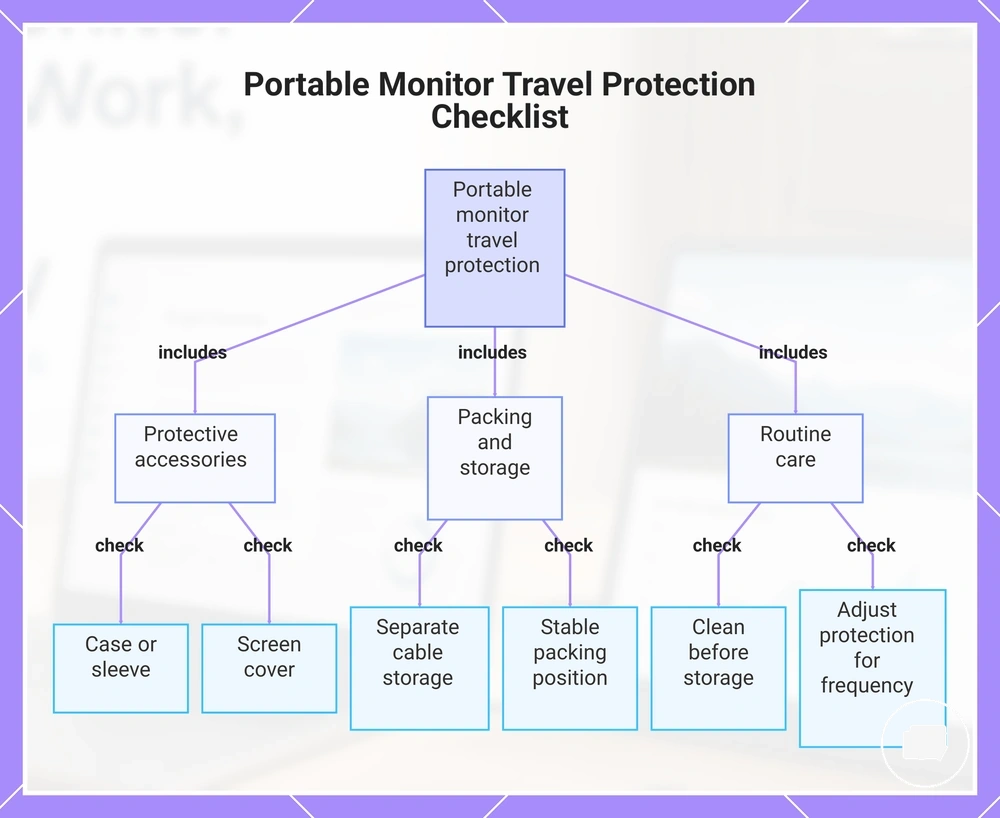
Travel protection becomes more important as frequent movement increases because portable monitors are repeatedly packed, carried, and repositioned. Thin displays can benefit from handling practices that reduce pressure, scratches, cable stress, and movement inside a bag. The appropriate level of protection depends on transport frequency and how the monitor is carried.
Pressure from tightly packed bags, contact with hard objects, and repeated bag movement may increase damage risk over time. Cable stress can also develop when connectors are left under tension during transport or storage. Suitable carrying protection and thoughtful packing can help reduce these risks without implying that damage can always be prevented.
The checklist below outlines practical maintenance needs for regular travel and commuting. These points focus on reducing common handling risks rather than recommending specific accessories, and they remain part of portable monitor care rather than a product catalog.
- Protective case or sleeve: Use a protective case or sleeve to help reduce exposure to pressure, scratches, and bag movement.
- Screen cover: A screen cover can help limit direct contact with other items during transport.
- Cable storage: Store cables separately or loosely to reduce cable stress and help protect connectors.
- Packing position: Choose a stable packing position that limits unnecessary movement inside the bag.
- Cleaning: Clean the monitor carefully before storage so dust and debris are less likely to affect the screen surface during transport.
- Transport frequency: Daily commuting, flights, coworking spaces, or shared bags may require more consistent carrying protection because handling conditions change more often.
For more detailed guidance, see protect a portable monitor while travelling. The level of protection should reflect how often the monitor is moved and the conditions in which it is carried.
Regular maintenance is usually based on careful handling rather than heavy-duty accessories. Reviewing travel protection, cleaning practices, and storage habits after frequent use can help reduce damage risk over time while keeping the monitor ready for everyday travel.
The products below are useful examples for comparing available options. Before buying, check that the compatibility criteria, key features, and product details match your needs.
This chart groups the essential protection measures, storage practices, and routine care for reducing damage risk when traveling with a portable monitor.