
Portable Monitor Buying Guide for Compatible Second-Screen Use
A portable monitor is a portable display used as a second screen for a compatible laptop, phone, tablet, console, or other connected device. It can extend a workspace for travel, study, work, gaming, or temporary desk use, but this buying guide treats the portable monitor as a decision-support category rather than a product ranking.
A user usually compares a portable monitor because portability, compatibility, display quality, and price can change the value of the setup. USB-C, HDMI, power needs, adapter use, and operating system behaviour can affect whether the screen connects cleanly. Screen size, resolution, and brightness can affect comfort and visibility. A stronger buying decision depends on matching those conditions to the device and use case.
This page helps users decide whether a portable monitor fits their second-screen need before they compare features, setup steps, or price ranges. It starts with broad fit and compatibility, then moves into screen attributes, connection conditions, use cases, buying criteria, value, setup basics, risks, and common questions.
A portable monitor is not automatically compatible, battery-powered, or better than a regular monitor. The right choice depends on the laptop or device output, cable path, available power, display expectations, workspace, and how often the screen needs to move.
What a Portable Monitor Is and Where It Fits
A portable monitor is a lightweight external display used as a second screen for a compatible connected device. It is designed to be easier to carry than a typical desktop display while expanding available screen space for work, study, travel, or entertainment. Its primary role is to provide an additional display rather than replace the main device.
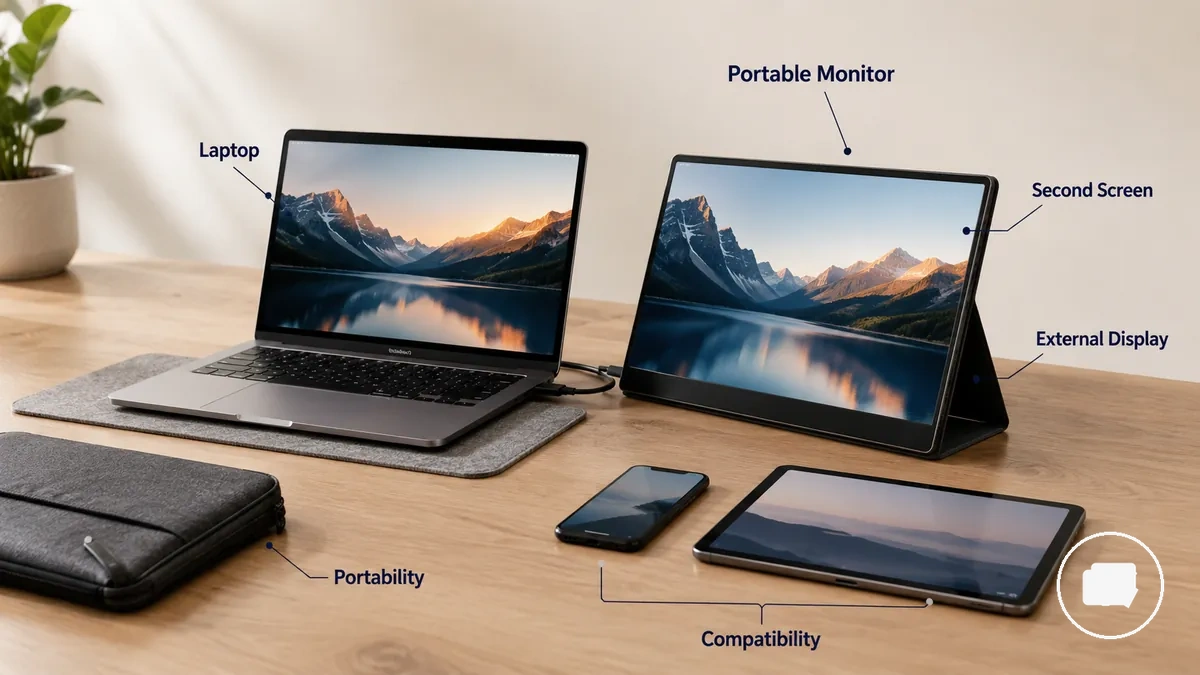
A portable monitor may be used with a laptop, phone, tablet, console, or another compatible connected device, depending on available connectors, power requirements, and device support. Readers looking for a deeper explanation can continue to what a portable monitor is. Its portability suits both travel and a temporary desk setup, but compatibility still depends on the connected device, supported connections, and available power.
A portable monitor differs from a regular monitor because it prioritises lightweight portability, and it differs from a tablet because it functions primarily as an external display rather than a standalone computing device. Portable does not automatically mean battery-powered, touchscreen, or suitable for every device. Understanding these boundaries provides a clearer foundation before evaluating features and comparing options.
Portable Monitor Features That Affect Real-World Use
The most useful portable monitor features depend on the intended use case and the connected device. Features have the greatest value when they improve usability, comfort, visibility, or portability instead of simply adding more specifications. Evaluating each feature by its practical effect provides a clearer basis for comparing options.
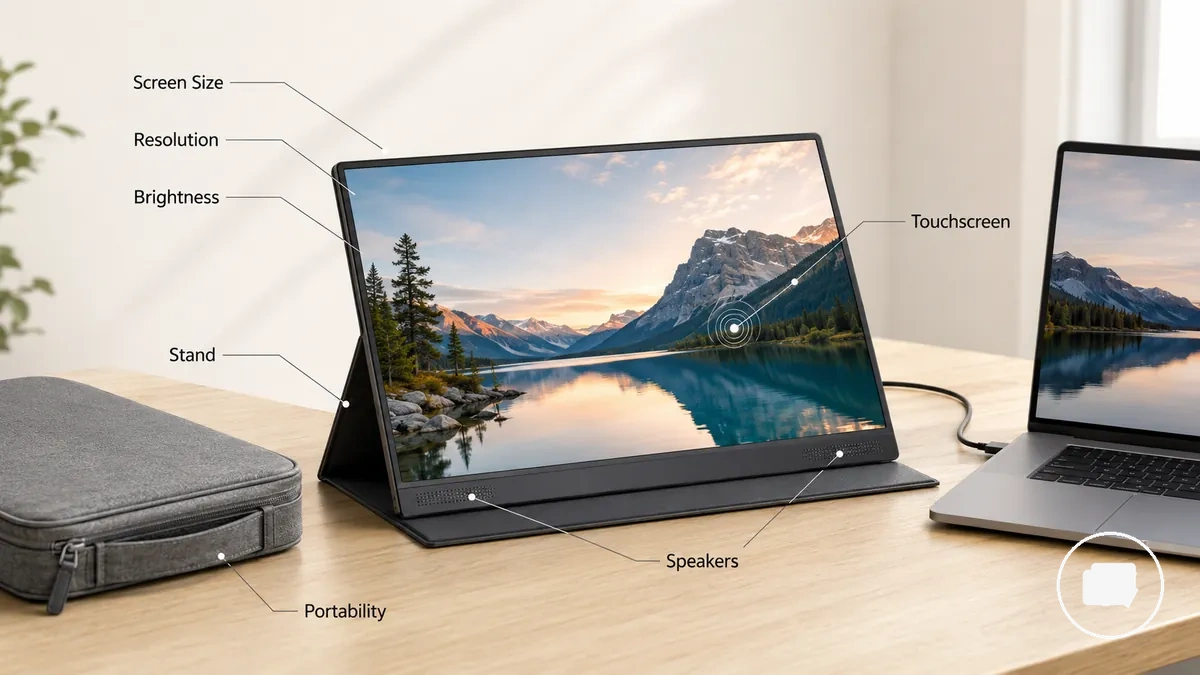
For reading, study, or office tasks, screen size, resolution, and display quality can affect readability and viewing comfort. Brightness may become more important in changing lighting conditions, while portability, weight, and thickness often matter more for travel. Convenience features such as a touchscreen, stand, case, or speakers can improve setup comfort for some users, although each may involve trade-offs in price, size, or everyday practicality.
Rather than comparing long lists of specifications, focus on the features that support the way the monitor will actually be used. The table below connects common features with their practical effects and highlights important buying cautions.
| Feature | Attribute or condition | Practical effect | Buying caution |
|---|---|---|---|
| Screen size | Matched to workspace and travel needs | Balances readability with portability | Larger displays may be less convenient to carry |
| Resolution | Level of display detail | Can improve text clarity and reading comfort | Higher resolution may not benefit every use case equally |
| Brightness | Viewing environment | Can improve visibility under different lighting conditions | Brightness needs vary by location and usage |
| Display quality | Panel characteristics | Influences viewing comfort and image appearance | Overall quality depends on multiple display attributes |
| Touchscreen | Interactive input support | May improve convenience for suitable tasks | Touch functionality depends on connected device support |
| Stand, case, speakers | Convenience features | Can improve setup comfort, portability, and everyday use | Extra features may increase price without helping every user |
More features do not automatically provide better value. A portable monitor is often a better fit when its features match the intended workflow, travel habits, and connected device instead of offering the longest specification list.
Screen Size, Resolution, Brightness, and Display Quality
Screen attributes affect reading comfort, visibility, and display quality differently depending on the task and viewing conditions. Screen size, resolution, brightness, colour quality, panel type, and screen finish work together to influence the overall viewing experience. Evaluating these display attributes together provides a more useful basis than comparing individual screen specs in isolation.
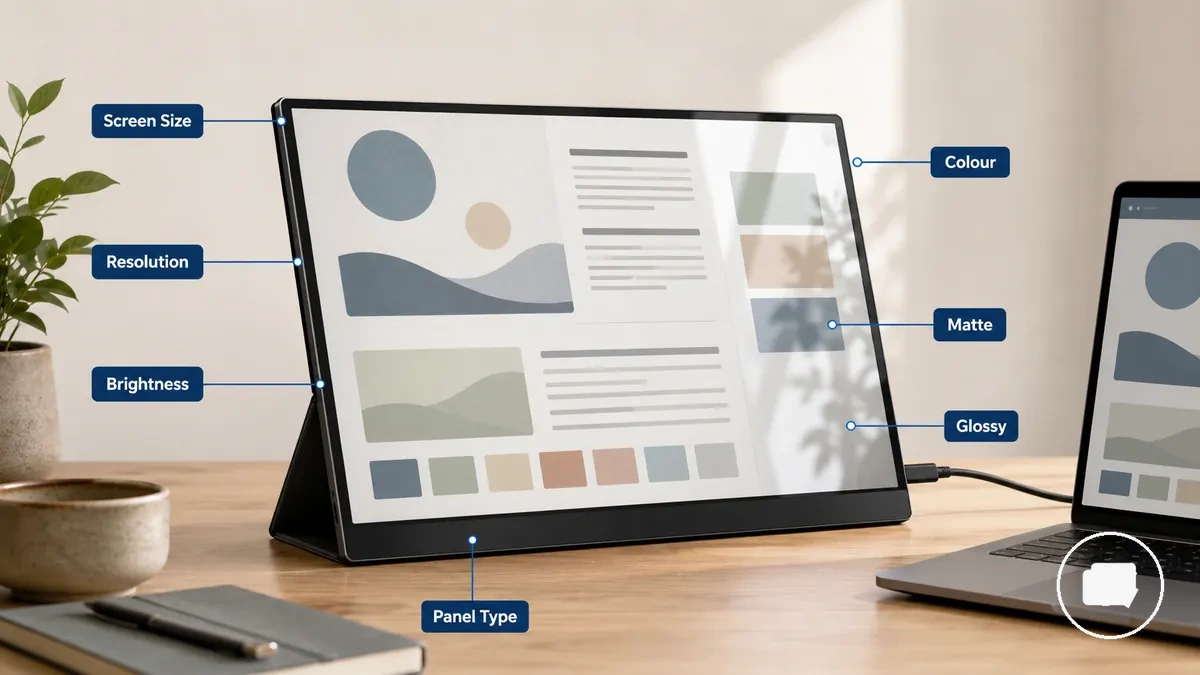
For laptop work, an appropriate screen size and resolution can improve readability while maintaining portability. In bright rooms or when travelling, brightness, panel type, and the choice between a matte or glossy finish may affect visibility, glare, and visual comfort. The table below shows how common screen attributes influence comfort and suitability across different viewing conditions.
| Screen attribute | Value or condition | Effect | When it matters |
|---|---|---|---|
| Screen size | Matched to workspace and portability | Balances reading comfort with available workspace | Desk work, travel, and multitasking |
| Resolution | Higher text and image detail | Can improve sharpness and readability | Document editing and detailed visual content |
| Brightness | Adapted to viewing conditions | Can improve visibility under different lighting | Bright rooms and changing environments |
| Colour quality and panel type | Display characteristics | Influence visual quality and colour appearance | Media viewing and colour-sensitive tasks |
| Finish | Matte or glossy | Affects glare and perceived screen appearance | Different lighting environments |
Higher resolution or brightness does not automatically create a better viewing experience because the most suitable combination depends on portability, viewing conditions, and intended use. When comparing display attributes, begin with the portable monitor screen size that fits your workspace, then evaluate the remaining screen characteristics together.
Touchscreen, Stand, Case, Speakers, and Portability Features
Secondary features influence handling, protection, desk placement, input style, and travel convenience more than core display performance. Touchscreen support, a stable stand, a protective case, built-in speakers, and portability features can improve everyday use when they match the intended setup. The most useful features depend on whether they solve a practical need rather than simply adding accessories.
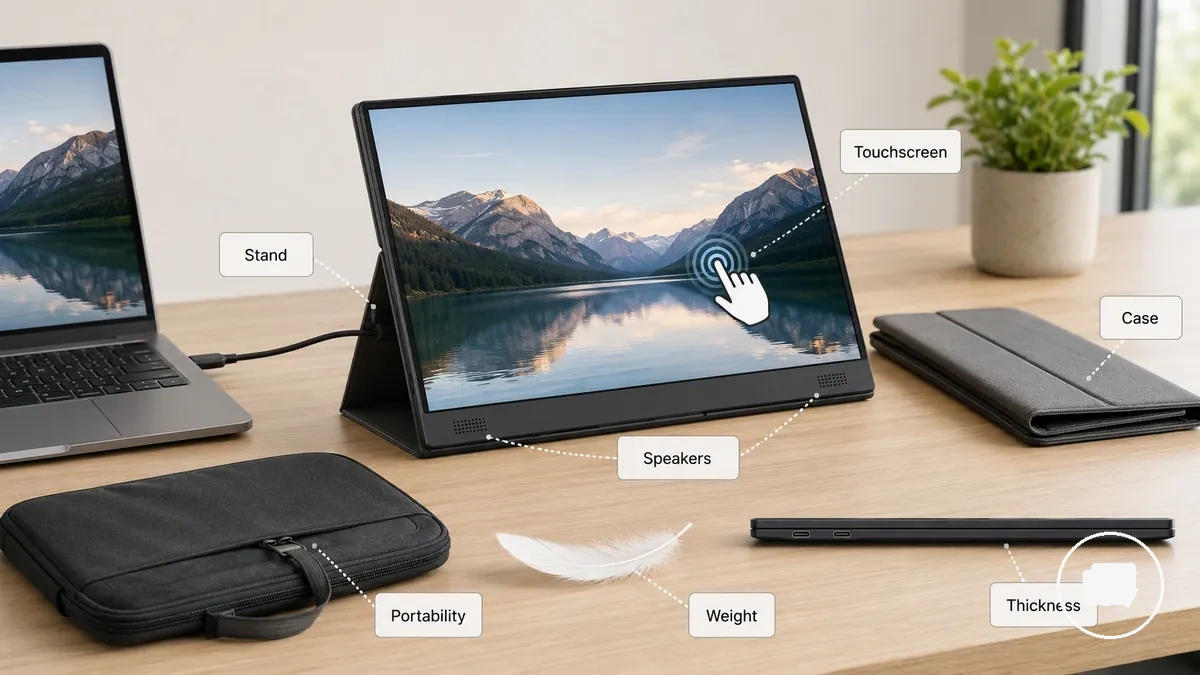
Choosing accessories based on real usage can help create a more practical setup for work or travel. If a feature increases cost, weight, thickness, or compatibility limits without supporting the intended workflow, it may offer less overall value. The following feature relationships highlight common benefits and trade-offs.
- Touchscreen: Can provide direct input for compatible devices, but functionality depends on device support and intended use.
- Stand or kickstand: Can improve desk placement, viewing angle, and stability, although stand designs vary in adjustability.
- Case or folding cover: Can add protection during transport and may double as a stand, but it can increase carrying weight or thickness.
- Built-in speakers: May offer convenient audio for casual listening, although separate speakers or headphones may still be preferred in some situations.
- Cable storage: Can simplify carrying and setup by keeping accessories organised, but available storage depends on the monitor design.
- Weight and thickness: Lower weight and a slimmer profile can improve portability and travel convenience, but these features should be balanced with handling comfort and overall feature requirements.
Portable Monitor Compatibility Conditions
Portable monitor compatibility depends on device output support, connection type, power delivery, and operating system behaviour. A successful connection requires the device, display signal, and power requirements to work together, so compatibility depends on the specific hardware and software configuration.
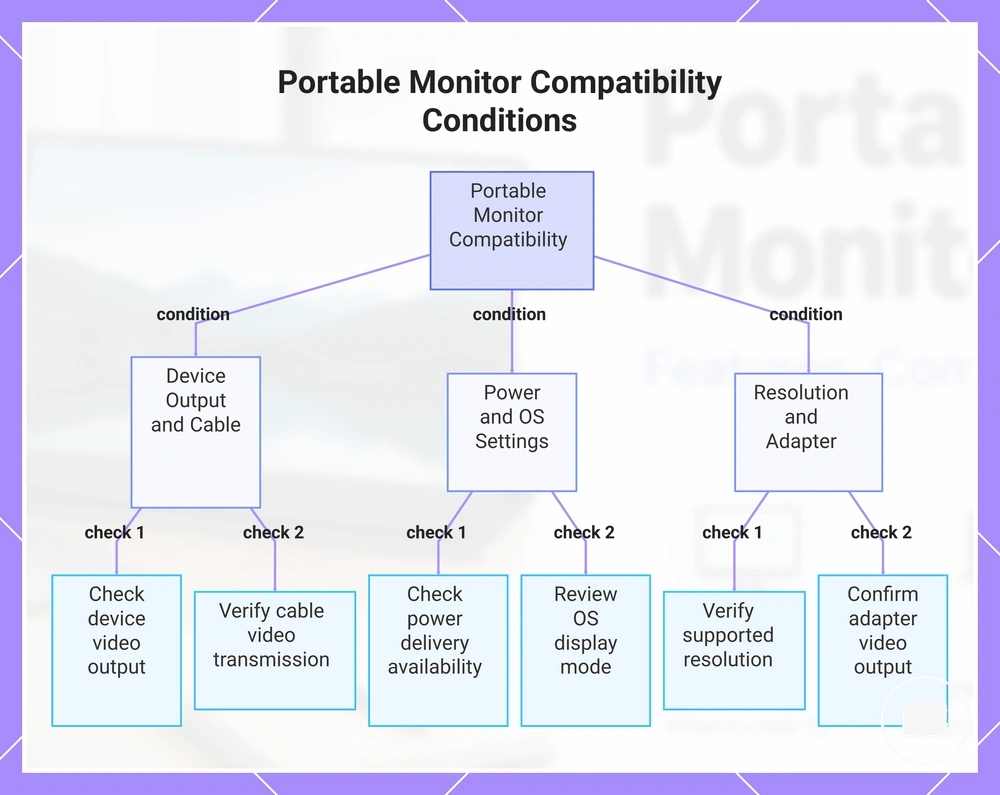
A matching connector shape alone is not enough because USB-C, HDMI, cables, adapters, power delivery, and driver or operating system support can all influence the result. For example, a USB-C connector may not provide video output, and an HDMI connection may still require separate power depending on the devices involved. Before troubleshooting, use this portable monitor compatibility guide to verify the key conditions.
- Confirm that the device output supports a display signal through the available USB-C or HDMI port.
- Verify that the cable matches the required connection type and supports video transmission.
- Check whether power delivery is available or whether the portable monitor may require a separate power source.
- Review the operating system display settings to confirm the correct display mode is enabled.
- Verify that the selected resolution is supported by both the device and the portable monitor.
- If an adapter is required, confirm that it supports video output rather than only changing the connector type.
When connecting a laptop, phone, tablet, or console, compatibility can vary because device output, operating system behaviour, and resolution support differ between devices. Checking each compatibility condition individually is usually more reliable than assuming a matching connector guarantees a working display. If uncertainty remains, use the checklist to verify each condition before moving to setup or troubleshooting.
This chart shows the key conditions to verify for portable monitor compatibility, grouped by device output and cable, power and OS settings, and resolution and adapter checks.
USB-C, HDMI, Power, and Adapter Requirements
USB-C, HDMI, power, and adapter requirements determine whether a portable monitor receives the correct display signal and sufficient power. Before connecting the monitor, confirm that the selected port, cable, and power source meet the required compatibility conditions.
USB-C can carry both video output and power when the device and monitor support the necessary features, while HDMI normally carries the display signal and may require a separate power source. Mini HDMI performs the same display-signal role as standard HDMI but requires a compatible cable or adapter. For more connection details, see portable monitor ports and power. The table below compares the key connection requirements.
| Connection item | What to check | Why it matters | Common limitation |
|---|---|---|---|
| USB-C | Video output and power delivery support | Can carry the display signal and power through one cable | Some USB-C ports do not support video output |
| HDMI | Display signal connection | Transfers video to the portable monitor | May require a separate power source |
| Adapter | Video signal compatibility | Allows compatible connections between different port types | Not every adapter supports a display signal |
| Power source | Available power and pass-through charging | Helps maintain stable monitor operation | An underpowered connection may prevent normal operation |
| Cable quality | Support for the required signal and power | Helps maintain a compatible connection | Not every cable supports the required features |
A USB-C connector without video output cannot provide a display signal even if the cable fits, and an HDMI connection may still require separate power depending on the connected devices. Checking the port, cable, adapter, and power source together provides a more reliable way to assess compatibility than relying on the connector shape alone.
Laptop, Phone, Tablet, Console, and Operating System Fit
Device category alone does not determine whether a portable monitor is compatible. Compatibility depends on the device's video output, operating system behaviour, display settings, and available power. Check the device specifications before assuming that a laptop, phone, tablet, or console supports an external display.
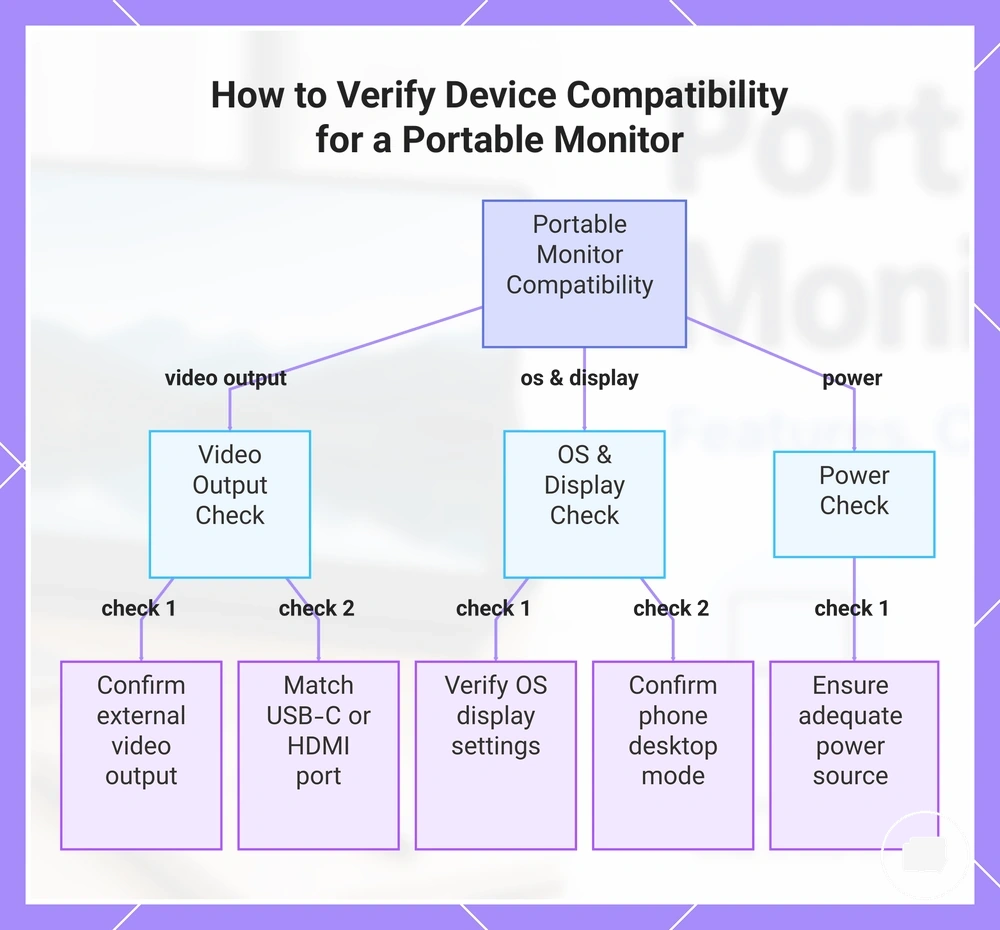
A laptop may support an external display through USB-C or HDMI when the required video output is available, while a phone may also require a supported desktop mode. A tablet or console can behave differently depending on device support, operating system display settings, and available power, and restricted work laptops may also limit external display functions through system policies. Use the checklist below to verify device fit before connecting the monitor.
- Confirm that the laptop, phone, tablet, or console supports external video output.
- Check that the available USB-C or HDMI port matches the required display connection.
- Verify that the operating system display settings or display mode allow an external screen.
- If using a phone, confirm that a supported desktop mode is available when required.
- Ensure that the connected device and monitor have an appropriate power source for the intended setup.
This chart outlines the essential checks to confirm whether a laptop, phone, tablet, or console will work with a portable monitor.
Portable Monitor Use Cases and Second-Screen Fit
A portable monitor fits best when mobility and extra screen space matter. It serves as a second screen for situations where a permanent display is less practical, so the right use case depends on workspace, mobility, power access, and display expectations.
A work, travel, or study setup may benefit from a second display when extra screen space supports the intended workflow without adding a full-sized monitor. Productivity, gaming, and creative review can also benefit in suitable conditions, although the outcome depends on workspace, power access, display quality, and the connected device. The comparison below highlights where a portable monitor is often a stronger fit and where expectations should remain more cautious.
| Strong fit | Weak fit |
|---|---|
| Work or travel where a lightweight second screen supports a portable workspace | Fixed workspaces where a permanent desktop monitor already meets the need |
| Gaming when the console, HDMI connection, power access, and display expectations are suitable | Gaming that depends on display characteristics beyond a typical portable setup |
| Creative review when display quality, colour, and resolution suit the required task | Colour-critical work requiring specialised display performance |
| Small desk environments where additional screen space is needed | Large permanent desks where portability adds limited practical value |
| Temporary setup for study, meetings, shared workspaces, or short-term use | Long-term fixed installations with little need for mobility |
A portable monitor does not provide the same value in every use case. Productivity, gaming, and creative review may benefit when workspace, mobility, power access, and display expectations align with the intended setup. A stronger fit usually depends on those conditions rather than on the portable monitor alone.
Work, Travel, Productivity, Gaming, and Creative Use
Different use cases change which portable monitor features deserve the most attention. The grouped examples below show how feature priorities can shift between work, travel, productivity, gaming, creative use, and casual second-screen tasks while keeping the focus on practical fit.
No single feature priority fits every use case. The most suitable choice depends on the intended activity, connection type, workspace, and display expectations.
- Work and productivity: Prioritise screen size and text clarity for document work. A larger display may be less practical when desk space or portability is limited.
- Travel: Prioritise low weight, setup convenience, and available power. Travel convenience may depend on the connection type and how often the monitor is moved.
- Gaming: Refresh rate and HDMI support can matter more than office-focused features. Gaming suitability depends on the connected device and display expectations.
- Creative use: Prioritise colour quality, resolution, and brightness for creative review. Colour-sensitive tasks may require display characteristics that match the intended work.
- Casual second-screen use: Prioritise setup convenience and a suitable connection type for everyday browsing or media. Extra display features may add limited value for simple use.
- Temporary portable workspace: Balance weight, brightness, and connection type for flexible setups. The most practical choice depends on where and how often the monitor is used.
Portable Monitor Buying Criteria
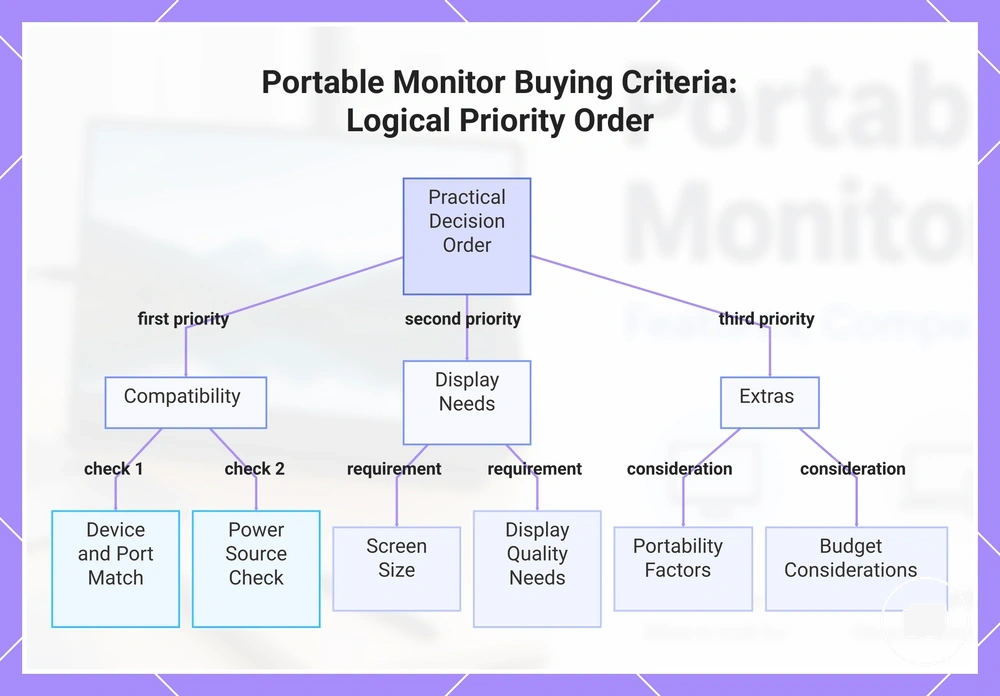
Portable monitor buying criteria should start with compatibility and the intended use case before comparing optional features. Confirm that the monitor suits your device, workspace, and everyday needs before evaluating display preferences or convenience features. A practical decision order is compatibility first, display needs second, and extras only after the core requirements are satisfied.
Selection becomes easier when buying criteria are filtered in a logical order instead of giving equal importance to every specification. Match screen size, resolution, and brightness to the intended display need, then consider portability, stand quality, and other extras only if they support the planned setup. The decision checklist below helps narrow the choice without overvaluing optional features.
- Compatibility: Check that the device, port, connection type, and power needs support the monitor because compatibility determines whether it can be used as intended.
- Screen size: Choose a size that suits the workspace and use case because larger displays may reduce portability.
- Resolution: Match the resolution to reading, productivity, or visual tasks because higher detail may not improve every workflow.
- Brightness: Consider typical lighting conditions because display visibility depends on the viewing environment.
- Weight: Evaluate how often the monitor will be carried because frequent travel may favour a lighter design.
- Stand quality: Check whether the stand provides stable positioning because setup comfort depends on the available workspace.
- Connection type: Confirm that the available USB-C or HDMI connection matches the intended setup because adapter requirements can vary.
- Power needs: Verify whether the monitor can operate from the available power source because this affects everyday setup convenience.
- Warranty signals and price: Compare warranty terms together with the purchase budget because paying more for additional features may provide limited value when the core requirements are already met.
Budget, travel frequency, and workspace can change which buying criteria deserve the highest priority. A travel-focused setup may place greater emphasis on weight, while a permanent workspace may prioritise display quality. The most suitable portable monitor is usually the one that satisfies compatibility and display needs before optional extras.
This chart shows the recommended decision order for selecting a portable monitor, starting with compatibility, then display needs, and finally extras.
Matching Size, Weight, Display Needs, and Budget
Size, weight, display needs, and budget should be balanced rather than maximized when selecting a portable monitor. The most suitable choice depends on how these criteria work together, because improving one area may involve trade-offs in portability, workspace fit, display quality, or overall value.
A compact travel setup may prioritise lower carry weight, while laptop productivity may benefit from a screen size that suits the available desk space. Sharper text needs may justify higher resolution, and brighter environments may increase the need for additional brightness when visibility becomes more challenging. Budget-limited purchases often benefit from matching the feature tier to practical display needs rather than paying for features that may not be used. The table below organises these trade-offs by buyer condition.
| Buyer condition | Size or weight priority | Display need | Budget caution |
|---|---|---|---|
| Travel | Lower carry weight and easier portability | Choose a screen size that balances visibility with portability | A lighter design may involve trade-offs in the feature tier |
| Laptop work | Screen size suited to available desk space | Resolution that supports comfortable text readability | Extra features may increase cost without improving everyday work |
| Sharp text | Workspace fit remains important | Higher resolution may improve readability when detailed text is a priority | Higher display specifications may provide limited value for simpler tasks |
| Bright rooms | Size should still match the workspace | Greater brightness may improve visibility in stronger lighting conditions | Additional brightness is most useful when the viewing environment requires it |
| Budget-limited purchases | Balance portability with practical use | Match display needs to everyday tasks | Choose a feature tier that meets core requirements before optional extras |
Balancing Features Against Portability and Price
Extra features are worthwhile only when they solve a real use-case constraint. Features can improve convenience or display capability, but they may also increase price, weight, or power requirements. The strongest value usually comes from selecting upgrades that match the intended use rather than choosing the highest feature tier.
It is a common misconception that higher specifications always provide a better purchase. In practice, upgrades such as a touchscreen, 4K resolution, or a higher refresh rate may add cost, weight, or compatibility complexity without improving every workflow. The trade-offs below distinguish features that may be necessary for specific situations from upgrades that are simply nice to have.
- Touchscreen: May help when direct input supports the connected device, but it can increase price and depends on compatible hardware and software.
- 4K resolution and higher refresh rate: May suit users with specific display needs, but these upgrades can increase power demand and cost without adding value for every use case.
- Higher brightness: Can improve visibility in brighter environments, but the upgrade may increase price when those conditions are uncommon.
- Built-in stand and case: Often improve portability and setup convenience, although they can add weight or increase the overall feature tier.
- Speakers and battery: May provide added flexibility for portable use, but they can increase weight, price, or charging requirements.
- Accessory bundles: Can simplify setup when the included extras match the intended use, but bundled items may offer limited value if they are unlikely to be used.
Portable Monitor Price and Value Ranges
Portable monitor price range usually reflects feature tier, display quality, connectivity, and included accessories, but it varies by market and model. Higher price tiers may include specialist features, while lower price tiers can still provide value when they match the intended use. Buying value depends on feature expectation rather than price alone.
Temporary offers and merchant-specific claims can change, so they should not drive the value judgment. A better approach is to compare the expected features against the intended use and likely trade-off. For broader criteria, use portable monitor price and value as a value-check framework.
Budget tiers often focus on basic display quality and essential connectivity for simple second-screen use. Mid-range tiers may add stronger connectivity, brightness, accessories, or stand quality for more frequent use. Premium tiers may include specialist features such as 4K, touchscreen support, or higher refresh rate when those upgrades match a specific workflow. The table below organises value expectations by price tier.
| Value tier | Likely feature pattern | Best-fit condition | Caution |
|---|---|---|---|
| Budget | Basic display quality, standard connectivity, fewer accessories | General productivity and portable second-screen use | Feature trade-offs may limit specialist use |
| Mid-range | Improved connectivity, brighter display, stand or accessories | Frequent work, travel, and balanced everyday value | Extra features should match actual display needs |
| Premium | Specialist features such as 4K, touchscreen, or higher refresh rate | Users with specific display or workflow requirements | Higher cost may provide limited benefit for simpler tasks |
The table separates price tier from actual user need because a higher tier is not automatically the better value. Display quality, connectivity, accessories, and specialist features should be weighed against the intended use and the trade-off each tier introduces.
A portable monitor usually provides stronger buying value when its feature expectation matches real requirements instead of simply occupying a higher price range. Choose based on the use case, display need, and connectivity requirements before treating price as the final deciding factor.
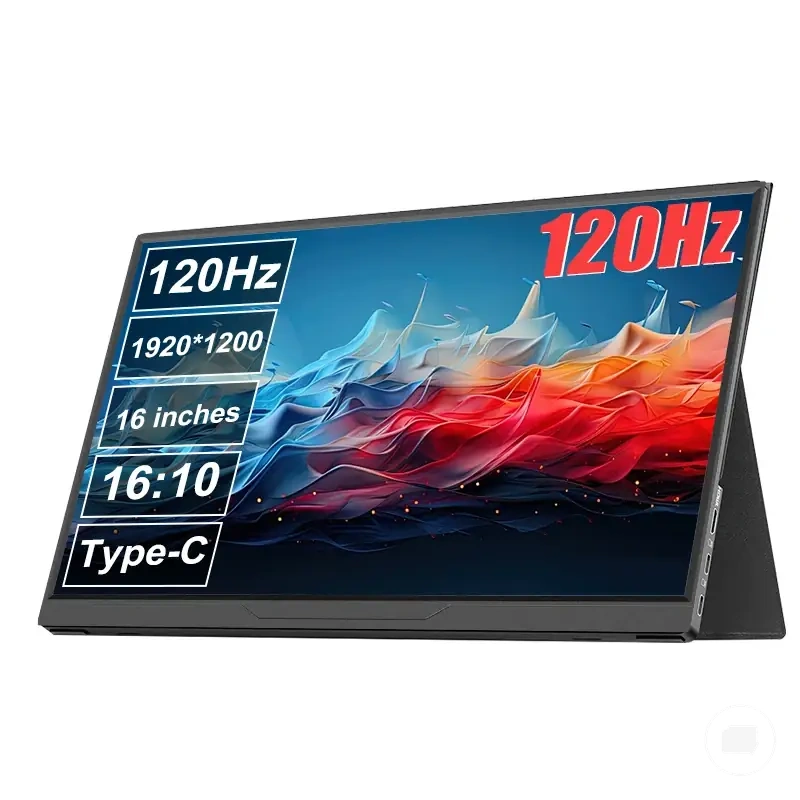
Here are product examples that may make comparison easier. Before buying, always review the compatibility criteria, essential features, and product details.
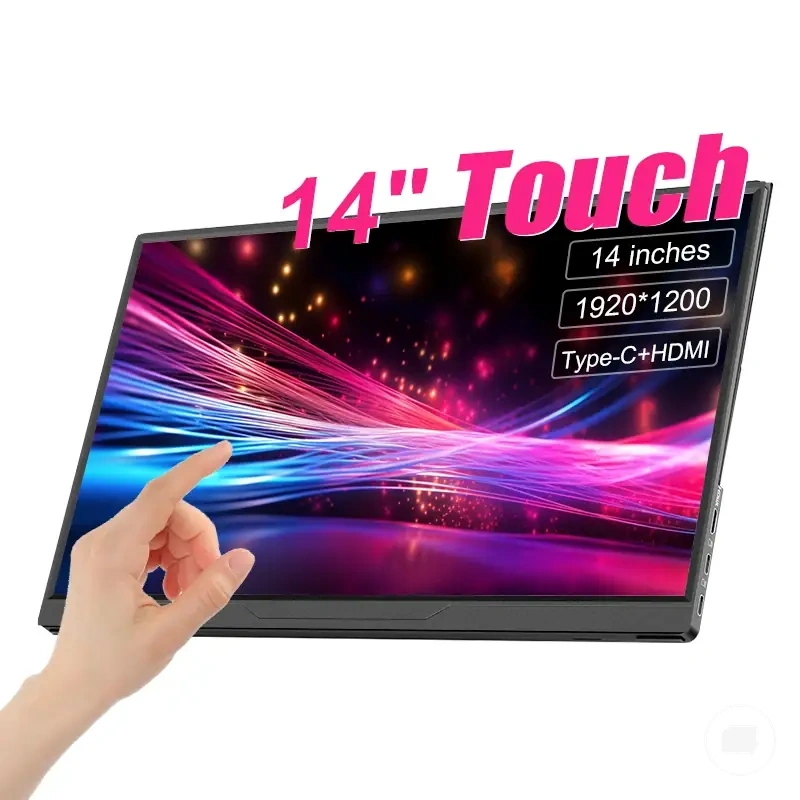
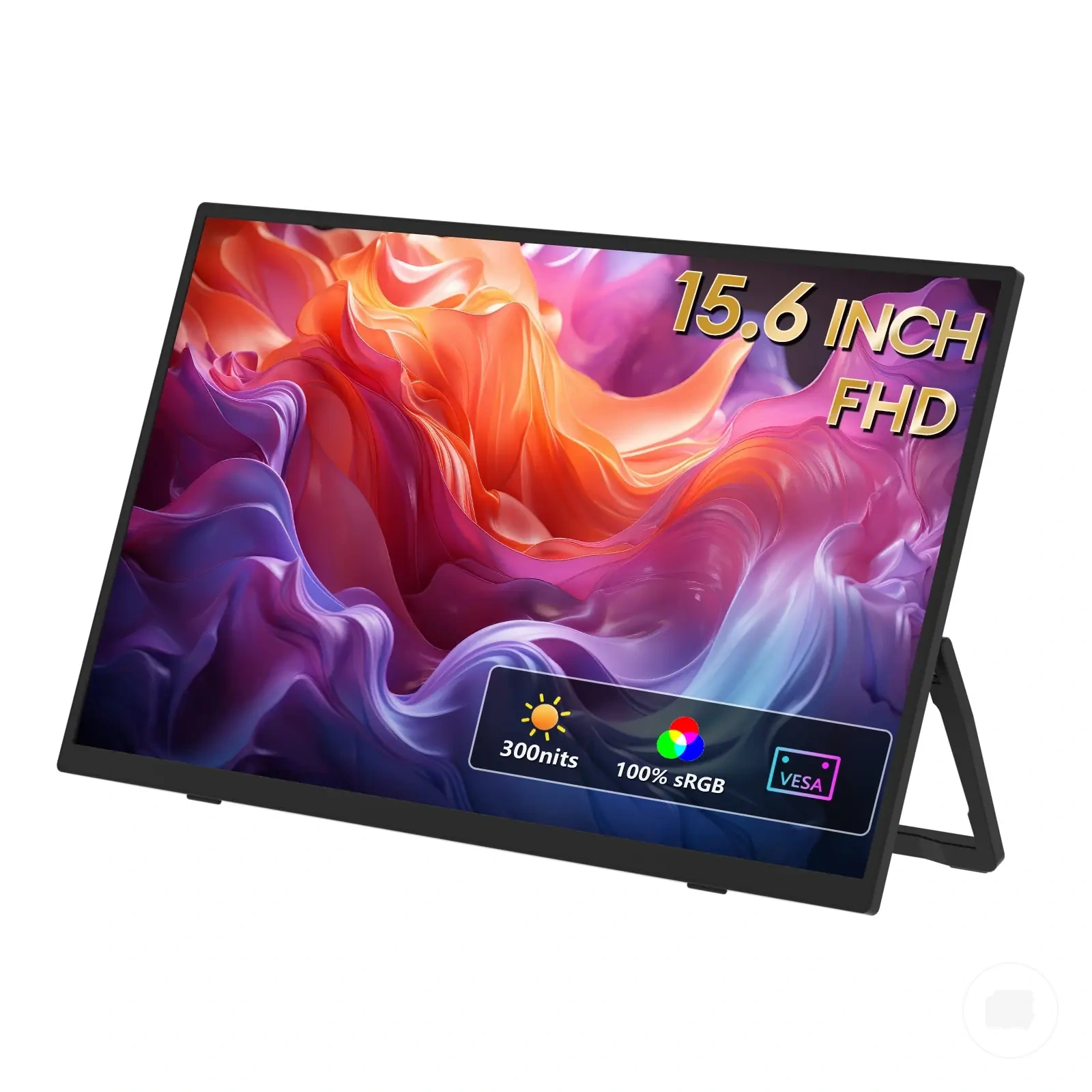
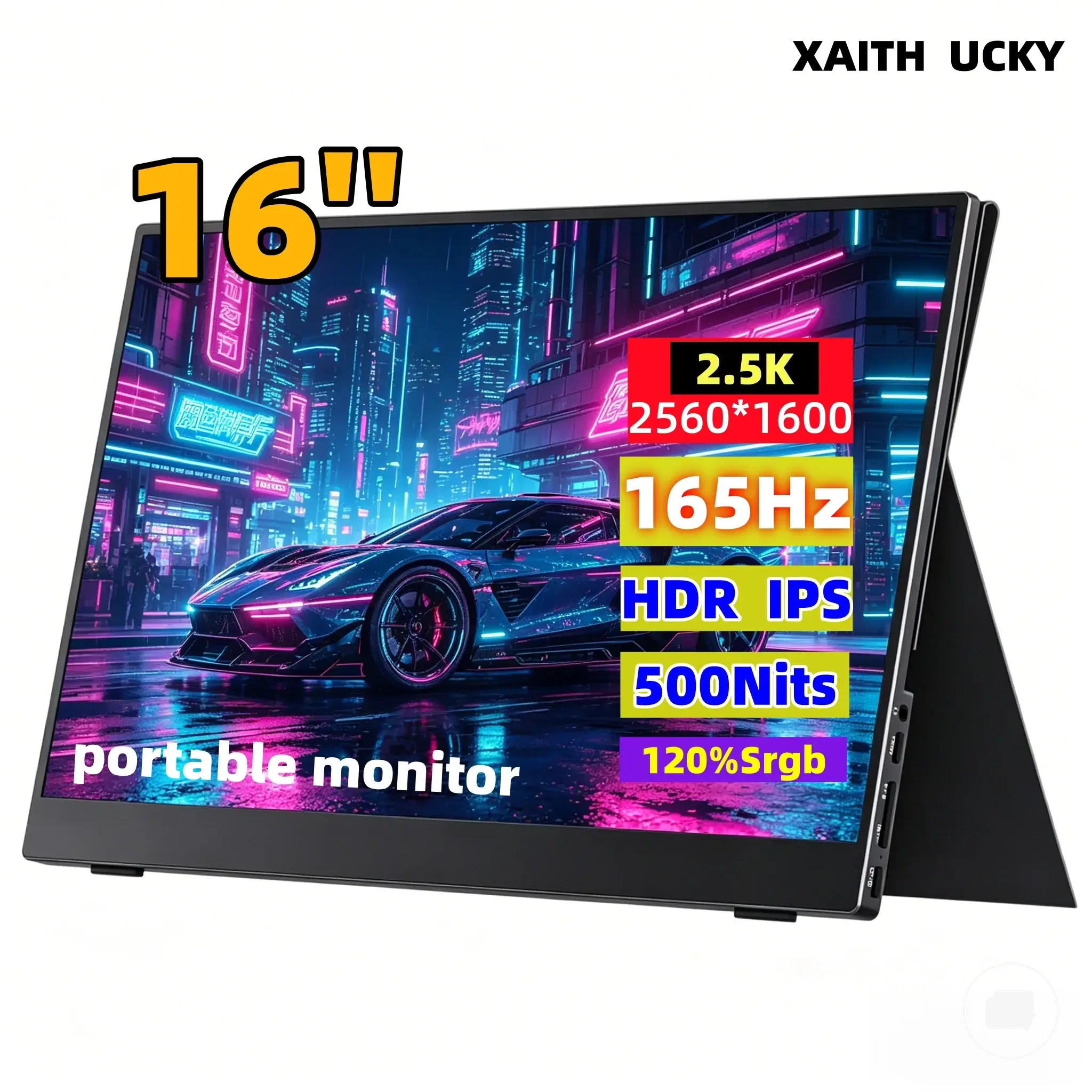
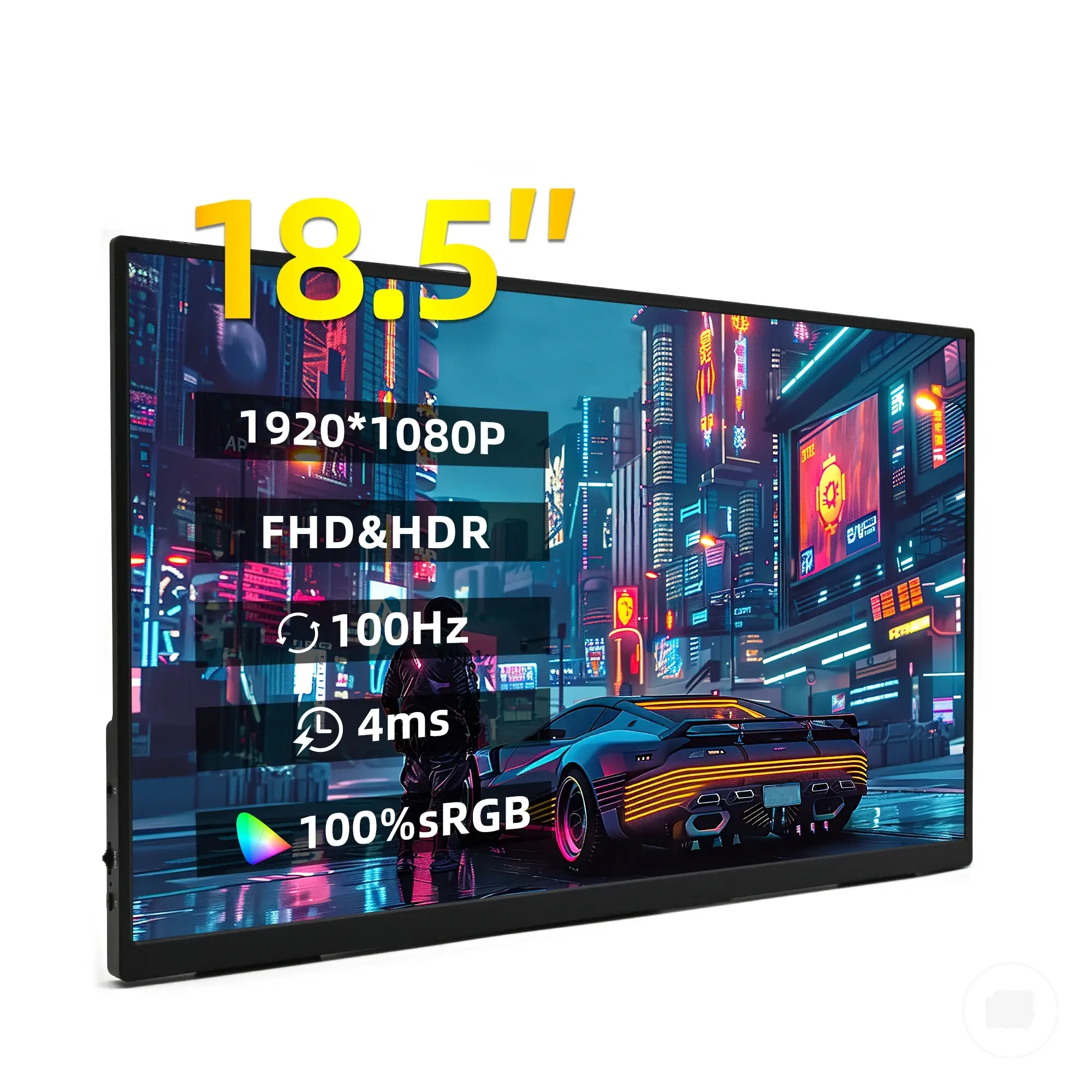
Portable Monitor Setup Basics
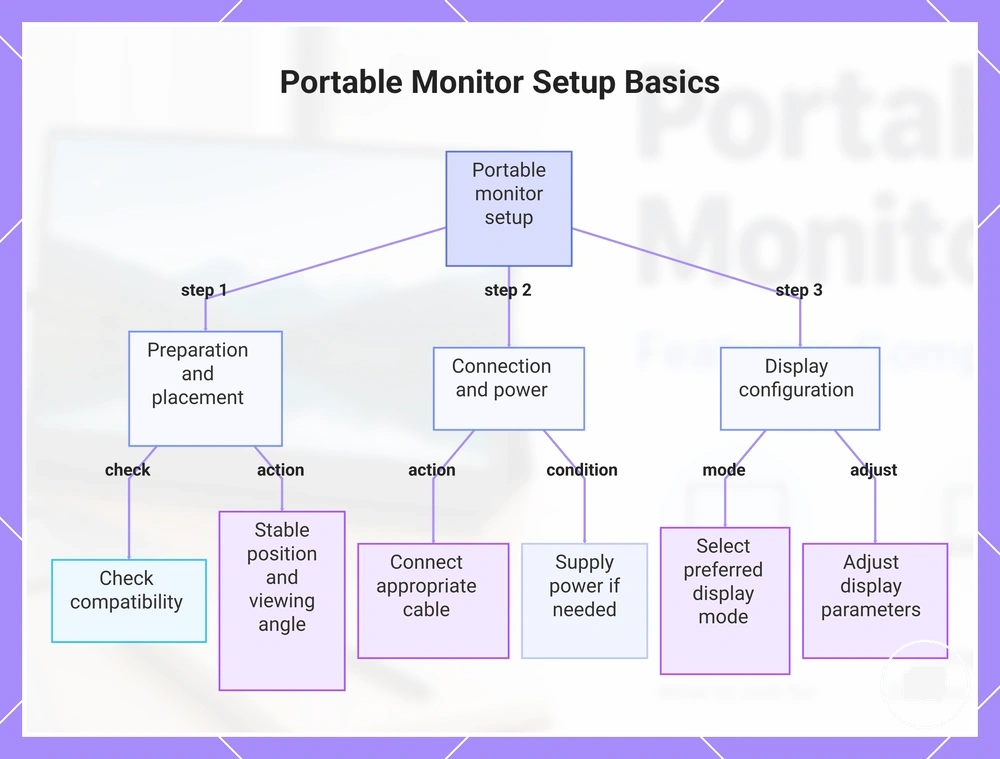
Portable monitor setup depends on the connection type, available power, and display settings. The basic process can vary by operating system, port capability, and monitor design.
The setup path usually starts by placing the monitor, connecting the correct cable, supplying power when required, and adjusting the display configuration. This overview focuses on the main setup sequence without covering device-specific instructions or troubleshooting. For a more detailed walkthrough, see how to set up a portable monitor.
Check compatibility before beginning, then use these overview steps to confirm the essential setup process.
- Place the monitor in a stable position with a suitable viewing angle for the intended workspace.
- Connect the monitor using the appropriate USB-C or HDMI cable for the available connection type.
- Supply power if the monitor requires a separate power source or if the connected device does not provide sufficient power.
- Open the operating system display settings and choose the preferred display mode for the second-screen setup.
- Adjust the resolution, scaling, and screen orientation so the display matches the intended viewing and workspace layout.
This chart shows the main sequence for setting up a portable monitor, covering preparation, connection, power, and display adjustments.
Portable Monitor Trade-Offs and Buying Risks
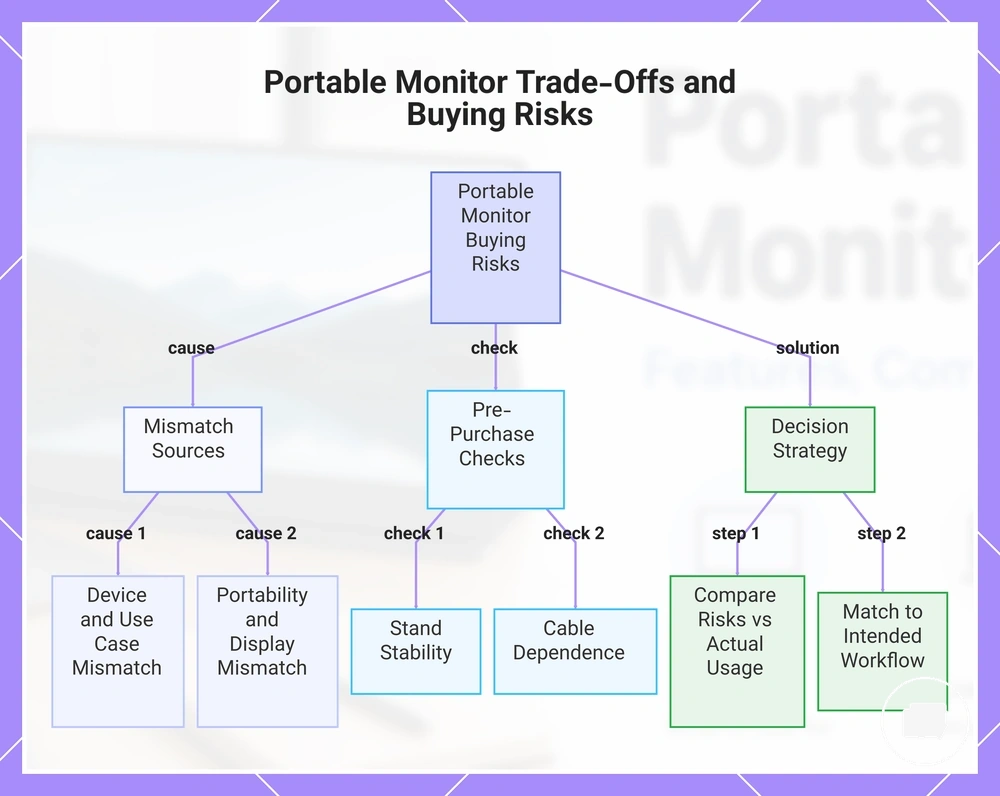
Portable monitor buying risks usually come from a mismatch between the device, intended use case, portability needs, and display expectations. Most trade-offs can be assessed before purchase by comparing practical requirements with the monitor's features. This approach helps separate preventable issues from normal preference-based compromises.
A portable monitor may provide strong value when mobility and a second-screen setup match the intended workflow, but the same model may involve compromises in a permanent workspace. Comparing expected benefits with likely limitations creates a more balanced buying decision. If you are evaluating overall value, see is a portable monitor worth it.
Many buying concerns can be identified before purchase by reviewing likely limitations instead of assuming every feature suits every setup. Questions that arise after purchase are better handled separately because they depend on the specific device and configuration. For post-purchase guidance, see portable monitor troubleshooting.
- Check whether the stand provides adequate stability for the intended workspace.
- Confirm that cable dependence suits the planned setup and available connection options.
- Consider whether display brightness matches the typical viewing environment.
- Review potential compatibility gaps and whether available ports can provide the required display signal and power.
- Check whether scaling and screen size support comfortable readability for everyday use.
- Consider travel protection, warranty terms, and whether feature expectations align with the intended use case.
Decision uncertainty is usually reduced by comparing risks against actual usage instead of focusing only on specifications. Matching the monitor to the intended device, workspace, portability needs, and display expectations creates a more balanced buying decision.
This chart shows the main causes of portable monitor buying risks, key pre-purchase checks, and the decision strategy to avoid mismatches.
Here are product examples that may make comparison easier. Before buying, always review the compatibility criteria, essential features, and product details.
Portable Monitor Compared With a Regular Monitor
A portable monitor or a regular monitor is the better choice depending on whether portability or long-session desk comfort is the higher priority. Comparing portability, screen size, desk stability, brightness, ergonomics, power, price-value, and long-session comfort helps identify which option better matches the intended workspace and use case.
If travel, flexible setup, or a second screen is the main priority, a portable monitor may provide the better fit. If the display will remain on a desk for extended use, a regular monitor may better support desk stability, ergonomics, and long-session comfort. The comparison table below highlights the main buying trade-offs without suggesting that either monitor type is universally better.
| Criterion | Portable monitor fit | Regular monitor fit | Decision cue |
|---|---|---|---|
| Portability | Designed for travel and second-screen use | Better suited to a fixed workspace | Choose based on whether mobility is the higher priority. |
| Desk comfort | Depends on the stand and workspace arrangement | Often provides stronger desk stability and ergonomics | Long desk sessions may favour a regular monitor. |
| Screen size | Usually focused on compact setups | Often offers larger display options | Match the display size to the available workspace. |
| Power | May rely on device power or an external power source | Typically uses its own power connection | Consider the planned setup and available power. |
| Price-value | Value depends on mobility requirements | Value depends on long-term desk use | Compare features against the intended use case. |
| Long-session use | May suit flexible or shorter working sessions | May better support extended desk use | Select the option that best matches typical usage patterns. |
Common Limits Before Choosing a Portable Monitor
Common limits should be checked before purchasing a portable monitor because they usually influence buying fit more than marketing claims. Reviewing these limits before purchase helps keep expectations aligned with the intended device, workspace, and everyday use.
Screening purchase limits is most effective when each condition is checked against the planned setup rather than treated as a troubleshooting step. The importance of each limit depends on the device, travel needs, workspace, and expected use frequency. Use the mini-checklist below to identify the conditions that matter most before making a decision.
- Device support: Verify that the intended device supports the required display connection because compatibility determines whether the monitor suits the planned setup.
- Cable needs: Check that the required cables or adapters are available because connection requirements may differ between devices.
- Brightness: Consider typical room conditions because display visibility may vary with the viewing environment.
- Stand stability: Confirm that the stand suits the desk setup because stability can influence viewing comfort.
- Viewing comfort: Match the screen size and monitor position to the expected use because long sessions may require different priorities than occasional travel.
- Power access: Verify that an appropriate power source is available because power requirements may vary by setup.
- Protection: Consider whether travel or frequent movement increases the need for a protective case or careful storage.
- Return policy and use frequency: Review the seller's return policy where applicable and consider realistic use frequency because both can influence overall purchase confidence.