
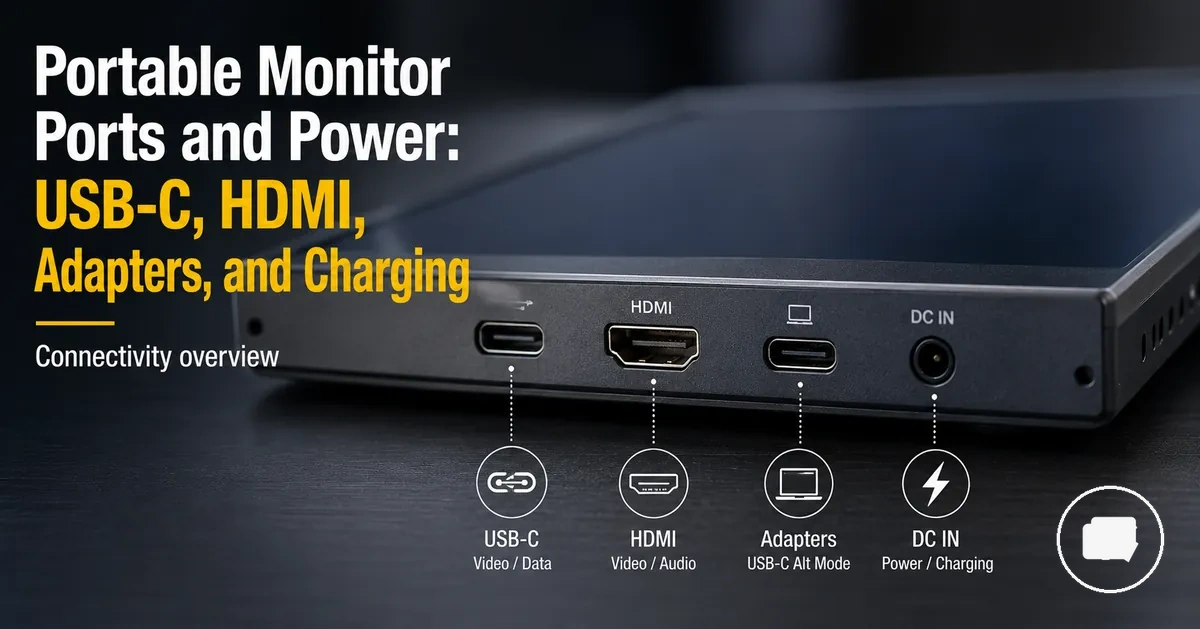
Portable Monitor Ports and Power Compatibility Guide
Portable monitor ports and power compatibility requires the video signal, power input, cable capability, and host device support to work together. A portable monitor may connect through USB-C, HDMI, mini HDMI, or an adapter, but a successful connection also requires the monitor and host device to support the same signal and power path. Matching signal and power is the foundation of reliable compatibility.
Port labels alone do not identify every supported function. USB-C support can vary by monitor model, host port capability, cable type, and available power, while HDMI is primarily a video connection and may require separate charging or power input. Connector shape indicates physical fit, but supported function determines whether video signal, charging, or power delivery is available.
USB-C, HDMI, mini HDMI, adapters, charging, cables, and power delivery should be viewed as connected compatibility conditions rather than separate features. Their interaction is determined by the monitor, host device, cable, and available power source, so the following sections explain how these elements work together before covering specific connection scenarios.
How portable monitor ports handle video, power, and charging
Portable monitor ports can carry different functions, including video, power input, charging support, or a combination of these roles. Port function is determined by the connector specification and device configuration, so connector shape should not be confused with connector capability.
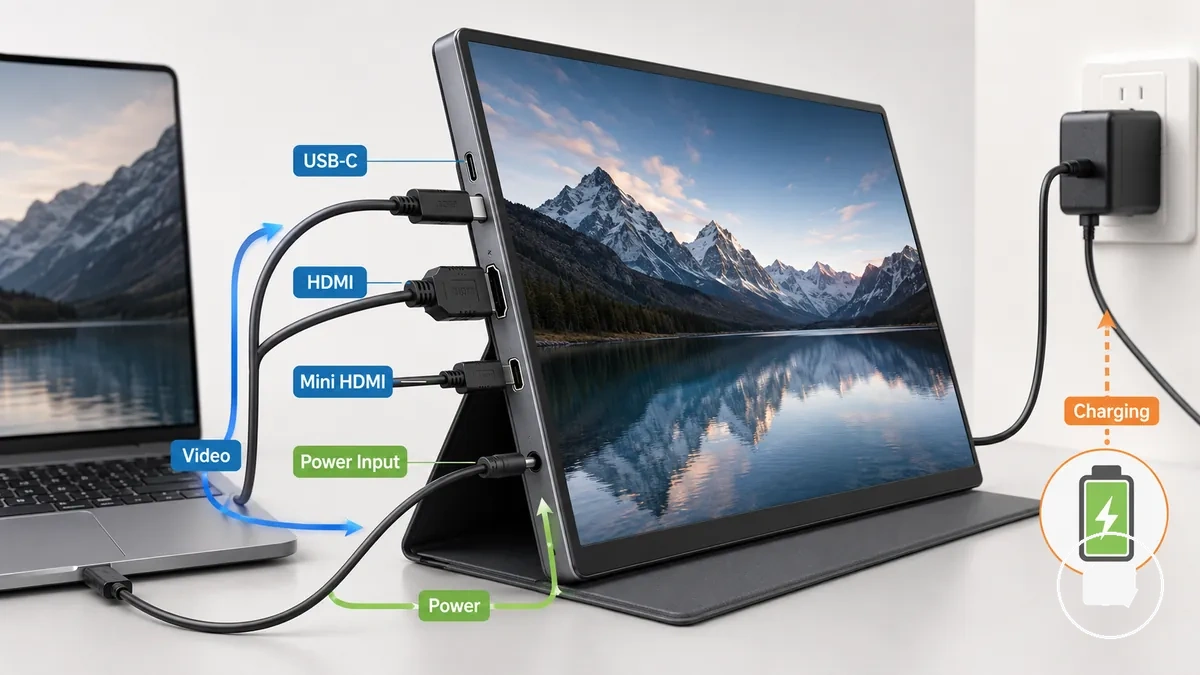
Video, power input, and charging support are separate jobs even when they share the same cable. A USB-C connection may carry video and power delivery when the portable monitor, host device, and cable all support those functions, while HDMI and mini HDMI are primarily video connections that may require a separate power source. This distinction helps separate ports that can carry both video and power from those that usually handle video only.
How portable monitor ports handle video, power, and charging becomes clearer when each port type is viewed by its connector role. The table below organizes port function according to video support, power capability, and the conditions that should be verified before connecting a host device.
| Port or connector | Can carry video | Can provide power | What to verify |
|---|---|---|---|
| USB-C | May, when supported | May support power delivery or charging | Host device support, cable specification, and monitor compatibility |
| HDMI | Yes | Usually no | Whether the monitor requires a separate power connection |
| mini HDMI | Yes | Usually no | Compatible video cable and separate power if required |
| Dedicated power input | No | Yes | Compatible power source and charging cable |
Port shape alone does not prove support for video, charging, or power delivery because the actual function is limited by the connector specification and device configuration.
After understanding these port functions, continue with the portable monitor guide for broader context before exploring individual connection methods.
Single-cable and two-cable portable monitor connections
A single-cable connection may work only when the host device, USB-C port, cable capability, and monitor power demand all support both the video signal and power through one connection. If any of these requirements are missing, a two-cable connection is often needed to separate video and power.
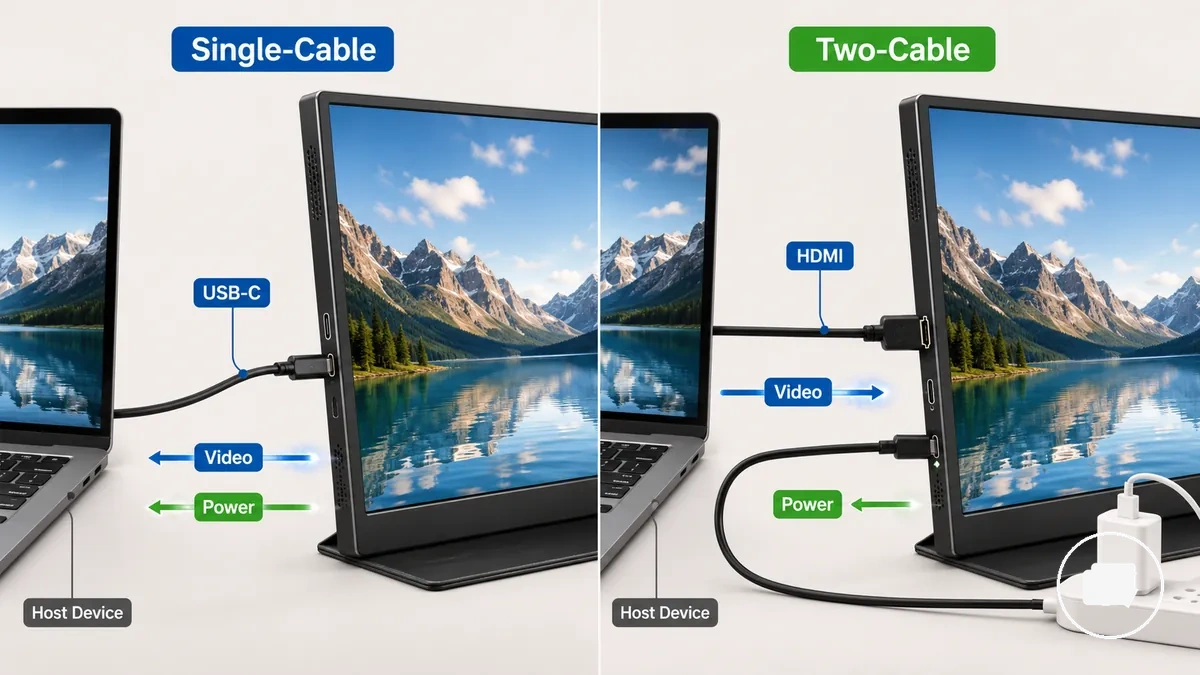
Single-cable connection uses one USB-C cable to carry the display signal and, when supported, power delivery at the same time. This outcome depends on the host device, port capability, cable type, and monitor power demand rather than the USB-C connector label alone. A laptop USB-C connection is one example where this arrangement may be available when all compatibility conditions are met.
Two-cable connection commonly separates the video signal from the power source. HDMI usually carries the display signal, while a separate power cable supplies the portable monitor when required by the monitor design or source device. The same compatibility logic may apply when using a dock, hub, or a console with an HDMI output.
Single-cable and two-cable portable monitor connections both rely on signal and power support, but the required connection pattern differs. The comparison below summarizes the conditions that determine the expected connection outcome.
| Connection pattern | What must be true |
|---|---|
| One USB-C cable | The host device, USB-C port, cable capability, and monitor all support video signal and power delivery. |
| HDMI plus USB power | HDMI carries the video signal while a separate power connection supplies the monitor when required. |
| Dock or hub | The dock, host device, cable type, and monitor all support the required signal and power path. |
| Console-style HDMI path | HDMI provides the display signal, with separate power used if the monitor requires it. |
For device-specific connection criteria, review the portable monitor compatibility checklist before selecting a connection method.
When one USB-C cable can carry video and power
One USB-C cable can carry video and power only when the host port, USB-C cable, and monitor all support display output and sufficient power through the same connection. A stable display depends on the complete connection path rather than the USB-C connector alone. If the host port supports DisplayPort Alt Mode and the monitor accepts that input, a single cable may handle both video and power.
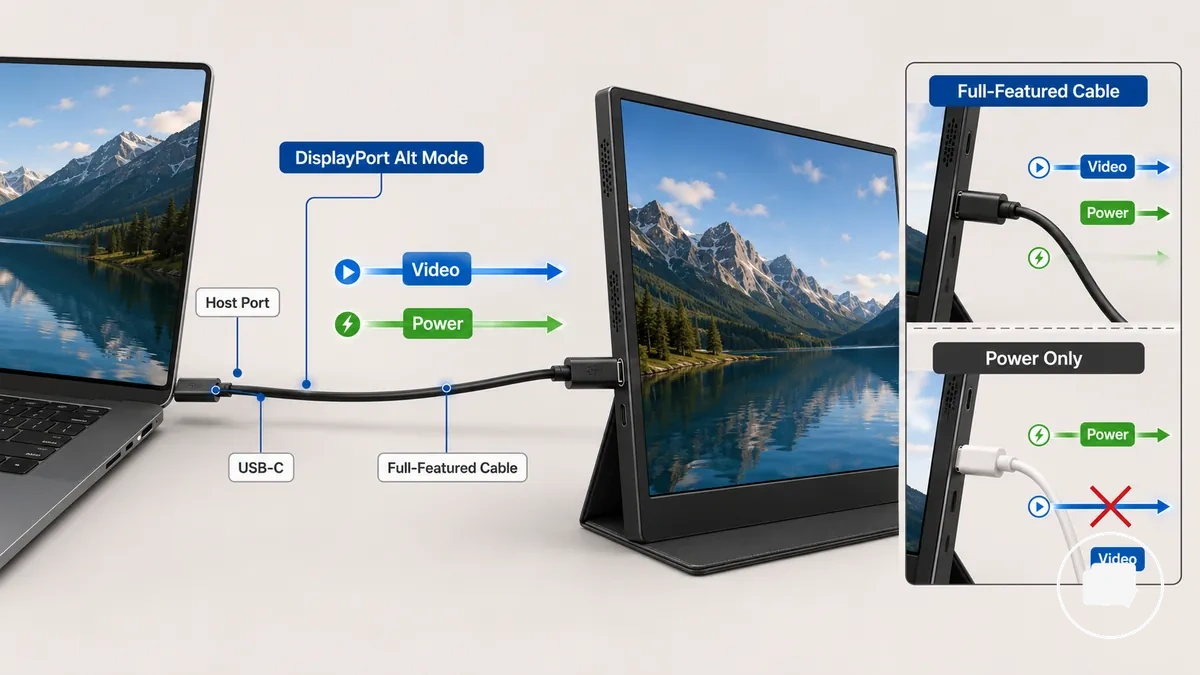
Use the following checklist to verify whether one USB-C cable can carry video and power:
- Confirm the host port supports video output, including DisplayPort Alt Mode where applicable.
- Use a full-featured USB-C cable instead of a charging-only cable.
- Verify the monitor USB-C input accepts both video and power.
- Check that the available power output is sufficient to maintain a stable display.
- If any condition is not met, the monitor may not display an image or may require a different connection method.
A common edge case occurs when the monitor powers on but shows no video. This usually means the USB-C cable or the host port provides power but does not support a compatible video signal.
When HDMI needs a separate power cable
HDMI usually carries the video signal only, so a portable monitor may need a separate power cable through USB power or a dedicated power input to operate correctly. HDMI compatibility is not the same as power compatibility because the video path and power path are separate.
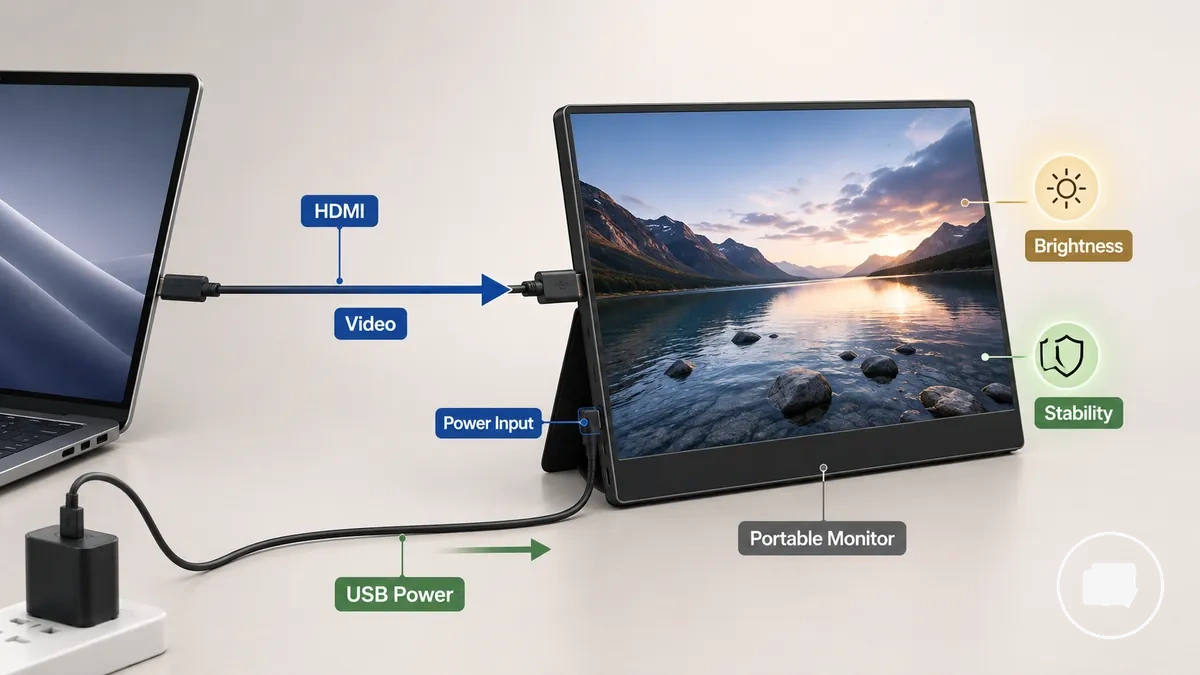
Use the following conditions to verify whether an HDMI connection requires separate power:
- Confirm the HDMI connection is carrying the video signal to the portable monitor.
- Check whether the monitor requires USB power or a dedicated power input while using HDMI.
- Verify the correct monitor input is selected and both the video connection and power connection are present.
- If separate power is missing, monitor brightness or display stability may be affected, or the screen may remain black depending on the monitor design.
A monitor may detect an HDMI connection but still fail to display an image if it does not receive sufficient external power. This distinction highlights that HDMI compatibility and power compatibility should be evaluated separately.
USB-C portable monitor compatibility
USB-C portable monitor compatibility depends on the combined capability of the host port, cable, monitor input, and power requirements rather than the USB-C connector alone. USB-C labels do not confirm video mode or power delivery support, so compatibility should be verified by function instead of connector shape.
The host port determines whether a compatible video mode is available. If the host port supports DisplayPort Alt Mode, the portable monitor may receive a display signal through USB-C, but the port label by itself does not confirm that capability. USB-C compatibility therefore depends on host port support before the connection reaches the monitor input.
Cable capability and monitor power requirements are separate verification steps. A full-featured cable may carry data, video, and power, while a charging-only cable may supply power without transmitting a video signal. Power delivery, cable rating, and monitor input all contribute to stable monitor behavior when the required capabilities are present.
The table below summarizes the main USB-C compatibility factors and the verification logic for each connection stage.
| Compatibility factor | What to verify | What can go wrong |
|---|---|---|
| Host USB-C port | Supports a compatible video mode, such as DisplayPort Alt Mode where applicable | No video signal reaches the monitor |
| Cable | Uses a full-featured cable with an appropriate cable rating | A charging-only cable provides power but no display signal |
| Monitor USB-C input | Accepts the required video and power functions | The monitor cannot use the incoming connection as intended |
| Power delivery | Provides sufficient power for the monitor | Brightness or operating stability may be affected |
| Adapter or dock path | Supports the required video and power capabilities | The connection may lose video, power, or both if one capability is missing |
A charging-only connection may power a portable monitor without displaying an image, while a full-featured USB-C connection depends on compatible host port support, monitor input, cable capability, and available power.
USB-C video support and DisplayPort Alt Mode
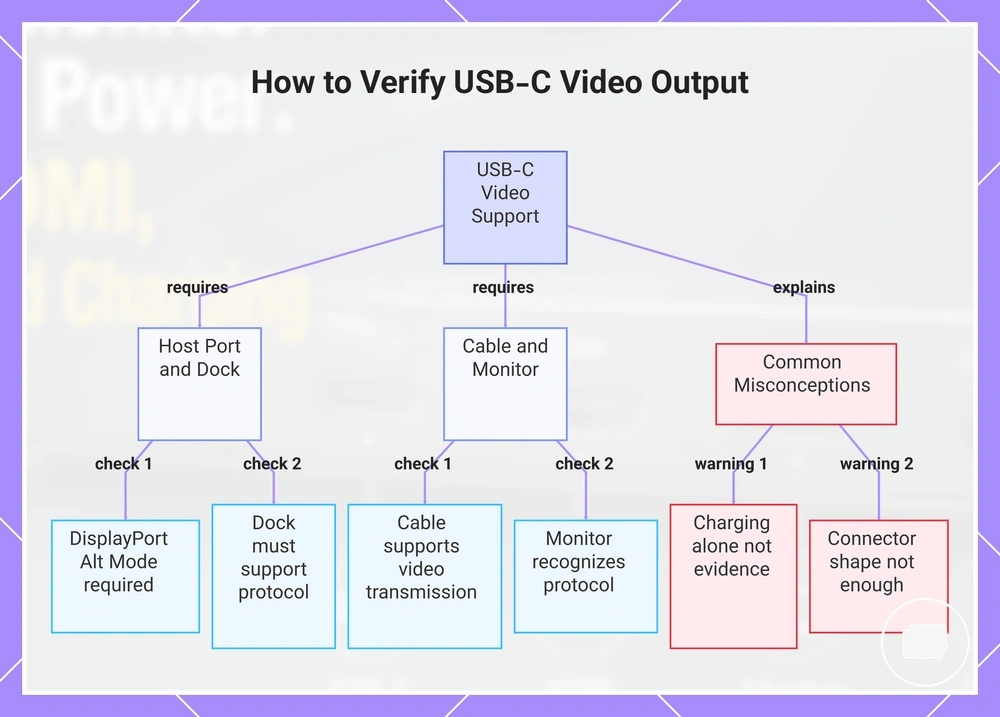
USB-C video support depends on the host port supporting a display-capable video protocol such as DisplayPort Alt Mode. Charging through USB-C does not, by itself, confirm that display output is available.
DisplayPort Alt Mode allows a compatible host port to transmit a video signal through a USB-C connection when the monitor input also supports that video protocol. Because USB-C implementation can vary across devices and docks, connector shape alone does not confirm video capability. Check the following specifications before expecting display output:
- Confirm the host port specification includes DisplayPort Alt Mode or another supported display-capable video mode.
- Verify the USB-C cable supports video transmission as well as charging.
- Check that the monitor input recognizes the required USB-C video protocol.
- If a dock is used, verify it supports the required video protocol because implementation may vary.
A USB-C connection may provide charging without producing display output when the host port or connection path does not support the required video protocol. This boundary helps distinguish charging capability from USB-C video support.
This chart shows the checks needed to confirm USB-C video support and common misunderstandings that can lead to false expectations.
USB-C Power Delivery and pass-through charging
USB-C Power Delivery defines how power is supplied through a compatible USB-C connection, while pass-through charging describes a monitor feature that may receive power and, on supported models, pass power to a connected device. Whether a portable monitor can draw power, share power, or charge another device depends on its power input design, supported features, and the connected adapter.
Power direction determines how power flows between the adapter, monitor, and connected device, while available wattage influences charging behavior and display operation. If available power is limited, charging speed, brightness, or display stability may also be limited. The table below summarizes the main power attributes and their practical effects.
| Entity/part | Attribute/criterion | Value/condition | Effect/risk/decision |
|---|---|---|---|
| Monitor | Power input | Accepts compatible USB-C Power Delivery when supported | Allows the monitor to receive operating power |
| Wall adapter | Wattage | Available power depends on the connected adapter | Limited power may reduce charging speed or display stability |
| Pass-through port | Pass-through charging | Available only on compatible monitor designs | May provide charging to a connected device |
| Connected device | Charging | Depends on power direction and available power | Charging may be slower, limited, or unavailable |
| Monitor brightness | Power demand | Higher brightness can increase power requirements | Display stability may be affected if available power is limited |
A portable monitor may continue displaying an image while pass-through charging remains slow, limited, or unavailable because the connected adapter does not provide enough available power for both display operation and device charging.
Full-featured USB-C cables and charging-only cables
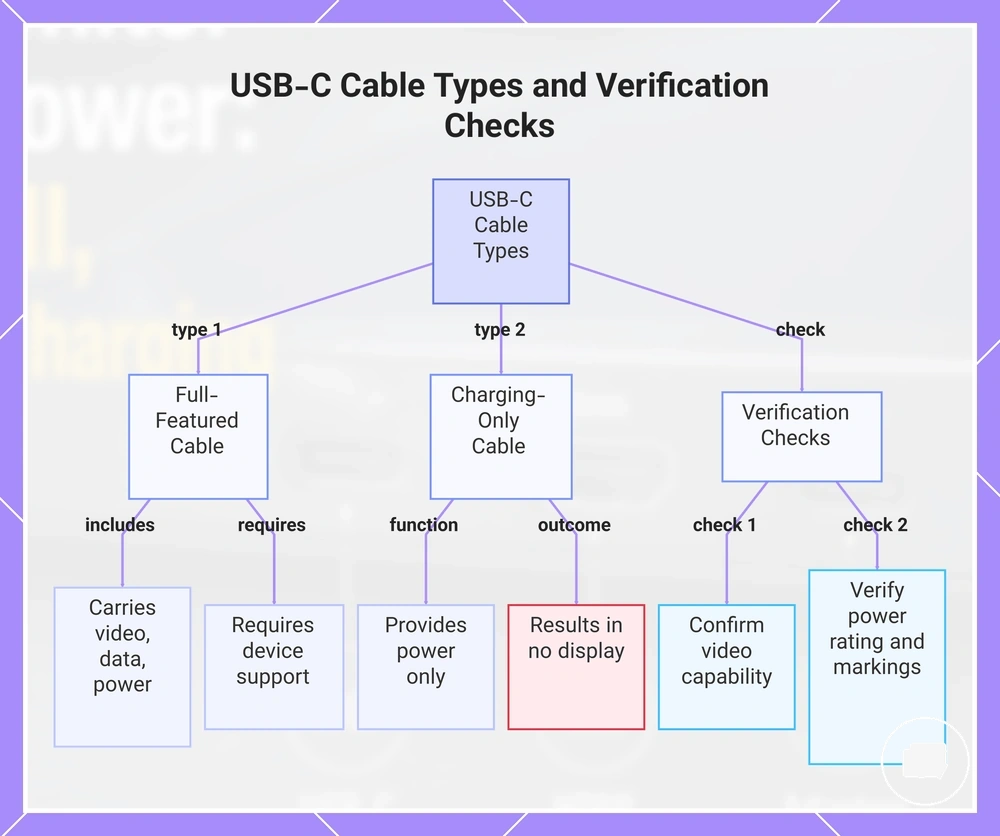
A full-featured USB-C cable can carry video capability, data, and power when the connected devices support those functions, while a charging-only cable is designed to provide power without transmitting a display signal. The cable specification, rather than the connector shape, determines the expected display or charging outcome.
Cable capability affects whether a portable monitor receives display data as well as power. A charging-only cable may power the monitor but result in no display, while a full-featured USB-C cable can support video capability when the host port and monitor input are also compatible. If the cable does not support the required specification, the connection may show no display, an intermittent signal, or power-only behavior.
Use the following checks when verifying USB-C cable capability:
- Confirm the cable specification supports video capability in addition to data transfer.
- Verify the cable provides an appropriate power rating for the connected monitor.
- Check cable markings or documentation instead of relying on connector appearance alone.
- If the monitor powers on but shows no display or an intermittent signal, consider whether the cable lacks the required video capability.
This chart contrasts full-featured and charging-only USB-C cables and provides checks to verify cable capability for portable monitor display.
HDMI and mini HDMI portable monitor compatibility
HDMI and mini HDMI portable monitor compatibility depends on matching the source device output, connector fit, cable direction, and monitor video input. Both connectors are intended for video input, while any separate power requirement depends on the monitor design rather than the HDMI connection itself.
Standard HDMI and mini HDMI carry the same type of video signal but use different connector sizes. A cable or adapter may be needed when the source device and monitor use different connector formats, provided the signal path remains compatible. Connector fit determines the physical connection, while cable direction and adapter compatibility influence whether the video signal can reach the monitor.
The comparison below summarizes the connector roles and the compatibility checks before connecting a portable monitor.
| Connector | Main role | What to verify | Power note |
|---|---|---|---|
| HDMI | Video input from a source device | Compatible HDMI output, cable direction, and monitor input | Separate power may still be required by the monitor |
| mini HDMI | Video input through a smaller HDMI connector | Correct connector fit or a compatible adapter that maintains the video signal path | Connector size does not replace a separate power source when one is required |
Mini HDMI changes the physical connector size, not the need for a valid video signal or a suitable power source. A compatible source device, cable or adapter, and monitor input are still required for video, and the monitor may also require separate power depending on its design.
HDMI video input without power delivery
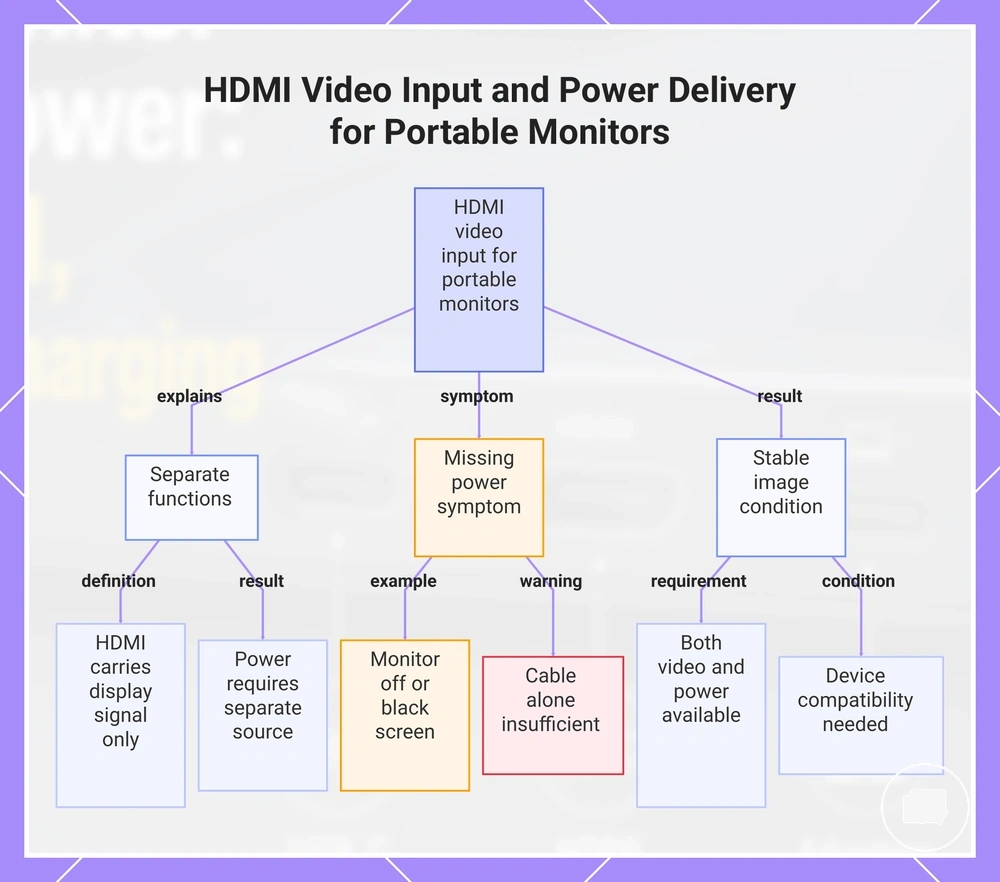
HDMI video input carries the display signal but generally does not provide power delivery for a portable monitor.
When the HDMI signal reaches the monitor video input, the monitor may still require a separate power source, such as USB power or another compatible power input, before it can produce a stable image. The display signal and power delivery are separate functions, so HDMI video input alone does not confirm that the monitor can operate.
A correct HDMI cable does not always indicate a complete connection. For example, the monitor may remain off or display a black screen if the HDMI video input is connected but USB power is missing. When both the video signal and the required separate power source are available, the monitor can provide a stable image if the connected devices are otherwise compatible.
This chart explains that HDMI video input does not provide power to a portable monitor, requiring a separate power source to produce a stable image.
Mini HDMI port fit and cable direction
Mini HDMI is a smaller HDMI connector, so correct port fit depends on matching the mini HDMI port with the correct cable end before evaluating the signal path.
After confirming the connector size, verify that the cable end matches both the monitor-side mini HDMI port and the source-side connector. Cable direction and the signal path may also affect compatibility when different source-side outputs or connection paths are involved, so a physically fitting cable does not by itself confirm that a video signal will be available.
Use the following checklist to verify connector fit before testing the connection:
- Confirm the monitor-side connector is a mini HDMI port.
- Check that the cable end matches both the source-side connector and the monitor-side port.
- Verify the cable direction supports the intended signal path when applicable.
- If a micro HDMI cable is used instead of a mini HDMI cable, physical fit will fail before any signal test can take place.
Power sources for portable monitors
Power sources for portable monitors determine the available output capacity delivered to the monitor input, which can influence display behavior, brightness, and charging behavior. Different power sources can provide different levels of available power, so the outcome depends on the selected power source and device compatibility.
Laptop USB-C, a wall adapter, a power bank, and a dock can each supply power to a portable monitor, but their available output capacity may differ. When available power is limited, brightness may decrease, the display may flicker or disconnect, and charging behavior can vary depending on the monitor and power source.
The table below summarizes common power sources, the conditions to verify, and possible display outcomes.
| Power source | What it can support | What to verify | Possible symptom |
|---|---|---|---|
| Laptop USB-C | Monitor operation when compatible | Monitor power input and available output capacity | Brightness may be reduced if available power is limited |
| Wall adapter | External power for the monitor | Compatible power input and available output capacity | Charging behavior may vary if available power is insufficient |
| Power bank | Portable external power | Available output capacity and compatible connection | Display may flicker during higher power demand |
| Dock | Power together with supported connections | Dock output capacity and monitor compatibility | Display may disconnect if available power is limited |
If the display begins to flicker, dim, or disconnect, switching to another compatible power source with suitable output capacity may improve display stability, depending on the monitor input and connected devices.
Power from a laptop, wall adapter, or power bank
Power from a laptop, wall adapter, or power bank depends on available output capability and the cable path rather than the power source alone. Different sources can affect monitor brightness, stability, and laptop battery drain under different operating conditions.
The comparison below shows how each source differs by output capability and typical compatibility conditions.
| Source | Strength | Limitation | Best-fit condition |
|---|---|---|---|
| Laptop power | Can provide USB power through a compatible cable path while connected to the monitor | May increase battery drain or provide limited output capability on some systems | Suitable when a compatible laptop USB-C output is available |
| Wall adapter | Can provide dedicated external power with consistent output capability | Requires access to mains power | May suit desk use when stable brightness is preferred |
| Power bank | Provides portable power through a compatible cable path | Brightness and stability may depend on available output capability | May be appropriate during travel or when mains power is unavailable |
If brightness decreases, stability changes, or laptop battery drain becomes a concern, switching to another compatible power source may help, depending on the monitor, cable path, and available output capability.
Wattage, brightness, and display feature power demand
Display feature power demand depends on the monitor's wattage requirements and the available output from the connected power source. Higher brightness, larger screen size, higher refresh rate, touch support, speakers, and pass-through charging can increase power demand, so the power requirement should be evaluated against the available output rather than a fixed wattage rule.
When display feature power demand approaches the source limit, possible symptoms may include reduced brightness, lower display stability, interrupted charging behavior, or occasional display interruptions. If these symptoms occur, lowering brightness, selecting a compatible power source with greater available output, or separating power from the video connection may help when insufficient power is the underlying cause.
The table below summarizes how common display features can influence power demand and practical adjustment signals.
| Display feature | Power effect | Possible symptom | Safe adjustment |
|---|---|---|---|
| Higher brightness | Can increase wattage and power demand | Brightness or stability may decrease if the source reaches its limit | Lower brightness or use a compatible power source with sufficient available output |
| Larger screen size or higher refresh rate | May increase the monitor's power requirement | Display stability may vary when the source limit is reached | Reduce refresh rate when supported or increase available output |
| Touch support or speakers | Additional display features can increase power demand | Charging behavior or overall performance outcome may change | Use a compatible power source with adequate available output |
| Pass-through charging | Shares available output between the monitor and connected device | Power availability may become limited under higher demand | Separate power from the video connection when compatible and appropriate |
Adapters for portable monitor connection mismatches
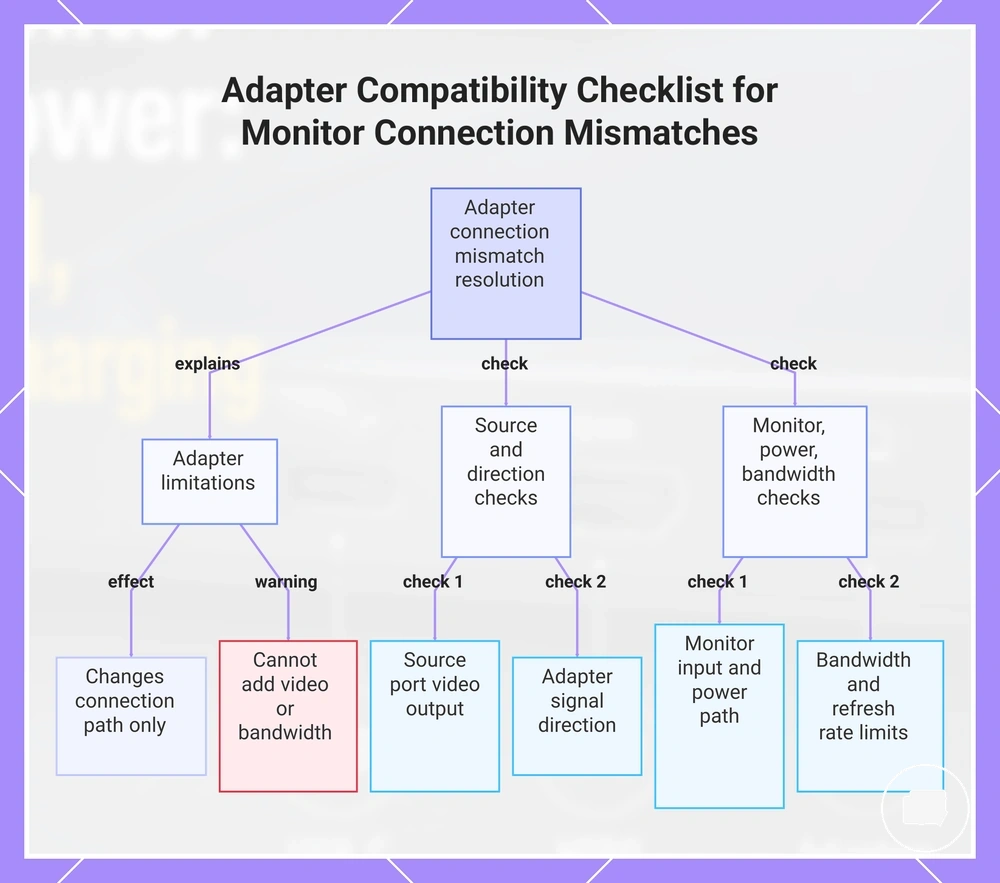
Adapters solve a connection mismatch only when the source port provides the required video signal, the adapter uses the correct signal direction, and the monitor input and power path remain compatible. An adapter changes the connection path, but it cannot add missing video support, create additional bandwidth, or replace a required power connection.
Signal direction is a critical compatibility criterion. A USB-C to HDMI adapter may work when the source port supports video output and the monitor accepts HDMI input, while an HDMI to mini HDMI adapter may resolve only a connector-size mismatch. The expected outcome depends on the source port, adapter direction, and monitor input rather than the connector itself.
Power path and bandwidth can also limit compatibility. A hub or dock may extend the available connection path, but display operation still depends on whether the connection supports the required video signal, sufficient bandwidth, and any separate power needed by the monitor.
Use the following checklist before relying on an adapter to resolve a connection mismatch:
- Confirm the source port supports the required video output.
- Verify the adapter direction matches the intended signal path.
- Check that the monitor input accepts the incoming connection type.
- Confirm the required power path is available if the monitor requires separate power.
- Consider whether bandwidth or refresh-rate requirements may exceed the capabilities of the adapter, hub, or dock.
USB-C to HDMI, HDMI to mini HDMI, hubs, and docks should be treated as compatibility scenarios rather than universal solutions. Whether an adapter works depends on the combined support of the source port, signal direction, monitor input, power path, and bandwidth, so evaluating these criteria first provides a more reliable compatibility decision.
The products below are useful examples for comparing available options. Before buying, check that the compatibility criteria, key features, and product details match your needs.
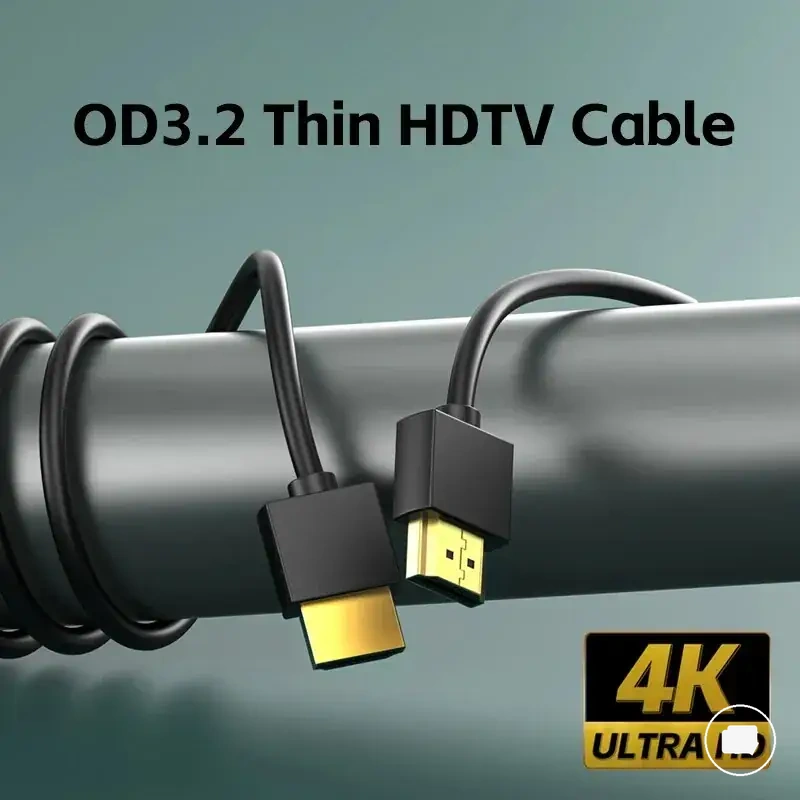
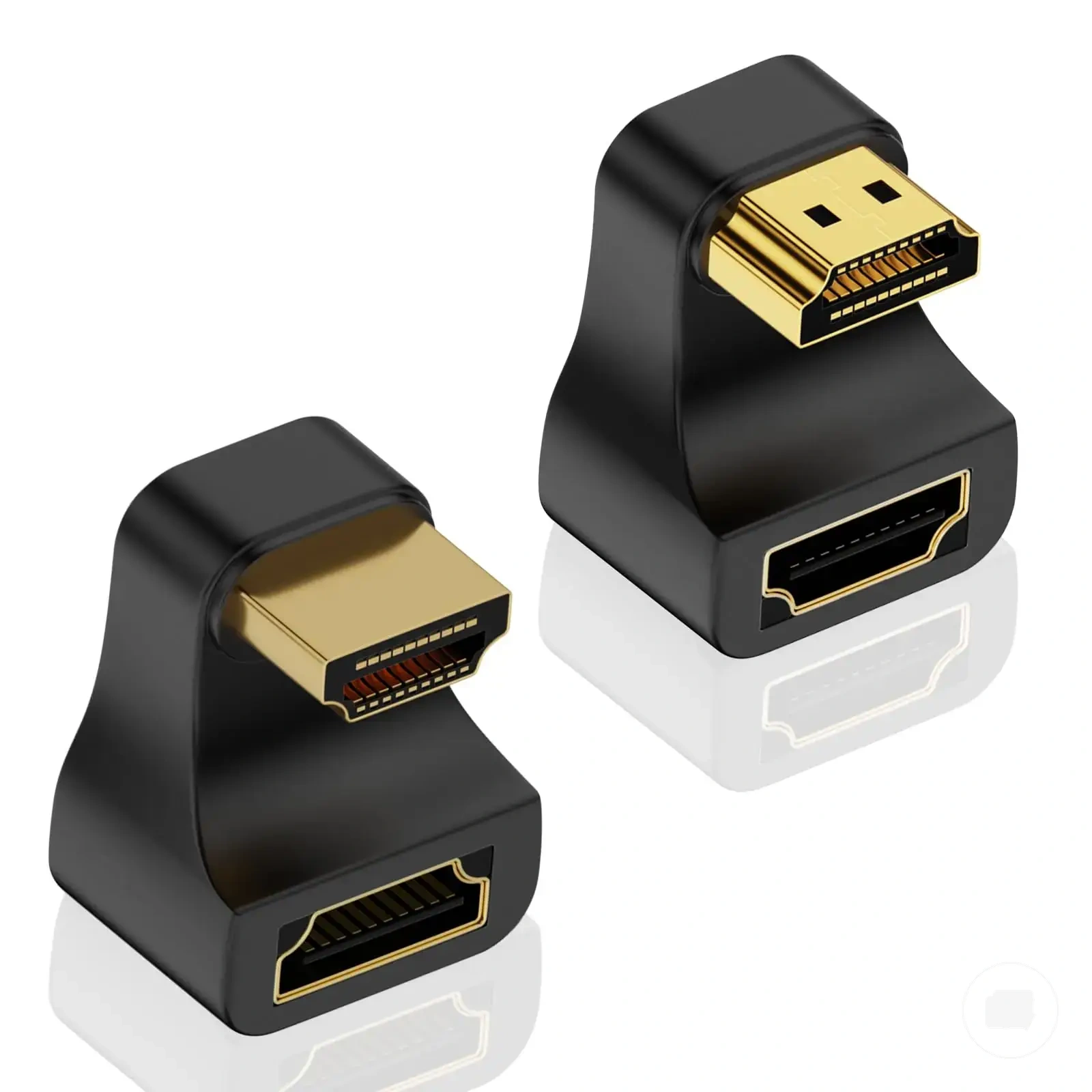
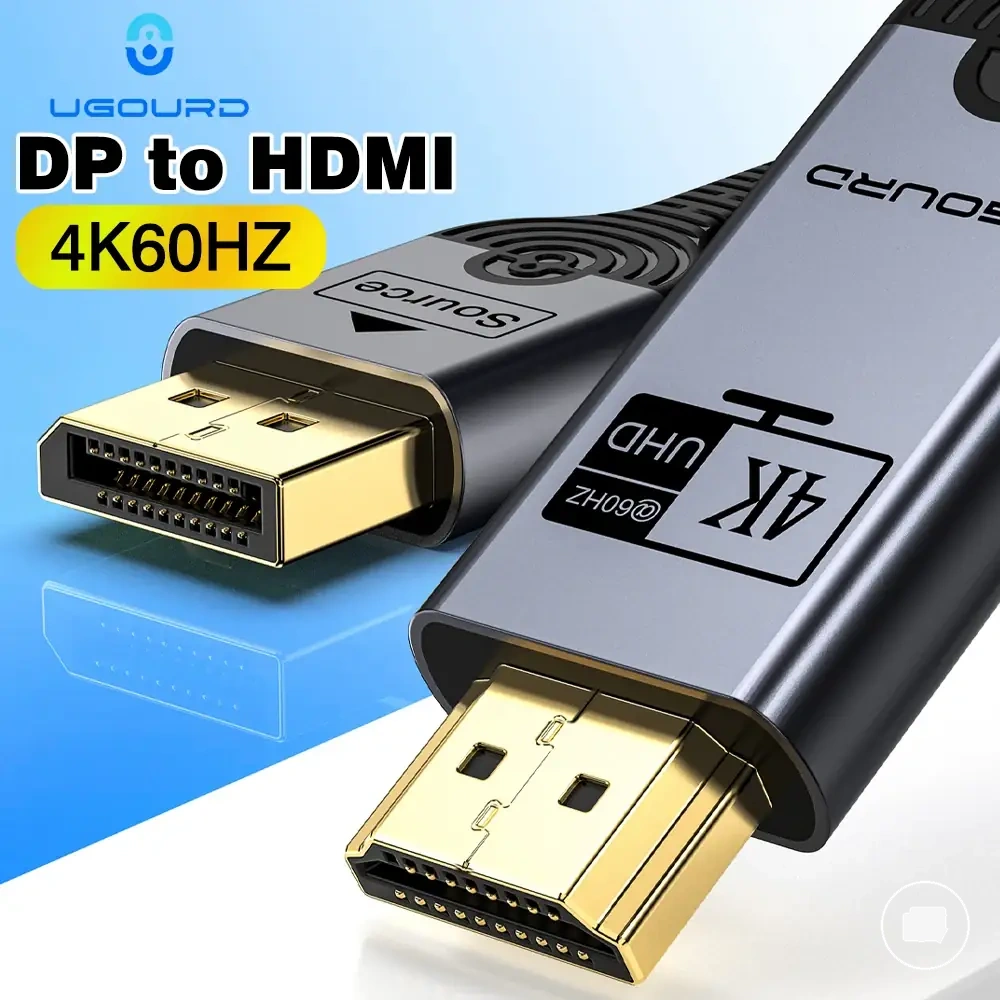

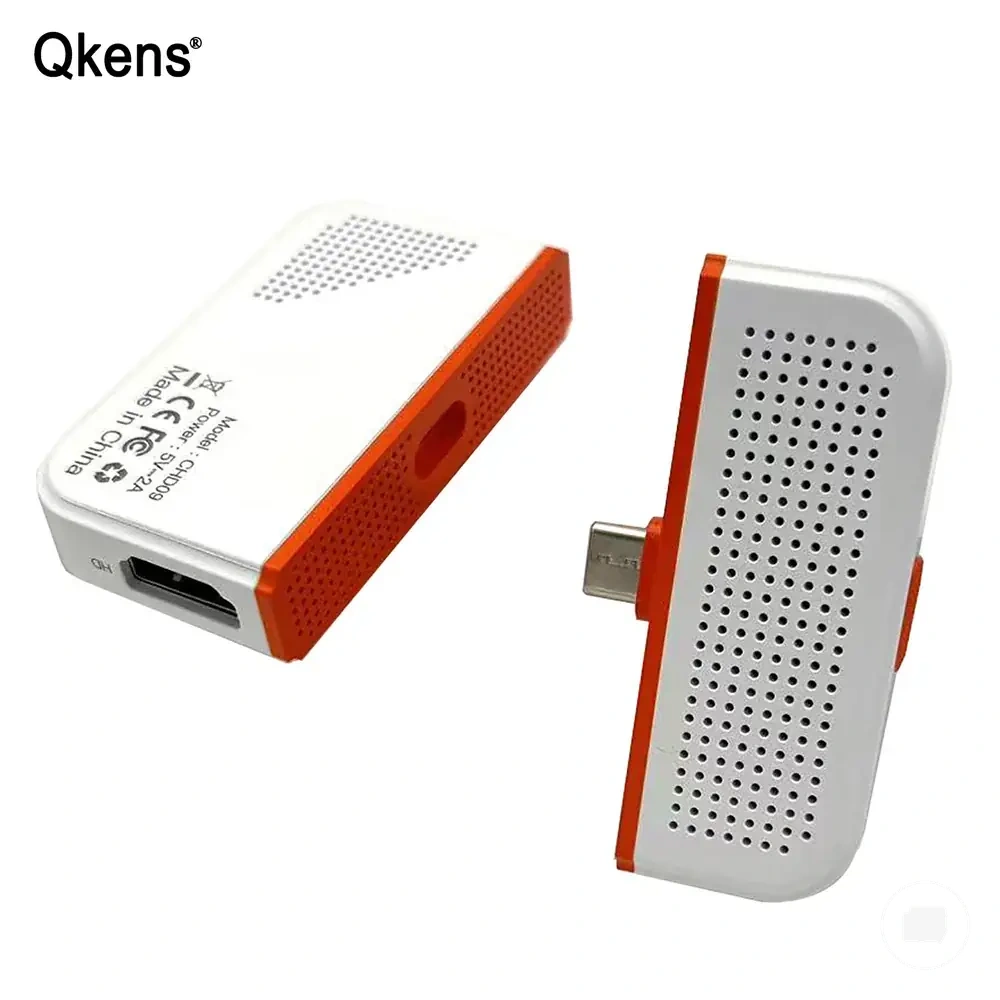
This chart explains the limitations of adapters and provides a checklist to determine if an adapter will resolve a connection mismatch between a source and a monitor.
USB-C to HDMI adapter direction and limits
A USB-C to HDMI adapter depends on the correct conversion direction and host support for video output. The adapter converts a USB-C source to an HDMI input only when the host USB-C port supports video output, and a separate power connection may still be required for the portable monitor depending on its design.
Before using a USB-C to HDMI adapter, verify the following compatibility conditions:
- Confirm the adapter direction matches a USB-C source connected to an HDMI input.
- Verify the host USB-C port supports video output, such as DisplayPort Alt Mode where applicable.
- Check that the monitor accepts HDMI input and connect separate power if the monitor requires it.
- Assess the display result only after the source, adapter direction, monitor input, and power path are all compatible.
Reverse-direction connections, such as HDMI to USB-C, may require a different active conversion path or may not suit the intended portable monitor connection. Replacing the adapter alone should not be treated as a solution for every no-signal condition because the display result depends on host support and the complete connection path.
Dock, hub, and adapter power limits
Dock, hub, and adapter compatibility depends on more than connector fit because an intermediary device can introduce a power limit, restrict a supported video mode, or reduce available bandwidth. When a portable monitor behaves differently through an intermediary device, verify the connection path before assuming the monitor or cable is incompatible.
Check the following conditions when a dock, hub, or adapter changes the connection result:
| Intermediary device | Limit to check | Symptom | Meaning |
|---|---|---|---|
| Dock | Available power or supported video mode | Display may not start or may become unstable | The dock may not support the required connection conditions. |
| Hub | Bandwidth or available power | Display quality or stability may change | The hub can limit the connection path even when the connector fit is correct. |
| Adapter | Video mode or signal path | No display or limited display result | The adapter may not support the required conversion path. |
A portable monitor may work when connected directly to a compatible source but fail through a hub if the hub changes the available power, supported video mode, or bandwidth. This edge case shows why an intermediary device can change the connection result even when the connector fit appears correct.
Port and cable checks before connecting a portable monitor
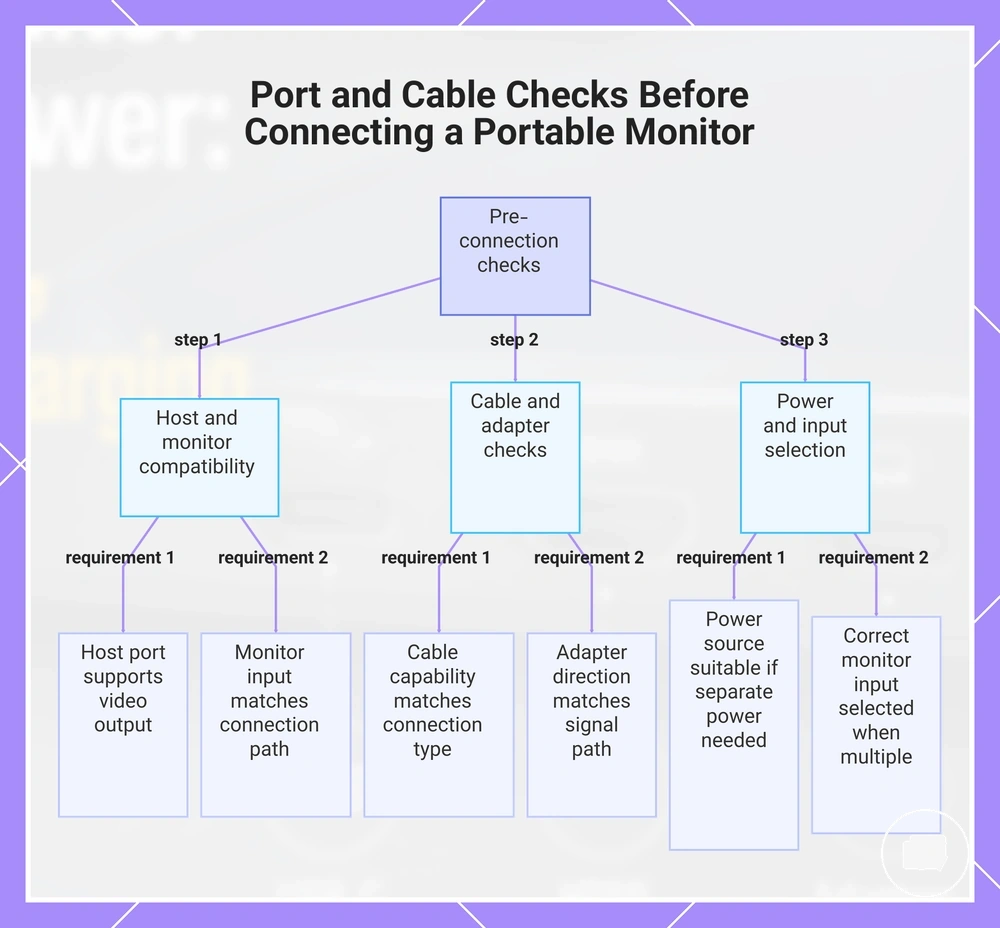
Port and cable checks reduce the risk of signal and power mismatches before connecting a portable monitor. Verifying compatibility first helps distinguish connection readiness from the actual setup process and may reduce avoidable no-signal or power-related issues.
Begin with the host port and monitor input. Confirm the host port supports the required video output and that the monitor input matches the intended connection path before checking the remaining connection conditions.
Then verify cable capability and adapter direction. A compatible cable and the correct adapter direction help align the connection path with the expected behavior, although the final result still depends on device compatibility.
Use this pre-connection checklist before starting setup:
- Confirm the host port supports the required video output.
- Check that the cable capability matches the intended connection type.
- Verify the monitor input matches the selected cable or adapter.
- Confirm the power source is suitable if the monitor requires separate power.
- Check the adapter direction matches the intended signal path.
- Verify the correct monitor input is selected when multiple inputs are available.
- If the expected behavior differs from the planned connection, complete the compatibility check before changing the setup.
These checks confirm compatibility before connection rather than completing the setup itself. After connection readiness has been verified, continue with portable monitor setup to complete the installation process.
The products below are useful examples for comparing available options. Before buying, check that the compatibility criteria, key features, and product details match your needs.
This chart shows the pre-connection checklist to verify port, cable, and power compatibility before setting up a portable monitor.
Common signal and power mismatches
When a portable monitor shows no signal, loses power, or is not detected, the first diagnostic step is to separate signal and power mismatches. Checking the video path and power path independently can narrow the likely cause before moving to deeper troubleshooting.
Video-path problems usually relate to the host device, cable, adapter, or monitor input, while power-path problems are more often associated with a power mismatch, insufficient available power, or an interrupted power connection. A detection issue may involve either path, so both should be verified before assuming a device fault.
The diagnostic table below maps common symptoms to likely connection attributes and safe verification checks.
| Symptom | Likely attribute issue | Check | What it means |
|---|---|---|---|
| No signal | Video path | Verify the host device, cable, adapter, and monitor input | The display signal may not be reaching the monitor. |
| Power loss or disconnect | Power mismatch | Confirm the power path and available power | The monitor may not be receiving stable operating power. |
| Detection issue | Connection path | Check the host device, monitor input, and connection path | The monitor may not be recognized through the current connection. |
| Intermittent display | Cable or adapter | Verify cable fit and adapter compatibility | The connection path may be unstable under the current conditions. |
After identifying the likely mismatch, repeat the relevant compatibility check before changing cables, adapters, or power connections.
If the same symptom continues after these local checks, broader display, device-specific, or persistent faults may require more detailed diagnosis. For those cases, see portable monitor no signal and detection issues.
No signal with HDMI or USB-C
When no signal appears with HDMI or USB-C, the display is usually not receiving a valid video path even if the connector fits. The likely cause may involve HDMI signal transmission, USB-C video support, cable capability, input selection, or power, so each condition should be verified before assuming a single cause.
Use the following verification steps to check the local connection path:
- Confirm the HDMI cable is connected securely and the monitor input selection matches the active HDMI input.
- Verify that the USB-C connection supports video output as well as charging or data transfer when using a USB-C cable.
- Check that the cable capability matches the required video path rather than using a charging-only cable.
- If an adapter is used, confirm it matches the intended connection direction and supports the required video path.
- Verify that the monitor has the required power, because a display without sufficient power may appear not detected even when the connector is attached.
A no signal message indicates a missing or invalid video path, while a monitor with no power may remain off or fail to display any status. Distinguishing between these symptoms helps keep the verification step focused without expanding into broader troubleshooting.
Monitor powers on but the host device does not detect it
When a portable monitor powers on but the host device does not detect it, power and detection are separate states. The monitor may receive power while the host device cannot establish a valid signal path, so the detection result may still fail even though the display appears to be on.
Use the following cause-check-action list to verify the connection:
- Cause: The host device may not support video output on the selected port. Check: Verify the host output supports the required video path. Action: Use a compatible video-capable connection if available.
- Cause: A charge-only cable may provide power without carrying video. Check: Confirm the cable capability supports video transmission. Action: Replace it with a cable that supports the required signal path.
- Cause: The selected monitor input may not match the connected cable or adapter. Check: Verify the active monitor input. Action: Select the input that matches the current connection.
- Cause: An adapter may interrupt the signal path. Check: Confirm the adapter supports the intended connection direction and video transmission. Action: Test a direct or compatible connection path when possible.
An edge case occurs when the monitor backlight or power indicator is on but the monitor remains unavailable as an external display. In this situation, the monitor may have power while the host device still cannot complete video detection through the current connection.