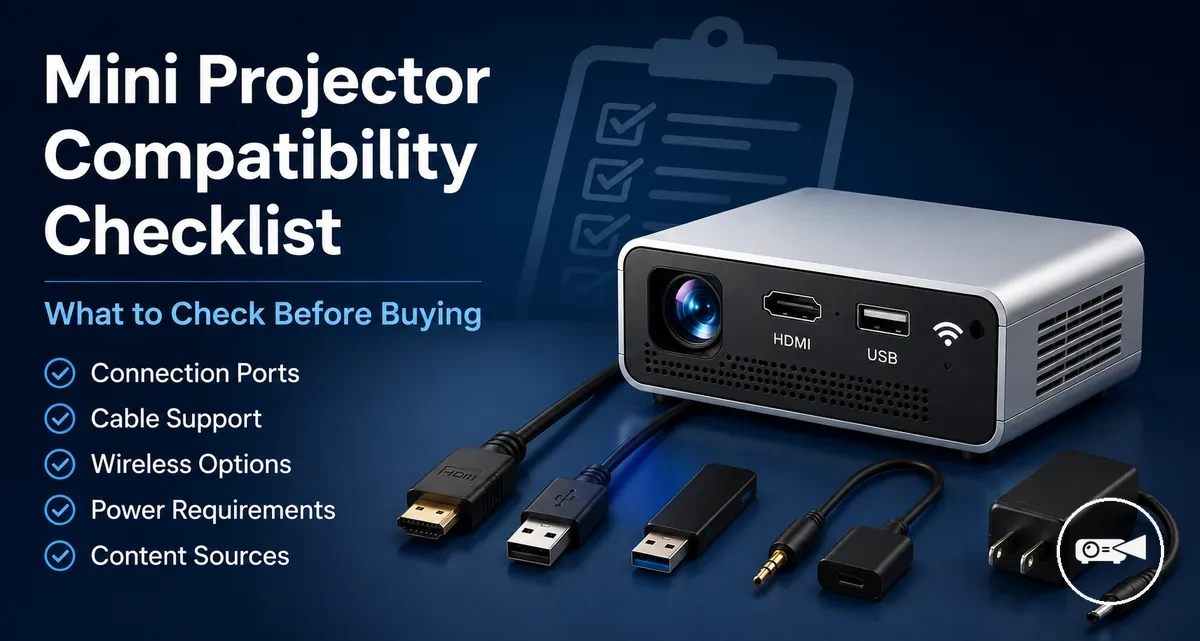
Mini Projector Compatibility Checklist
A mini projector is compatible when its inputs match your source device, connection path, room setup, and required accessories. Advertised connectivity alone does not confirm device compatibility, because the result remains conditional on port behaviour, app support, placement, and accessory fit.
A mini projector is compatible when its inputs match your source device, connection path, room setup, and required accessories.
Start with the source device output and match it to a projector input through HDMI, video-capable USB-C, a suitable adapter, or a shared wireless casting standard. A USB-C connector provides direct video only when the source device supports video output through that port, while an adapter changes the connector format but cannot create a missing video signal. Screen fit requires the planned throw distance to produce an image within the available projection surface, and audio use requires a supported speaker path through the projector, source device, Bluetooth, or a wired output.
The compatibility checklist below organizes the connection requirements, screen fit, and accessories that affect the purchase decision before buying.
The compatibility checklist below organizes the connection requirements, screen fit, and accessories that affect the purchase decision before buying. For example, a phone with USB-C charging and data but no video output needs another supported route, such as wireless casting or an external playback device, rather than a passive USB-C-to-HDMI adapter. Verify the exact port functions, app limits, projection distance, audio outputs, and included accessories in the source device and mini projector documentation before buying.
- Source device output: Confirm that the phone, tablet, laptop, console, or streaming device provides video through HDMI, video-capable USB-C, or a wireless casting method supported by the mini projector; a charging-only or data-only port does not meet the video-output condition.
- Projector input: Match the source output to the projector input named for live video, such as HDMI, USB-C video input, or a supported wireless receiver; a USB port limited to power or stored media files is not a live display input.
- Adapter: Choose an adapter that matches both the source device output standard and the projector input; the compatibility result is negative when the source port lacks video output or the adapter supports only charging or data.
- Wireless casting: Confirm that both devices support the same casting standard and that the intended app permits playback through that method; successful menu or photo mirroring does not establish that protected content will play.
- Protected content: Check streaming-service support separately from basic screen sharing; protected video may require a supported app, receiver, external playback device, or wired HDMI path.
- Screen fit: Confirm that the projector’s stated throw relationship produces an image that fits the intended screen or wall from the available placement distance; a shorter distance produces a smaller image, while a longer distance can exceed the projection surface.
- Tripod or stand: Verify that the mounting thread, stand, or support matches the projector and planned position; an incompatible mount changes the placement result even when the connection path works.
- Audio path: Identify whether sound will use the projector speaker, source device, Bluetooth speaker, or wired audio output, and confirm that the selected output remains available during projection.
- Remote and controls: Check whether the remote is included and whether essential controls remain accessible from the installed position; a missing remote may require direct access to the projector or a supported control app.
- Included accessories: Compare the supplied power adapter, cables, remote, stand, and connection accessories with the planned setup; any missing compatible item becomes a separate purchase requirement.
Table of Contents
Mini Projector Compatibility Scope Before Purchase
Mini projector compatibility means that the intended device, signal, port, adapter, placement, and accessory conditions all support the planned use before purchase. A projector can list common connection options yet remain unsuitable when the source device cannot output the required signal or the room cannot support the intended setup, so compatibility is conditional.
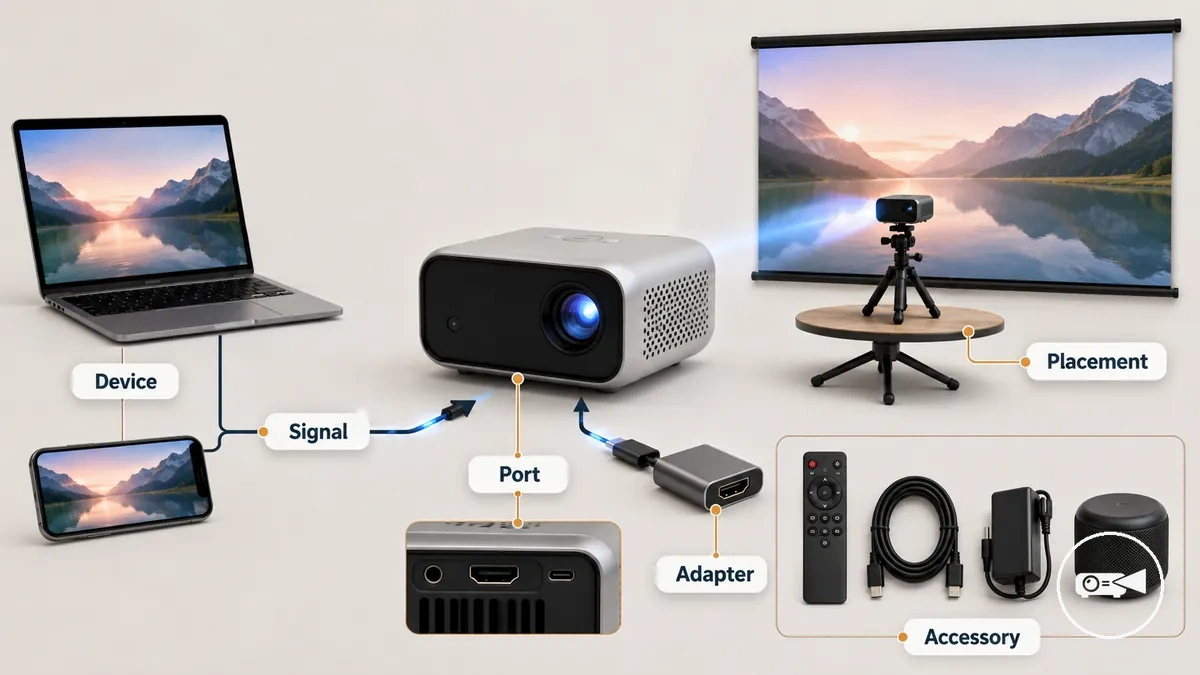
General connectivity support describes the interfaces a mini projector accepts, while purchase-specific compatibility describes whether the buyer’s complete connection path works. The required condition is a supported source signal matched to a compatible projector port, with any adapter carrying that same signal rather than only changing the connector shape. Placement must also allow the projected image to fit the available surface, and each required accessory must support the intended power, control, mounting, or audio arrangement.
Use the following scope check to separate a stated feature from a usable compatibility result.
For example, a device with a USB-C port is not a confirmed match when that port supports charging and data but not video output; the buying risk is purchasing a USB-C adapter that cannot deliver an image. Deeper connection methods and post-purchase setup steps are supporting topics covered within the mini projector guide, while this section defines what must be verified before comparing offers. Use the following scope check to separate a stated feature from a usable compatibility result.
- Device: The source device must provide a video signal through a connection method accepted by the mini projector; a port without video output produces no wired image.
- Signal: The source format and the projector input must support the same transmission path; matching connector shapes alone do not establish signal compatibility.
- Port: The selected projector port must function as a live video input rather than only as a charging, power, or media-file port.
- Adapter: A required adapter must support the source device’s video-output method and the projector’s input; an incompatible adapter creates a failed connection even when both devices work separately.
- Placement: The available position must allow the projector to face a suitable surface at a distance that keeps the image within that surface; an unsuitable position reduces setup fit.
- Accessory: Any required mount, cable, power supply, remote, or speaker must match the planned use; a missing or incompatible accessory adds cost or prevents the intended setup.
Source Devices the Mini Projector Must Support
A mini projector is compatible with a source device when the device can send a supported video signal through a matching wired connection or wireless protocol accepted by the projector. Before purchase, verify the source device's output method, the required projector input, and any adapter or operating system limitations, because connector shape alone does not confirm compatibility.
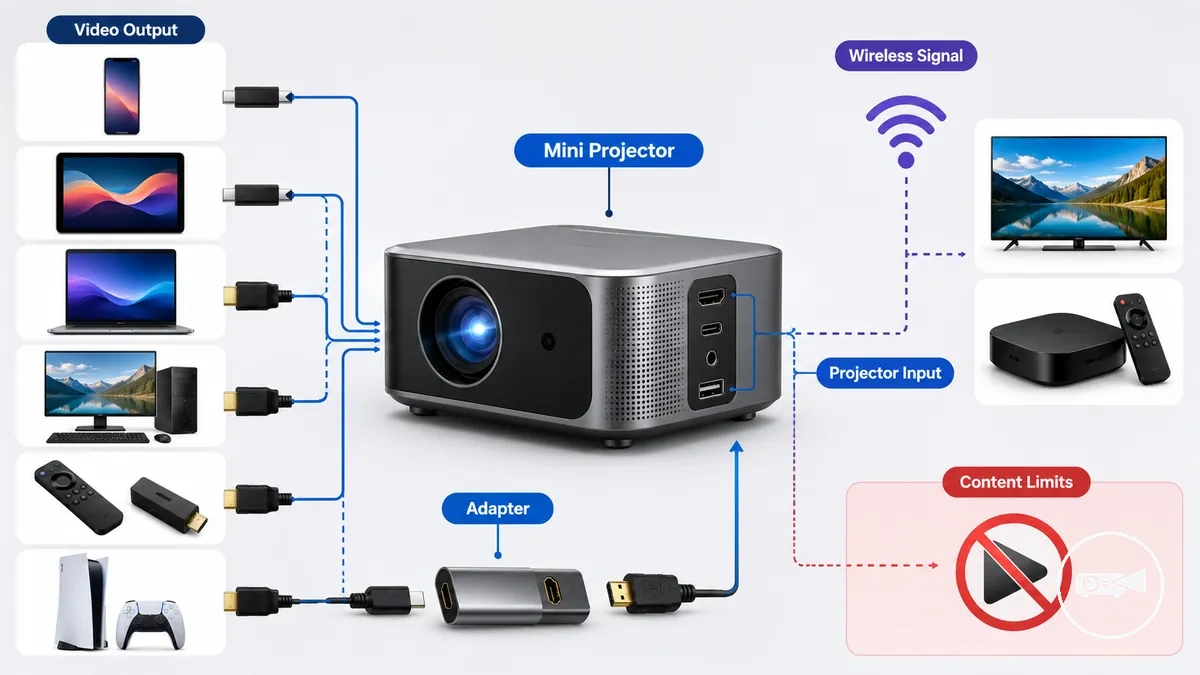
Device compatibility is determined by four practical conditions: the source device's video output, the projector's supported input or casting protocol, the required cable or adapter, and any content restrictions imposed by the operating system or streaming application. A laptop with HDMI output connects directly to a projector with HDMI input, while many phones and tablets require a USB-C or Lightning video adapter, or a compatible wireless casting method if native video output is unavailable. Even when screen mirroring succeeds, protected streaming services may restrict playback depending on the application's digital rights management rules.
Even when screen mirroring succeeds, protected streaming services may restrict playback depending on the application's digital rights management rules.
For example, a household might use a laptop for work presentations, a streaming device for entertainment, and multiple smartphones for casual media sharing. In that situation, selecting a projector that supports both compatible wired inputs and supported wireless casting methods reduces the buying risk because each family member can use an appropriate connection method rather than relying on a single interface.
Additional connection standards, ports, and interface details are explained in mini projector connectivity options .
The following checklist helps confirm whether a mini projector supports the source devices you intend to use before purchase. Additional connection standards, ports, and interface details are explained in mini projector connectivity options.
- Phones: Verify whether the phone supports video output through USB-C or Lightning, or a wireless casting protocol accepted by the projector.
- Tablets: Confirm the tablet's available video output method and whether a compatible adapter or wireless connection is required.
- Laptops and computers: Match the computer's HDMI, DisplayPort, or USB-C video output with a compatible projector input or supported adapter.
- Streaming devices: Ensure the streaming device connects through a supported HDMI input and receives any required power supply.
- Gaming consoles: Check that the projector accepts the console's HDMI video signal and supports the intended display mode.
- TV-related sources: Confirm that cable boxes, media players, or similar devices provide a compatible video output rather than relying only on matching connector shapes.
- Mixed-device households: Prefer a projector that supports both suitable wired connections and compatible wireless casting when different users depend on different source devices.
Phone and Tablet Compatibility
A phone or tablet is compatible with a mini projector when the mobile device provides a supported video output or wireless casting method that matches the projector input. Before purchase, confirm that the device supports USB-C video output, a compatible Lightning adapter, or a supported screen mirroring protocol, because a charging port alone does not confirm video compatibility.
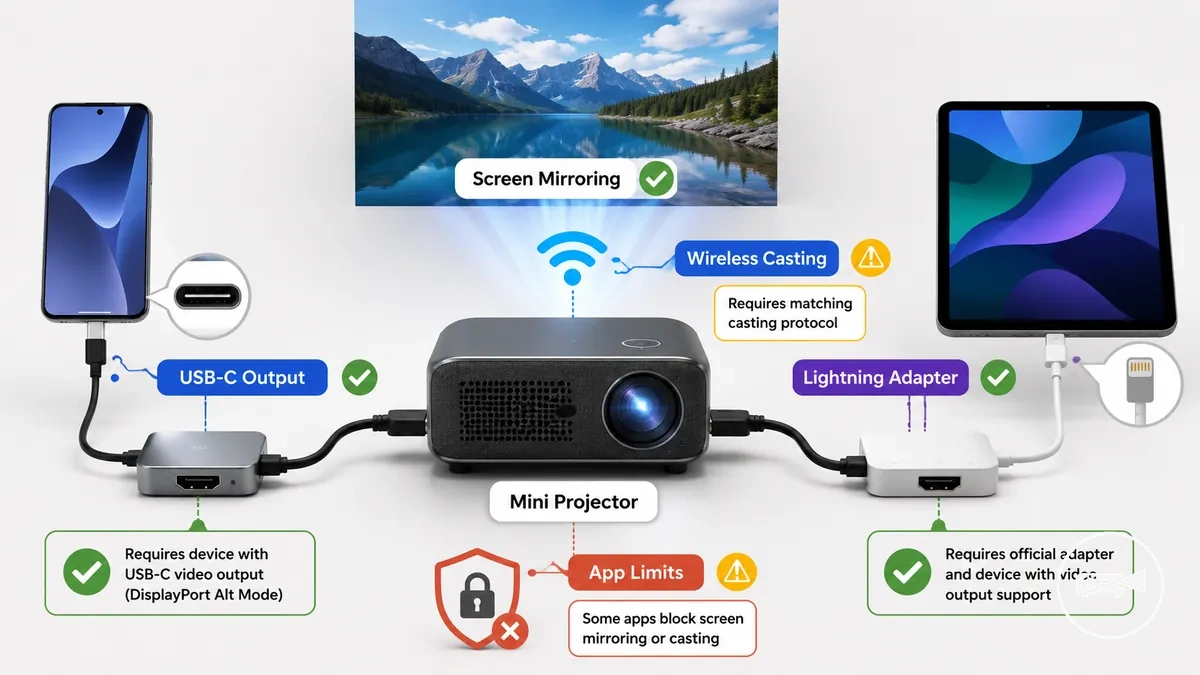
Phone and tablet compatibility is determined by the mobile device's output path rather than the projector label. A device with USB-C video output can connect through a compatible USB-C-to-HDMI adapter, while a Lightning device requires a compatible Lightning digital AV adapter for wired video output. Wireless casting supports screen mirroring only when both the mobile device and the mini projector use a compatible casting protocol, and protected content may remain unavailable because individual apps can limit media playback.
Phone and tablet compatibility is determined by the mobile device's output path rather than the projector label.
The following checklist verifies the main phone and tablet compatibility conditions before connecting a mini projector.
- USB-C video output: Confirm that the USB-C port supports video output instead of charging only.
- Lightning adapter: Use a compatible Lightning digital AV adapter when wired video output is required.
- Wireless casting: Verify that the phone or tablet and the mini projector support the same casting protocol for screen mirroring.
- App limits: Check whether protected content is restricted even after a successful wired or wireless connection.
Laptop and Computer Compatibility
A laptop or computer is compatible with a mini projector when its video output matches the projector input through the correct cable or adapter. Verify whether the device provides native HDMI or USB-C display output before connecting, because a USB-C charging port alone does not confirm display support.
Native HDMI connects directly to a projector's HDMI input with a standard HDMI cable.
Native HDMI connects directly to a projector's HDMI input with a standard HDMI cable. A USB-C-only laptop requires USB-C display output and a compatible USB-C-to-HDMI adapter to deliver a video signal, while USB-C ports that support only charging or data cannot output video. The displayed resolution and refresh rate are limited to modes supported by both the computer and the projector, and audio output is typically carried through the HDMI connection when both devices support HDMI audio.
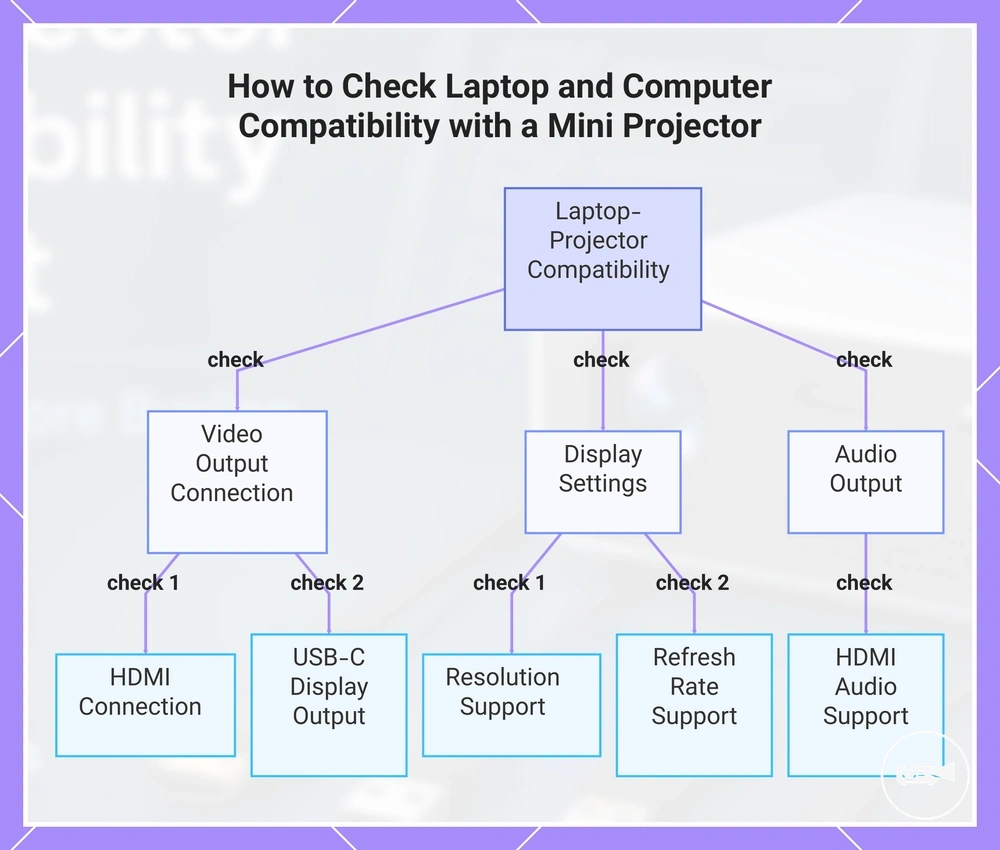
The following checks verify laptop and computer compatibility before connecting a mini projector.
The following checks verify laptop and computer compatibility before connecting a mini projector.
- HDMI: Match the computer's HDMI output to the projector's HDMI input with a standard HDMI cable.
- USB-C display output: Confirm that the USB-C port supports DisplayPort Alt Mode or another video output function before using a USB-C-to-HDMI adapter.
- Resolution: Select a display resolution supported by both the computer output and the projector input.
- Refresh rate: Use a refresh rate accepted by both devices to achieve a stable display.
- Audio output: Verify whether audio travels through HDMI or whether the selected setup requires a separate audio connection.
This chart shows the key checks to verify laptop or computer compatibility with a mini projector before connecting.
Streaming, Gaming, and TV Device Compatibility
A streaming stick, game console, set-top box, or other TV device is compatible with a mini projector when its video output matches a supported projector input, typically HDMI. Confirm that the device also has an appropriate power source and a compatible audio path, because these conditions determine whether video and sound are available through the selected setup.
Most streaming sticks use an HDMI connection and often require USB power from the projector or a separate power adapter.
Most streaming sticks use an HDMI connection and often require USB power from the projector or a separate power adapter. Game consoles and set-top boxes commonly send both video and audio through HDMI when the projector supports the selected display resolution and audio format. A mini projector normally relies on an external source for television or streaming content and does not replace a built-in TV tuner.
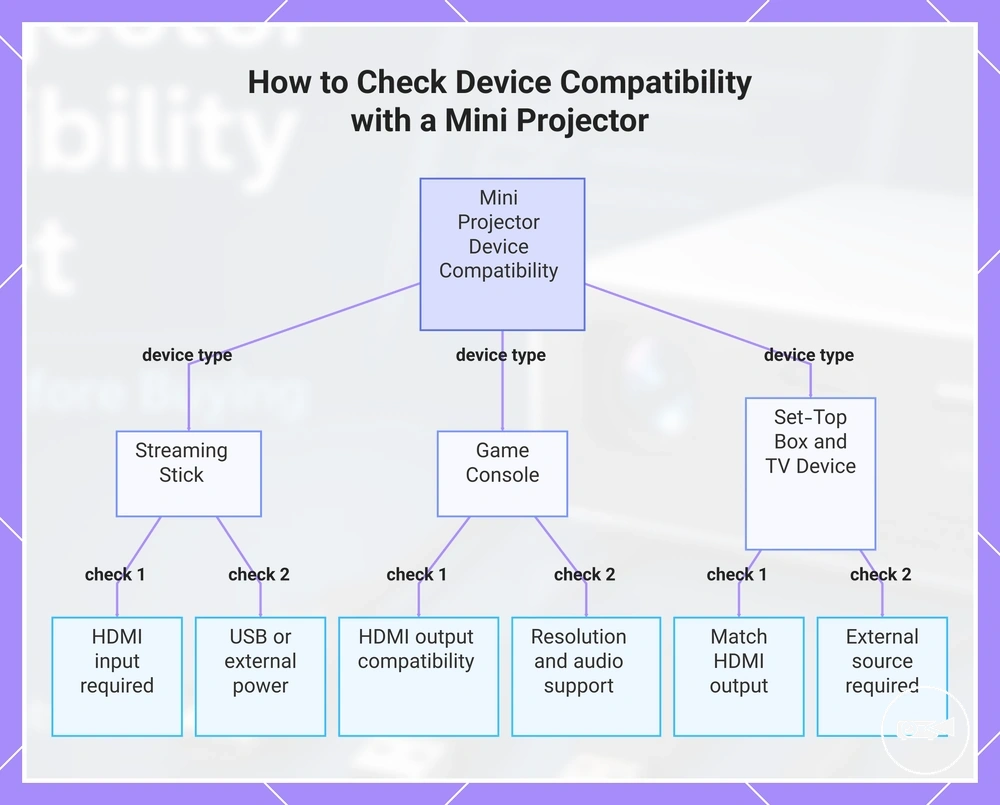
The following checks help verify streaming, gaming, and TV device compatibility before connecting a mini projector.
The following checks help verify streaming, gaming, and TV device compatibility before connecting a mini projector.
- Streaming stick: Confirm an available HDMI input and sufficient USB or external power.
- Game console: Verify HDMI output compatibility and confirm the projector supports the selected video resolution and audio output.
- Set-top box: Match the HDMI output to the projector input and use a supported display resolution.
- TV device: Check that it functions as the external source because the projector typically does not include a television tuner.
This chart shows the key compatibility checks for streaming sticks, game consoles, and set-top boxes when connecting to a mini projector.
Ports, Cables, and Adapter Requirements
The required ports and cables are determined by matching the source output to the mini projector input with the correct cable or adapter. A native HDMI connection on both devices provides the simplest and most reliable connection because a single HDMI cable can carry both video and audio, while different connector types require an appropriate adapter.
The required ports and cables are determined by matching the source output to the mini projector input with the correct cable or adapter.
Confirm that the source device provides HDMI, USB-C with display output support, or another compatible video output, and verify that the mini projector includes the matching projector input. A USB-C port used only for charging or data transfer cannot deliver a video signal, so a USB-C-to-HDMI adapter works only when the source USB-C port supports video output. Standard USB ports normally provide power or media playback rather than live video input unless the projector documentation explicitly states USB video support.
The table below helps verify whether the available ports, cables, and adapters provide a compatible signal path before purchase.
The table below helps verify whether the available ports, cables, and adapters provide a compatible signal path before purchase.
| Source output | Required cable or adapter | Compatibility outcome | Audio path |
|---|---|---|---|
| HDMI to HDMI projector input | HDMI cable | Direct connection with no signal-conversion adapter required | Video and audio can travel through the same HDMI cable when both devices support HDMI audio |
| USB-C with display output to HDMI projector input | USB-C-to-HDMI adapter or cable | Compatible only when the USB-C port supports video output | Audio can pass through the adapter when supported by the source device, adapter, and projector |
| Different video connector to projector input | Signal-compatible adapter matching the source output and projector input | Connection succeeds only when the adapter converts the required video signal in the correct direction | A separate audio connection may be needed if the adapter does not carry audio |
| USB port without video support | USB cable for power or supported media storage | Not suitable for live video projection unless the projector specifically supports USB video input | Audio follows the active video connection or a separate audio output |
Verify these connection requirements before connecting a mini projector after purchase, especially when your setup relies on USB-C or multiple adapters.
HDMI, USB-C, and USB Input Fit
HDMI, USB-C, and USB input ports do not necessarily carry the same signal for a mini projector. HDMI commonly provides a direct video signal path from a matching source output, while USB-C requires confirmed display support and USB may be limited to file playback or power.
HDMI, USB-C, and USB input ports do not necessarily carry the same signal for a mini projector.
Match the source output to the projector input by checking both the connector and its stated function. A USB-C-to-HDMI adapter is suitable only when the source USB-C port supports video output, such as DisplayPort Alternate Mode or another documented display function. A standard USB input supports live video only when the projector documentation identifies USB video support.
Match the source output to the projector input by checking both the connector and its stated function.
The comparison below shows the required condition and likely compatibility outcome for each input type.
| Input type | Supported function | Required source output | Compatibility outcome |
|---|---|---|---|
| HDMI | Video signal and supported audio | HDMI output or a compatible video adapter | Direct projection when the source output and projector input support the same signal format |
| USB-C | Video only when the port includes documented display support; it may otherwise provide data or power | Video-capable USB-C output | Projection is possible through a compatible cable or adapter when display output is supported |
| USB | File playback, power, or another model-specific USB function | Supported storage media or power source | Not a live video path unless the projector explicitly supports USB video input |
Phone Adapter and Laptop Adapter Fit
A phone, tablet, or laptop is compatible with a mini projector when its video-capable source output, required adapter, and the projector input support the same signal path. A matching connector alone is insufficient if the source port does not provide video output or the adapter does not support the required display standard.
The following checks determine whether the adapter can carry video successfully.
The following checks determine whether the adapter can carry video successfully.
- Connector type: Match the phone, tablet, or laptop connector to the adapter input and match the adapter output, commonly HDMI, to the projector input.
- Display support: A USB-C adapter requires USB-C video output from the source device; a USB-C charging or data port without display support will physically accept the connector but will not transmit video.
- Power needs: An adapter with external power support may be required when the source device cannot supply enough power for stable operation or when the adapter must charge the device during use.
- Operating system compatibility: The source operating system must support the selected wired output, screen mirroring, or wireless casting method, while app limits may block protected content even when the connection itself works.
- Lightning adapter fit: A phone or tablet with a Lightning connector requires a Lightning adapter that provides a compatible video output for the projector input.
For example, a USB-C-to-HDMI adapter can fit a laptop's USB-C port but produce no image when that port supports charging and data only, because the laptop provides no USB-C video output. Wireless casting or screen mirroring can also connect successfully while protected content remains unavailable because the playback app restricts external display output.
Wireless Casting and App Compatibility
Wireless casting is compatible when the phone, tablet, laptop, or media app uses a casting protocol that the mini projector supports. Wi-Fi access alone does not confirm screen mirroring or app playback because AirPlay, Miracast, and Chromecast require matching source and receiver support.
Check the device ecosystem, casting protocol, Wi-Fi condition, and app restrictions before relying on wireless display.
Check the device ecosystem, casting protocol, Wi-Fi condition, and app restrictions before relying on wireless display. Screen mirroring can reproduce the device screen when both endpoints support the same method, while protected content may show a blank screen or playback error when the app blocks external display output.
The criteria below show how each wireless feature affects expected display behaviour.
The criteria below show how each wireless feature affects expected display behaviour.
| Source or feature | Casting method | Required projector support | Expected display behaviour or limitation |
|---|---|---|---|
| Apple phone, tablet, or laptop | AirPlay or an app-supported casting method | AirPlay receiver support or a compatible external receiver | Screen mirroring or supported media playback is available when the source and receiver use the same method; app restrictions may block protected content |
| Windows laptop or compatible Android device | Miracast screen mirroring | Miracast receiver support | The source screen can appear on the projector when both devices support Miracast and the Wi-Fi connection remains stable |
| Chromecast-enabled phone, tablet, laptop, or media app | Chromecast casting | Built-in Chromecast support or a compatible external receiver connected to the projector | Supported apps can send media or a browser tab, while apps without Chromecast support require another display method |
| Wi-Fi | Network connection used by the selected casting protocol | Compatible Wi-Fi and matching casting support | Wi-Fi enables communication but does not itself provide AirPlay, Miracast, Chromecast, or screen mirroring |
| Bluetooth | Audio or peripheral pairing | Bluetooth audio or accessory support | Bluetooth can support speakers, headphones, keyboards, or controllers, but it should not be assumed to carry video |
For example, a phone and mini projector may share the same Wi-Fi network but still fail to mirror when the phone uses AirPlay and the projector supports only Miracast. A media app may also connect through Chromecast while protected content remains unavailable because the app controls whether external playback is permitted.
AirPlay, Miracast, and Chromecast Support
AirPlay, Miracast, and Chromecast support must match the source device ecosystem and the mini projector's receiver capability. Each protocol follows a different casting path, so the display result is available only when the source, projector support, app support, and network condition align.
The comparison below shows the compatible device type, connection condition, and likely casting result for each standard.
The comparison below shows the compatible device type, connection condition, and likely casting result for each standard.
| Protocol | Compatible device type | Network or adapter condition | Likely display result |
|---|---|---|---|
| AirPlay | iPhone, iPad, or Mac with AirPlay casting support | The mini projector must include AirPlay receiver support or use a compatible external receiver, with both devices connected through the required local network arrangement | Screen mirroring or supported media casting is available when the sender, receiver, and app permit the selected content |
| Miracast | Compatible Windows computers and Android devices with Miracast device support | The source and mini projector must both support Miracast; the connection can use Wi-Fi Direct instead of an existing internet connection | The source screen is mirrored when both endpoints establish a Miracast session, while devices without sender support cannot use this path |
| Chromecast | Phones, tablets, Chromebooks, and computers using a Chromecast-enabled app or compatible browser | The mini projector must include Google Cast support or connect to a compatible external adapter, and the source and receiver normally require the same usable Wi-Fi network | Supported apps can cast media and compatible computers can cast selected browser content, while apps without casting support do not produce the intended display result through this path |
For example, an iPhone can use AirPlay with a compatible receiver, while an Android phone may use Miracast or Chromecast according to its device support and app path. A Windows laptop can use Miracast when both endpoints support it, but a projector labelled only as wireless does not confirm support for all three protocols.
Streaming App and Protected Content Limits
A streaming app is compatible with a mini projector only when its DRM rule, casting support, and selected connection method permit external playback. Screen mirroring can display the device interface while protected content produces a blocked display or playback error when the app does not authorise that path.
The warning checklist below shows the conditions to verify before relying on subscription streaming.
The warning checklist below shows the conditions to verify before relying on subscription streaming.
For example, a buyer focused on subscription streaming may see the app interface through screen mirroring but receive a black or blocked video during playback. In that situation, a supported in-app casting method, HDMI alternative, or authorised external streaming device provides the correct connection fit only when the app permits that route.
Screen, Placement, and Mounting Fit
A mini projector provides suitable screen fit only when the available throw distance, surface size, projector height, and placement position match the room. If any of these conditions fall outside the projector's supported placement range, the image size or everyday usability is reduced even when the projector itself is compatible.
Throw distance should match the intended screen fit, while the available surface size must accommodate the projected image without obstruction.
Throw distance should match the intended screen fit, while the available surface size must accommodate the projected image without obstruction. Projector height should allow the lens to align with the viewing surface, and a tripod or mount becomes part of the placement decision when existing furniture cannot provide a stable viewing position.
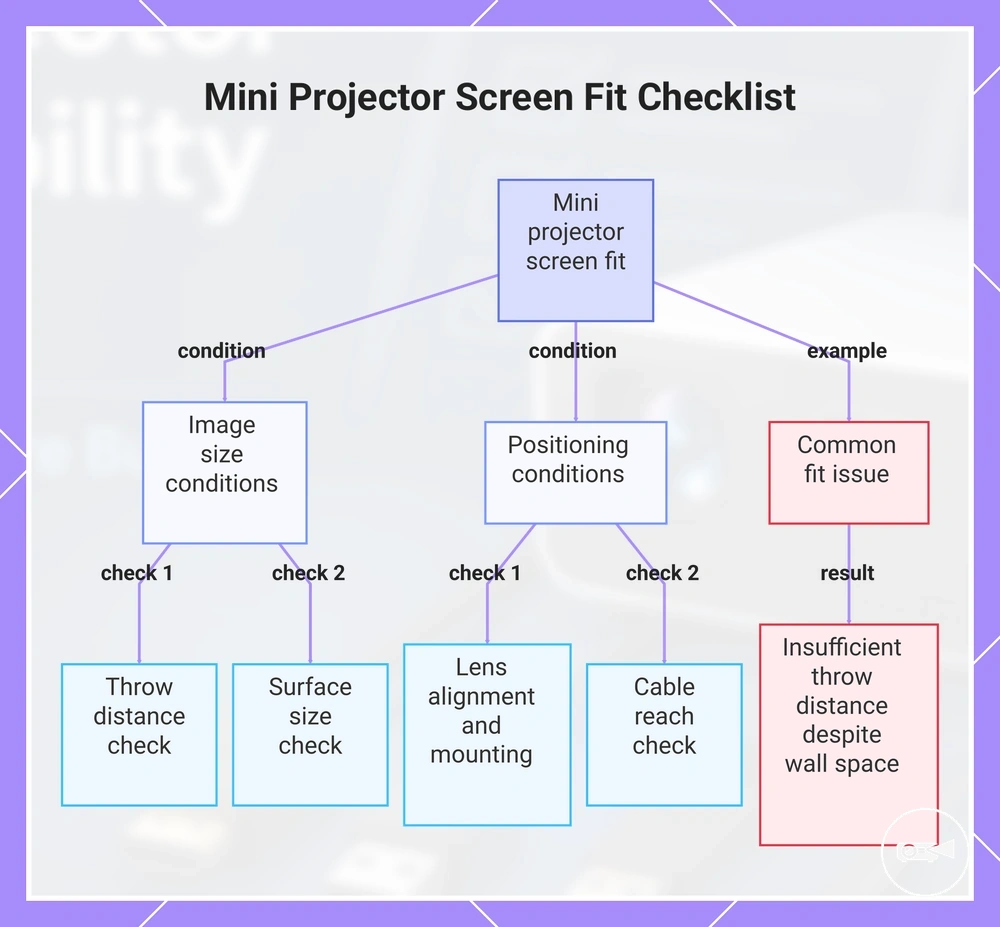
The placement checklist below helps verify whether the room layout supports the expected viewing experience before purchase.
The placement checklist below helps verify whether the room layout supports the expected viewing experience before purchase.
- Throw distance: Confirm the room provides a supported projection distance for the desired image size.
- Surface size: Verify the available wall or projection screen is large enough for the intended image without cutting off edges.
- Projector height: Ensure the lens can align with the viewing surface without relying on unstable positioning.
- Tripod or mount: Choose a tripod or mount when shelves or tables cannot provide the required placement or viewing angle.
- Cable reach: Check that power and video cables can safely reach the projector location, or plan for a longer compatible cable before purchase.
For example, a room may have enough wall space but insufficient throw distance for the preferred image size, making a different placement or smaller screen necessary. Before deciding that a tripod, mount, screen, or longer cable resolves the limitation, review the model-specific throw distance and screen size fit requirements.
This chart shows the key conditions and placement checks to verify whether a mini projector will provide suitable screen fit in a room.
This chart shows the key conditions and placement checks to verify whether a mini projector will provide suitable screen fit in a room.
Audio, Remote, and Everyday Accessory Fit
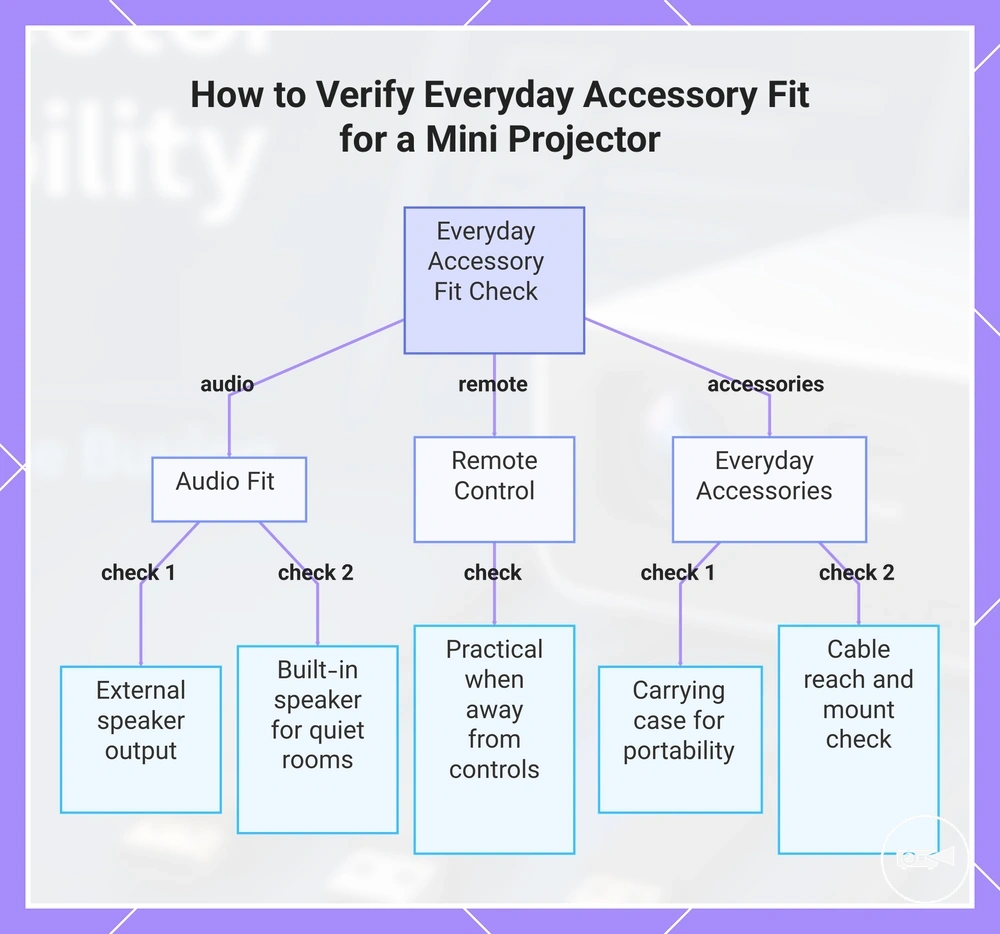
A mini projector is suitable for everyday use when its audio output, speaker option, remote control, carrying case, and cable reach match the intended environment. Accessory fit improves projector compatibility only when each accessory supports a practical need such as clearer audio, easier control, safer transport, or reliable everyday setup.
A mini projector is suitable for everyday use when its audio output, speaker option, remote control, carrying case, and cable reach match the intended environment.
Audio output should match the intended listening method, with built-in speakers suitable for basic use and external speaker support required when larger rooms or presentations need stronger sound. A remote control provides practical everyday use when the projector is placed on a shelf, tripod, or ceiling mount where direct access to the controls is inconvenient. A carrying case is most valuable when the projector is transported regularly, while fixed installations usually benefit more from permanent cable management than portable storage.
The checklist below helps verify whether the selected accessories improve everyday usability without adding unnecessary equipment.
The checklist below helps verify whether the selected accessories improve everyday usability without adding unnecessary equipment.
- Audio output: Confirm that the projector offers a compatible audio output if an external speaker is required.
- Speaker: Use the built-in speaker for quiet rooms, or plan an external speaker when higher volume or clearer speech is needed.
- Remote control: Check that the chosen control method remains practical when the projector is positioned away from the viewing area.
- Carrying case: Treat a carrying case as an important accessory for travel, classroom, or office use, while permanent room installations may not require one.
- Cable reach: Verify that power and video cables safely reach the planned projector position, or include a compatible longer cable when the source device is farther away.
- Basic support accessories: Consider a tripod, stable stand, or compatible mount only when the intended room cannot provide secure projector placement.
For example, a projector used for business presentations benefits from a remote control, external speaker, and carrying case, while a projector that remains in a living room may only require adequate cable reach and suitable audio output for everyday use.
This chart groups the key accessory fit checks into audio, remote control, and everyday accessories categories.
This chart groups the key accessory fit checks into audio, remote control, and everyday accessories categories.
Essential Accessories Needed for Compatibility
A mini projector requires only the accessories that match the chosen source device and installation method, not every available extra. Select each accessory according to a specific compatibility condition so that it either enables a connection or improves everyday usability.
Connection accessories become required only when the projector and source device cannot connect directly.
Connection accessories become required only when the projector and source device cannot connect directly. Setup accessories remain optional unless the room, placement, or intended use creates a practical need that affects projector compatibility or usability.
The checklist below separates accessories that are commonly required for compatibility from those that mainly improve setup convenience.
The checklist below separates accessories that are commonly required for compatibility from those that mainly improve setup convenience.
| Accessory | Required condition | Compatibility or usability effect |
|---|---|---|
| HDMI cable | A compatible HDMI output and projector input are available. | Provides a direct wired video connection. |
| USB adapter | The source device and projector use different compatible USB connector types. | Creates the required adapter connection between supported ports. |
| Phone adapter | The phone requires a compatible video-output adapter for wired display. | Enables projector compatibility with supported mobile devices. |
| Tripod | A stable surface or suitable projection height is unavailable. | Improves projector positioning and image alignment. |
| Screen | The available wall surface is unsuitable for clear projection. | Provides a more consistent viewing surface. |
| Remote control | The projector is positioned beyond comfortable manual access. | Improves everyday operation and presentation control. |
| Carrying case | The projector is transported between locations. | Protects the projector during storage and travel. |
| Speaker | Built-in audio does not meet the listening needs of the intended room. | Improves audio output and overall usability. |
For example, a fixed home setup may only need an HDMI cable, while a portable presentation setup may also require a phone adapter, tripod, carrying case, remote control, and external speaker because the usage environment changes which accessories become necessary.
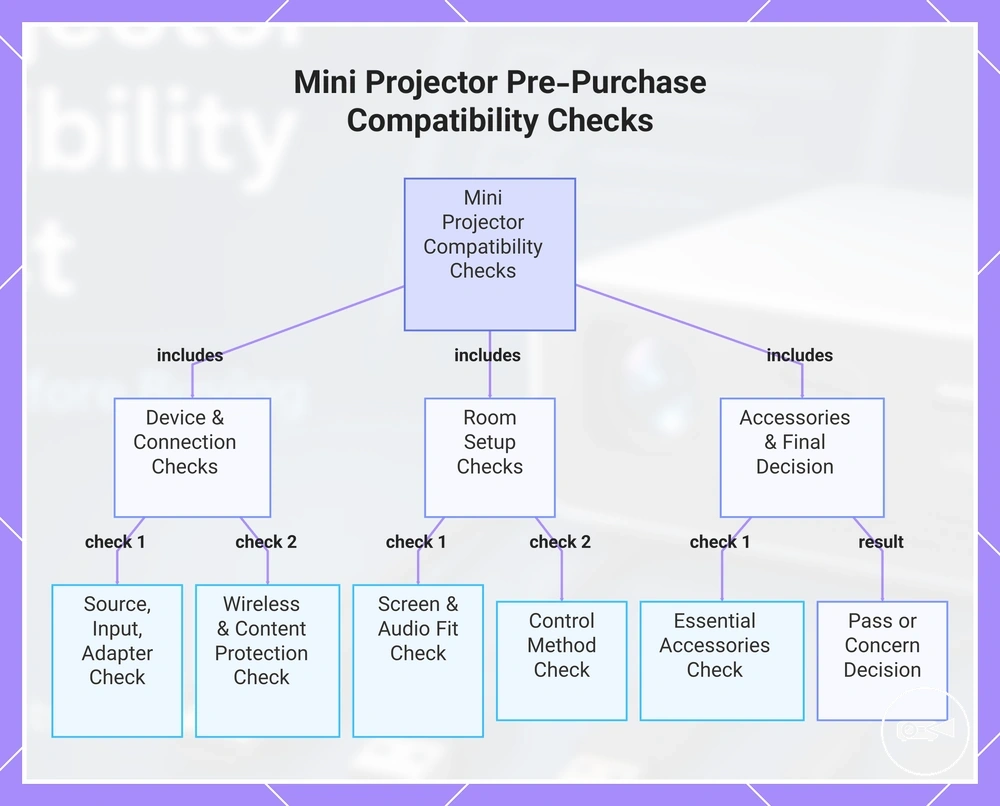
Mini Projector Pre-Purchase Compatibility Checks
Mini projector pre-purchase checks pass when the source device, connection method, room setup, control method, and essential accessories all meet the intended use conditions. Any unresolved concern should be verified before purchase rather than treated as compatible by assumption.
Check that the required adapter supports video output rather than charging or data only.
Confirm that the source device supports the projector input type or that a compatible adapter need has been identified. Check that the required adapter supports video output rather than charging or data only. If wireless use is planned, the wireless method must be supported by both devices and by the intended app or operating system.
Confirm that the source device supports the projector input type or that a compatible adapter need has been identified.
Check whether protected content is supported through the intended wired or wireless connection because app-level playback restrictions can create a concern even when basic casting works. Confirm that the screen fit suits the planned room, the audio output supports the intended speaker arrangement, and the control method remains practical from the projector position. Essential accessories pass only when every required cable, adapter, mount, screen, remote control, case, or speaker has been identified for the intended setup.
The final checklist below combines the compatibility conditions already evaluated into a pass-or-concern purchase decision.
The final checklist below combines the compatibility conditions already evaluated into a pass-or-concern purchase decision. If any result remains unclear, use the mini projector buying checklist and prefer a model with clearly documented input support and device compatibility.
- Source device: Pass when the intended phone, laptop, console, or media device has documented support; concern when device support is absent or unclear.
- Input type: Pass when the source output matches a supported projector input; concern when the available connectors do not provide a compatible video path.
- Adapter need: Pass when the required adapter supports the source device's video-output mode; concern when the adapter supports only charging or data transfer.
- Wireless method: Pass when both devices support the same casting protocol and the intended app permits playback; concern when either condition is undocumented.
- Protected content: Pass when the intended service supports playback through the chosen connection; concern when content protection blocks casting, mirroring, or adapter output.
- Screen fit: Pass when the planned projector position and viewing surface support the intended image placement; concern when the room cannot provide a suitable projection area.
- Audio output: Pass when built-in sound or a supported external connection meets the listening setup; concern when the required speaker connection is unavailable.
- Control method: Pass when the remote control, onboard controls, or supported app remain usable from the installation position; concern when normal operation would be impractical.
- Essential accessories: Pass when all required cables, adapters, supports, and audio accessories are available; concern when any compatibility-critical item remains unidentified.
For example, a phone-based setup should not pass solely because the connector fits; the phone must support video output, the adapter must carry that signal, and the intended app must permit playback. For broader model-selection context after these compatibility checks, continue with the mini projector guide.
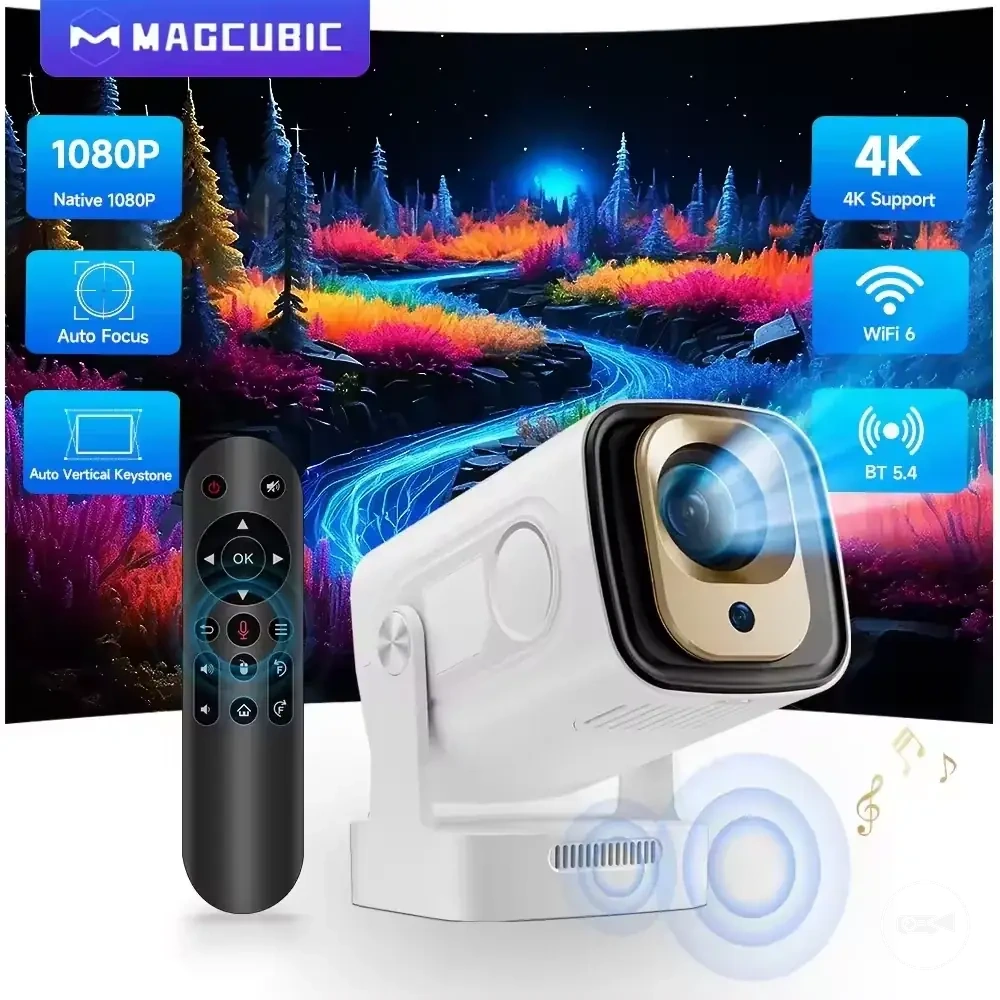
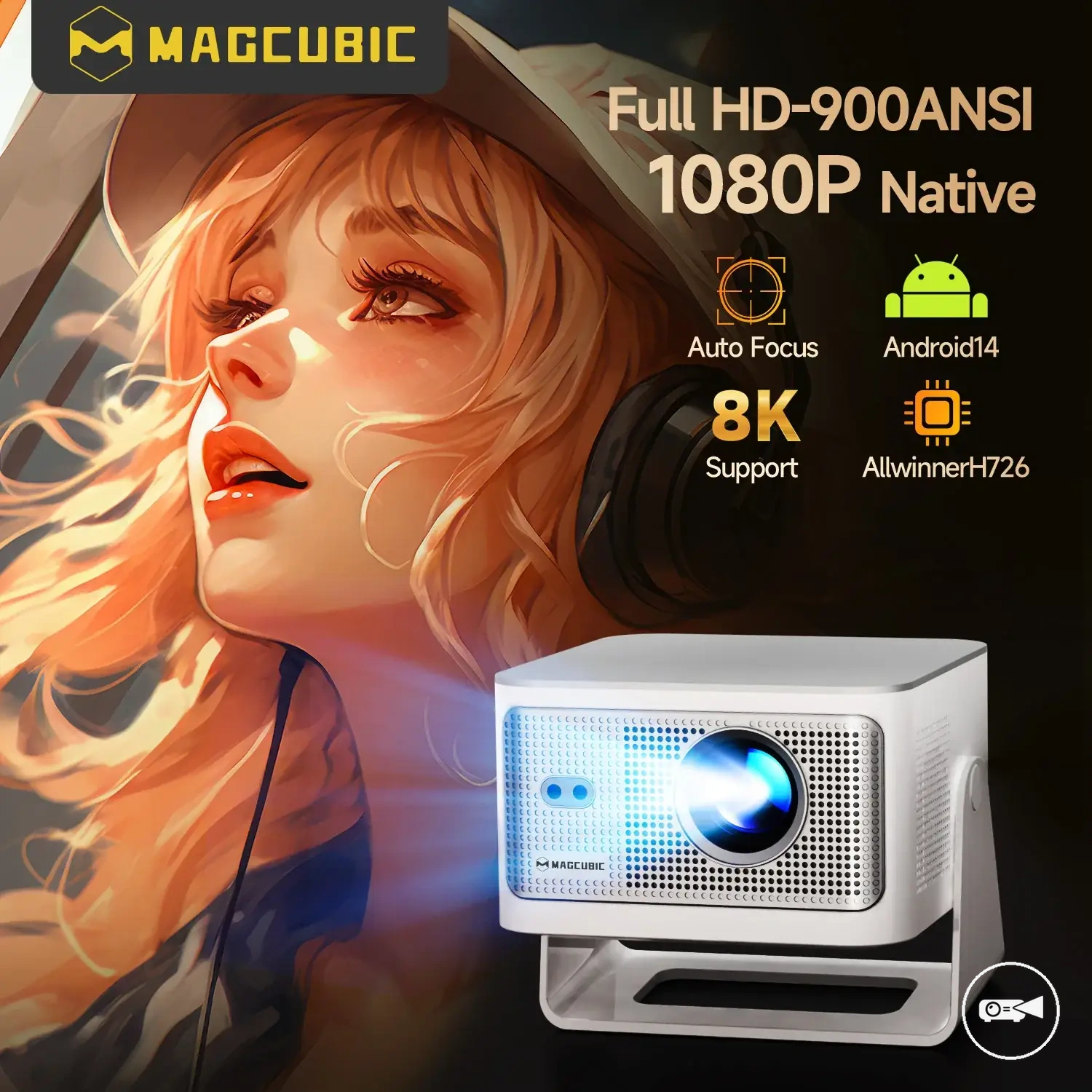
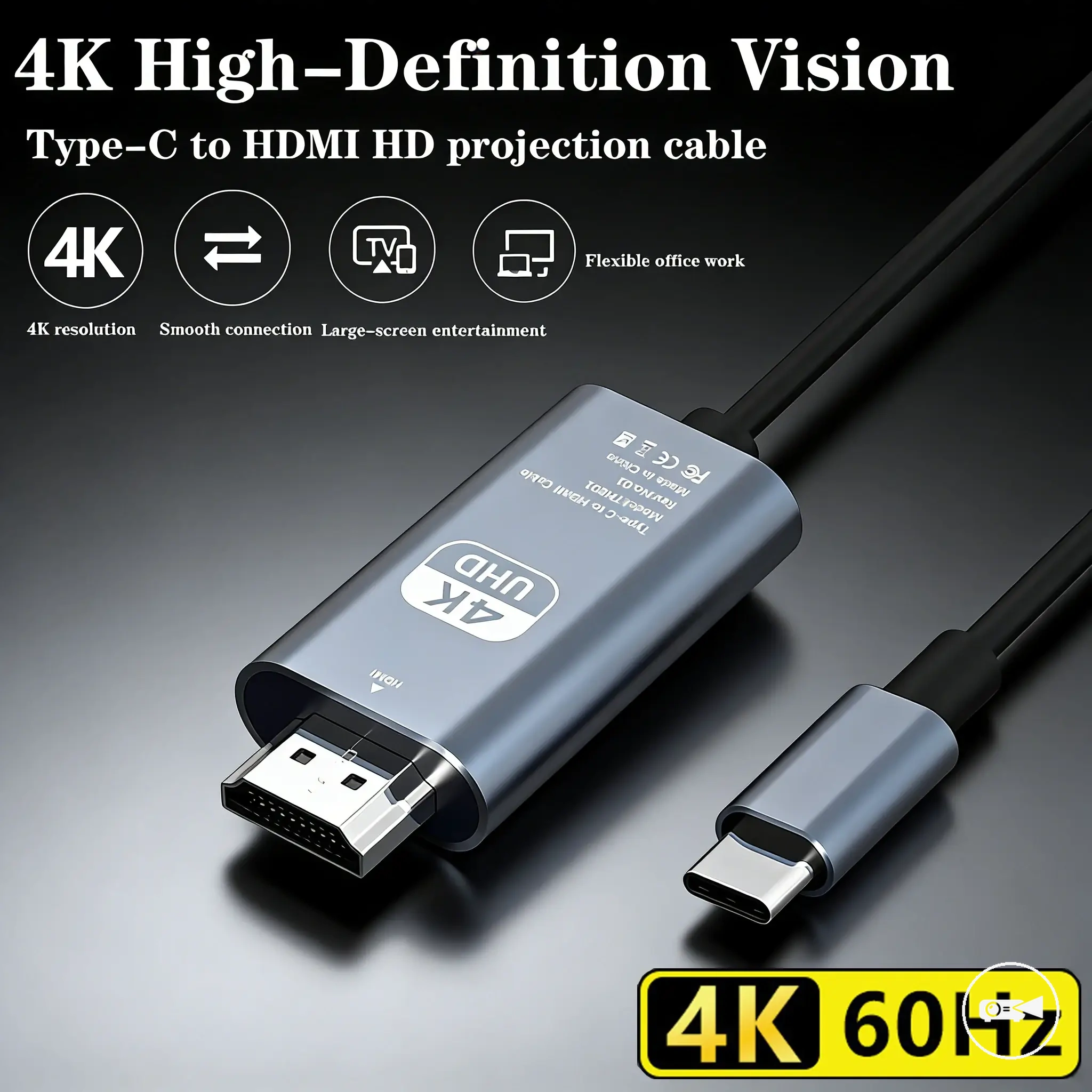
Here are product examples that may make comparison easier.
Here are product examples that may make comparison easier. Before buying, always review the compatibility criteria, essential features, and product details.
This chart shows the main compatibility checks to perform before purchasing a mini projector, grouped by device connection, room setup, and accessories.