
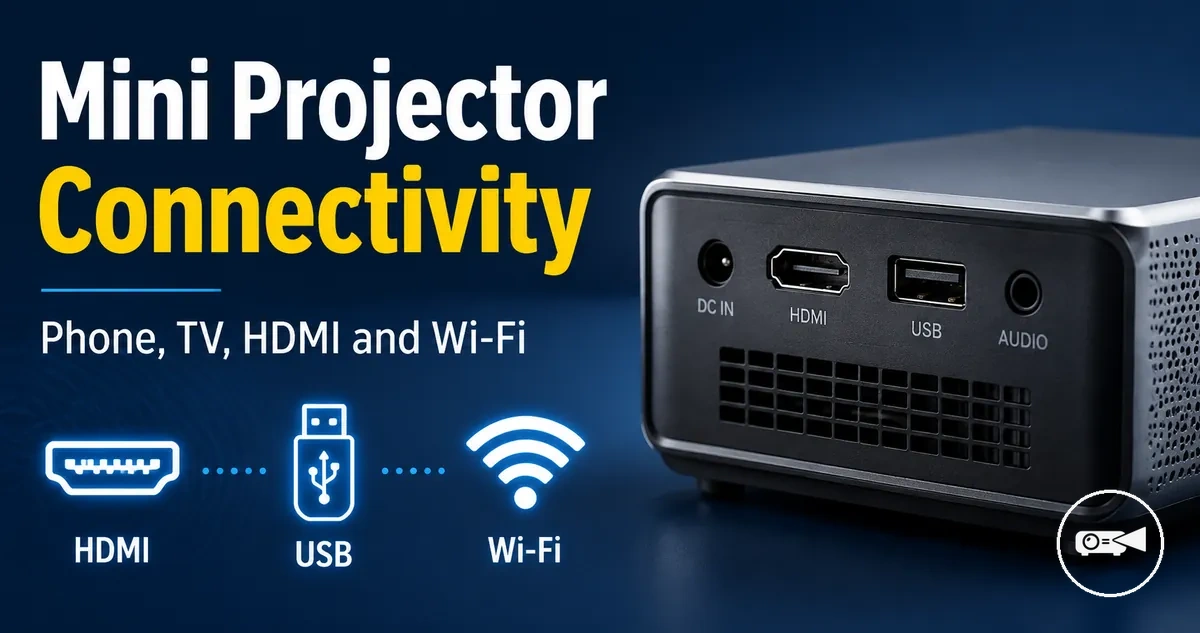
Mini Projector Connectivity and Device Compatibility
Mini projector connectivity is compatible when the projector input matches the source device output and both sides support the same signal or wireless protocol. HDMI, USB, Wi-Fi, Bluetooth, and adapter labels describe connection categories, but device compatibility requires a functional match between the projector and source device.
A laptop may have an HDMI output, while a phone may require an adapter or a supported screen mirroring method.
A laptop may have an HDMI output, while a phone may require an adapter or a supported screen mirroring method. Choosing a portable projector before checking its ports, protocols, and the source device display output creates a risk that the intended connection will not carry video.
The practical check is to match the complete signal path: source-device output, cable or wireless connection, projector input, and any required adapter.
The practical check is to match the complete signal path: source-device output, cable or wireless connection, projector input, and any required adapter. Wi-Fi compatibility requires a shared screen mirroring protocol, USB may provide media playback rather than live video, and Bluetooth commonly serves an audio path to a speaker; the available result remains conditional on the projector model, adapter capability, operating system, and app behaviour.
A connection label is therefore not the same as confirmed compatibility.
A connection label is therefore not the same as confirmed compatibility. For example, a USB-C phone and an HDMI mini projector require an adapter only when the phone supports display output, while a Wi-Fi label is useful for mirroring only when the phone and projector use a compatible protocol; the next section explains how each label changes the compatibility check.
For the wider selection context, the mini projector guide connects these device-fit checks with the other features that influence a purchase decision.
For the wider selection context, the mini projector guide connects these device-fit checks with the other features that influence a purchase decision.
Table of Contents
How Mini Projector Connections Determine Device Compatibility
A mini projector connection determines compatibility only when the projector input accepts the signal or protocol produced by the source device output. HDMI, USB, Wi-Fi, and Bluetooth labels identify connection types, but compatibility depends on both sides of the connection.
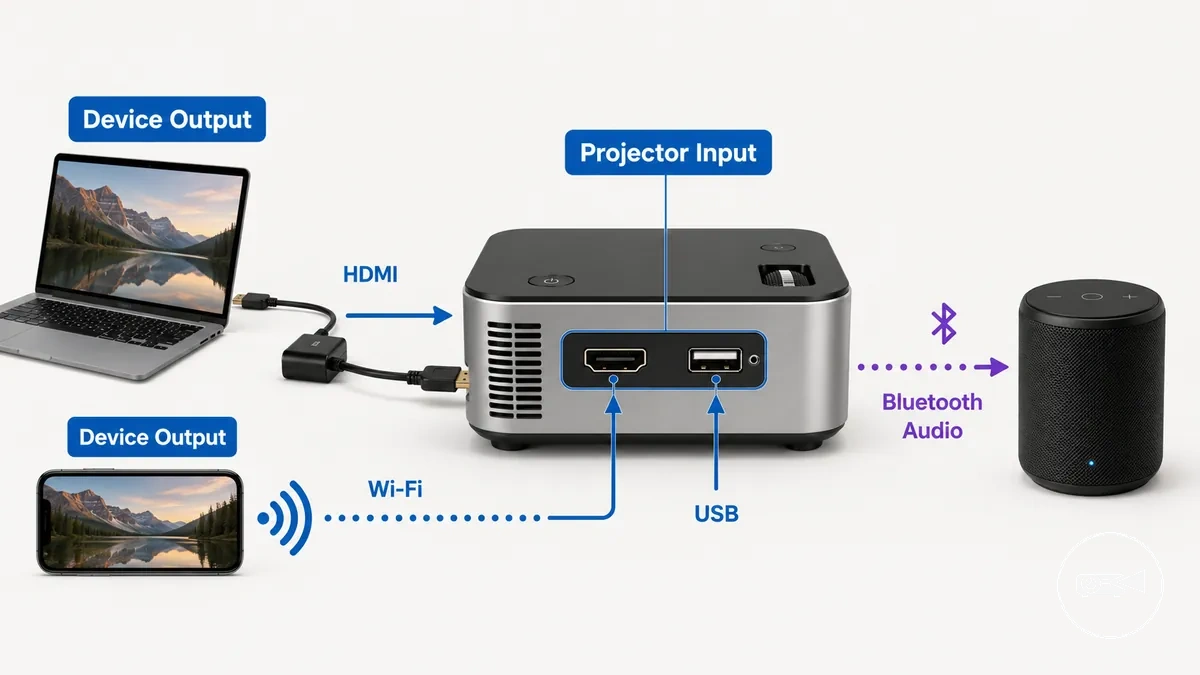
A connection label describes the projector interface, while device compatibility describes whether the complete signal path is supported. The projector input must match the source device output directly or through an adapter that carries the required video, audio, data, or wireless protocol.
The common assumption is that a familiar label proves full support, but the function behind that label is the deciding value.
The common assumption is that a familiar label proves full support, but the function behind that label is the deciding value. USB may be limited to power or media playback, Wi-Fi requires a shared screen-mirroring protocol, and Bluetooth usually supports audio to a speaker rather than video unless the projector model states otherwise.
The comparison below shows the function, verification point, and compatibility risk for each connection type.
The mini projector compatibility checklist provides the broader criteria for checking labels against real device requirements. The comparison below shows the function, verification point, and compatibility risk for each connection type.
| Connection label | What it may support | What to verify | Compatibility risk |
|---|---|---|---|
| HDMI | Digital video and audio input from a compatible source device. | Confirm that the source device provides HDMI output directly or through an adapter that supports display output. | A matching connector may still fail to carry video when the source port or adapter does not support display output. |
| USB | Power, file-based media playback, or a model-specific data function. | Check whether the projector accepts video input, reads supported media files, or uses the port only for power. | A USB label does not prove live screen output because the port function may be limited to power or stored-media playback. |
| Wi-Fi | Wireless screen mirroring or app-based streaming when both devices support the same protocol. | Confirm that the projector and source device share a supported mirroring protocol or compatible device ecosystem. | Both devices may have Wi-Fi yet remain incompatible when their wireless display methods do not match. |
| Bluetooth | Audio transmission to or from a compatible speaker or source device. | Check whether the projector uses Bluetooth for audio input, audio output, or another model-specific function. | Bluetooth usually does not carry the projector's video signal, so its presence does not establish screen-mirroring compatibility. |
Wired Video Connections for Mini Projectors
A wired video connection produces an image only when the source device sends a supported video signal to the projector input. HDMI offers a direct path for many laptops and media devices, while USB-C and phone connections often require verified video output and a compatible adapter, so wired video is stable but still conditional.
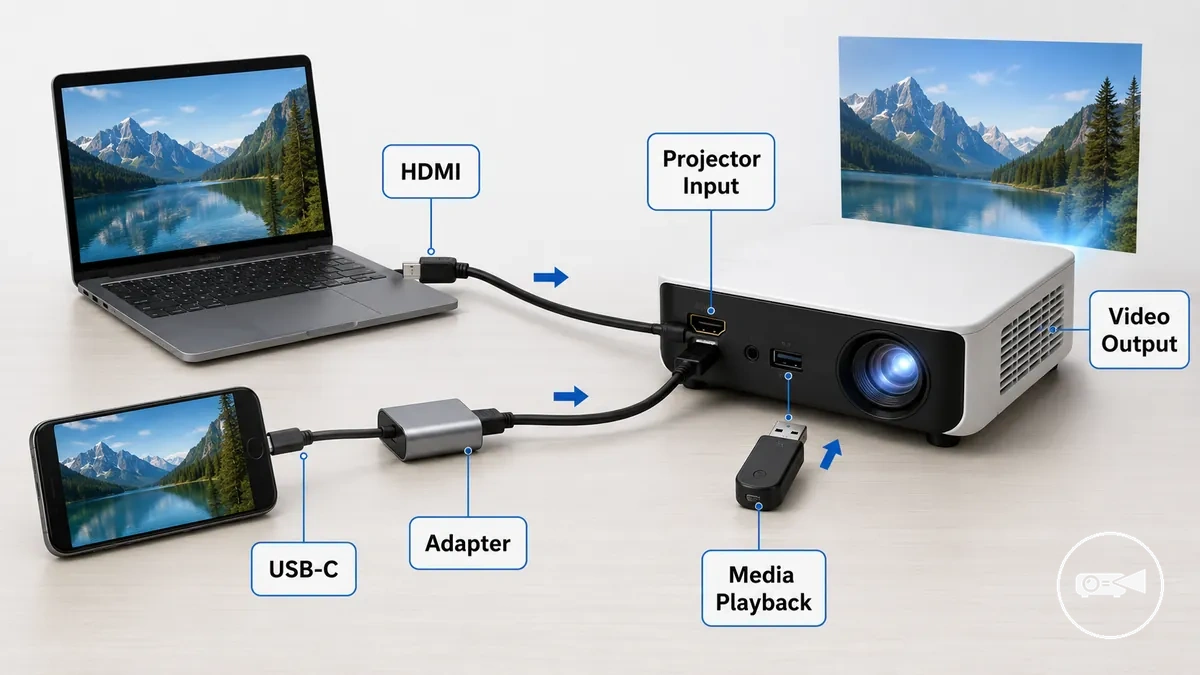
A wired connection includes the source device output, cable or adapter, and projector input as one signal path. A physical HDMI or USB-C port identifies the connector shape, but an image appears only when that port also carries a video signal supported by the projector.
For example, a laptop with native HDMI video output can connect directly to an HDMI projector input.
For example, a laptop with native HDMI video output can connect directly to an HDMI projector input. A phone or tablet with USB-C requires video-capable USB-C output, such as supported DisplayPort Alternate Mode, plus a USB-C-to-HDMI adapter; a Lightning device requires an adapter designed to provide HDMI output, which makes the display result adapter-dependent.
Wired video options differ by port, adapter requirement, cable direction, and device output.
Wired video options differ by port, adapter requirement, cable direction, and device output. USB media playback is a separate function because it displays supported files stored on a USB drive rather than mirroring a source-device screen.
| Wired option | Common source device | Required condition | Main limitation |
|---|---|---|---|
| HDMI | Laptop, streaming device, or game console | The source device must provide HDMI video output, and the cable must connect that output to the projector's HDMI input. | A matching HDMI connector does not produce an image when the source port, adapter, or selected projector input does not carry the expected signal. |
| USB-C to HDMI | Laptop, phone, or tablet | The USB-C port must support video output, and the adapter must convert that display signal to HDMI. | USB-C connector shape alone does not confirm video support, so charging-only or data-only ports cannot provide the required display output. |
| Lightning or phone adapter | Phone or tablet | The device and adapter must support HDMI video output, with the adapter positioned between the source device and projector input. | Compatibility is limited when the adapter supports charging or data but not display output, or when an app restricts external video. |
| USB media playback | USB flash drive | The projector must include media playback and support the stored file's format. | This method plays compatible files from storage; it does not provide live screen mirroring from a phone or laptop. |
HDMI Inputs for Laptops, Consoles, TV Boxes, and Streaming Sticks
An HDMI input is compatible with a source device when the device provides an HDMI video signal that the projector supports. HDMI is a common video input for laptops, consoles, TV boxes, and streaming sticks, but a matching HDMI connector alone does not guarantee a display result.
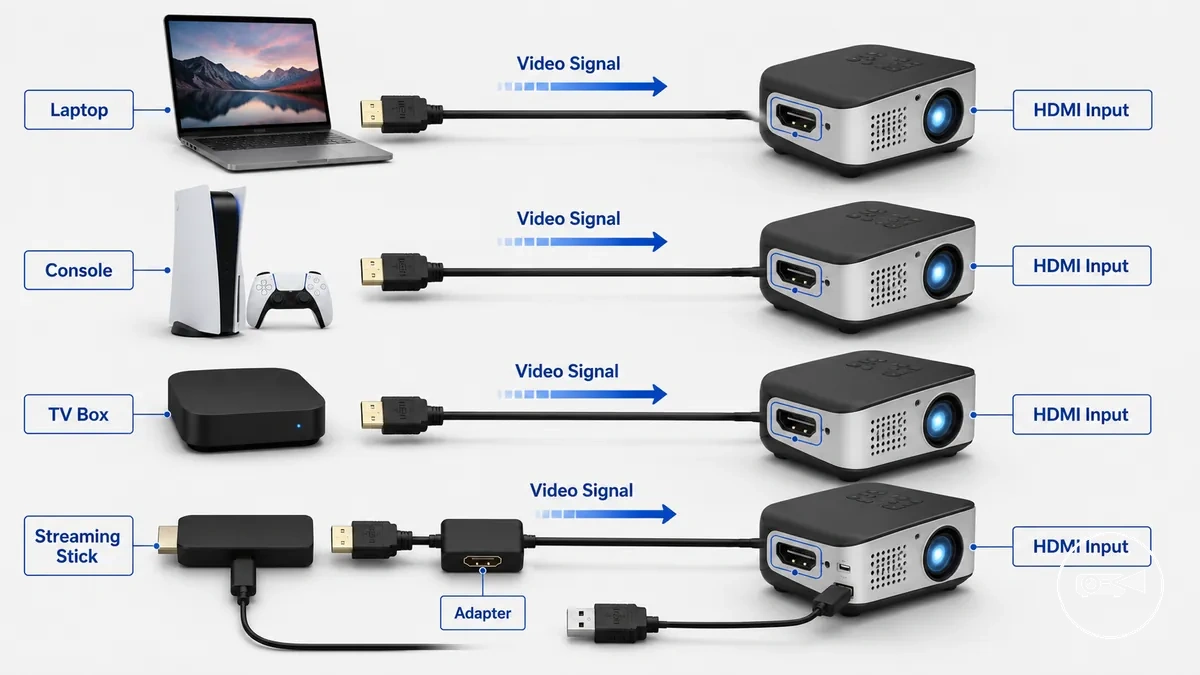
For example, a laptop with native HDMI output can connect directly to the projector, while a source device without HDMI may require a compatible adapter that supports video output. A streaming stick also needs HDMI for video and typically requires USB power, while every source device must output a supported video signal at a resolution the projector can display.
The following examples show common HDMI source-device compatibility conditions.
The following examples show common HDMI source-device compatibility conditions.
- Laptop: Native HDMI output provides direct compatibility when the selected resolution is supported by both the laptop and the projector.
- Console: HDMI carries video and audio together; the display result depends on the console outputting a video signal that the projector accepts.
- TV box: An HDMI output connects directly to the projector when the TV box sends a supported video signal.
- Streaming stick: Connects through the projector's HDMI input for video and normally requires a separate USB power source for operation.
- Adapter-based source device: A USB-C or similar source device requires a video-capable adapter before an HDMI signal can reach the projector input.
USB-C and HDMI Adapters for Phones and Tablets
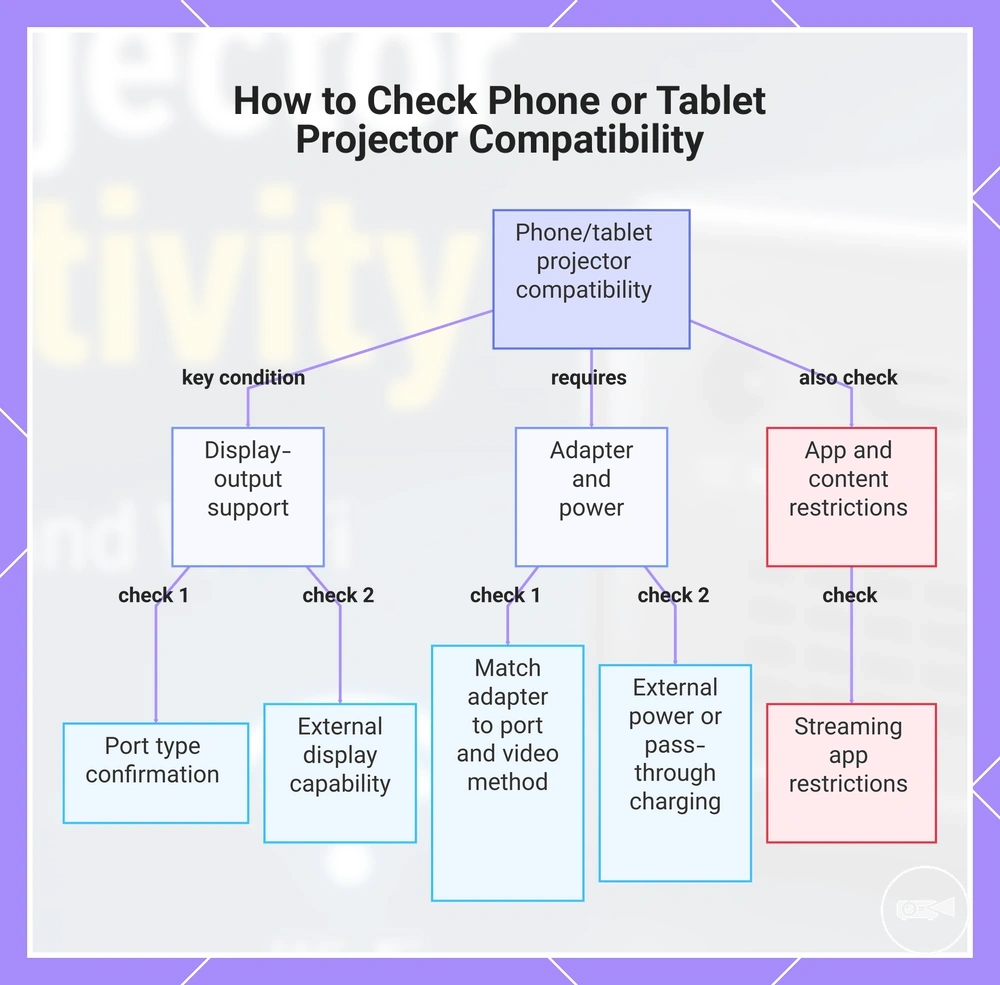
A phone or tablet is compatible with a projector through a USB-C to HDMI, Lightning to HDMI, or similar adapter only when the mobile device supports display output. Verifying display-output support is the key condition because the connector type alone does not confirm that projector video or screen mirroring is available.
Check the adapter type before expecting a display result.
If a mobile device lacks a native HDMI connection, the adapter must match both the device port and its supported video-output method before projection can work. For example, a USB-C to HDMI adapter only works when the phone or tablet supports video output through its USB-C port, while a Lightning to HDMI adapter requires a compatible Lightning device with supported external display capability. Check the adapter type before expecting a display result.
If a mobile device lacks a native HDMI connection, the adapter must match both the device port and its supported video-output method before projection can work.
Use this quick compatibility checklist before connecting a phone or tablet:
- Port type: Confirm whether the device uses USB-C, Lightning, or another connector.
- Display output: Verify that the phone or tablet supports external display output or screen mirroring through its port.
- Adapter type: Match the adapter to both the connector and the device's supported video-output capability, such as USB-C to HDMI or Lightning to HDMI.
- App support: Streaming apps or protected content can restrict playback on an external display even when the adapter is compatible.
- Power: Some adapters or mobile devices require external power or pass-through charging during projection.
After confirming these compatibility checks, see how to connect a mini projector for the complete connection process.
After confirming these compatibility checks, see how to connect a mini projector for the complete connection process.
This chart shows the key compatibility checks for connecting a phone or tablet to a projector using USB-C, Lightning, or HDMI adapters.
USB Ports for Media Playback and Limited Device Support
A USB port on a mini projector can serve different functions, including media playback, power delivery, or service access. A USB label does not always identify a video input for screen mirroring.
A USB label does not always identify a video input for screen mirroring.
For media playback, the projector must recognise both the connected storage device and the selected file format; otherwise, the file will not appear or play. A power-only USB port supplies electricity without reading media, while a service port is reserved for maintenance or firmware-related functions rather than normal playback. Verify the specific USB function stated for the projector before connecting a device.
Verify the specific USB function stated for the projector before connecting a device.
The table distinguishes the common USB port functions and their likely user outcomes.
| USB function | What it may do | What to verify | What not to assume |
|---|---|---|---|
| Media playback | Reads supported media files from a compatible storage device such as a flash drive. | Check the supported storage type, file format, and media playback capability. | Do not assume that all files or codecs will play. |
| USB power | Supplies power to a streaming device, adapter, or other supported accessory. | Check whether the port is labelled for power and whether its output matches the connected device's requirement. | Do not assume that a power port accepts video or media files. |
| Service port | Supports maintenance, diagnostics, or firmware functions defined by the projector manufacturer. | Check the manual for the permitted service function. | Do not assume that the port supports a storage device or normal media playback. |
| Limited USB video | Supports video only when the projector specifically provides a compatible USB display function. | Check for an explicit USB video or display feature and its device requirements. | Do not assume that a standard USB port replaces HDMI, Wi-Fi video input, or unrestricted screen mirroring. |
Wireless Video Connections for Mini Projectors
A wireless video connection can simplify projector use when the projector, source device, and wireless protocol are compatible. Wireless projection depends on supported Wi-Fi features, matching screen mirroring or casting technologies, and suitable network conditions, so it offers convenience rather than a guaranteed replacement for a wired connection.
Screen mirroring duplicates the device display, while casting allows supported apps to send content directly.
Wireless video connections use protocols such as AirPlay, Miracast, and Chromecast to support screen mirroring or casting from compatible phones, tablets, and computers. Screen mirroring duplicates the device display, while casting allows supported apps to send content directly. Verify that both the projector and the source device support the same protocol before relying on wireless projection.
Network stability, latency, and app support should all be checked before choosing a wireless connection.
In practical use, wireless projection works best when the Wi-Fi network is stable and the selected app supports external playback. For example, a presentation may mirror normally, while an app-based playback service can restrict protected content on external displays. Network stability, latency, and app support should all be checked before choosing a wireless connection.
The comparison below summarises the main wireless connection methods.
The comparison below summarises the main wireless connection methods.
| Wireless method | Required support | Common benefit | Main limitation |
|---|---|---|---|
| Screen mirroring | Matching AirPlay, Miracast, or equivalent protocol on both devices | Shows the entire device screen | Latency and protocol compatibility can affect responsiveness |
| Casting | Compatible casting protocol and supported app-based playback | Streams supported content without mirroring the whole screen | Not every app supports casting or external playback |
| Wireless display over Wi-Fi | Built-in wireless display support and a stable Wi-Fi network | Convenient cable-free presentations and media sharing | Network quality can influence playback stability |
| External streaming device | Streaming device connected through HDMI with Wi-Fi access | Adds wireless features to projectors without native support | Requires additional hardware and compatible ecosystem support |
Wi-Fi Screen Mirroring with AirPlay, Miracast, and Chromecast
Wi-Fi screen mirroring is compatible when the mini projector and source device support the same wireless display protocol. AirPlay, Miracast, and Chromecast serve different device ecosystems, so a Wi-Fi connection alone does not establish compatibility.
Wi-Fi screen mirroring is compatible when the mini projector and source device support the same wireless display protocol.
Mirroring reproduces the source device's screen, while casting sends supported content through a compatible app or receiver. AirPlay commonly connects Apple devices, Miracast commonly supports compatible Windows and Android devices, and Chromecast supports Google Cast-enabled devices and apps when the projector or an attached receiver provides that protocol.
The table below compares each protocol by device ecosystem, connection condition, and expected projection outcome.
The table below compares each protocol by device ecosystem, connection condition, and expected projection outcome.
| Protocol | Common device ecosystem | Connection condition | Compatibility note |
|---|---|---|---|
| AirPlay | Compatible iPhone, iPad, and Mac devices | The projector or an attached receiver must support AirPlay; both devices commonly use the same Wi-Fi network | Enables mirroring or supported casting only when AirPlay support is listed for the projector or receiver |
| Miracast | Compatible Windows and Android devices | Both the source device and projector must support Miracast or a compatible wireless display mode | Creates a direct wireless display connection when support is present on both devices |
| Chromecast | Google Cast-compatible Android devices, Chrome, and supported apps | The projector must include Google Cast support or use a compatible Chromecast receiver connected to the network | Primarily supports casting from compatible apps; full-screen mirroring support depends on the source device and receiver |
Built-in Apps, Wireless Display Support, and External Streaming Devices
Built-in apps are useful when a mini projector includes onboard playback software, while wireless display support is intended for screen mirroring from a compatible phone or computer. These connection methods solve different compatibility needs, so built-in playback does not replace screen mirroring.
App availability does not confirm that every phone or laptop can mirror wirelessly.
A common misconception is that built-in apps make every wireless connection unnecessary. In practice, built-in apps only provide playback for the apps available on the projector's operating system, while wireless display support and an external streaming device remain useful when the required app or operating system feature is unavailable. App availability does not confirm that every phone or laptop can mirror wirelessly.
The comparison below shows when each option is most appropriate.
The comparison below shows when each option is most appropriate.
| Option | Primary purpose | Connection requirement | Compatibility note |
|---|---|---|---|
| Built-in apps | Play supported media apps directly on the projector | Typically requires Wi-Fi for online content and remote control navigation | Available apps depend on the projector's operating system and software support |
| Wireless display | Mirror or display content from a compatible phone or laptop | Requires compatible wireless display support and matching device capabilities | Supports screen mirroring rather than replacing onboard app playback |
| External streaming device | Add streaming and playback features through HDMI | Connects by HDMI and typically requires Wi-Fi for online streaming | Can provide additional app support without changing the projector's built-in software |
Bluetooth Connectivity for Mini Projector Audio
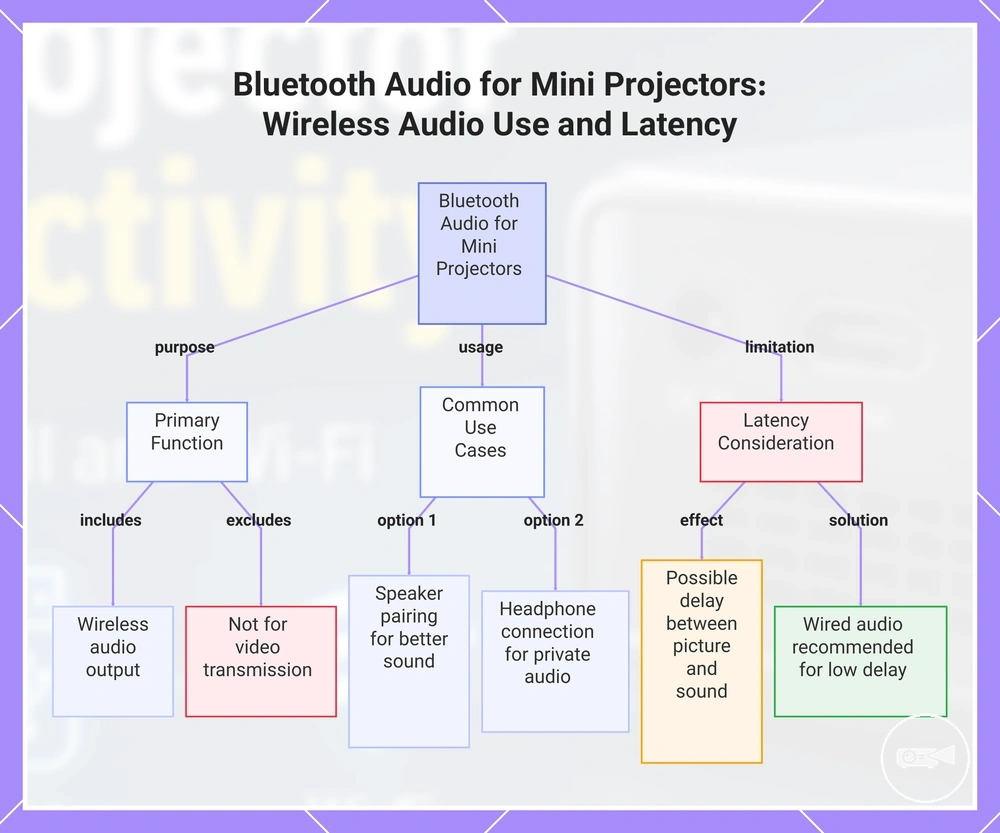
Bluetooth on most mini projectors is primarily designed for wireless audio, not video connection. It commonly supports speaker pairing, headphones, or other audio devices while HDMI, Wi-Fi display, or similar interfaces remain responsible for video transmission.
Bluetooth on most mini projectors is primarily designed for wireless audio, not video connection.
Bluetooth connectivity lets a mini projector send audio output to compatible speakers or headphones when the projector supports Bluetooth audio transmission. This can improve placement flexibility and reduce cable use, but Bluetooth audio may introduce latency that causes a slight delay between picture and sound. Speaker pairing is therefore best suited to projectors that provide Bluetooth audio output for external audio devices.
Speaker pairing is therefore best suited to projectors that provide Bluetooth audio output for external audio devices.
For example, connecting Bluetooth headphones can provide private listening, while pairing a Bluetooth speaker can improve sound for a larger room. If noticeable latency affects viewing comfort, a wired audio connection is generally the safer option because it reduces the risk of sound delay.
The checklist below highlights what Bluetooth can and cannot do.
The checklist below highlights what Bluetooth can and cannot do.
- Confirm that the mini projector supports Bluetooth speaker pairing or headphone audio output before pairing.
- Use Bluetooth for wireless audio rather than as a video connection.
- Expect possible latency, especially when watching dialogue-sensitive video content.
- Use the projector or connected audio device for volume control when supported by the paired devices.
- Choose a wired audio connection if lower audio delay is more important than wireless convenience.
This chart explains the primary function of Bluetooth on mini projectors for wireless audio, its common use cases, and the key latency limitation with a recommendation for wired alternatives.
Bluetooth Speaker Pairing and Audio Delay Limits
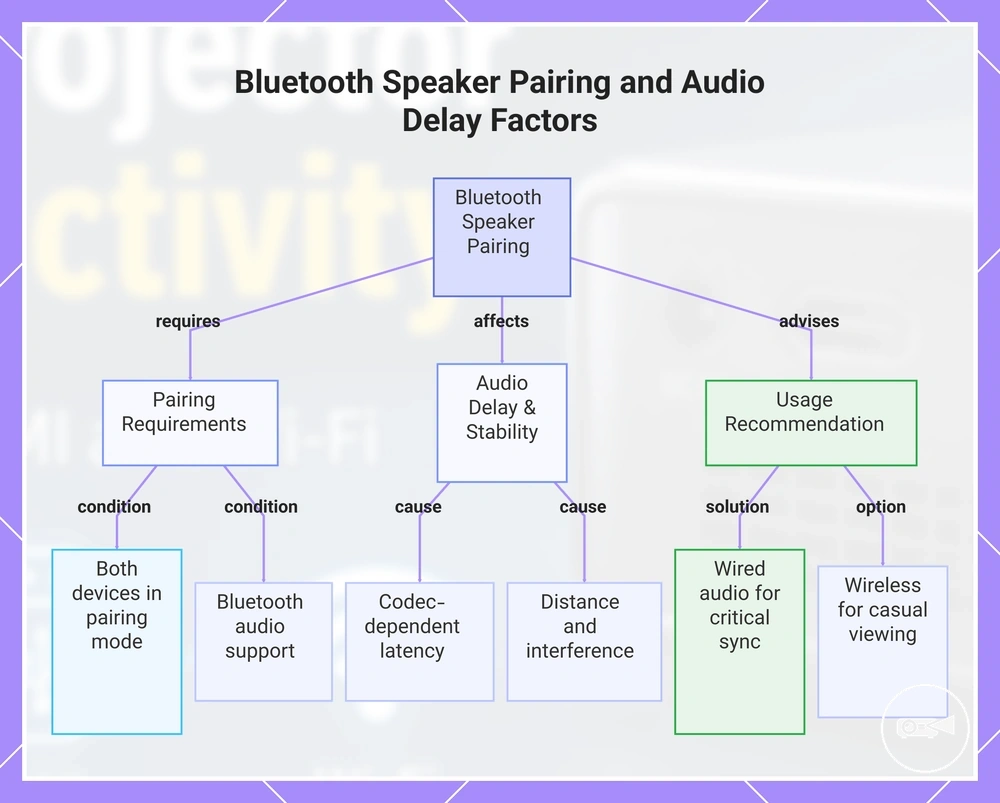
Bluetooth speaker pairing is compatible when both the mini projector and the Bluetooth speaker support Bluetooth audio and can enter pairing mode successfully. It provides convenient wireless audio, but latency can still cause audible sound delay during video playback.
It provides convenient wireless audio, but latency can still cause audible sound delay during video playback.
For example, a Bluetooth speaker is suitable for casual movie viewing where cable-free placement is convenient, but wired audio is usually the safer option when accurate lip-sync is important because it reduces the risk of Bluetooth audio delay. The conditions below explain the main compatibility factors that affect pairing stability and viewing comfort.
- Place both devices in pairing mode before connecting; otherwise, Bluetooth speaker pairing cannot be established.
- Bluetooth codec support affects audio delay characteristics, but the available codec depends on the supported features of both the projector and the speaker, so no specific codec should be assumed.
- Latency can reduce video-sync comfort during films or gaming even when the Bluetooth connection remains stable.
- Longer distance or physical interference between the mini projector and the Bluetooth speaker can weaken the connection and increase the chance of audio interruptions.
- Volume control may be available from the mini projector, the Bluetooth speaker, or both when the connected devices support the required Bluetooth audio profile.
- Choose wired audio when lower delay is more important than wireless convenience, such as for dialogue-focused films or fast-paced gaming.
This chart shows the key conditions for Bluetooth speaker pairing with a mini projector, the factors that cause audio delay, and the recommended usage based on sync importance.
Audio Output Ports for Speakers and Soundbars
Physical audio output ports provide a more predictable connection than Bluetooth when the mini projector has a connector that matches the speaker or soundbar input. This wired path reduces Bluetooth-related latency uncertainty, but the usable option remains limited by the projector's available port.
An audio output port carries sound through a cable to an external speaker or soundbar.
An audio output port carries sound through a cable to an external speaker or soundbar. A 3.5 mm audio jack connects to a compatible analogue input, while HDMI audio pass-through works only when the projector supports that signal path; optical or AV output is usable only on models that include the corresponding connector. The projector output, cable type, and receiving input must match for the connection to work.
The projector output, cable type, and receiving input must match for the connection to work.
Choose the audio output according to the available speaker input, the room layout, and whether lower latency is more important than cable-free placement.
| Audio output | Connects to | What to verify | Main trade-off |
|---|---|---|---|
| 3.5 mm audio | Powered speaker or soundbar with a 3.5 mm or compatible auxiliary input | Confirm that the projector has a 3.5 mm audio output port and use a cable that matches the speaker input | Provides a direct wired signal with low latency uncertainty, but the cable can limit placement in a larger room |
| HDMI audio | Soundbar or other device that accepts HDMI audio | Verify that the projector supports HDMI audio output or pass-through rather than HDMI input only | Can carry audio through the existing HDMI signal path, but support is conditional on the projector and receiving device |
| Optical output | Soundbar with a matching optical input | Check that the projector includes an optical audio output and use the required optical cable | Offers a dedicated digital connection, but optical output is not included on every mini projector |
| AV output | Speaker or soundbar with a compatible analogue AV input | Confirm the AV connector type and whether a model-specific breakout cable is required | Supports compatible analogue equipment, but connector formats and cable requirements are model-specific |
Device Compatibility for Phones, Laptops, TVs, and Streaming Devices
Device compatibility requires the source device's output type, wireless option, and any required adapter to match the mini projector's supported inputs and protocols. A phone, tablet, laptop, TV box, console, or streaming stick can therefore require a different connection path and present a different limitation. The device type changes which compatibility checks matter before buying.
The device type changes which compatibility checks matter before buying.
For example, a user who mainly streams from a phone should prioritise supported wireless mirroring and check whether app playback is restricted, while a laptop user should prioritise HDMI or USB-C display output and the correct display setting. A phone is more adapter-dependent when it lacks native video output, whereas a laptop with HDMI can use a direct connection.
The table below compares each source device by its likely connection path, required verification, and common limitation.
The table below compares each source device by its likely connection path, required verification, and common limitation.
| Source device | Likely connection path | What to verify | Common limitation |
|---|---|---|---|
| Phone | Wireless mirroring or a USB-C or Lightning video adapter | Supported mirroring protocol, video-output capability, and adapter compatibility | App playback can be restricted during wireless mirroring, and a phone without video output cannot use a passive adapter |
| Tablet | Wireless mirroring or USB-C video output | Supported wireless option and whether the USB-C port carries display output | A charging-only USB-C port does not provide an external video signal |
| Laptop | HDMI or USB-C display output | Available output type, USB-C display support, and the required display setting | A USB-C port without display output requires another supported video connection |
| TV box | HDMI | Available HDMI input, separate power connection, and remote-control access | The TV box requires its own power source and does not operate through HDMI power alone |
| Console | HDMI | Supported HDMI input and display resolution | Successful connection does not confirm low input latency for gaming |
| Streaming stick | HDMI with Wi-Fi and separate USB power | HDMI input, adequate power, wireless network access, and app availability | Most app playback requires Wi-Fi, and insufficient USB power can prevent stable operation |
For example, someone choosing a mini projector for presentations should prioritise a laptop-compatible HDMI or USB-C display path over phone-focused wireless features.
Phone and Tablet Compatibility Requirements
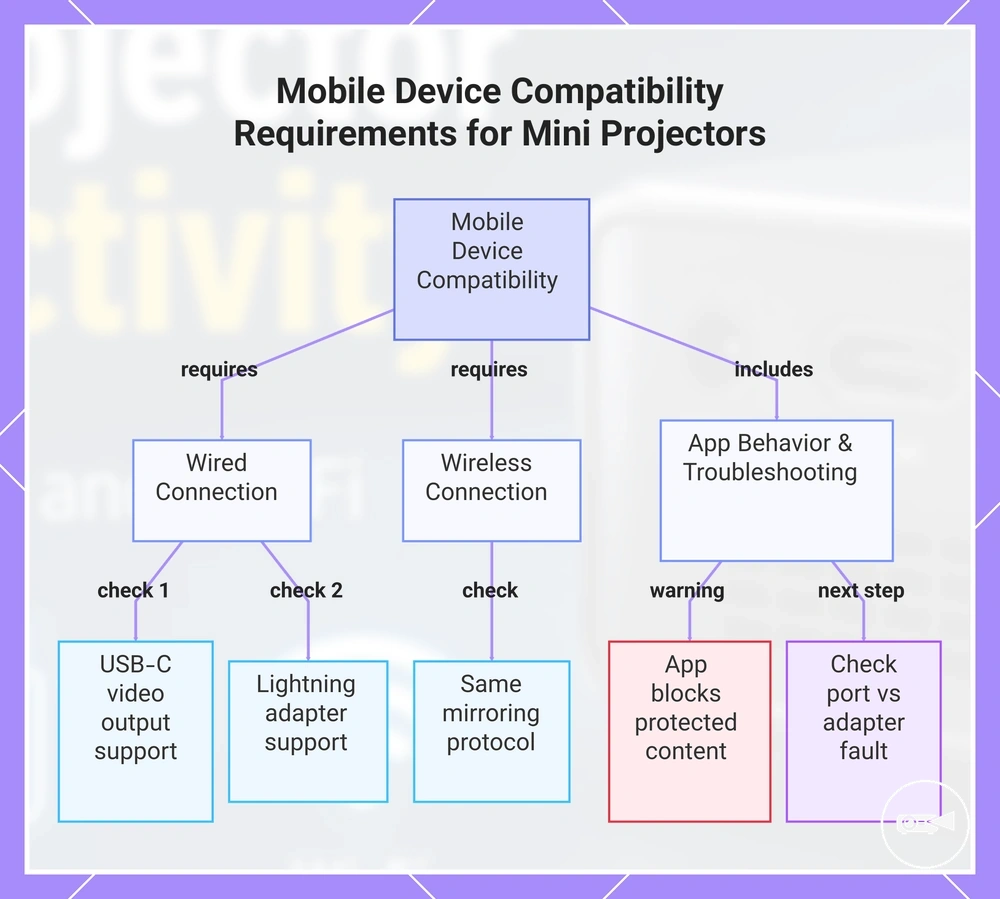
Phone compatibility and tablet compatibility require the mobile device’s port type, display-output capability, supported wireless protocol, and app behavior to match the mini projector. An iPhone or Android device is compatible only when its USB-C or Lightning connection supports the required video path, or when both devices support the same Wi-Fi mirroring protocol.
- USB-C: If the phone or tablet supports video output through USB-C, a compatible HDMI adapter can provide a wired projection path; a charging-only USB-C port cannot send a display signal.
- Lightning: If an iPhone or iPad uses Lightning, projection requires a Lightning HDMI adapter that supports external video output.
- Wi-Fi mirroring: If the mobile device and projector support the same mirroring protocol, the screen can be shared wirelessly; mismatched protocols prevent the connection.
- Android: If an Android phone has USB-C but lacks display-output support, an HDMI adapter will not create a video signal.
- App behavior: If an app blocks external display or protected-content playback, the projector can show menus or unprotected content while the restricted video remains blank.
If a phone connection fails, distinguish a charging-only port or unsupported mirroring protocol from an adapter fault, then confirm that the projector input matches the selected wired or wireless option. For example, a tablet may mirror its home screen successfully while protected content remains unavailable on the external display, so a working connection does not confirm app playback.
For example, a tablet may mirror its home screen successfully while protected content remains unavailable on the external display, so a working connection does not confirm app playback.
This chart shows the key compatibility requirements for connecting a phone or tablet to a mini projector, including wired and wireless connection checks and app behavior considerations.
Laptop and Computer Compatibility Requirements
Laptop compatibility requires the computer to provide an HDMI output or a USB-C port with DisplayPort Alt Mode, while its resolution setting, refresh rate, and display mode must fall within the projector’s accepted input options. A USB-C port used only for charging or data cannot send a projector signal through a video adapter, so supported video output is the main requirement.
- HDMI: If the laptop and projector both use HDMI, a direct cable provides the video path without connector conversion.
- USB-C DisplayPort Alt Mode: If the computer supports DisplayPort Alt Mode through USB-C, a compatible adapter can convert that output to HDMI; a charging-only or data-only USB-C port cannot provide video.
- Resolution setting: If the selected resolution is accepted by the projector, the image can display; an unsupported resolution requires a compatible output setting.
- Refresh rate: If the computer sends a refresh rate outside the projector’s accepted range, the signal can remain unavailable until a supported rate is selected.
- Duplicate display: If duplicate display is selected, the laptop and projector show the same content, which suits a presentation where the audience should see the presenter’s screen.
- Extend display: If extend display is selected, the projector becomes a separate workspace, allowing presentation content to appear externally while other content remains on the laptop.
For a presentation use case, a wired HDMI connection or supported USB-C DisplayPort Alt Mode output usually provides a more stable signal because it does not rely on wireless network conditions. For example, a computer may detect the projector but show no usable image until the resolution setting, refresh rate, display mode, and any required adapter match the projector’s accepted input conditions.
TV Box, Console, and Streaming Stick Compatibility Requirements
A TV box, console, or streaming stick is compatible with a mini projector when the source device provides HDMI output and receives the required power supply. These devices are usually simple to connect, but HDMI plus power remains the main compatibility check.
- HDMI output: If the TV box, console, or streaming stick sends video through HDMI and the projector accepts that input, the source-device connection is compatible.
- Power supply: If a streaming stick requires more power than the projector’s USB port provides, it must use its specified external power adapter to operate reliably.
- HDCP and app restriction: If protected playback requires an HDCP version that the projector path does not support, or if the app restricts external display output, the device can connect while the protected video remains unavailable.
- Audio routing: If the projector does not reproduce the source audio as required, sound must be routed through a supported projector audio output, the source device, or a separate audio system.
- Remote access: If the streaming device’s remote uses Bluetooth or infrared, its controls operate independently of the HDMI connection, but infrared control still requires a clear path to the receiver.
- Wi-Fi: If the TV box or streaming stick uses internet-based apps, an active Wi-Fi connection is required for online playback even when the HDMI connection is working.
For example, a streaming stick can connect successfully through HDMI and receive sufficient power while the projected picture still appears dim or soft, because source-device compatibility and projector image quality are separate factors. A valid connection also does not remove HDCP, app restriction, Wi-Fi, remote-access, or audio-routing conditions.
Connection Checks Before Choosing a Mini Projector
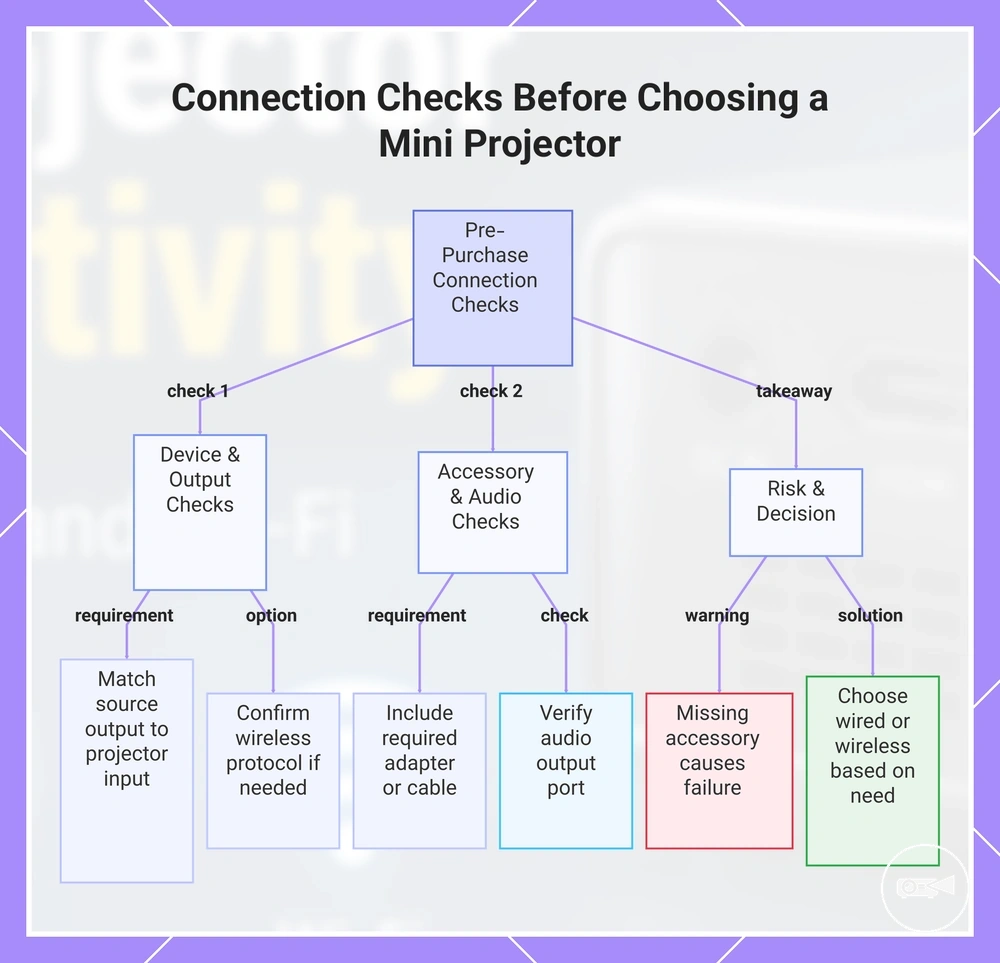
Connection checks should be completed before choosing a mini projector because compatibility is determined by matching each source device with the projector input, supported wireless features, required adapter, cable, and audio need. Match these connection requirements before buying to reduce compatibility risk.
Match these connection requirements before buying to reduce compatibility risk.
If you plan to use different source devices, verify each required output against the projector input, confirm whether wireless support is available, and identify any adapter or cable needed before purchase. This compatibility check should cover device connections, accessories, wireless protocols, and audio requirements.
This compatibility check should cover device connections, accessories, wireless protocols, and audio requirements.
Use the following pre-purchase criteria together with the mini projector compatibility checklist before making a decision.
- Source device: If your laptop, console, TV box, or streaming stick uses a specific video output, confirm the projector accepts the corresponding projector input or supported wireless protocol before purchase.
- Required output or protocol: If the source device requires HDMI, USB-C DisplayPort Alt Mode, screen casting, or another supported protocol, verify the projector supports that connection method.
- Adapter or cable: If the source device and projector use different connector types, include the required adapter or cable in the buying check because the connection cannot be completed without the correct accessory.
- Wireless support: If cable-free use is preferred, confirm the projector supports the required wireless protocol and understand that wireless convenience can involve more connection limitations than a wired link.
- Audio need: If you plan to use Bluetooth speakers or wired external audio, verify the projector provides the required wireless support or output port before purchase.
- Compatibility risk: If any required port, protocol, adapter, cable, or accessory is missing, the intended source device may not connect even though the projector itself functions normally.
Choose a wired connection when stable signal transmission is the primary decision factor, such as for presentations or fixed setups. Choose wireless support when cable-free convenience better suits your use, provided the projector supports the required protocol. For example, a projector may include Wi-Fi but still require an HDMI cable for a console that does not support the same wireless connection method.
Choose wireless support when cable-free convenience better suits your use, provided the projector supports the required protocol.
This chart shows the key connection checks to perform before buying a mini projector, including device matching, accessory needs, wireless support, and risk assessment.
Ports, Adapters, Cables, and Supported Display Protocols
Ports, adapters, cables, and display protocols must form one compatible signal path from the source output to the projector input. Verify the connector type, display-output capability, protocol support, cable direction, and any adapter power requirement together before buying.
A missing requirement at any stage can prevent video, audio, or wireless projection even when the connectors appear to fit.
Use the table below to verify each connection part as a complete compatibility check rather than as an individual accessory. A missing requirement at any stage can prevent video, audio, or wireless projection even when the connectors appear to fit.
| Part | Attribute or requirement | Value or condition | Effect on compatibility |
|---|---|---|---|
| HDMI | Input connection and cable direction | The projector must provide an HDMI input, and the cable or converter must carry the signal from the source output to that input. | An incorrect cable direction or incompatible converter prevents the video signal from reaching the projector. |
| USB-C | Display output support | The USB-C port must support display output, such as DisplayPort Alternate Mode; charging-only or data-only USB-C ports do not transmit video. | An adapter cannot project an image when the source port does not output a display signal. |
| Lightning | Video adapter and power | Lightning devices require a compatible video adapter, and any adapter that specifies external power must be powered during use. | A charging cable alone, or an unpowered adapter, does not complete the projection path. |
| USB media | Media playback capability | The projector must explicitly support playback from USB storage; USB ports intended only for power or service do not provide media playback. | Files remain unavailable even though the storage device connects physically. |
| Wi-Fi | Display protocols | The projector and source device must support the same Wi-Fi display protocol or compatible wireless ecosystem. | Wireless projection fails when protocol support does not match, even if both devices have Wi-Fi. |
| Bluetooth audio | Audio transmission role | The projector must support Bluetooth audio output when sending sound to wireless speakers. | Audio cannot be transmitted to a Bluetooth speaker if only Bluetooth input or control functions are supported, and latency may affect lip-sync. |
| Adapters and cables | Signal conversion and power requirement | An active adapter must perform the required signal conversion and receive any specified external power; passive accessories work only when no conversion is required. | The connection fails when signal conversion or required adapter power is missing, even if every connector fits. |
Input Source Selection and Device Output Support
A correct cable can still produce no usable signal when the projector input source is set to another mode or the device output is not enabled. Verify these settings as compatibility conditions before moving to deeper troubleshooting.
Verify these settings as compatibility conditions before moving to deeper troubleshooting.
Select the projector input source that matches the active wired connection or supported wireless mode, then confirm that the source device is sending an output the projector can process. Check the input source, device output, display mode, resolution support, wireless permission, app output, and power state.
- Input source: If the selected projector input does not match the connected port or wireless receiver, the projector does not process that signal.
- Device output and display mode: If external display output is disabled or the device is set to use only its built-in screen, select a supported mirror, duplicate, or extend mode to send an image.
- Resolution support: If the device output uses a resolution or refresh setting outside the projector's stated input support, select a supported output setting to create a usable signal.
- Wireless permission: If screen mirroring, casting, or local-network permission is blocked, the projector cannot receive the wireless display request.
- App output: If an app restricts mirroring or external display output, its content remains unavailable even when the wireless connection is active.
- Power state: If the projector, source device, wireless receiver, or powered adapter is off, asleep, or underpowered, the signal path remains inactive.
Connectivity Limits That Affect Picture, Sound, and Usability
Connectivity limits can still affect picture, sound, and usability after a successful connection. A projector and source device may connect correctly, yet connection quality, supported features, or playback conditions can still limit the viewing experience, so a successful connection should be separated from post-connection quality and usability.
Connectivity limits can still affect picture, sound, and usability after a successful connection.
For example, a wireless display connection can introduce latency, a source device can apply a resolution cap that reduces picture quality, or an app restriction can prevent protected content from playing even though casting is available. Weak Wi-Fi can interrupt streaming stability, poor adapter quality can reduce signal reliability, unsupported formats can prevent playback, and Bluetooth audio delay can reduce viewing comfort, so the practical outcome depends on these connection limits.
The table below summarises the main connectivity limits and the safer decision for each condition.
The table below summarises the main connectivity limits and the safer decision for each condition.
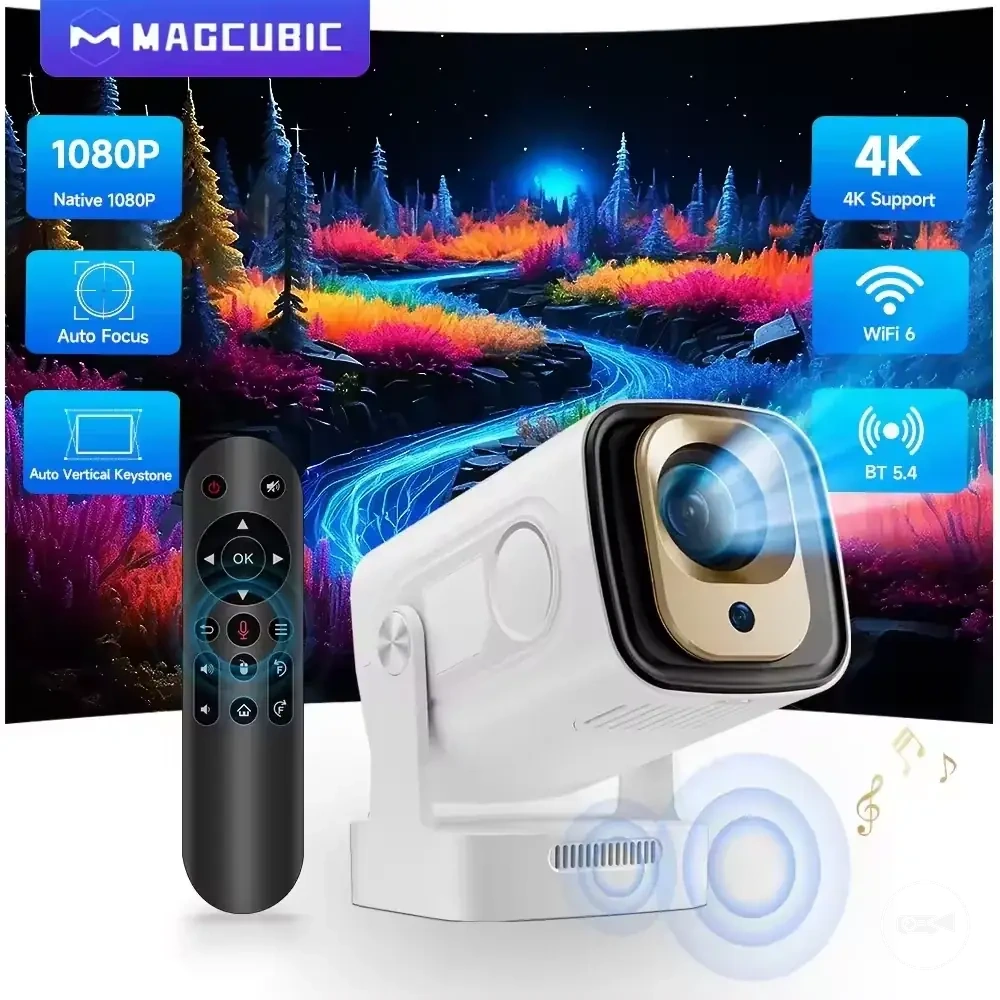
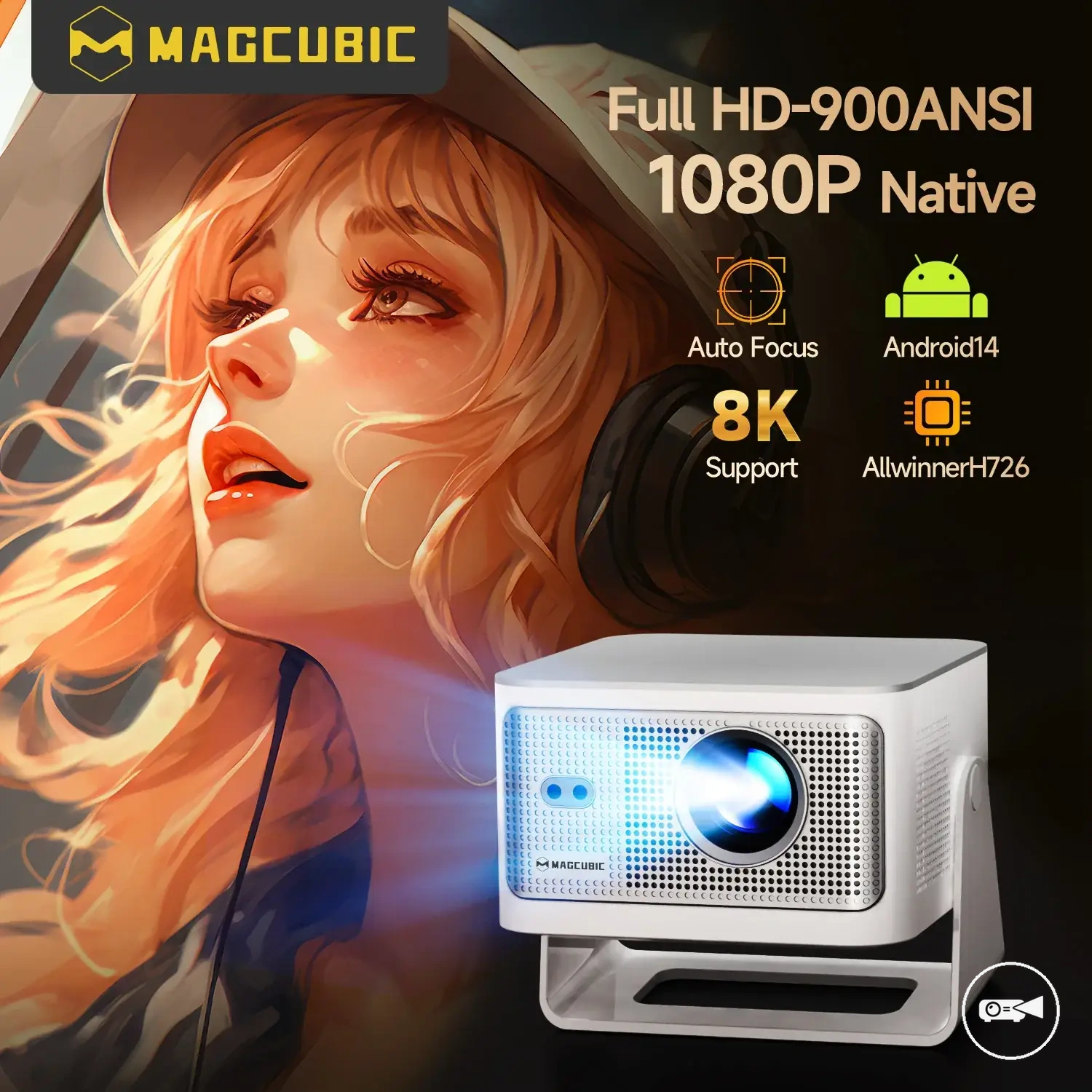
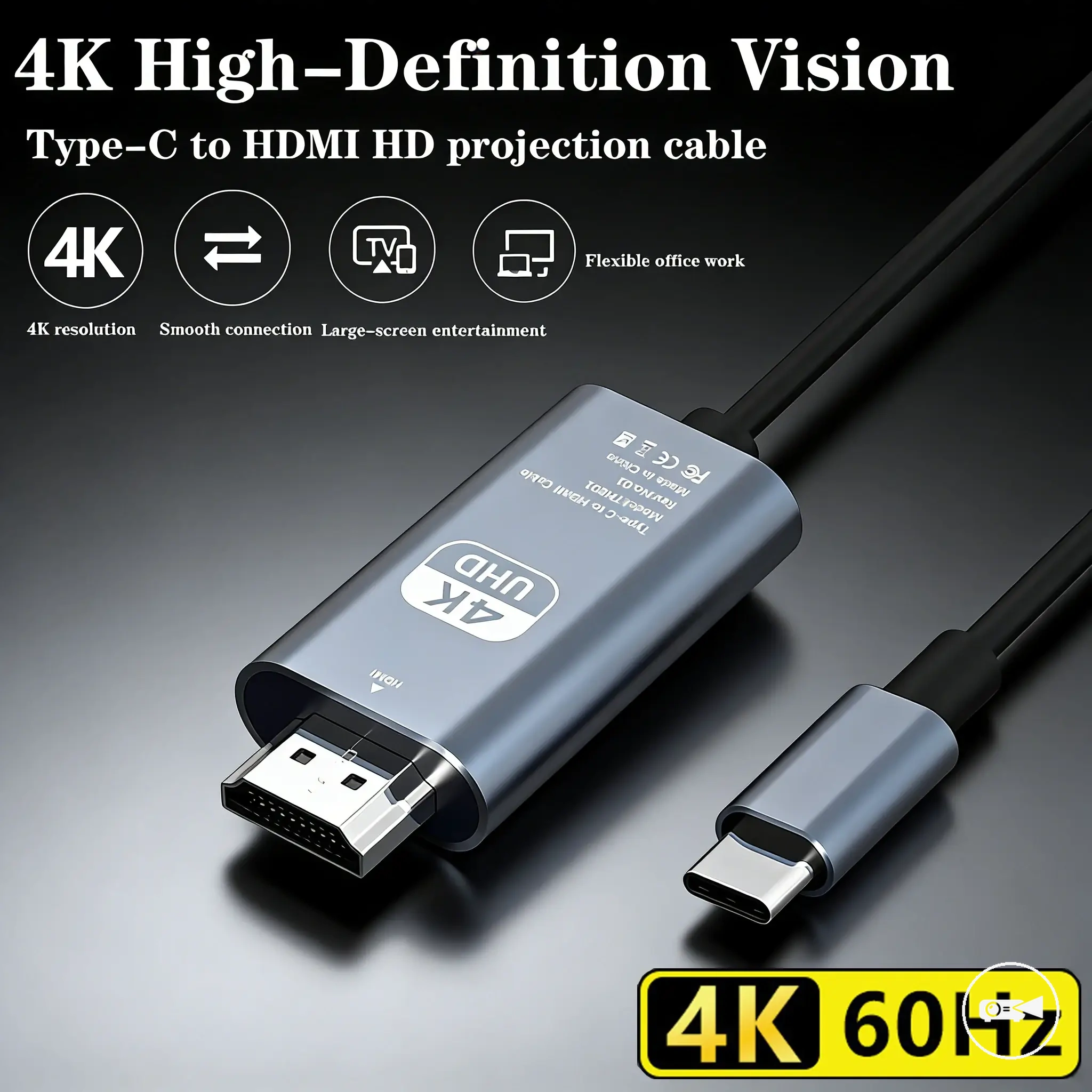
The products below are useful examples for comparing available options.
The products below are useful examples for comparing available options. Before buying, check that the compatibility criteria, key features, and product details match your needs.
| Limit | Where it appears | What it affects | Safer decision |
|---|---|---|---|
| Latency | Wireless display | Usability during gaming, live interaction, or cursor movement | Use a cable when low response delay is more important than wireless convenience. |
| Resolution cap | Source device or projector support | Picture sharpness and available output resolution | Select a supported output resolution or use a cable if higher video quality is required. |
| Aspect ratio | Source output and projector display settings | Picture shape and screen usage | Choose a matching aspect ratio to avoid stretching or unused screen space. |
| Audio delay | Bluetooth audio | Sound synchronisation and viewing comfort | Use a separate wired audio output when lip-sync is more important than wireless audio. |
| App restriction | Protected streaming services | Playback availability | Use an external streaming device if the application blocks mirroring or casting. |
| Weak Wi-Fi | Wireless casting | Streaming stability and responsiveness | Use a cable or improve network quality before relying on wireless display. |
| Adapter quality | Signal conversion adapters | Picture stability and compatibility | Use an adapter designed for the required signal conversion standard. |
| Unsupported formats | Media playback | Video or audio compatibility | Use a supported media format or an external streaming device that supports the required codec. |