
Mini Projectors for Presentations: Choosing for Readable Slides and Reliable Laptop Use
A mini projector can work for presentations when it keeps slide text readable, provides enough brightness for the room, and maintains a stable laptop connection. Suitability requires acceptable text clarity at the intended screen size, visible contrast under the available room lighting, and a connection method supported by both devices.
For laptop-based meetings and portable office use, a compact projector reduces carrying size and can fit a desk or small meeting room setup.
For laptop-based meetings and portable office use, a compact projector reduces carrying size and can fit a desk or small meeting room setup. Evaluate four areas before choosing: readability for text, charts, and spreadsheets; brightness for the planned lighting and screen size; reliable HDMI or wireless connectivity; and portability without sacrificing setup stability.
Presentation content is less forgiving than casual video because small labels, thin chart lines, and spreadsheet cells make limited resolution, weak focus, and low contrast easier to notice.
Presentation content is less forgiving than casual video because small labels, thin chart lines, and spreadsheet cells make limited resolution, weak focus, and low contrast easier to notice. For example, a slide with large headings may remain readable on a modest projected image, while a dense spreadsheet requires higher native resolution, accurate focus, and a smaller screen size; these fit and readability checks should be completed before considering accessories.
Portability alone does not make a portable projector suitable for presentations.
Portability alone does not make a portable projector suitable for presentations. A presentation projector must also match the laptop through a direct HDMI connection, a compatible USB-C video adapter, or a wireless protocol supported by both devices, and that connection should be tested in the meeting room before use. For instance, a lightweight projector is a poor fit when its wireless mode is unsupported by the source device or when its brightness produces low-contrast text at the planned image size.
Table of Contents
Where Mini Projectors Fit Presentation Use
A mini projector fits presentation use for small meetings, temporary setups, laptop-based presenting, and travel when the audience size is limited, room lighting is reasonably controlled, and slide content remains readable at the intended screen size. These conditions define where a compact projector supports presentations effectively without extending beyond its intended scope.
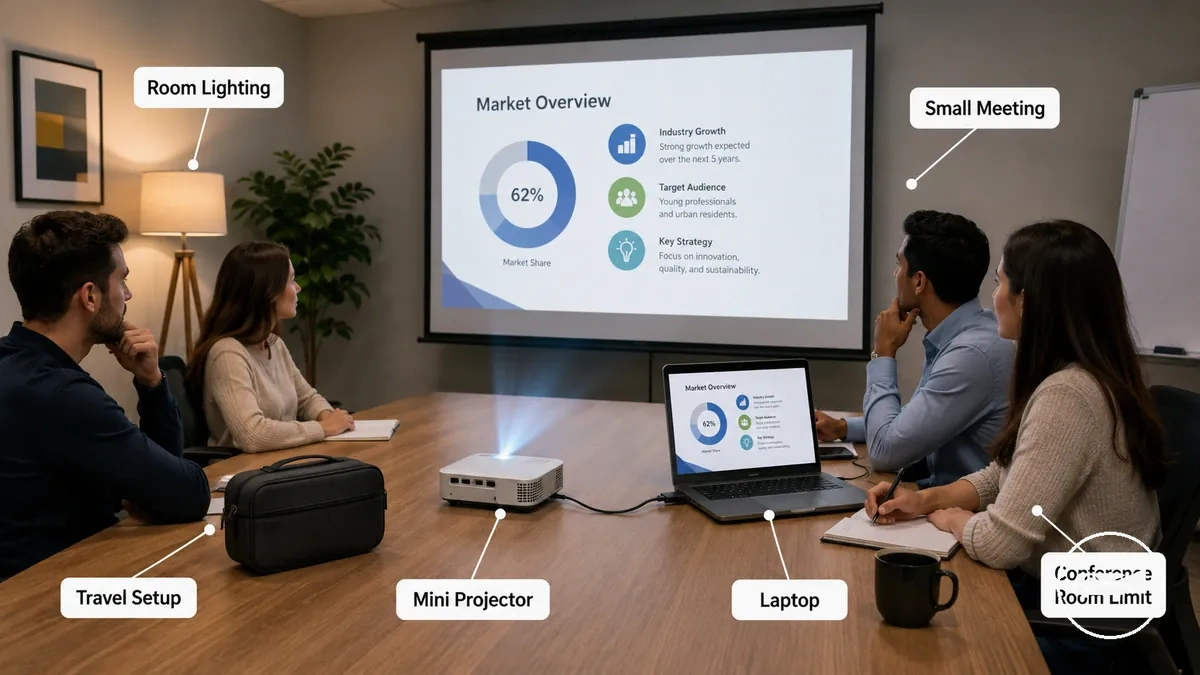
In a small meeting or travel scenario, a portable projector can provide a practical presentation solution without requiring permanent installation. It is well suited to temporary setups, shared workspaces, client visits, and laptop-first presenting where fast setup and portability are priorities. For example, a presenter can connect a laptop to a mini projector in a meeting room for a short slide presentation when the audience is small and the projection environment supports readable content. These situations represent the strongest fit for presentation use.
These situations represent the strongest fit for presentation use.
A mini projector is not automatically a replacement for a dedicated conference room projection system. Larger audience sizes, brighter rooms, larger screen sizes, or professional AV requirements generally require equipment designed for those environments rather than prioritising portability. For broader context about portable projector capabilities and selection, see the mini projector guide.
Readable Slide Quality for Text, Charts, and Spreadsheets
Readable slides depend on whether text and slide detail remain clear at the intended screen size, not on a resolution label alone. A mini projector produces better presentation readability when native resolution, contrast, focus, and screen size work together to keep projected text and graphics easy to distinguish.
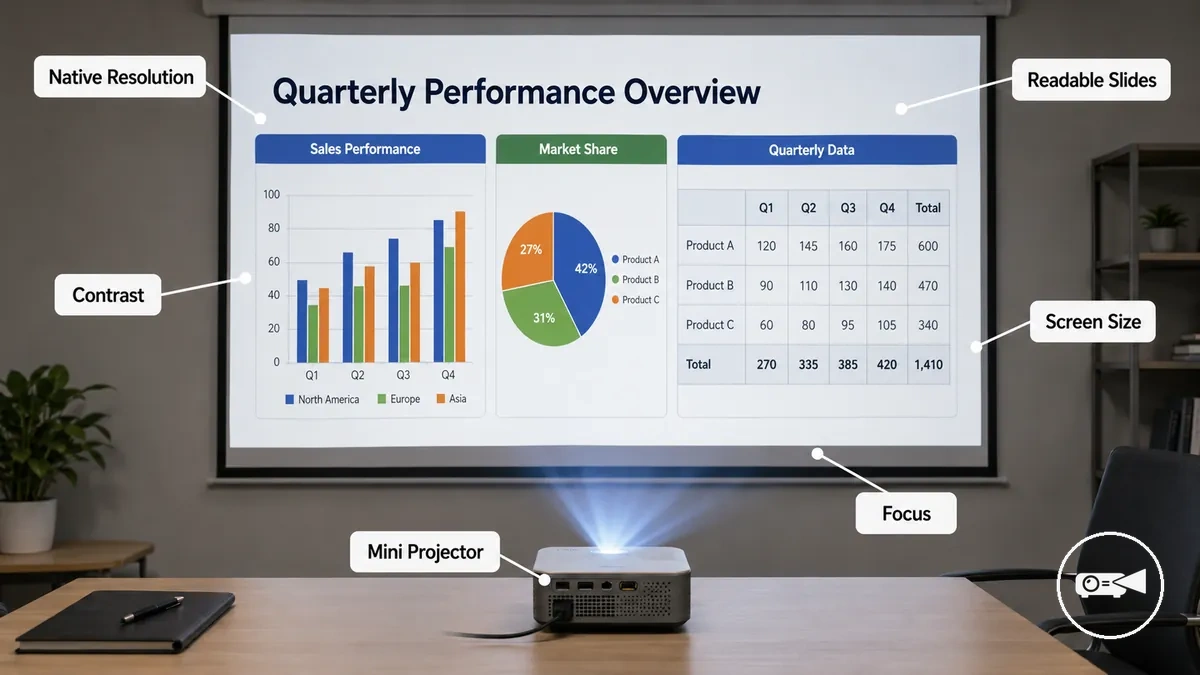
Charts and spreadsheets reveal image limitations more quickly than simple presentation slides because small labels, thin lines, and closely spaced values require stronger text clarity. Weak focus, insufficient contrast, or low native resolution can soften text edges and reduce slide legibility. For example, spreadsheet cells with small numbers require clearer projected detail than a slide containing only a title and a few bullet points. Readability improves when labels, chart legends, and spreadsheet content remain distinct at the chosen screen size.
The table below summarises the main readability criteria.
Simple slides with large headings remain readable more easily than dense slides containing detailed charts or compact spreadsheets. For instance, a slide title is usually easier to read from the back of a room than multiple small chart labels or tightly packed spreadsheet cells. The table below summarises the main readability criteria.
Read the table as a combination of factors rather than relying on resolution alone.
Read the table as a combination of factors rather than relying on resolution alone. If your presentation includes detailed spreadsheets or chart legends, review image quality for readable text before selecting a projector, while keeping expectations aligned with screen size, viewing distance, and room lighting.
| Projected content | Primary clarity signal | Screen size condition | Readability outcome |
|---|---|---|---|
| Large slide titles | Focus | Moderate screen size | Easy to read |
| Charts with legends | Native resolution and contrast | Labels remain distinct at the intended viewing distance | Better chart readability |
| Spreadsheets with small cells | Native resolution, focus, and text clarity | Screen size matched to fine text | Cell values remain readable |
| Dense slide detail | Resolution, contrast, and sharp focus | Viewing distance appropriate for screen size | Lower readability risk |
Resolution and Native Sharpness for Presentation Text
Native resolution determines how cleanly a projector displays small slide text and fine presentation details. Better text sharpness comes from projecting at the projector's native resolution rather than relying on a higher supported resolution. Supported resolution identifies the input signal a projector can accept, while native resolution determines the detail reproduced on the projected image.
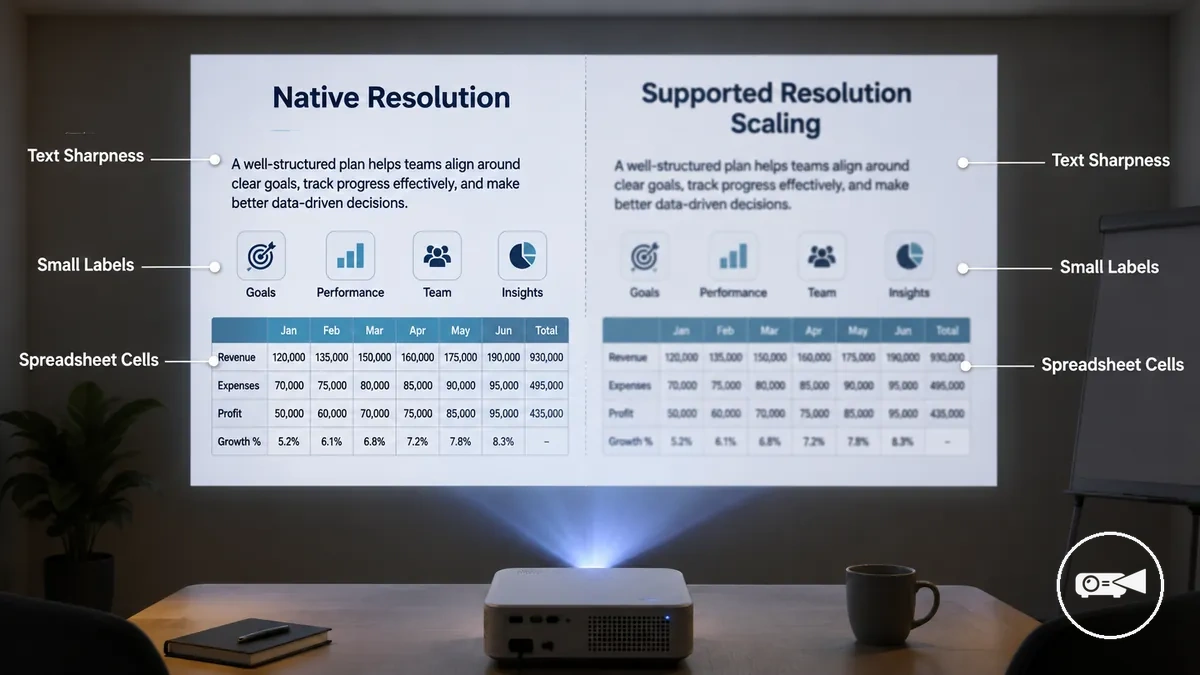
When a presentation is displayed at a supported input resolution that differs from the projector's native resolution, scaling resizes the image to fit the display panel. This process can soften text edges and reduce readable detail, especially in small labels and spreadsheet cells. For example, a spreadsheet with compact rows and columns typically reveals scaling softness more clearly than a slide containing only large headings. Native resolution provides the clearest text when small presentation details must remain readable.
Native resolution provides the clearest text when small presentation details must remain readable.
Large slide headings usually remain legible even if slight scaling reduces image sharpness, while spreadsheet cells and small body text make softened text edges easier to notice. As viewing distance increases or text becomes smaller, native resolution plays a more important role in preserving readable detail.
Focus, Keystone, and Screen Alignment Limits
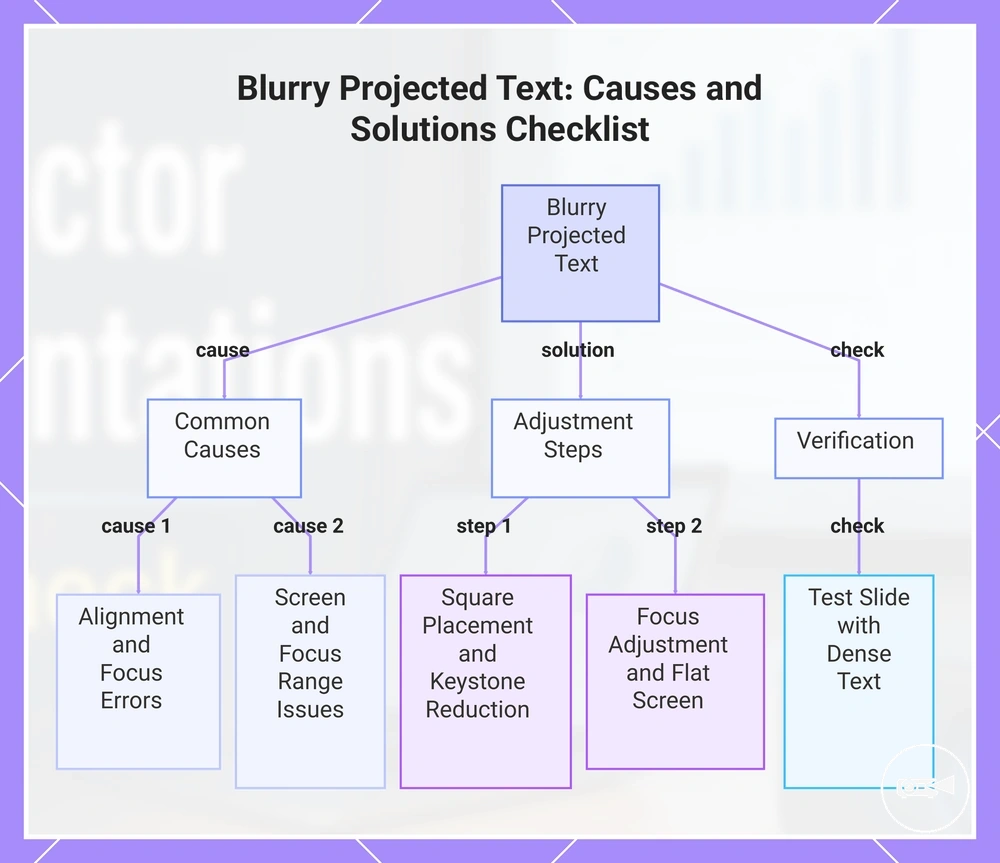
Incorrect focus, keystone adjustment, or projector position can make otherwise readable presentation slides appear blurred or distorted. Proper focus control, square alignment, and a flat projection surface produce clearer text than relying on digital correction alone. Test the projector position with a text-heavy test slide before relying on the setup.
Use this checklist to confirm readable output.
For example, a projector placed too high or too far to one side in a meeting room usually requires a steeper keystone angle, which increases geometric distortion and can reduce text clarity. Uneven screen flatness or an incorrect focus range can also create blur across small text. Use this checklist to confirm readable output.
- Place the projector as squarely as practical to the screen to minimise keystone correction and distortion.
- Adjust focus until headings, body text, and spreadsheet cells remain clear across the projected image.
- Use a flat screen surface so the image does not bend, ripple, or lose uniform sharpness.
- Reduce the keystone angle by correcting projector position before applying digital picture correction.
- Display a test slide with small labels and dense text to verify alignment, text clarity, and setup reliability.
This chart shows the main causes of blurry or distorted presentation slides and the checklist steps to achieve clear, readable text.
Brightness Requirements for Meeting Rooms and Office Lighting
Mini projector brightness must be judged against room lighting and screen size rather than by the brightness rating alone. Ambient light, screen surface, and content contrast determine whether projected text remains visible and comfortable to read. Readable slides are most likely when projected brightness matches the lighting conditions and image size.
| Room condition | Ambient light | Expected visibility | Practical response |
|---|---|---|---|
| Dim meeting room | Low | High-contrast slides remain easier to read | A larger screen is more practical than under brighter conditions. |
| Normal office lighting | Moderate | Text remains readable when screen size and contrast are controlled | Use a suitable wall or screen surface and avoid unnecessarily large images. |
| Bright room | High | Visibility and text contrast decrease | Reduce room light, use a smaller image, or choose higher light output. |
In a dim meeting room, a mini projector has less ambient light to compete with, so readable slides are easier to maintain. Under normal office lighting, visibility becomes more sensitive to screen size, wall surface, and content contrast. In a bright room with strong overhead light or sunlight, a mini projector may struggle to preserve small text and chart detail. Audience distance, screen surface, and room light determine the practical outcome.
Audience distance, screen surface, and room light determine the practical outcome.
Lumen labels should be interpreted carefully because ANSI lumens and other manufacturer brightness ratings are not necessarily equivalent. Compare light output under real room conditions rather than treating a larger number as a complete performance guarantee. For a fuller explanation of rating methods and brightness for presentations, review the dedicated brightness guide.
These signals reduce presentation risk without promising identical performance in every meeting room.
Choose a mini projector by checking the room's ambient light, intended screen size, screen surface, and the contrast of the presentation content. Dark text on a light background, a smaller projected image, and reduced office lighting generally improve text visibility and eye comfort. These signals reduce presentation risk without promising identical performance in every meeting room.
Laptop and Device Connection Checks
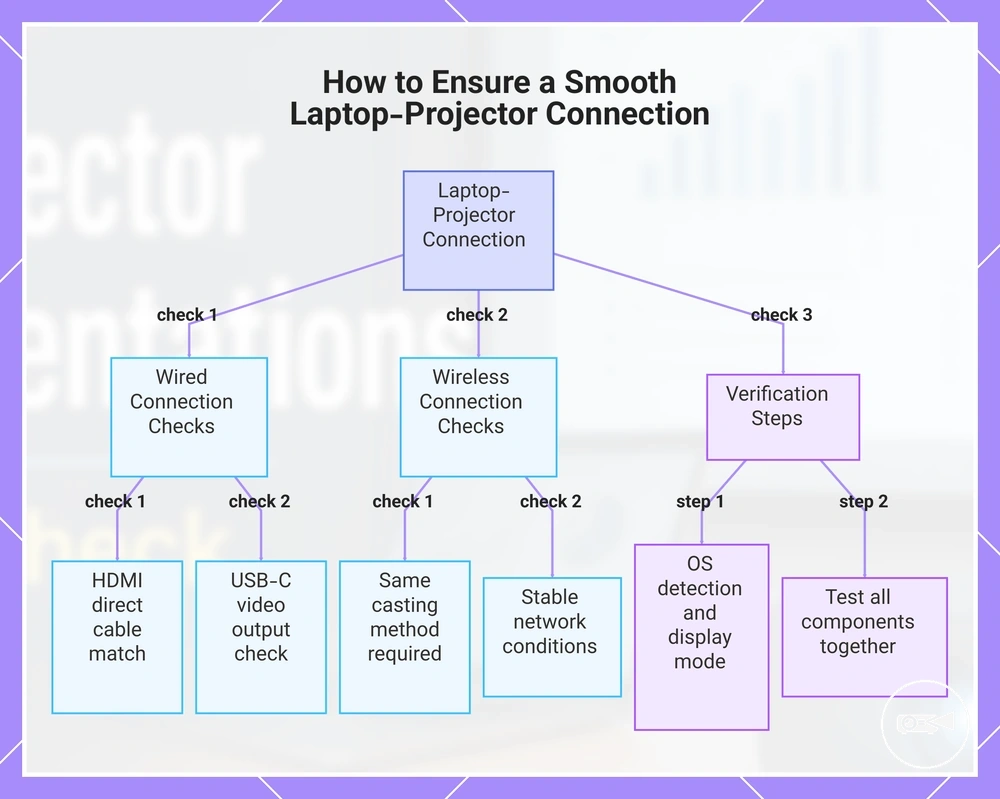
A smooth laptop connection requires the projector input to match the source device output and the video signal that the source device can provide. HDMI is a direct wired match when both devices include HDMI, while USB-C requires a port and adapter that support video output. Verify the complete device connection with the actual laptop before the presentation.
- Match the laptop output to the projector input: use HDMI for an HDMI-to-HDMI path, or a compatible display adapter when the connector types differ.
- For USB-C, confirm that the laptop port supports video output and that the adapter carries a display signal rather than power or data only.
- For a wireless connection, confirm that the projector and source device support the same casting method and network conditions.
- Check that the operating system detects the projector, then select the intended display mode before opening the presentation file.
- Test the cable, adapter, signal, and presentation file together so the verified setup matches the equipment used in the meeting.
Connection mismatches usually occur when the laptop output and projector input use different connector types, when a USB-C port does not provide video output, or when the wireless connection uses an unsupported casting method. An adapter resolves a connector mismatch only when it supports the required signal path. Operating system display mode and the selected presentation source also affect whether the projected image appears. Use the checklist to confirm each compatibility condition before the meeting.
Use the checklist to confirm each compatibility condition before the meeting.
For example, a laptop presentation using an HDMI output can use a direct HDMI cable when the mini projector has an HDMI input. A USB-C laptop instead needs confirmed video output support and a compatible USB-C-to-HDMI adapter when the projector accepts HDMI. Review the available presentation connectivity options before relying on that setup.
Review the available presentation connectivity options before relying on that setup.
For an important presentation, a tested wired HDMI or supported USB-C video path is usually simpler than wireless casting because it removes network and latency as connection variables. Keep a compatible cable or adapter as the fallback when a wireless connection is the primary method.
Keep a compatible cable or adapter as the fallback when a wireless connection is the primary method.
This chart shows the main checks and verification steps for a reliable laptop-to-projector connection, covering wired and wireless options.
HDMI, USB-C, and Adapter Compatibility
A wired presentation connection is compatible when the laptop output matches the projector input and both support the same video signal. HDMI provides a direct path when both devices have HDMI, while USB-C requires confirmed video output support. When the connector types differ, the adapter must support the required display signal rather than power or data only.
| Laptop output | Projector input | Required connection | Signal risk |
|---|---|---|---|
| HDMI | HDMI | HDMI cable | Lower risk when the cable and input port are functional and the correct display setting is selected. |
| USB-C with video output | HDMI | USB-C-to-HDMI adapter or compatible docking adapter | The signal succeeds only when the USB-C port and adapter support the required video standard. |
| USB-C without video output | HDMI | No passive adapter path | The projector receives no display signal because the laptop port does not provide video output. |
| USB-C requiring a specific alt-mode | HDMI | Adapter or docking adapter that supports the laptop's required alt-mode | An incompatible adapter can prevent signal output even when the connectors physically fit. |
USB-C and adapter compatibility is less predictable than a direct HDMI path because the connector alone does not confirm video output or alt-mode support. Cable quality, the laptop display setting, and the docking adapter's supported signal path also affect presentation reliability. For example, a laptop that requires DisplayPort Alt Mode needs a compatible USB-C-to-HDMI adapter or docking adapter before an HDMI projector input can receive the signal. Test the exact laptop, adapter, cable, and projector input together before the presentation.
Wireless Presentation Connections and Their Limits
A wireless connection is compatible when the laptop and projector support the same casting method, such as Wi-Fi casting, Miracast, AirPlay, a dedicated dongle, or a required application. Wireless presentation can reduce cable setup, but the exact laptop, projector, network, and app dependency should be tested before an important presentation. Reliability is higher when both devices support the selected method and the meeting-room network permits discovery and connection.
| Convenience benefits | Reliability limits |
|---|---|
| Wi-Fi casting or screen mirroring can shorten setup when the laptop and projector support the same wireless display method. | Miracast and AirPlay are separate compatibility categories, so support for one does not confirm support for the other. |
| A dedicated dongle can create a defined wireless presentation path without relying on the projector's built-in casting support. | The dongle must match the laptop connection and may require software installation, permissions, or an available projector input. |
| An application-based connection can support devices without native Miracast or AirPlay capability. | App dependency introduces device-support, account, permission, and security-policy failure points that can slow setup. |
| Wireless display allows a presenter to control slides without remaining beside the projector. | Network congestion or restricted Wi-Fi can increase latency, delay slide changes, or prevent device discovery. |
Wireless presentation risk increases when the network blocks device discovery, the laptop lacks the required casting protocol, or latency makes slide control less responsive. For example, a meeting room with restricted Wi-Fi may prevent an AirPlay or app-based connection even when the laptop and projector support wireless display. For an important presentation, test the complete wireless path in advance and keep a tested HDMI or other wired fallback available when possible.
Office Setup Factors That Affect Presentation Reliability
Arriving in a meeting room with limited time makes office setup reliability a priority. A mini projector is most reliable when placement, power access, cable path, sound, remote control, startup behavior, and room conditions are checked before the presentation begins. These readiness factors reduce the risk of interruptions during the meeting.
Use the following readiness checklist to verify the setup.
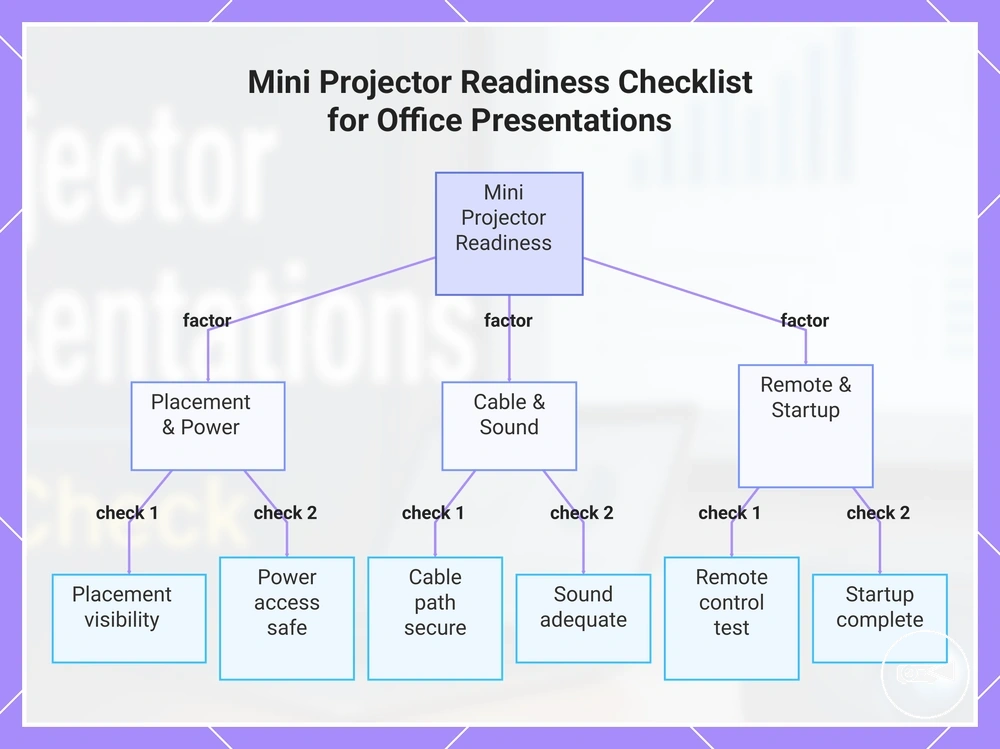
Poor placement, inaccessible power outlets, loose cables, weak sound, or an untested remote control can interrupt an office presentation even when the projector operates correctly. Position the mini projector so the screen is clearly visible to the audience while keeping the laptop and cable path organised to avoid accidental disconnections. Confirm that startup completes normally and that sound is suitable for the meeting room before attendees arrive. Use the following readiness checklist to verify the setup.
The best office setup is the one tested under the same room conditions as the presentation.
The best office setup is the one tested under the same room conditions as the presentation. For example, during a temporary meeting-room setup, confirming power access, cable routing, startup, and remote control operation before participants enter improves presentation reliability and supports faster setup.
Meeting-room readiness checklist:
- Confirm power access is available without creating a trip hazard.
- Place the mini projector so the projected image is clearly visible to the audience.
- Check that the cable path between the laptop and projector is secure and unobstructed.
- Verify that sound is adequate for the meeting room or connect external speakers if needed.
- Test the remote control from the planned presenter position.
- Allow the projector to complete startup and confirm the presentation opens correctly before the meeting begins.
This chart groups the key readiness checks for a mini projector in an office meeting room into three setup categories.
Placement, Throw Distance, and Screen Size Fit
Correct placement keeps a presentation readable because projector position determines image size, alignment, and screen fit. Match the throw distance to the available room distance and the chosen wall or screen, using the projector's stated throw ratio and measured room dimensions rather than an assumed projection distance.
Correct placement keeps a presentation readable because projector position determines image size, alignment, and screen fit.
In a small meeting room or desk-based setup, placing the mini projector too close produces a smaller image, while moving it farther away produces a larger image that may extend beyond the screen or reduce readability from the seating position. Check the wall surface, screen position, and viewing angle before presenting; an oversized image has lower apparent brightness and weaker text clarity than a smaller image under the same room lighting.
Placement checklist:
- Measure the usable room distance between the projector position and the wall or screen.
- Use the projector's stated throw ratio to confirm that the available throw distance supports the intended screen size.
- Choose a flat wall surface or screen that keeps the full image aligned and visible.
- Check readability from the planned seating position, not only from beside the projector.
- Reduce image size when the larger image appears dimmer or presentation text loses clarity.
Tripod, Remote, Carrying Case, and Room Movement Needs
Accessories improve presentation use when they increase setup speed, stability, control, or portability without changing the projector's core image quality. A tripod, remote, carrying case, spare cable, or adapter is valuable only when it supports the presentation environment rather than attempting to compensate for limited brightness or resolution.
Use the following accessories according to the presentation environment.
During a travel presentation, portable accessories help reduce setup time and connection problems, while a fixed office setup often requires only the accessories that support routine operation. For example, carrying equipment between client sites benefits from a carrying case and backup connections, whereas a permanent meeting room may only need a stable placement solution and a remote for room movement. Use the following accessories according to the presentation environment.
Accessory use guide:
- A tripod improves stability and maintains consistent placement and image alignment when a suitable desk or stand is unavailable.
- A remote lets the presenter control the presentation while moving around the room, improving convenience without returning to the projector.
- A carrying case protects the projector during a travel presentation and improves portability between locations.
- A spare cable helps prevent presentation interruptions if the primary connection fails or is unavailable.
- An adapter enables compatible device connections when the laptop and projector use different video ports.
Selection Trade-offs for Portable Presentation Projectors
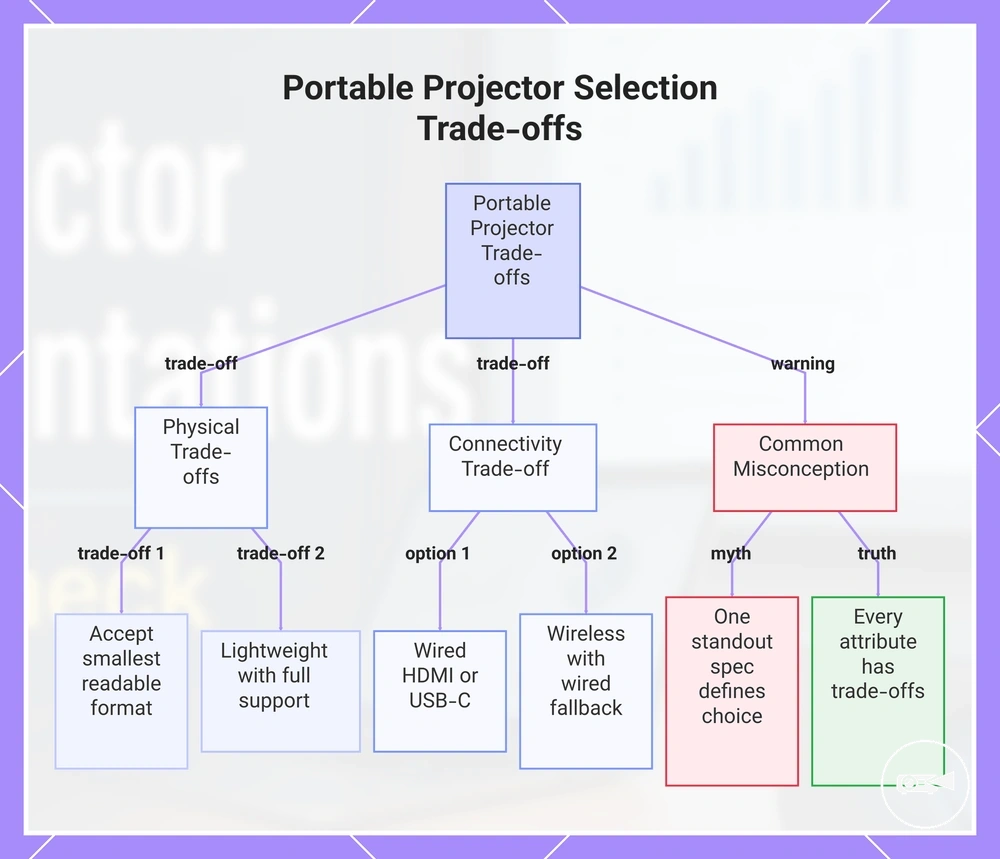
The right choice depends on which selection trade-off matters most in the presentation environment. A portable presentation projector should provide an acceptable balance of portability, clarity, brightness, connection reliability, and setup speed rather than maximise one attribute at the expense of the others.
The right choice depends on which selection trade-off matters most in the presentation environment.
A smaller mini projector is easier to carry, but reduced size can coincide with lower image clarity or brightness than a larger presentation projector. The practical solution is to accept the smallest format that still keeps the intended content readable under the expected room lighting. For text-heavy slides, the acceptable condition is clear native text rendering at the planned image size; otherwise portability creates a readability risk.
The practical solution is to accept the smallest format that still keeps the intended content readable under the expected room lighting.
For laptop-first use, a wired HDMI or supported USB-C connection offers the clearest compatibility path, with the correct adapter available when the ports differ. With a wireless preference, faster setup is useful only when the connection remains reliable and a wired fallback is available for the meeting. For a travel meeting, lower weight and compact storage improve portability, but the projector must still support the presenter’s laptop and room conditions. Choose according to the most frequent use case: wired compatibility for laptop-first work, wireless convenience with fallback for cable-light setups, or compact transport for travel meetings.
With a wireless preference, faster setup is useful only when the connection remains reliable and a wired fallback is available for the meeting.
Use the compatibility checklist before comparing models so that each decision signal is tested against the actual laptop, room, and presentation format. The criteria below separate an acceptable condition from the main risk and decision outcome, then compatibility should be verified before selection.
- Clarity: Acceptable when text, charts, and spreadsheets remain readable at the intended screen size; reject the option if text-heavy slides appear soft.
- Brightness: Acceptable when the image remains legible under the expected meeting-room lighting; reduce screen size or choose a brighter category if ambient light washes out the content.
- Connection reliability: Acceptable when the projector supports the laptop’s native output or a confirmed adapter; unresolved port or protocol matching increases setup-failure risk.
- Setup speed: Acceptable when the normal connection and alignment process can be completed without repeated pairing or repositioning; slower setup is a greater risk in short meetings.
- Portability: Acceptable when the projector, carrying case, cables, adapter, and tripod remain practical to transport; a smaller projector is not a useful trade-off if essential accessories make the travel kit cumbersome.
The myth is that one standout specification identifies the right portable presentation projector, while the practical truth is that every strong attribute carries a possible limitation elsewhere. Select the mini projector only when its clarity, brightness, compatibility, connection reliability, setup speed, and portability all meet the intended presentation conditions.
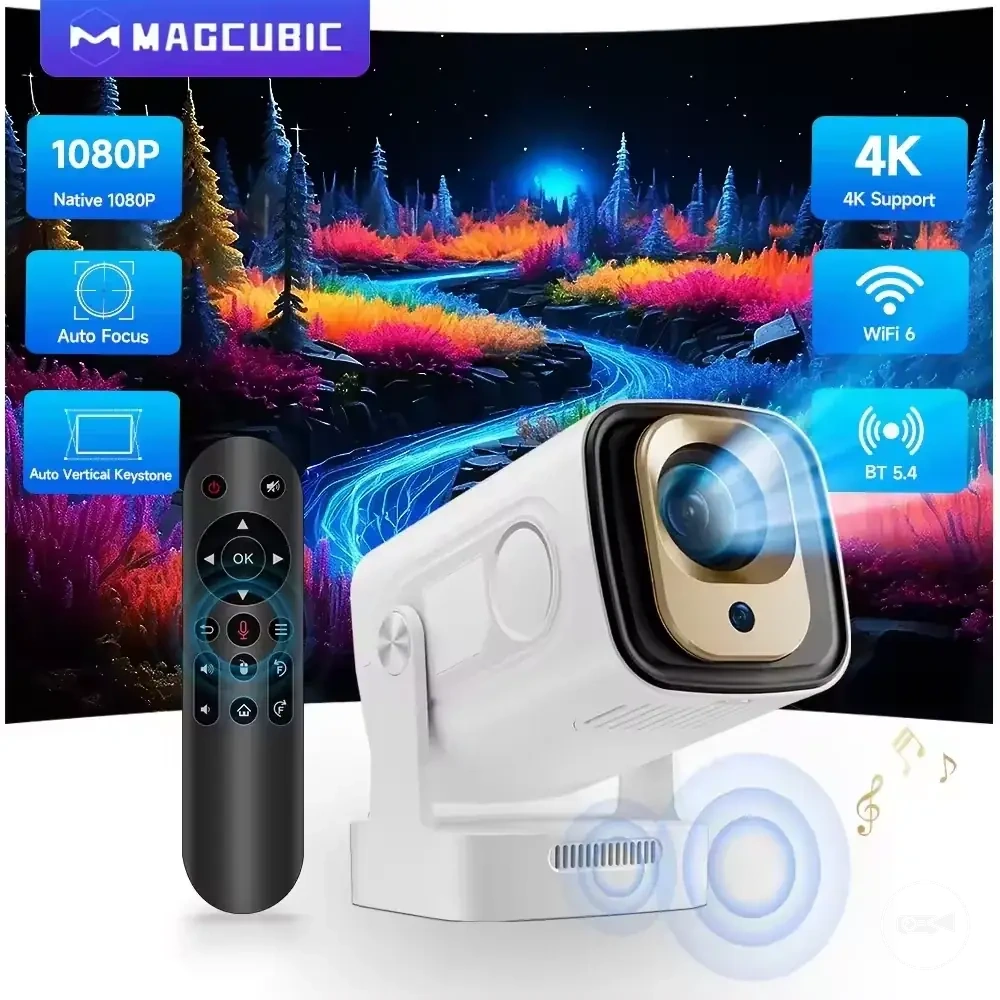
The products below are useful examples for comparing available options.
The products below are useful examples for comparing available options. Before buying, check that the compatibility criteria, key features, and product details match your needs.
This chart shows the key trade-offs and decision rules for selecting a portable presentation projector.
When a Mini Projector Is Not Enough for Presentations
A mini projector may not be enough when the room, audience, or slide demands exceed the practical limits of a portable design. Compared with a standard projector, the main limitations appear when presentations require higher brightness, a larger readable screen, sustained operation, or professional AV integration.
A mini projector may not be enough when the room, audience, or slide demands exceed the practical limits of a portable design.
A large audience usually requires a larger screen, which spreads the available light across a wider image and reduces visibility. In a bright room, ambient light lowers contrast, while dense text and spreadsheets require sufficient native resolution and stable focus to remain readable from the rear seats. A long session also places greater importance on continuous power, heat control, and connection reliability than a short portable setup. These conditions create a clear comparison between portability-led mini projectors and standard projectors intended for more demanding presentation requirements.
| Presentation condition | Mini projector limitation | Alternative decision |
|---|---|---|
| Large audience or large screen | Visibility decreases when the image is enlarged beyond a clearly readable size. | Choose a standard projector with higher brightness for the required screen size and viewing distance. |
| Bright room | Ambient light reduces contrast and makes text, charts, and images harder to see. | Use a brighter standard projector or improve room light control. |
| Dense text or spreadsheets | Low native resolution or soft focus increases the risk of poor readability. | Select a projector with native resolution and optical clarity suited to detailed presentation content. |
| Long session | Battery limits, excess heat, or unstable power can interrupt extended use. | Prefer continuous mains operation and a projector designed for sustained presentation sessions. |
| Professional AV environment | Limited control, mounting, audio, or integration options may not meet the venue requirement. | Use a standard projector or installed professional AV system that supports the required connections and controls. |
The myth is that mini projectors are unsuitable for all presentations, but they remain adequate when the audience is small, room lighting is controlled, and the slides use readable layouts. Portability still wins for travel meetings, temporary rooms, and short presentations where compact transport and quick setup matter more than maximum screen size or professional AV integration.
The problem is not the mini projector category itself but a mismatch between its portable strengths and a demanding presentation environment.
The problem is not the mini projector category itself but a mismatch between its portable strengths and a demanding presentation environment. Choose a standard projector or professional AV setup when higher brightness, larger-room visibility, dense-text readability, long-session reliability, or system integration is a fixed requirement; otherwise, a mini projector can remain the more practical portable choice.
Before buying, check that the compatibility criteria, key features, and product details match your needs.
The products below are useful examples for comparing available options. Before buying, check that the compatibility criteria, key features, and product details match your needs.
Common Doubts Before Choosing a Presentation Mini Projector
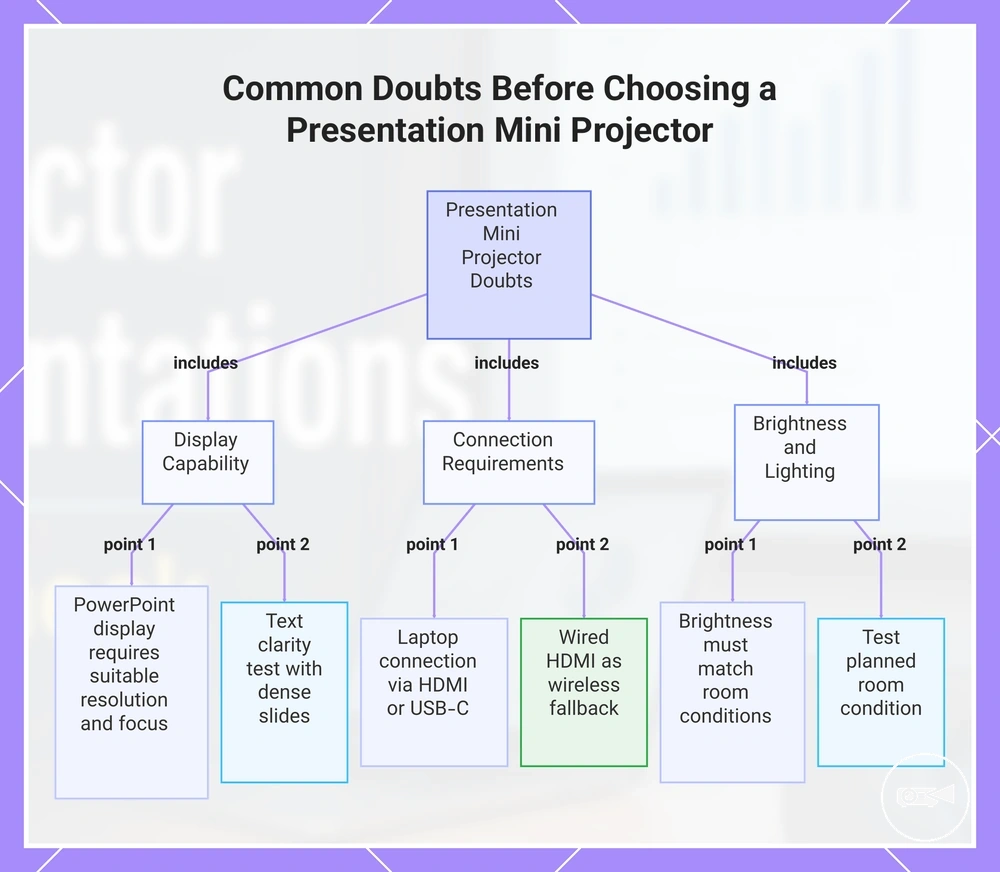
This FAQ resolves the remaining doubts before choosing a presentation mini projector. The answers stay limited to presentation capability, compatibility, readability, brightness, and connection reliability.
Can a presentation mini projector display PowerPoint slides?
Can a presentation mini projector display PowerPoint slides?
Yes, a presentation mini projector can display PowerPoint when the laptop or source device outputs a supported video signal.
Yes, a presentation mini projector can display PowerPoint when the laptop or source device outputs a supported video signal. Readable slides still require suitable native resolution, stable focus, and room lighting that preserves text clarity, so test the intended presentation file before use.
Is a laptop connection available on every presentation mini projector?
Is a laptop connection available on every presentation mini projector?
No, laptop connection options differ between models.
No, laptop connection options differ between models. Compatibility requires HDMI, supported USB-C video output, or the correct adapter when the laptop and projector ports do not match, so verify the connection path before the meeting.
Does a mini projector have enough brightness for a meeting room?
Does a mini projector have enough brightness for a meeting room?
It is suitable only when the brightness limit matches the meeting room lighting, screen size, and viewing distance.
It is suitable only when the brightness limit matches the meeting room lighting, screen size, and viewing distance. A smaller image in controlled lighting provides better visibility than a large image in a bright room, so test the planned room condition rather than relying on brightness wording alone.
Should text clarity be tested before choosing a portable projector?
Should text clarity be tested before choosing a portable projector?
Yes, text clarity should be tested with dense slides, spreadsheets, and small labels.
Yes, text clarity should be tested with dense slides, spreadsheets, and small labels. Native resolution, focus consistency, screen size, and room lighting determine whether the content remains readable, so use a representative PowerPoint file during the check.
What wireless fallback should be available for presentations?
What wireless fallback should be available for presentations?
A wired HDMI connection or confirmed USB-C video connection is the practical wireless fallback.
A wired HDMI connection or confirmed USB-C video connection is the practical wireless fallback. Casting can be affected by network access, pairing, latency, or device compatibility, so carry the required cable and adapter when reliability matters.
Casting can be affected by network access, pairing, latency, or device compatibility, so carry the required cable and adapter when reliability matters.
This chart summarizes the key doubts and answers when selecting a presentation mini projector, covering display capability, connection requirements, and brightness considerations.
Do mini projectors work well for PowerPoint presentations?
Yes, mini projectors can work well for PowerPoint presentations when their resolution, room lighting, text size, and connection method suit the slide content. Simple slides with large readable text present a lower readability risk than dense slides with small spreadsheet-style content, especially when ambient light reduces contrast. A stable HDMI or supported USB-C connection also provides more reliable presentation software output than an untested wireless link. For example, a slide deck with large headings and clear charts is easier to project than dense slides containing small cells and labels.
Can a mini projector connect smoothly to a laptop?
Yes, a mini projector can connect smoothly to a laptop when the laptop output matches the projector input through HDMI, USB-C with supported video output, or a compatible adapter. A wired connection is usually the simpler option, while wireless casting also requires compatible screen-mirroring support and a stable network. For example, an HDMI laptop can connect directly to an HDMI projector input, whereas a USB-C-only laptop may need an adapter if the port supports video output. Test the cable, adapter, projector input, and wireless casting setup before the presentation to confirm compatibility.