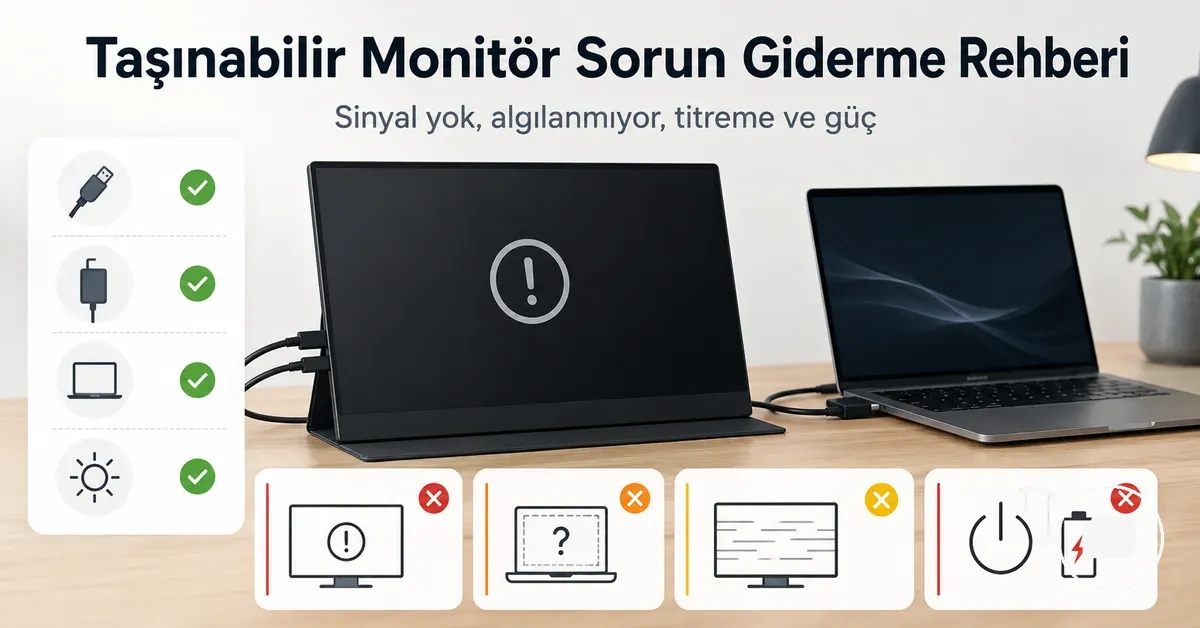
Portable monitor protection and maintenance
Portable monitor protection and maintenance is a combined care routine that can reduce common damage risks through careful handling, safe cleaning, and appropriate storage. Although no routine can prevent every type of wear or accidental damage, consistent care may help lower the chance of scratches, travel-related wear, and avoidable stress on the screen, cable, port, and stand. This combined approach forms the foundation of portable monitor protection and maintenance.
Common risks include screen scratches, pressure during travel, dust on the screen surface, moisture introduced during cleaning, cable strain, and accidental stress on the port or stand. A case or sleeve can provide padding during transport, while a screen protector may help reduce surface scratches when it is suitable for the display. For broader context before choosing care methods, see the portable monitor guide. Understanding these risk areas makes it easier to choose practical protection and maintenance habits.
This page focuses on routine protection and maintenance rather than full setup, compatibility, or repair diagnosis. It covers safe cleaning, careful packing, sensible handling, and ongoing care while leaving fault diagnosis and repair procedures to dedicated troubleshooting guidance.
What portable monitor protection needs to prevent
Portable monitor protection is the practice of reducing damage risks to the screen surface, body, ports, cable connections, and handling points during everyday use, carrying, and storage. It focuses on limiting scratches, panel pressure, corner impact, dust, moisture exposure, cable strain, and handling damage while recognising that the overall risk depends on monitor size, case design, bag pressure, travel frequency, and everyday handling habits. These are the main damage categories that routine protection aims to manage.
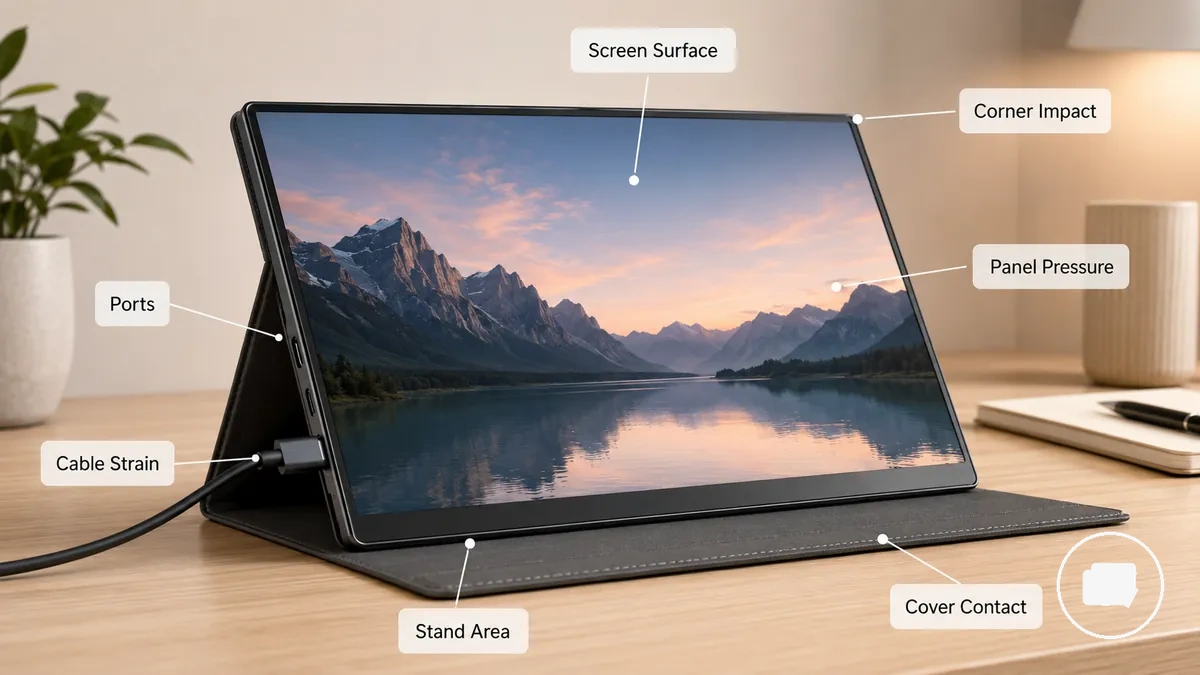
Portable monitors are regularly moved between desks, bags, and travel environments, making them more exposed to pressure and contact than stationary displays. Carrying and storage can increase pressure risk when the screen surface, ports, cable connection area, or stand area are not adequately supported. The annotated example identifies the parts most exposed to scratches, moisture, pressure, and cable strain before moving into part-level risks.
The checklist below highlights the main areas that deserve routine attention during damage prevention. It organizes each portable monitor part by its typical risk condition and the priority for reducing unnecessary wear.
- Screen surface: Dust, scratches, and panel pressure can occur during carrying or storage; keeping the surface clean and limiting direct pressure is the priority.
- Corners: Corner impact may become more likely when bag pressure or accidental knocks occur; reducing impact exposure is the priority.
- Ports: Ports may experience extra stress when connected cables are bent or pulled; careful cable handling helps reduce connection risk.
- Cable connection: Cable strain can increase when cables remain under tension during transport; relieving unnecessary strain is the priority.
- Stand area: Repeated folding, movement, or pressure may increase handling wear; storing the stand without unnecessary force helps reduce stress.
- Cover contact: Contact between the cover and display varies with fit and carrying conditions; routine protection can reduce risk but cannot guarantee prevention against heavy impact, liquid exposure, or excessive pressure.
Screen pressure, scratches, dust, moisture, and corner impact
Screen pressure, scratches, dust, moisture, and corner impact are the most common local risks affecting the screen surface and casing during everyday carrying and storage. These conditions usually result from contact, pressure, or trapped debris rather than normal display use. Their likelihood depends on handling conditions such as bag pressure, hard objects, and storage habits.
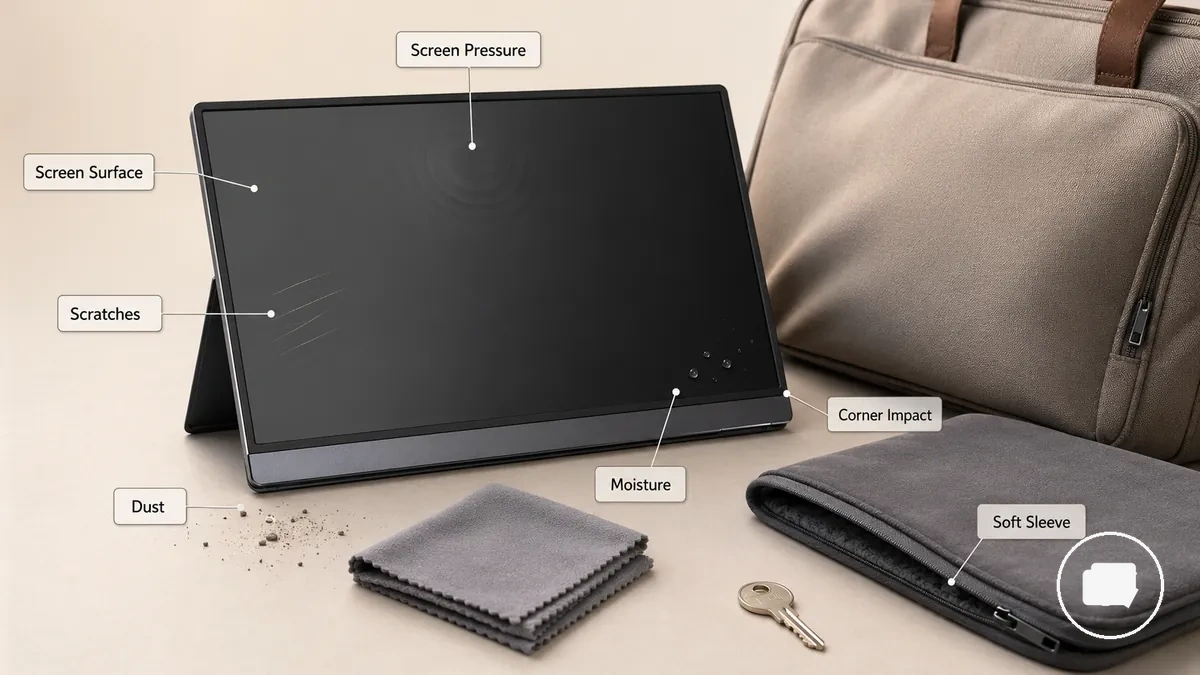
Screen pressure may leave pressure marks when heavy items press against the screen surface during travel. Scratches often occur when keys, zippers, or trapped debris rub against the display surface or casing. Dust and moisture around the edge area can contribute to surface wear if they remain trapped during storage. The points below connect each local risk with its typical condition, likely effect, and a practical prevention cue.
A portable monitor placed beneath luggage or stored with loose keys may develop cosmetic surface wear without showing immediate functional symptoms, while more severe pressure or impact may justify closer inspection.
- Screen surface: Bag pressure can create pressure marks; use padded storage and avoid placing heavy items directly on the display.
- Scratches: Trapped debris or hard objects such as keys can mark the screen surface; keep the sleeve and monitor clean before packing.
- Dust and moisture: Dust or moisture around the edge area may increase surface wear; remove debris carefully and allow moisture to dry before storage.
- Corner impact: Contact with hard objects during travel can mark the casing or corners; separate the monitor from rigid items inside a bag.
- Casing: Repeated friction during transport may cause cosmetic wear; careful handling and reduced movement inside the bag help limit abrasion.
Cable, port, stand, and cover strain during everyday use
Cable, port, stand, and cover strain during everyday use can develop through repeated handling instead of a single event. Everyday movement may place extra stress on the connector, cable bend, stand hinge, or folding cover, particularly when the monitor is moved between a desk and a bag. Gentle handling helps reduce strain across the port, connector, stand hinge, and cover alignment.
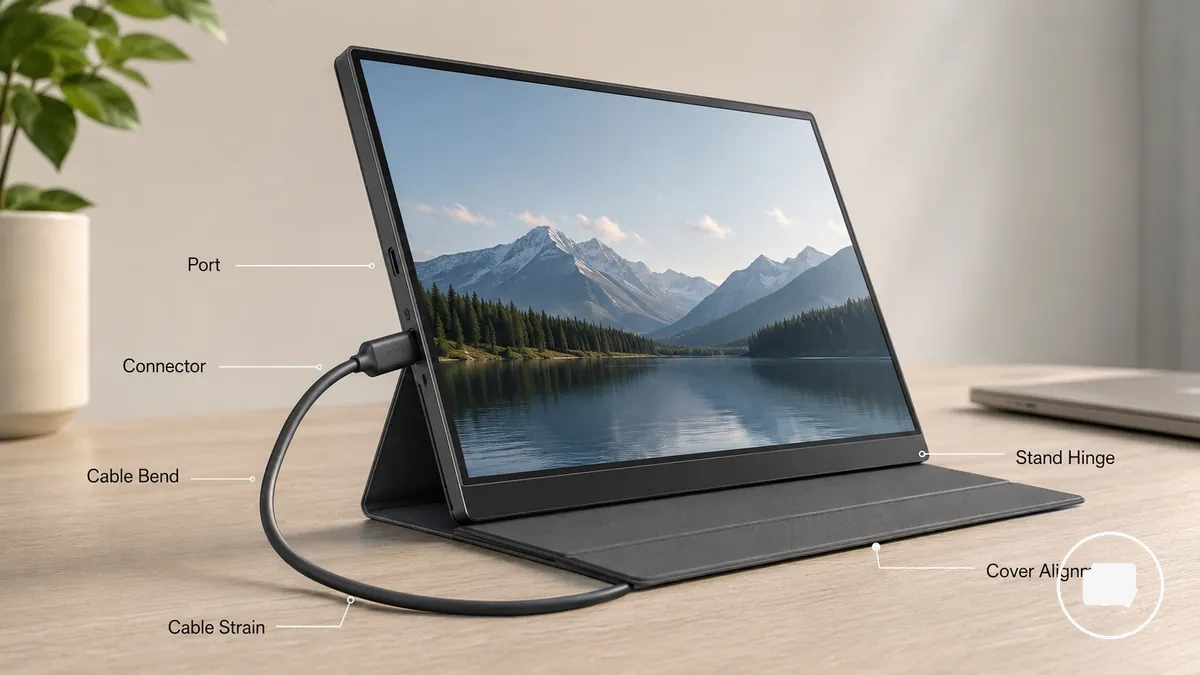
During everyday use, cable strain may increase when a connector is repeatedly pulled at an angle or left unsupported. Repeated folding can gradually wear the stand hinge, while packing friction may affect the folding cover and cover alignment over time. The image highlights common strain points during normal handling, and persistent connection symptoms move beyond routine protection and may require further inspection.
The mini-checklist below identifies common non-screen strain points and simple handling habits that may help reduce unnecessary wear.
- Port: Support the connector during normal use to help reduce looseness risk from repeated handling.
- Cable bend: Maintain a gentle cable curve instead of sharp bends to reduce cable strain near the connection area.
- Stand hinge: Fold and adjust the stand smoothly to help limit wear from repeated movement.
- Folding cover: Keep cover alignment even to help reduce screen contact and packing friction during storage.
- Connector area: Avoid leaving the cable under constant tension during everyday use to reduce stress at the strain point.
Choosing the right protective accessory for the use case
Choosing the right protective accessory depends on how a portable monitor is carried, stored, cleaned, and used each day. A case, sleeve, screen protector, folding cover, or travel bag may suit different situations because protection needs vary with padding, rigidity, fit, screen coverage, portability, stand compatibility, and carrying conditions. Matching the accessory to the most common source of risk provides a clearer selection framework than relying on a single accessory for every situation.
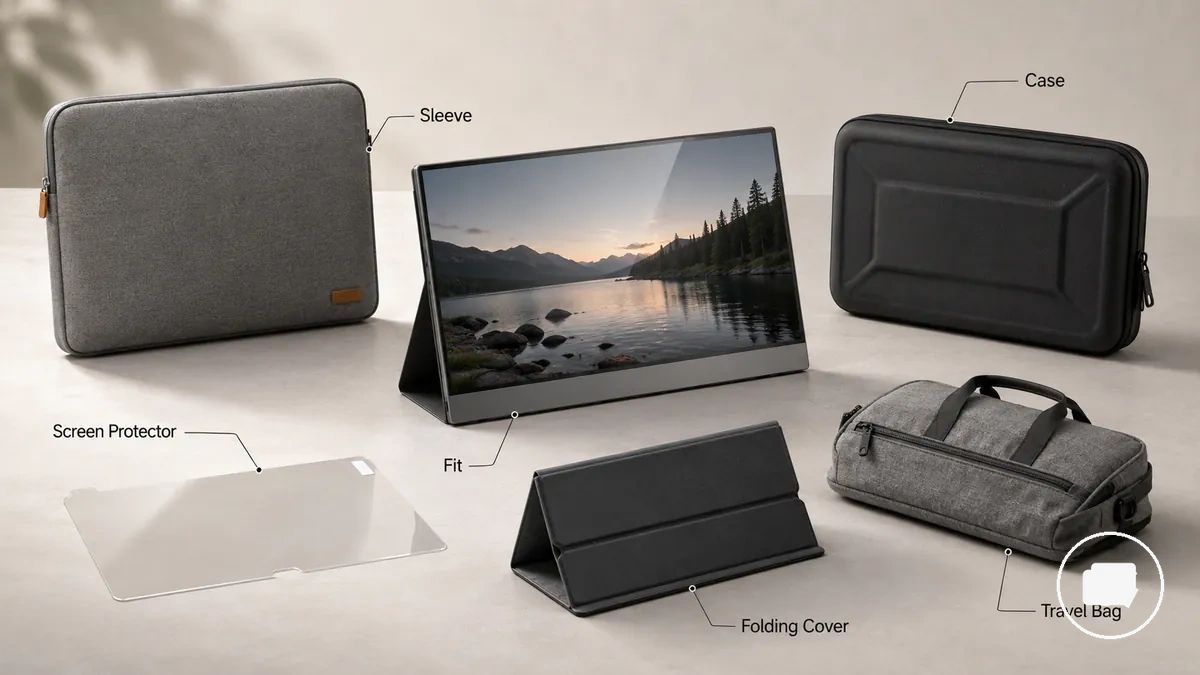
For desk-only use, light screen coverage may be sufficient when the monitor is rarely moved. Commuting often increases the importance of fit, portability, and padding, while luggage travel may make rigidity and pressure protection more relevant. For touch or glossy-screen care, a screen protector may be considered when surface wear is the primary concern. The table below compares common accessory types by their typical use-case fit.
| Accessory type | Protects most against | Trade-off | Best use case |
|---|---|---|---|
| Case | Pressure and impact | May add weight and reduce portability | Luggage travel |
| Sleeve | Scratches and light contact | Less rigidity under higher bag pressure | Commuting |
| Screen protector | Screen coverage and surface wear | Suitability depends on screen finish and touch use | Touch or glossy-screen care |
| Folding cover | Daily screen coverage | Protection depends on fit and stand compatibility | Everyday desk use |
| Travel bag | Carrying and storage protection | Protection varies with padding, fit, and bag design | Frequent transport |
Each protective accessory involves a balance between portability, padding, rigidity, and screen coverage. A sleeve may better suit routine commuting, while a case may better suit situations where pressure protection is more important. Whether scratch protection, pressure protection, or both should take priority depends on storage conditions, travel frequency, and monitor fit.
Before choosing an accessory, compare fit, screen coverage, stand compatibility, portability, and expected carrying conditions rather than focusing on a single feature. The portable monitor buying checklist can help review these criteria before purchase.
Sleeves, soft cases, hard cases, and travel bags
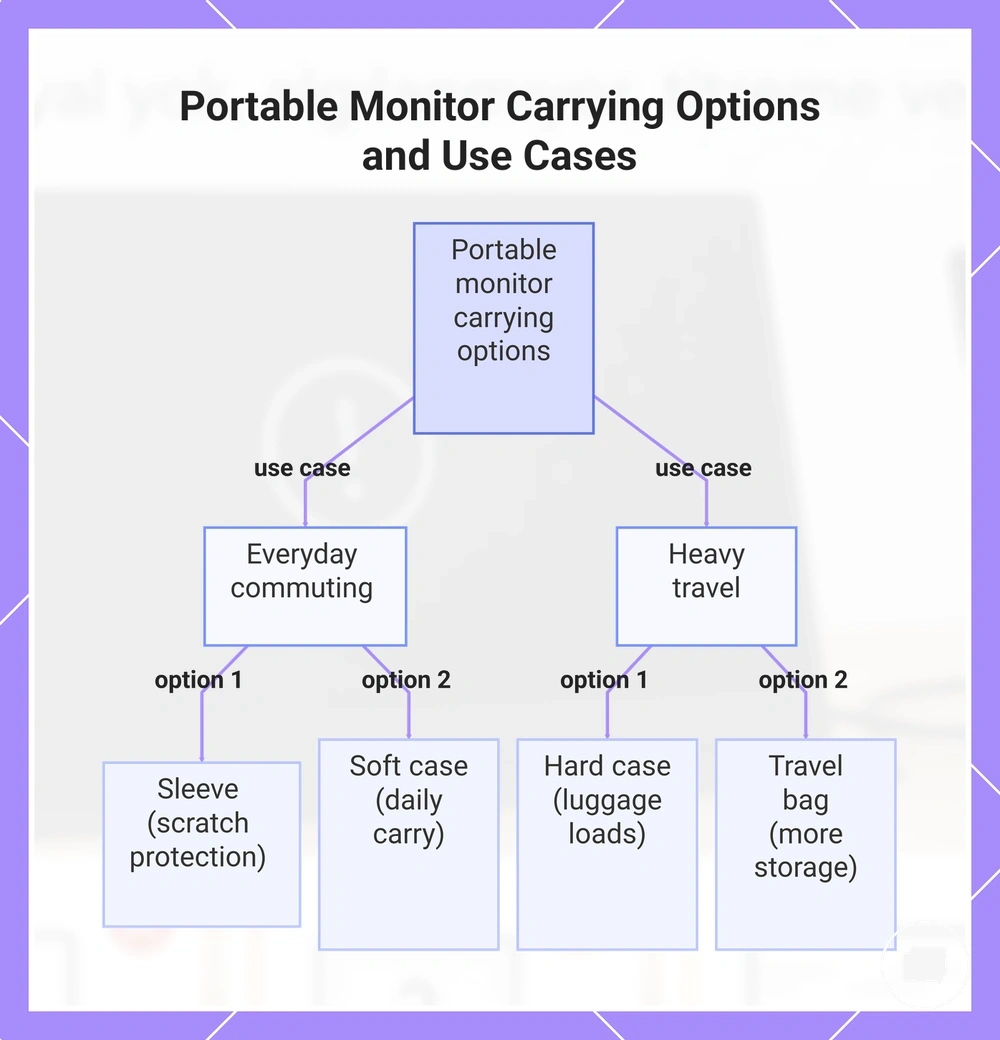
When a portable monitor is carried between locations, the most suitable option depends on expected pressure, the amount of accessory storage required, and how closely the monitor needs to fit inside the carrying solution. A sleeve may be sufficient for light commuting, while higher compression during transport can make additional padding and rigidity more appropriate. The main carrying options are a sleeve, soft case, hard case, and travel bag.
Fit influences how much the monitor moves during transport, while bulk usually increases as padding, rigidity, and accessory storage increase. A slim sleeve can suit everyday commuting where scratch protection is the main concern, whereas a hard case or travel bag may better suit situations involving luggage or heavier carrying loads. The most appropriate choice depends on fit, pressure resistance, compression conditions, and the amount of equipment carried.
- Sleeve: Light padding, slim fit, and limited bulk; suitable for commuting where scratch protection is the primary need, with limited pressure resistance and accessory storage.
- Soft case: Moderate padding with space for small accessories; suitable for daily carry, although rigidity remains lower than a hard case under heavier compression.
- Hard case: Higher rigidity and pressure resistance with greater bulk; suitable when luggage or heavier external pressure is expected.
- Travel bag: More accessory storage for cables and related items; protection depends on padding, fit, bag structure, and carrying conditions.
This chart shows the main carrying options for portable monitors, grouped by commuting and heavy travel use cases.
Folding covers, magnetic covers, and stand-style protection
A folding cover provides light screen protection while also supporting stand-style protection during daily use. A magnetic cover or folding cover is designed to function as both a screen cover and a viewing support rather than a replacement for a padded case. Its primary role is daily screen coverage and stand support, not higher-pressure travel protection.
When cover attachment, magnet alignment, hinge stability, or screen contact are not well matched to the monitor, the cover may not sit evenly or maintain the intended stand angle. Small gaps may reduce gap protection, while attachment design can influence stability during normal handling. The criteria below highlight the main mechanical points to check, followed by a contrast between light daily protection and higher-pressure travel conditions.
- Folding cover: Supports daily use by combining a screen cover with stand-style protection; effectiveness depends on fit and cover attachment.
- Magnet alignment: Proper alignment can help maintain even screen contact, while poor alignment may leave exposed gaps.
- Hinge stability: Stable folding points can help support the selected stand angle, although stability varies with attachment design and fit.
- Gap protection: A closer-fitting cover may reduce edge exposure during everyday carrying, but a folding cover should not be relied on as pressure-resistant protection inside packed luggage.
Screen protectors for scratches, glare, touch, and impact risk
A screen protector mainly helps reduce surface-level risks such as scratches and, depending on the protector type, may also influence glare and touch sensitivity. Its effectiveness depends on the screen surface, protector type, and installation quality. A screen protector is not a substitute for padding, a case, or careful packing against pressure or impact risk.
Surface finish influences how a screen protector performs during daily use. Matte and glossy displays may respond differently to glare, while touch sensitivity on a touchscreen can vary with protector thickness, fit, and installation. The table below compares the main criteria for evaluating a screen protector.
| Protector factor | Useful when | Limitation | Care note |
|---|---|---|---|
| Scratch resistance | Surface scratches are the main concern. | Does not protect against pressure-related damage. | Clean the screen surface before installation. |
| Glare control | Reducing reflections on glossy displays is important. | May alter the appearance of the surface finish. | Choose a protector that matches matte or glossy screens. |
| Touch response | The monitor includes a touchscreen. | Touch sensitivity may vary with protector thickness and fit. | Install carefully to maintain even screen contact. |
| Impact limitation | Light surface protection is the goal. | Does not replace padding or a protective case. | Combine with suitable carrying protection when needed. |
| Installation risk | A clean and well-aligned application is possible. | Misalignment or trapped debris may affect the result. | Prepare the display carefully before fitting the protector. |
A screen protector may be more suitable for touchscreens, glossy panels, or monitors that are handled frequently, while the overall benefit depends on the surface finish and everyday use pattern. Matte finishes may require different glare considerations, and frequent travel often benefits from combining a screen protector with appropriate carrying protection. Layering surface protection with careful packing provides broader protection than relying on a screen protector alone.
How to pack and carry a portable monitor safely
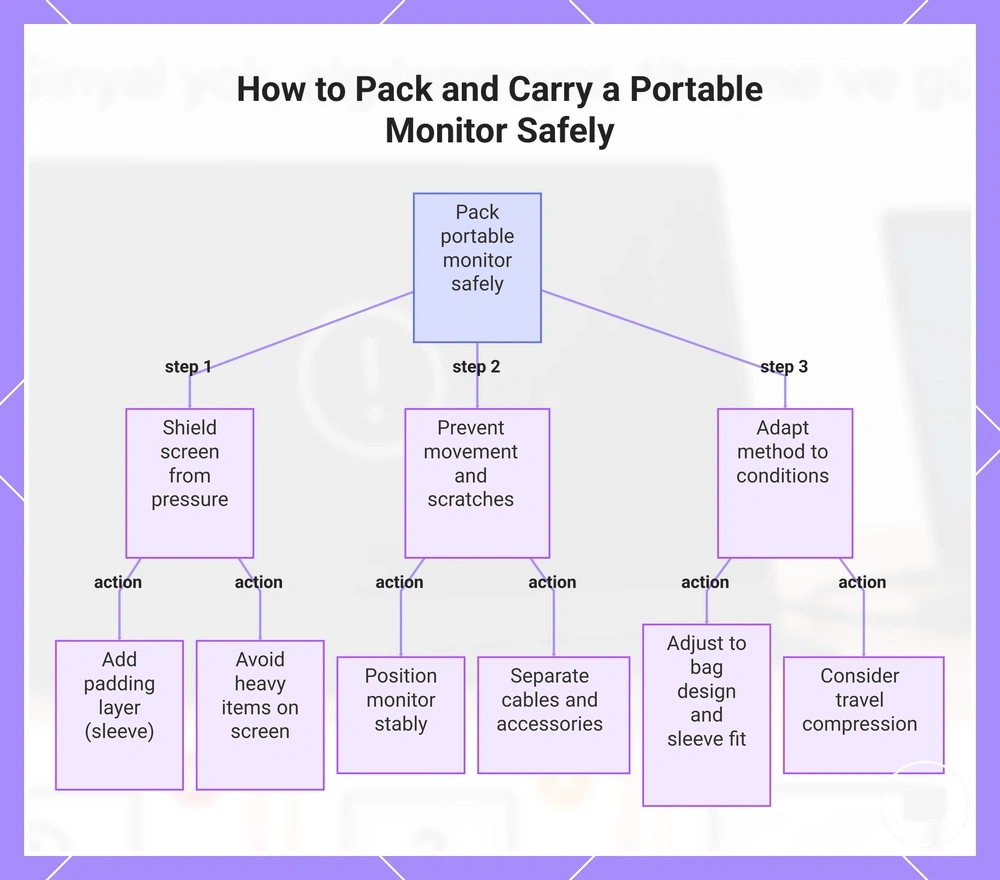
To pack and carry a portable monitor safely, shield the screen from pressure, separate accessories, and keep the monitor stable during movement. Following a consistent packing sequence can help reduce screen pressure, scratches, and contact with loose accessories.
The packing order matters because each layer affects movement and contact inside the bag. Placing accessories too early or positioning the monitor without a padding layer may increase scratch and pressure risk. Follow the steps below to create a carrying setup that reduces unnecessary movement during transport.
- Add a padding layer. Place the portable monitor inside a sleeve or against a padded layer first to help reduce direct contact with other items.
- Choose a stable orientation. Position the portable monitor so it is less likely to shift inside the bag, especially when the sleeve fit allows movement.
- Keep cable separation. Store cables and other accessories in a separate pocket to reduce the chance of scratches from hard objects.
- Use careful bag placement. Position the monitor where it is supported by the bag structure and less exposed to movement during transport.
- Avoid screen pressure. Do not place heavy items directly against the screen, particularly when luggage or a backpack may be compressed during travel.
Adjust the packing method according to the bag design, sleeve fit, and expected compression during transport. For desk-to-desk movement, a simple sleeve may be enough, while luggage may require greater attention to pressure and monitor stability. If you use a portable monitor for travel, adapt the carrying method to the travel conditions instead of relying on a single packing approach.
This chart shows the key steps to pack a portable monitor safely, focusing on screen protection, movement prevention, and adaptation to travel conditions.
Creating a padded screen-safe layer
A padded layer helps reduce direct screen pressure by creating a screen-safe barrier between the display and surrounding items inside a bag or case. A clean sleeve or microfiber cloth can provide this protective layer when it is soft, dry, and fits the monitor properly. The steps below focus on forming the protective layer while reducing pressure, scratches, and debris.
- Position the padded layer. Place the portable monitor inside a clean sleeve or against a soft microfiber cloth to help reduce direct contact with hard surfaces.
- Protect the screen-facing side. Keep the screen-facing surface against the soft barrier so pressure is distributed more evenly and scratch risk is reduced.
- Complete case closure carefully. Close the case without forcing it, because excessive compression may increase pressure or movement inside the bag.
- Check pressure distribution. Position the monitor so the padded layer rests evenly against the bag wall instead of against accessories or rigid edges.
- Remove debris before packing. Inspect the sleeve, microfiber cloth, and screen surface for dust or trapped particles that could cause scratches during transport.
For example, placing a portable monitor inside a fitted sleeve with a clean microfiber cloth covering the screen-facing side can create a soft barrier before case closure. If the sleeve fits well and remains clean and dry, the padded layer may help reduce unnecessary movement and direct screen contact. Finish by checking for debris before closing the case.
Keeping cables and accessories away from the screen
Keeping cables and accessories away from the screen helps reduce pressure marks and scratches that can occur when hard objects press against the display during storage or transport. Cables, adapters, chargers, and the stand should be stored separately so they do not contact the screen surface. The guidance below focuses on separating hard accessories from the display.
When a bag may be compressed, store accessories in a way that limits direct screen contact. Use a loose cable coil, keep cleaning items clean, and place hard accessories in a separate pocket whenever possible. As a caution, hard accessories should not sit between the screen and the bag wall because pressure may increase under compression.
Checklist:
- Cables: Store cables in a loose cable coil inside a separate pocket to help reduce pressure against the screen.
- Adapters and chargers: Keep adapters and chargers away from the display because hard edges may leave pressure marks or scratches if the bag is compressed.
- Stand: Fold the stand into its storage position so the hinge is less likely to press against the screen surface.
- Cleaning cloth: Keep a clean microfiber cloth in a clean accessory pouch or storage pocket to help reduce dust transfer to the screen surface.
- Accessory placement: Position hard accessories away from the screen so they are not trapped between the display and the bag wall during carrying.
Placing the monitor safely in a backpack, luggage, or desk setup
After a packed monitor is protected, its storage position inside a backpack, luggage, or desk setup can still influence pressure and movement. Place the monitor where it is supported by the bag or desk rather than exposed to vertical pressure or shifting. Backpack placement, luggage compression zones, and desk positioning all affect how pressure is applied.
When using a backpack, place the packed monitor in the laptop compartment if the fit helps limit movement and keeps hard objects away from the screen side. During luggage transport, avoid compression zones where vertical pressure or nearby hard objects may press against the display. In a desk setup, keep the monitor away from the desk edge and beneath areas where falling objects could create impact risk. The scenarios below show how placement can vary by environment.
Scenario examples:
- Short commute: Place the packed monitor inside the backpack's laptop compartment and keep heavy items away from the screen to help reduce movement and pressure.
- Flight or luggage travel: Position the monitor away from luggage compression zones and separate it from hard objects with suitable padding when space allows.
- Fixed desk storage: Keep the monitor in a stable storage position away from the desk edge and beneath areas where falling objects could increase impact risk.
How to clean a portable monitor screen safely
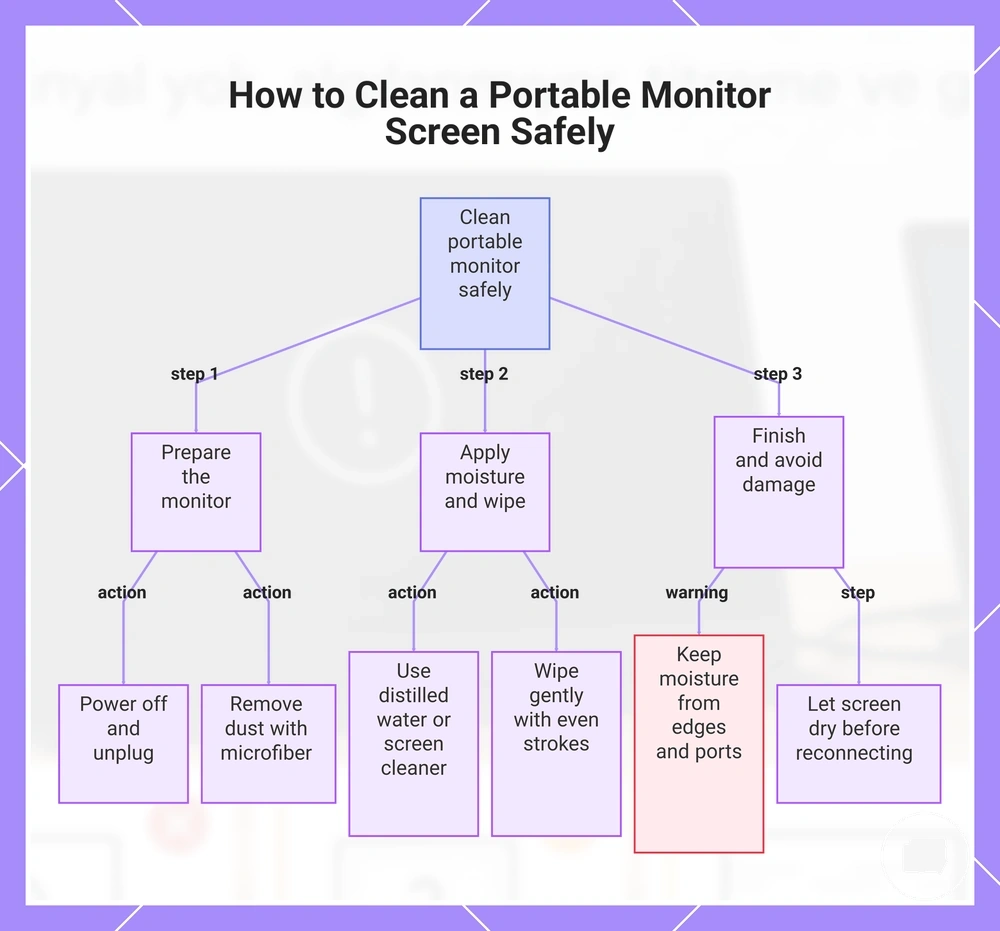
To clean a portable monitor screen safely, power off and unplug the monitor, remove dust gently with a microfiber cloth, and use minimal moisture only when needed. If additional cleaning is required, use distilled water or a screen-safe cleaner that is suitable for the display and follow the manufacturer's guidance. This approach helps reduce scratch, residue, and liquid risks without relying on harsh chemicals.
The cleaning sequence matters because dust removal before wiping can help reduce scratches. Minimal moisture lowers the chance of liquid reaching the screen edges or ports. Gentle wiping followed by drying completes the process. Follow the steps below.
- Power off the portable monitor screen. Turn the monitor off and unplug it before cleaning to improve handling safety.
- Remove loose dust. Use a clean microfiber cloth for gentle dust removal before wiping to help reduce scratch risk.
- Use minimal moisture. If dry cleaning is not enough, lightly dampen the microfiber cloth with distilled water or a suitable screen-safe cleaner.
- Wipe gently. Clean the display surface with light, even strokes while avoiding unnecessary pressure.
- Practice edge avoidance. Keep moisture away from screen edges and ports to help reduce liquid risk.
- Allow drying. Let the screen dry before reconnecting power or closing a cover to help avoid trapped moisture or residue.
If the manufacturer's instructions differ from general cleaning guidance, follow the manufacturer-specific recommendations for that portable monitor screen. Cleaner suitability can depend on the screen coating and display surface, so keep the process gentle and use only the amount of moisture needed.
This chart shows the safe step-by-step cleaning process for a portable monitor, including preparation, cleaning, and finishing steps to avoid scratches and liquid damage.
Powering down, dusting, wiping, and drying the screen
Cleaning a portable monitor screen in the correct order helps reduce scratch and liquid risk. Start by powering down and unplugging the monitor, then complete dusting, wiping, and drying in sequence. Follow the steps below.
If stubborn smudges remain after a light wipe, repeat gentle passes with a clean microfiber cloth using minimal moisture instead of applying more pressure. The amount of moisture and the condition of the cloth can affect the result, so allow the surface to finish drying rather than increasing gentle pressure.
- Powering down: Turn off and unplug the monitor before cleaning the screen.
- Dusting: Remove loose dust with a clean microfiber cloth as the first pass to help reduce scratches.
- Wiping: Use a light wipe with minimal moisture when needed, keeping the cloth slightly damp rather than the screen.
- Avoiding ports and edges: Keep moisture away from ports and screen edges during wiping to help reduce liquid risk.
- Drying: Let the display air dry before reconnecting power or closing a cover.
Microfiber cloths, distilled water, and screen-safe cleaners
Microfiber cloths, distilled water, and screen-safe cleaners are generally appropriate for routine portable monitor screen care when used gently and according to manufacturer guidance. Choosing suitable cleaning materials can help reduce residue and lower the chance of scratching the display coating. Matte, glossy, and touchscreen surfaces may respond differently to the same cleaning method.
Use liquid application by lightly dampening the microfiber cloth instead of applying liquid directly to the screen. Cloth cleanliness is important because dust or debris trapped in the fibers can increase scratch risk. The table below compares suitable cleaning items, their use conditions, common risks, and care notes.
| Cleaning item | Use condition | Risk to avoid | Care note |
|---|---|---|---|
| Microfiber cloth | Use a clean microfiber cloth for routine dust removal and gentle wiping. | Dirty fibers may leave residue or contribute to scratches. | Inspect cloth cleanliness before each use. |
| Distilled water | Use minimal moisture when dry cleaning is not enough. | Too much liquid may reach screen edges or ports. | Lightly dampen the cloth rather than the display. |
| Screen-safe cleaner | Use when suitable for the display coating and consistent with manufacturer guidance. | Cleaner compatibility may vary by coating and screen finish. | Matte, glossy, and touchscreen surfaces may require different levels of caution. |
| Cloth storage | Store the cleaning cloth in a clean, dry location. | Dust and debris can transfer back to the screen. | Keep the cloth clean between uses to reduce residue and scratches. |
Cleaning mistakes that can damage the display surface
Unsafe cleaning can increase the chance of scratches, streaks, coating damage, or liquid intrusion more than normal dust. Most cleaning mistakes are avoidable by using gentle methods, suitable materials, and controlled moisture. The checklist below highlights common mistakes together with safer alternatives.
Safer cleaning relies on light pressure, careful liquid application, and clean materials instead of force or excessive moisture. If smudges remain, use gentle repeated passes rather than increasing pressure. When manufacturer guidance differs for a particular display surface or coating, follow those recommendations.
Warning checklist:
- Paper towels: Paper towel fibers may increase scratch risk. Use a clean microfiber cloth instead.
- Abrasive cloths: Abrasive cloths may contribute to surface wear. Choose a soft cleaning cloth suitable for delicate display surfaces.
- Excess liquid: Too much liquid may increase the risk of liquid intrusion around edges or ports. Lightly dampen the microfiber cloth instead.
- Direct spraying: Avoid direct spraying because it may leave streaks, residue, or allow moisture to collect around the display surface. Apply liquid to the cloth first.
- High pressure: Pressing hard to remove smudges may increase coating wear. Repeat gentle passes using light pressure instead.
- Harsh cleaners: Harsh cleaners may not suit every coating. Use a screen-safe cleaner only when appropriate for the display and consistent with manufacturer guidance.
- Cleaning while connected: Clean the monitor after it has been turned off and unplugged to help reduce unnecessary liquid and handling risks.
Maintenance habits that extend portable monitor lifespan
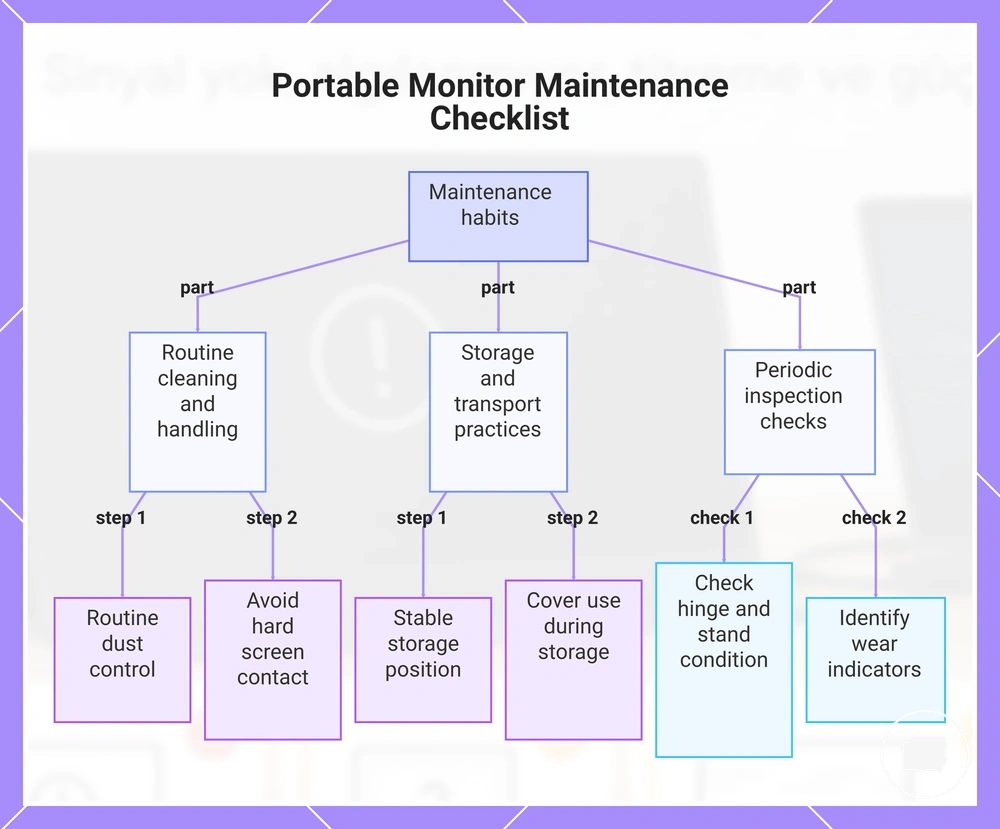
Maintenance habits can help reduce avoidable wear and support portable monitor lifespan, but they do not guarantee a specific lifespan or level of durability. Long-term results depend on usage frequency, storage conditions, handling, and model construction. A consistent care routine built around recurring maintenance habits is usually more effective than relying on a single maintenance action.
Storage position, cover use, and routine dust control help reduce unnecessary screen contact and everyday wear. Cable removal before storage, when practical, may help reduce port strain caused by unnecessary tension. The practical checklist below summarizes recurring habits for long-term care.
- Perform routine dust control to help reduce scratches caused by dust during normal handling.
- Choose a stable storage position that limits pressure on the display surface and reduces unnecessary movement.
- Practice cable removal before storage when possible to help reduce strain on ports and connectors.
- Use cover use during storage to help reduce screen contact with nearby objects and dust.
- Check hinge care and stand care periodically for signs of looseness or unusual resistance during normal use.
- Avoid unnecessary screen contact with hard or abrasive objects that may contribute to avoidable wear.
- Carry out periodic inspection of the screen, stand, ports, and outer surfaces so small issues can be identified during routine care.
Periodic inspection complements routine maintenance habits by helping identify accumulated dust, cable strain, or hinge movement before they contribute to additional wear. Gentle handling during setup, storage, and transport also supports long-term care. If the monitor is moved frequently or used in changing environments, more frequent inspection may be appropriate.
Combining these maintenance habits into a regular care routine provides a practical approach to wear reduction without relying on guaranteed lifespan gains. The most suitable routine depends on how often the portable monitor is used, stored, and transported.
The products below are useful examples for comparing available options. Before buying, check that the compatibility criteria, key features, and product details match your needs.




This chart shows the main categories of maintenance habits that help reduce wear and extend portable monitor lifespan, based on the practical checklist from the article.
Reducing dust, static contact, fingerprints, and storage wear
Small recurring exposures such as dust, static contact, fingerprints, and storage wear can gradually increase cleaning needs and surface wear over time. These exposures are usually easier to manage through simple preventive habits than repeated cleaning. The main exposures include dust, static contact, fingerprints, sleeve cleanliness, desk surface friction, and long-term storage pressure.
Adjust the care routine to match how often the monitor is used, transported, or stored. For example, weekly care may focus on removing surface dust, while after-travel care may include checking sleeve cleanliness before storage. During longer storage periods, reducing long-term storage pressure can help limit unnecessary contact wear.
The following habits help reduce recurring exposure without repeating the full screen-cleaning process:
- Dust: Remove surface dust with a clean microfiber cloth before particles contribute to surface wear.
- Static contact: Store the monitor with a clean cover or sleeve to help reduce debris attracted to the screen during storage.
- Fingerprints: Handle the monitor by its edges when practical to reduce smudges and unnecessary cleaning frequency.
- Sleeve cleanliness: Keep the sleeve clean because trapped dust or debris may increase contact wear during storage or transport.
- Desk surface friction: Place the monitor on a clean, stable surface to reduce friction that may contribute to storage wear over time.
- Long-term storage pressure: Avoid leaving heavy objects against the monitor during extended storage because pressure-related wear depends on storage duration and surrounding conditions.
Handling touch screens, matte finishes, and glossy panels carefully
Screen surface type affects handling and cleaning tolerance because different coatings and surface treatments can respond differently to fingerprints, glare, wiping pressure, and protector compatibility. Care precautions depend on the screen surface rather than display performance. The main surface types are touchscreen, matte finish, and glossy panel.
Manufacturers may use different coatings and surface treatments, so handling advice should remain qualified rather than universal. Cleaning tolerance, wiping pressure, and protector compatibility can vary by surface finish, protector fit, and manufacturer guidance. The table below compares handling and maintenance considerations for each surface type.
| Surface type | Care concern | Handling adjustment | Avoid |
|---|---|---|---|
| Touchscreen | Fingerprints, touch sensitivity, and protector compatibility | Handle with clean hands, use gentle wiping pressure, and ensure any screen protector is suitable for the touchscreen. | Applying excessive pressure or assuming every protector is compatible. |
| Matte finish | Coating sensitivity, residue, and cleaning tolerance | Use light wiping pressure and follow manufacturer guidance for the coating and surface treatment. | Aggressive rubbing or treating all matte finishes the same. |
| Glossy panel | Fingerprints, smudges, and glare visibility | Clean gently with a microfiber cloth and minimise direct contact with the screen surface where practical. | Heavy wiping pressure or assuming all glossy panels have identical surface treatments. |
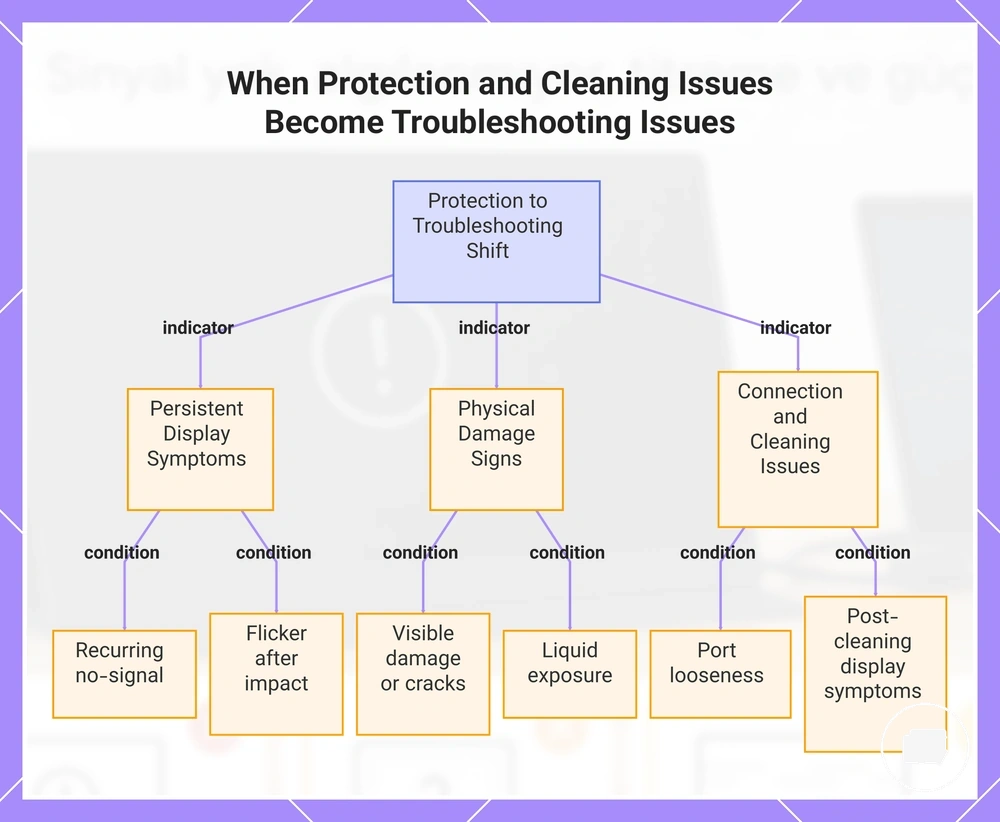
When protection or cleaning issues become troubleshooting issues
Troubleshooting issues begin when symptoms persist or affect normal monitor function instead of remaining routine maintenance concerns. Protection and cleaning help reduce avoidable wear, but persistent functional problems may require diagnostic checks rather than additional care. The boundary is reached when maintenance concerns become ongoing display or connection symptoms.
Examples include recurring no-signal after cable strain, visible damage, port looseness, flicker after an impact, liquid exposure, pressure marks that remain visible, or display symptoms that continue after normal cleaning. These conditions may indicate a persistent issue rather than a routine care concern. Use the decision checklist below to determine when the situation moves beyond normal maintenance.
- Recurring no-signal: If a no-signal condition continues after checking cable connections, it may require diagnostic checks beyond routine cable care.
- Visible damage: Cracks, severe pressure marks, or other visible damage may indicate a functional problem rather than a maintenance concern.
- Port looseness: A loose or unstable port after cable strain may suggest a connection issue that extends beyond normal handling.
- Flicker after impact: Flicker that continues after an impact may indicate a repair-oriented check is needed rather than further maintenance.
- Liquid exposure: Moisture reaching ports, edges, or internal areas can move the issue beyond routine cleaning into troubleshooting.
- Cleaning-related display symptoms: Display symptoms that persist after careful cleaning may justify further diagnostic checks instead of repeated cleaning.
If these symptoms continue or affect normal operation, move from routine care to portable monitor troubleshooting for deeper diagnosis. That page focuses on diagnostic boundaries without expanding this maintenance guide into repair instructions.
This chart shows the key conditions that indicate when a protection or cleaning issue requires diagnostic troubleshooting instead of routine maintenance.