
Mini Projector Overheating Troubleshooting
Mini projector overheating is usually identified by automatic shutdown, a temperature warning, strained fan operation, or unstable performance during use. The projector body and exhaust vents can feel warm during normal operation, so warmth alone is not enough to prove that a thermal fault exists.
Troubleshooting should connect each symptom to a likely cause before any fix is attempted.
Troubleshooting should connect each symptom to a likely cause before any fix is attempted. Restricted airflow, dust buildup, a hot room, an unsuitable power adapter, or abnormal fan behaviour can increase heat buildup. Start with external conditions, allow a complete cooldown, and follow the maintenance instructions for the specific mini projector model.
Restricted airflow, dust buildup, a hot room, an unsuitable power adapter, or abnormal fan behaviour can increase heat buildup.
Blocked vents are common when a compact projector is placed against a wall, inside an enclosed shelf, or on a soft surface that covers an air intake. Dust can restrict ventilation, long sessions can sustain internal heat, and a hot room can reduce the cooling system's ability to release that heat. Adapter strain can also contribute when the power adapter does not match the voltage, polarity, connector, and output requirements printed on the projector or stated in its manual.
Dust can restrict ventilation, long sessions can sustain internal heat, and a hot room can reduce the cooling system's ability to release that heat.
If the mini projector continues to shut down or display a warning after the vents are clear, the power adapter is verified, and the unit has cooled fully, stop repeated restart attempts. Persistent overheating after these checks can indicate a fan fault, an obstructed internal cooling path, or another condition that requires qualified inspection or replacement assessment.
Symptom-cause-fix lead-in: Use the observable symptom to select the first safe check rather than treating every warm projector as overheated.
Symptom-cause-fix lead-in: Use the observable symptom to select the first safe check rather than treating every warm projector as overheated.
- Shutdown or warning light: Excessive internal heat or restricted airflow is the likely direction. Turn the projector off, disconnect power, and restart only after the housing has cooled, the warning has cleared, and the model manual permits a safe restart. Escalate the issue if the warning or shutdown returns under the same operating conditions.
- Weak or blocked airflow: A wall, enclosed shelf, fabric surface, or nearby object may be obstructing ventilation. Move the mini projector to a hard, stable surface with every vent fully exposed and open space around the cooling path. If airflow remains weak, stop use and inspect the model's approved maintenance steps.
- Loud, irregular, or absent fan operation: Dust, heat buildup, or a fan fault may be reducing cooling performance. Check only externally accessible vents and filters, and clean them by the method specified for the model. Grinding noise, no airflow, or a fan that fails to start is an escalation signal rather than a routine cleaning issue.
- Instability during a long session: Continuous operation or a hot room may be sustaining the thermal load. End the session, improve ventilation, and allow a full cooldown before testing the projector again. For example, a mini projector that becomes unstable only when used inside a closed shelf should be retested on an open tabletop with unobstructed vents.
- Hot or unreliable power adapter: A mismatched or damaged adapter can create unstable power conditions and additional heat. Compare the adapter label with the projector's required voltage, polarity, connector type, and output rating. Stop using the adapter if its casing, plug, or cable is damaged or becomes excessively hot.
- Repeated overheating after basic maintenance: Clear vents, correct placement, a verified power adapter, and a full cooldown should remove the main external causes. If shutdowns, warnings, or abnormal fan behaviour continue, do not open the housing; arrange qualified inspection or assess whether replacement is more appropriate.
Table of Contents
Normal Heat vs Mini Projector Overheating
Normal heat is expected when a mini projector operates for a period of time, while overheating means heat is interfering with safe or stable operation. A warm casing alone is part of expected operation for many compact projectors, but overheating is identified by operating symptoms rather than surface warmth. Heat should be interpreted together with device behaviour, so a warm casing by itself is not enough to confirm a fault.
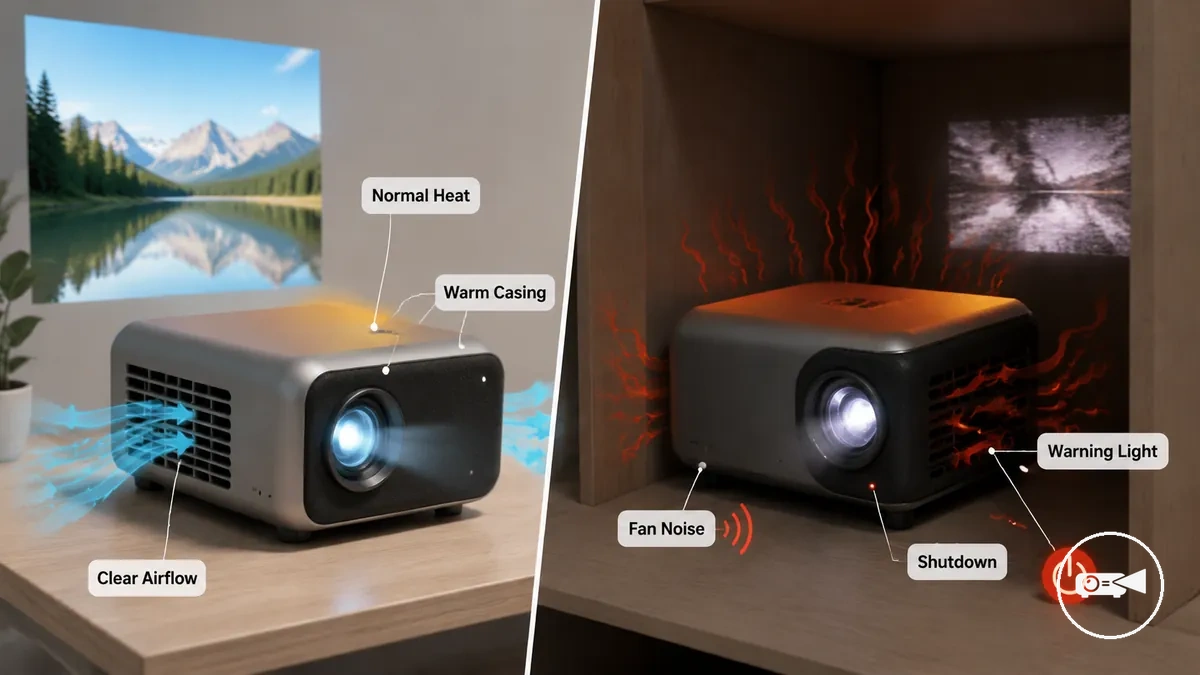
The clearest signs that normal warmth has become overheating are a warning light, unexpected shutdown, abnormal fan noise, image instability, brightness changes, or repeated interruptions during use. These symptoms indicate that heat is affecting the projector's operating condition instead of remaining within normal thermal behaviour. According to manufacturer guidance from companies including XGIMI and STRONG, restricted airflow, blocked vents, dust accumulation, or high ambient temperatures can contribute to overheating. A shutdown or thermal warning is stronger evidence of overheating than a warm casing on its own.
A shutdown or thermal warning is stronger evidence of overheating than a warm casing on its own.
During long viewing sessions, heat buildup becomes more noticeable when airflow is restricted, ventilation clearance is reduced, the room is unusually warm, or the cooling fan is working harder than normal. For example, a mini projector that operates normally on an open tabletop but repeatedly displays a warning light inside a confined cabinet is more likely experiencing restricted airflow than ordinary operating warmth. Review the projector's symptoms together with its placement, fan behaviour, and operating conditions before deciding that overheating is present.
| Normal heat | Mini projector overheating |
|---|---|
| Warm casing after extended use while the image, fan operation, and performance remain stable. | Warm or excessively hot casing accompanied by warning light, loud or irregular fan noise, image instability, or automatic shutdown. |
| Heat develops during expected operation with unobstructed vents and adequate airflow. | Heat increases when vents are blocked, airflow is restricted, ambient temperature is high, or the cooling system cannot dissipate heat effectively. |
Manufacturer operating limits, rather than a universal temperature threshold, determine when heat becomes excessive for a specific model. For broader background on projector operation and model differences, see the mini projector guide.
Overheating Symptoms and Shutdown Signals
Shutdown signals, a warning light, unusual fan noise, or unstable performance are stronger overheating symptoms than surface warmth alone. These operating changes indicate that heat is affecting the mini projector's operating condition rather than reflecting normal heat during use. A single shutdown can also result from a power supply problem or normal thermal protection, so it should not be treated as proof of overheating by itself.
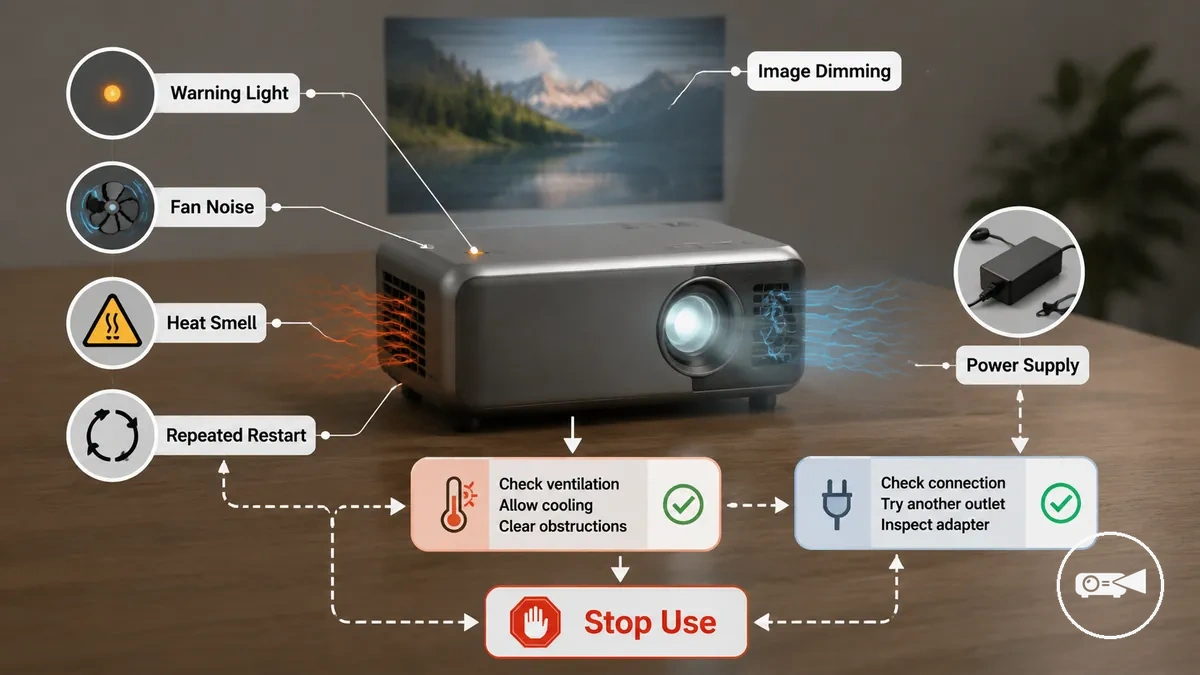
Look for symptoms that appear together, such as a warning light, an on-screen temperature message, louder or irregular fan noise, image dimming, performance instability, repeated restart cycles, or an unusual heat smell. According to manufacturer troubleshooting guidance from Dell, increasing fan speed, thermal warnings, and automatic shutdown are protective responses that can occur when cooling is no longer keeping the projector within its intended operating condition. If a heat smell is present, stop using the projector until the cooling path and power supply have been inspected. Repeated symptoms across multiple sessions provide stronger evidence of overheating than a single isolated event.
Compare recurring operating behaviour before using the checklist below.
For example, a mini projector that operates normally at first but repeatedly shuts down after a long viewing session while fan noise becomes noticeably louder is showing a pattern consistent with heat buildup. By contrast, a projector that switches off immediately after being connected to a faulty adapter may instead be affected by a power supply issue rather than overheating. Compare recurring operating behaviour before using the checklist below.
- Warning indicator: A warning light or on-screen temperature message appears repeatedly.
- Cooling change: Fan noise becomes louder, irregular, or airflow feels weaker than normal.
- Display change: Image dimming, flickering, or performance instability develops during use.
- Shutdown signals: Automatic shutdown or repeated restart occurs after extended operation.
- Heat smell: Stop using the projector and arrange inspection if an unusual heat smell is detected.
- Overlap check: Consider a power supply or adapter fault when shutdown occurs without other overheating symptoms or warning indicators.
Temperature Warnings and Indicator Lights
A temperature warning or indicator light is meaningful only when it is interpreted together with the projector's operating timing and behaviour. A warning that appears during playback or long use, especially alongside higher fan noise, an on-screen message, or thermal shutdown, is stronger evidence of overheating than an indicator light by itself. The exact meaning of each indicator remains model-specific and should be verified in the projector's manual.
- Indicator light colour or blinking light: Treat the colour and blinking pattern as a model-specific status signal rather than a universal code. Use the manual to identify its meaning before assuming a heat-related fault.
- On-screen message during playback: A temperature warning shown together with increased fan activity or an automatic shutdown is a stronger indication of thermal protection than a warning light alone.
- Startup warning: An indicator that appears immediately after startup may reflect a system check or another startup condition rather than heat buildup because the projector has not yet operated long enough to overheat.
- Long-use warning: A warning that appears only after extended playback is more consistent with heat accumulation, particularly when accompanied by louder fan noise or repeated shutdown signals. Confirm the interpretation with the model-specific manual.
For example, if a mini projector displays a blinking light and an on-screen temperature warning after an hour of continuous playback, the timing supports a heat-related diagnosis more strongly than the same indicator appearing immediately after power-on. Compare the warning pattern with the manual instead of assuming the same light has an identical meaning across different projector models.
Automatic Shutdown During Longer Sessions
Automatic shutdown during longer sessions can indicate thermal protection, but it does not confirm overheating by itself. A shutdown that occurs after extended playback, increasing fan noise, or rising room heat is more consistent with a heat-related condition than a shutdown immediately after startup. Interpret the timing together with the operating conditions before deciding on the likely cause.
Interpret the timing together with the operating conditions before deciding on the likely cause.
Use the following checks to interpret the shutdown pattern:
- Session length: If automatic shutdown occurs only after a long runtime, thermal protection is a more likely explanation than an immediate hardware fault.
- Room heat and blocked vents: Check whether high room heat or restricted airflow around the vents is limiting cooling. Reduced airflow makes a heat shutdown more likely.
- Fan noise: Increasing fan noise before shutdown suggests the cooling system is responding to higher internal temperatures.
- Restart after cooling: If the projector restarts normally after cooling and completes another extended session, the pattern is more consistent with a one-time thermal protection event than a repeated fault.
- Repeated shutdown: If automatic shutdown continues after cooling or is accompanied by warning indicators, a strong heat smell, or unstable operation, treat it as a repeated fault that requires further inspection.
For example, a projector that powers off near the end of a long movie in a warm room but restarts normally after cooling is following a pattern consistent with thermal protection. If shutdown also occurs with normal operating temperatures but an unstable power adapter, adapter stability or the power supply becomes an overlapping condition to check instead of attributing the problem to overheating alone.
Likely Causes of Mini Projector Overheating
Mini projector overheating usually results from a small set of identifiable causes rather than one isolated fault. Restricted airflow, dust buildup, a hot operating environment, excessive power load, or reduced fan function each increase heat buildup in different ways. Matching the likely cause to the warning or shutdown symptom provides a more reliable diagnosis than assuming a single cause.
| Mini projector or part | Attribute | Observed value | Likely symptom |
|---|---|---|---|
| Air vents | Airflow | Blocked or restricted | Heat buildup, temperature warning, or automatic shutdown |
| Fan openings and internal surfaces | Cleanliness | Dust accumulation | Reduced cooling efficiency and overheating |
| Operating environment | Environment | Hot room, enclosed shelf, or direct sunlight | Higher cooling demand, thermal strain, and possible shutdown |
| Power system | Power load | High brightness mode or unstable adapter | Extra heat generation, warning, or unexpected shutdown |
| Cooling fan | Fan function | Strained, obstructed, or not operating normally | Reduced cooling, heat buildup, warning, or shutdown |
The main causes of mini projector overheating are restricted airflow, dust around the vents, a hot environment, excessive power load, and reduced fan function. Each cause creates a different cooling problem, but all increase internal heat and can lead to a warning or automatic shutdown. More than one overheating factor can be present at the same time, so the observed symptom should be evaluated together with the operating conditions.
These combined causes increase the risk of heat buildup more than either condition alone.
For example, a mini projector placed on an enclosed shelf while its fan openings contain dust experiences both restricted airflow and higher cooling demand. These combined causes increase the risk of heat buildup more than either condition alone. Airflow, dust, placement, and adapter checks are usually user-correctable, whereas persistent fan function problems or repeated overheating after those checks are more consistent with a service-level cause.
Restricted Airflow Around Vents
Restricted airflow occurs when the intake or exhaust vents cannot move enough air to carry heat away from the mini projector body. The intake requires an open path for cooler air, while the exhaust requires clearance to release warmed air. Blocked vents can therefore increase heat buildup even when no component fault is present.
- Soft surface: Fabric, bedding, or carpet can cover lower or side vents, reduce intake airflow, and contribute to higher body temperature or a warning.
- Wall or nearby object: A wall, book, or other object close to the exhaust can trap discharged heat and increase fan strain.
- Enclosed shelf: Limited open space can allow warm exhaust air to recirculate toward the intake, increasing heat buildup during use.
- Cable: A power or signal cable crossing a vent opening can create a local airflow restriction that contributes to a warning or shutdown.
For example, a mini projector can become unusually hot when its exhaust faces the back of an enclosed shelf because released heat remains around the vents and returns toward the intake. When the warning or shutdown occurs only in that placement, blocked airflow is a more likely cause than a component fault. Detailed clearance and placement corrections belong in the later ventilation section.
Dust Buildup in Vents or Filters
Dust buildup is a maintenance-related airflow restriction that forms when visible debris collects on a mini projector's vents, filters, or fan openings. A clogged vent or dirty filter reduces the open path for cooling air, while dust around an exhaust opening slows heat release. Visible dust on these areas therefore increases the risk of heat buildup and temperature warnings.
- Visible vent dust: Dust covering intake or exhaust vents restricts airflow and can contribute to a hotter projector body.
- Filter access: Where a user-accessible filter is present, a visibly dirty filter reduces airflow and increases cooling strain.
- Fan opening debris: Dust or lint around external fan openings can obstruct air movement and contribute to a warning or shutdown.
- Storage and dust cover: Storing the projector uncovered in a dusty location allows more visible debris to collect, while using a dust cover only after the projector has cooled helps reduce accumulation.
Safe cleaning should remain limited to external surfaces, accessible vents, fan openings, and any filter that the manufacturer identifies as user-accessible. Avoid opening the projector for cleaning unless the manufacturer specifically provides user maintenance instructions. For models with a user-accessible filter, follow the documented cleaning method; otherwise, leave filter servicing to approved maintenance procedures.
Hot Rooms, Enclosed Shelves, and Direct Sunlight
A mini projector can run hotter during long use in a hot room, inside an enclosed shelf, or under direct sunlight even when the device is operating normally. Higher room temperature and external heat reduce the difference between the projector and the surrounding air, while restricted shelf space can trap warmed exhaust. These conditions increase cooling demand on the fan and airflow system.
These conditions increase cooling demand on the fan and airflow system.
For example, heat can accumulate gradually when a projector operates for a long session in a small room or enclosed shelf with poor circulation. Direct sunlight can increase casing heat, outdoor heat can raise the surrounding air temperature, and a nearby heat source can add ambient heat. An enclosed shelf can also recirculate warm air around the vents instead of allowing it to disperse. If the projector becomes hotter only under these conditions, reduce the environmental heat exposure before treating the symptom as an internal fault.
Power Load and Cooling Fan Strain
Power load and cooling fan strain can make a mini projector's heat management less stable during operation. High brightness mode or long runtime increases cooling demand, while fan noise, weak airflow, or repeated shutdown can indicate reduced cooling performance. These symptoms support a conditional diagnosis but do not confirm an internal electrical fault.
These symptoms support a conditional diagnosis but do not confirm an internal electrical fault.
Check the following conditions before moving from user checks to professional service:
- Adapter suitability: Confirm that the adapter matches the projector manufacturer's specified output and connector requirements. A mismatched power supply can reduce voltage stability, increase power load, or contribute to shutdown symptoms.
- Cable condition: Observe whether the cable remains securely connected and shows no visible damage. An intermittent connection can disrupt stable power delivery and should move to service-level assessment if the symptom persists with a suitable cable.
- Brightness mode: Compare high brightness mode with a lower setting during the same type of use. If heat warnings occur only at higher brightness, the increased power draw and cooling load are condition-linked signals rather than proof of a component fault.
- Long runtime: Note whether heat buildup appears only after an extended session. A projector that remains stable during short use but becomes hotter during long runtime is showing duration-related thermal strain.
- Cooling fan: Listen for new fan noise and observe airflow at the external vents. Persistent weak airflow, irregular noise, or repeated shutdown after basic external checks is a service-level condition.
For example, a projector that operates normally for a short session but shows a heat warning after long runtime in high brightness mode may be under increased power and cooling load. If the correct adapter and cable are in use but abnormal fan noise or weak airflow continues, stop at non-invasive checks and arrange professional service.
Safe Cooldown Steps Before Restarting
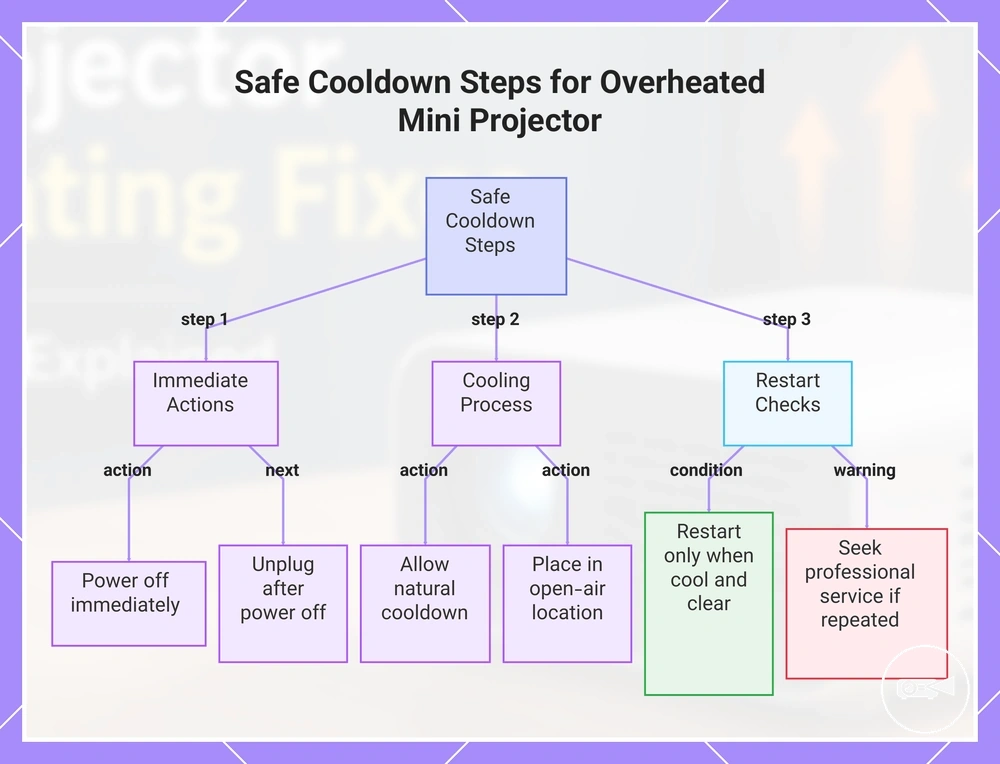
If a mini projector overheats or shuts down from heat, stop use immediately, power it off, allow a safe cooldown, and inspect airflow before attempting a restart. Letting the projector complete a natural cooling period helps reduce repeated thermal stress and lowers the risk of another heat-related shutdown. Use a safety-first approach before turning the projector back on.
Use a safety-first approach before turning the projector back on.
Restarting while the projector is still hot can interrupt thermal recovery, while covering vents or trying to cool the unit rapidly can make heat management less effective. Place the projector in an open-air location so heat can dissipate naturally, and avoid opening the device or attempting to bypass its protection behaviour. Wait until overheating symptoms clear before restarting, then follow these steps.
- Power off: Turn the projector off as soon as an overheating warning or thermal shutdown occurs.
- Unplug: After the projector has powered off completely, unplug the power cable if this is consistent with the manufacturer's normal shutdown guidance.
- Allow a safe cooldown: Leave the projector undisturbed during its cooling period. Restart only after the casing feels cool enough for normal handling and all overheating symptoms have cleared rather than after an exact wait time.
- Use open-air placement: Place the projector on a stable surface with open space around its air vents. Do not cover the vents or place the unit in an enclosed area during thermal recovery.
- Perform a vent inspection: Check that the vents are visibly free of dust or other obstructions that could restrict airflow before restarting.
- Restart safely: Turn the projector back on only after airflow is unobstructed, the cooling period is complete, and no overheating warning remains.
This chart shows the safe cooldown steps to follow when a mini projector overheats, including immediate actions, cooling process, and restart checks with a warning for repeated overheating.
Ventilation and Placement Fixes
If your mini projector overheats, improving ventilation and placement is one of the safest ways to restore normal airflow and reduce heat buildup. Better intake clearance, exhaust clearance, and heat escape allow the cooling system to work more effectively. The ideal vent layout differs by projector because vent locations are model-specific.
Use the checklist below to review your current placement.
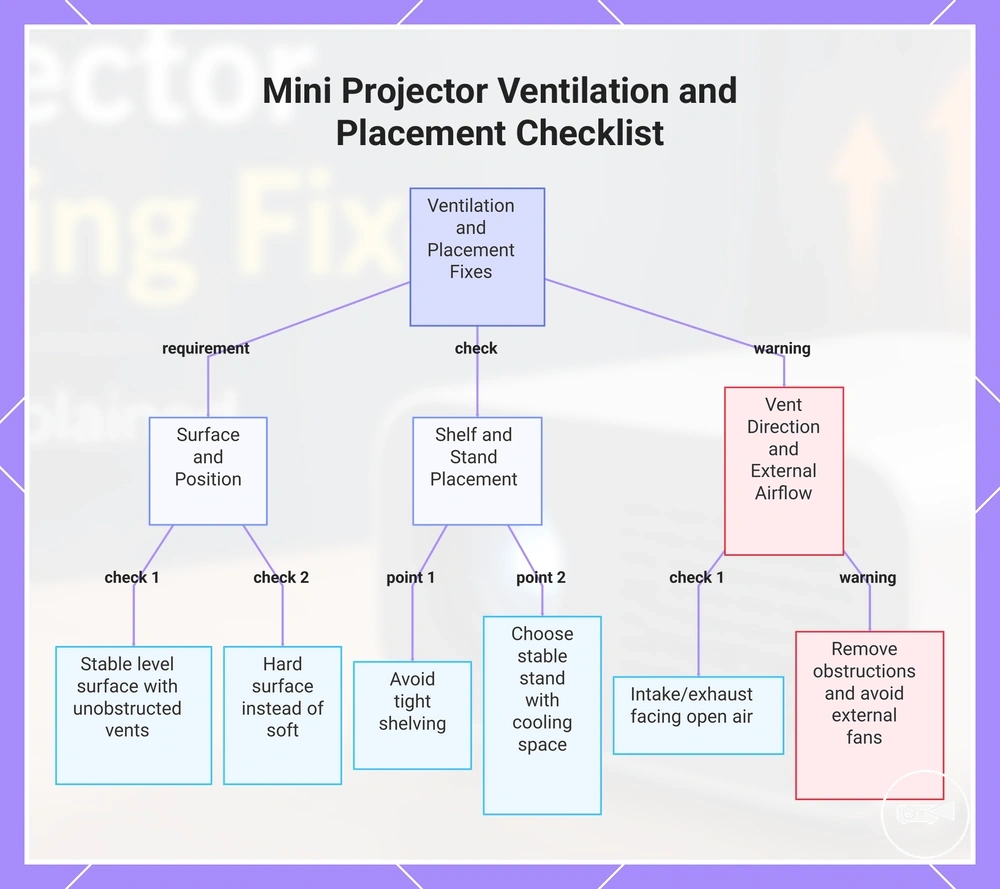
Start by placing the projector where its vents remain unobstructed throughout use. Keep intake and exhaust clearance facing open space rather than a wall or other object that can restrict airflow. Use a hard, stable surface type instead of soft materials that can block vents. When using a shelf or stand, leave open cooling space around the projector rather than enclosing it tightly. Use the checklist below to review your current placement.
- Projector position: Place the projector on a stable, level surface with unobstructed vents.
- Vent direction: Keep intake clearance and exhaust clearance facing open air instead of a nearby wall or enclosed compartment.
- Surface type: Use a hard tabletop, shelf, or stand rather than a bed, sofa, blanket, or carpet that can restrict airflow.
- Shelf placement: Avoid tight shelving that traps warm air and reduces heat escape.
- Stand placement: Choose a stable stand that leaves cooling space around the projector for continuous airflow.
- External airflow: Remove nearby objects that block ventilation, but do not rely on external fans as a substitute for proper vent clearance.
For example, a projector on an open tabletop usually cools more effectively when every vent remains exposed. If the same projector sits inside a shelf cubby, moving it closer to the front edge or onto an open stand improves heat escape without changing the projector itself. For more guidance on maintaining proper airflow during everyday use, see safe setup and ventilation.
For more guidance on maintaining proper airflow during everyday use, see safe setup and ventilation .
This chart shows the key placement and ventilation checks to prevent overheating in a mini projector.
Clearance Around Intake and Exhaust Vents
Intake vents need unobstructed clearance so cool air can enter the mini projector, while exhaust vents need open clearance so hot air can leave the enclosure. Keeping both airflow paths clear improves heat escape and reduces the chance of heat becoming trapped around the cooling system. The required vent space should follow the projector manufacturer’s instructions because vent locations and airflow paths differ by model.
This is a vent-layout principle rather than a fixed clearance rule.
For example, if a projector has exhaust vents on the rear panel and no vents on one side, open rear spacing has greater relevance to heat escape than extra side spacing beside the non-vented panel. This is a vent-layout principle rather than a fixed clearance rule. Verify each side and obstruction below, then apply any model-specific spacing stated in the projector manual.
- Intake vents: Keep the intake side open so blocked clearance does not restrict cool air entering the projector.
- Exhaust vents: Leave the exhaust side open so hot air can leave without being redirected back toward the enclosure.
- Rear spacing: Increase open space behind the projector when rear exhaust vents face a wall or shelf panel.
- Side spacing: Keep the vented side clear; extra space beside a non-vented side does not compensate for a blocked vent.
- Soft surface and dust obstruction: Move the projector to a hard surface and clear visible dust that covers or narrows vent openings.
- Cable crowding: Route power and signal cables away from intake vents and exhaust vents so they do not reduce the airflow gap.
Stands, Shelves, and Enclosure Airflow
A mini projector can run cooler on an open stand and hotter on a shelf or inside furniture when the support surface or enclosure airflow restricts its vents. The stand, shelf, or enclosure should keep the projector stable while leaving its intake and exhaust paths open.
| Placement | Airflow and stability effect |
|---|---|
| Open stand | An open stand supports heat escape when its surface is stable and its frame does not block vent alignment. |
| Flat shelf | A flat shelf provides a stable support surface when rear clearance and side airflow remain open. |
| Soft surface | A soft surface can cover a lower or side vent, reducing airflow and increasing fan strain. |
| Enclosed shelf or cabinet | An enclosed shelf requires an open cabinet opening and unobstructed rear clearance so warm exhaust air can leave instead of feeding heat recirculation. |
If the projector becomes hotter inside furniture, move it closer to the cabinet opening, clear the rear clearance, and verify that the support surface does not block a vent. For example, the same projector can release heat more effectively on an open stand than deep inside an enclosed shelf where exhaust air returns toward the intake. Keep any position change limited to improving airflow without reducing stability.
Cooling Stands and External Fans
A cooling stand or external fan can support airflow around an overheating mini projector, but neither should be treated as a guaranteed repair. An accessory is reasonable only when it corrects a clear airflow restriction, improves vent alignment, or increases heat escape without reducing stability.
A cooling stand or external fan can support airflow around an overheating mini projector, but neither should be treated as a guaranteed repair.
Use these decision signals before adding external airflow:
- Restricted lower airflow: A cooling stand is relevant when additional stand height opens space beneath the projector, but it is unsuitable if the raised position becomes unstable.
- Misaligned airflow path: An external fan is relevant when its fan direction carries warm exhaust air away from the projector, but it should not blow exhaust back toward an intake vent.
- Blocked vent alignment: A stand can support cooling when its surface and frame leave every intake and exhaust vent unobstructed, but it offers little value if the accessory itself covers a vent.
- Added noise: An accessory fan is less suitable when its noise becomes excessive while the projector's airflow restriction remains unchanged.
- Dust movement: An external fan can increase dust movement around exposed vents, so cleaning should come first when dust buildup or fan strain is already present.
- Persistent overheating: If placement, vent clearance, and adapter checks are satisfactory but overheating continues, the accessory may only mask a deeper fault and service should come first.
For example, a stable cooling stand can be useful when a flat surface restricts lower vent clearance, while an external fan can help when it directs trapped warm air away from the exhaust side. Neither accessory addresses a failing internal fan, an unsuitable adapter, or another deeper fault that requires inspection or service.
Cleaning Vents and Filters for Better Airflow
Safe external cleaning can improve airflow when dust is contributing to a mini projector overheating. Clean only accessible vents and user-accessible filters, and avoid any method that requires disassembly or exposes internal parts.
After cleaning, use the following checklist to maintain safe airflow.
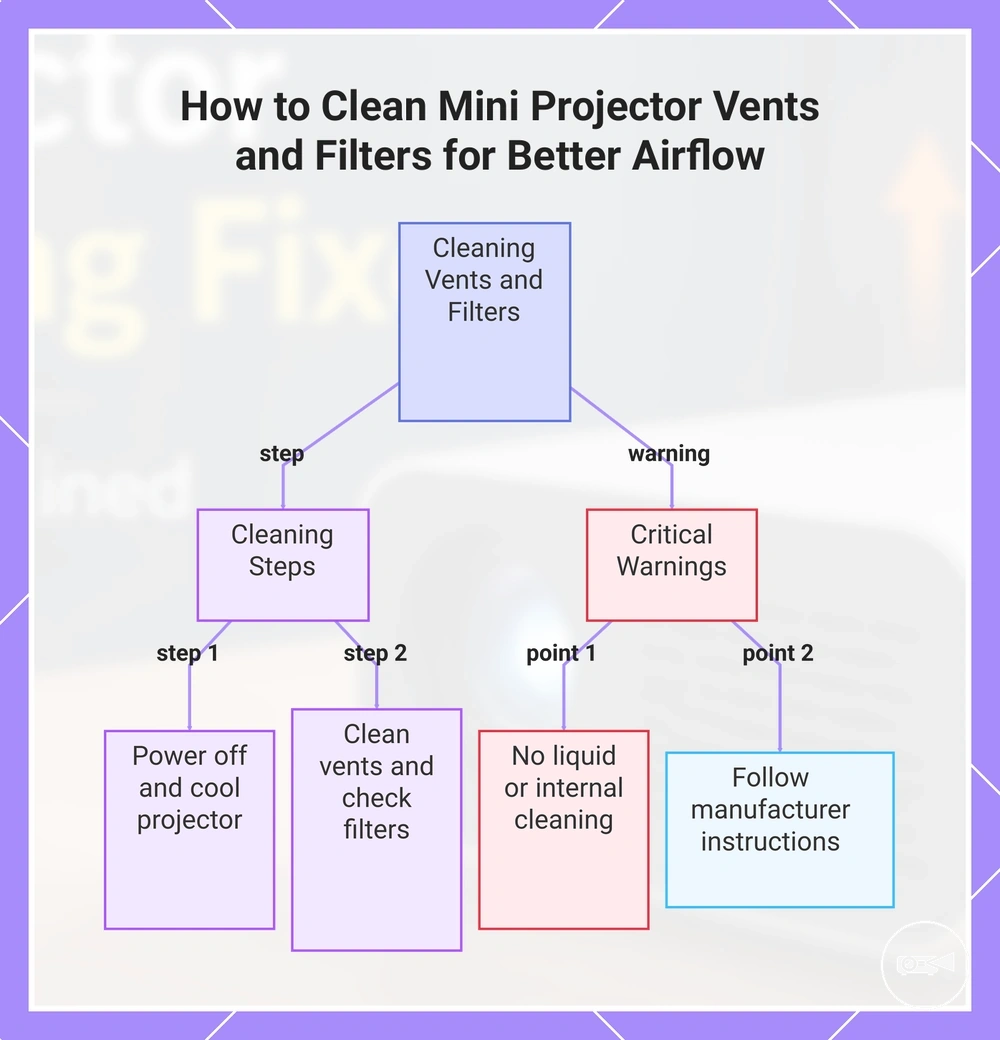
Before cleaning, power off the projector, disconnect the power adapter, and allow it to cool before cleaning. Use a soft brush and gentle air to remove loose dust from external vents, and clean an accessible filter only if the manufacturer provides instructions for doing so. After cleaning, use the following checklist to maintain safe airflow.
- Power off: Turn off the projector and disconnect all power before cleaning vents or filters.
- Cool before cleaning: Wait until the projector housing is cool to avoid handling a hot surface or disturbing heated airflow.
- Clean vents: Remove visible dust from external vents with a soft brush without pushing debris into the openings.
- Use gentle air: Blow gentle air across the vent openings so dust moves away from the projector rather than deeper inside.
- Check accessible filters: Clean or replace a user-accessible filter only according to the manufacturer's instructions.
- Protect during storage: Fit a dust cover only after the projector has cooled completely and store it in a clean, dry location to reduce dust buildup.
For example, a projector with a visible layer of dust across its intake vents may show improved airflow after basic external vent cleaning and filter maintenance. If overheating continues after exposed vents and accessible filters are clean, the cause is likely beyond surface dust and should be investigated separately.
For broader care practices, see mini projector maintenance and lifespan .
Regular cleaning vents, proper dust cover use, and clean storage habits support long-term airflow maintenance. For broader care practices, see mini projector maintenance and lifespan.
Regular cleaning vents, proper dust cover use, and clean storage habits support long-term airflow maintenance.
This chart shows the essential steps and safety rules for cleaning external vents and user-accessible filters to improve airflow and prevent overheating.
Power Supply, Fan, and Thermal Sensor Checks
Overheating linked to the power supply, fan, or thermal sensor should be assessed through non-invasive, model-aware checks. These observations identify condition signals, but a single symptom does not confirm an internal component fault.
These observations identify condition signals, but a single symptom does not confirm an internal component fault.
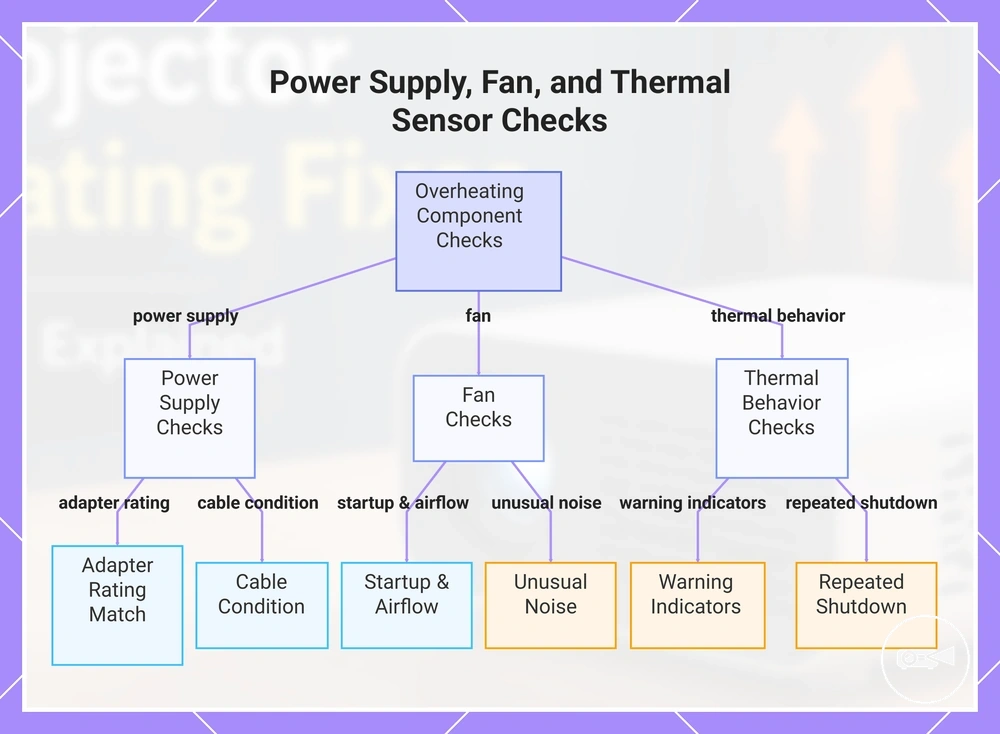
Confirm that the adapter rating matches the projector's specified input and inspect the cable condition for cuts, loose connectors, or interrupted power delivery. At fan startup, note whether the cooling fan begins operating, whether airflow strength is detectable at the exhaust vent, and whether unusual noise occurs. Record warning indicators and repeated shutdown timing under similar operating conditions, then compare the results with this diagnostic checklist.
- Adapter rating: The voltage, current type, connector, and polarity should match the projector's stated requirements; do not continue testing with a mismatched or unverified adapter.
- Cable condition: Cuts, exposed conductors, a loose plug, or power loss when the cable moves indicate that the adapter or cable should be replaced before further use.
- Fan startup: A fan that begins operating with the projector provides a positive startup signal; no sound and no airflow require comparison with the model's documented fan behaviour.
- Airflow strength: Detectable exhaust airflow indicates an active cooling path, while weak or absent airflow after the vents are clear points toward reduced fan function.
- Unusual fan noise: Grinding, scraping, rattling, or repeated surging indicates abnormal fan behaviour, especially when airflow is also weak.
- Warning indicators: A temperature message, protection warning, or status light before shutdown indicates thermal protection behaviour without identifying the responsible component.
- Repeated shutdown: Shutdowns that recur after a similar runtime or workload form a repeatable thermal signal, while shutdowns linked to cable movement form a stronger power-delivery signal.
For example, repeated power loss when the adapter cable moves indicates a stronger power supply signal than thermal sensor behaviour. A fan that starts but produces weak airflow and unusual noise after the vents are cleared indicates a stronger fan-related signal. Persistent adapter, fan, warning, or repeated shutdown behaviour after these safe checks requires model-specific service assessment. Adapter suitability during long runtime should also be considered alongside battery life and power use.
Adapter suitability during long runtime should also be considered alongside battery life and power use .
This chart shows the non-invasive, model-aware checks to diagnose overheating causes related to power supply, fan, or thermal sensor.
Heat Maintenance Habits for Longer Projector Life
Heat maintenance reduces avoidable heat stress and supports projector life by improving airflow, cleaning, storage, and power practices. These habits provide lifespan support but do not guarantee a fixed operating life or correct every internal fault.
Apply these habit-to-outcome checks as routine care.
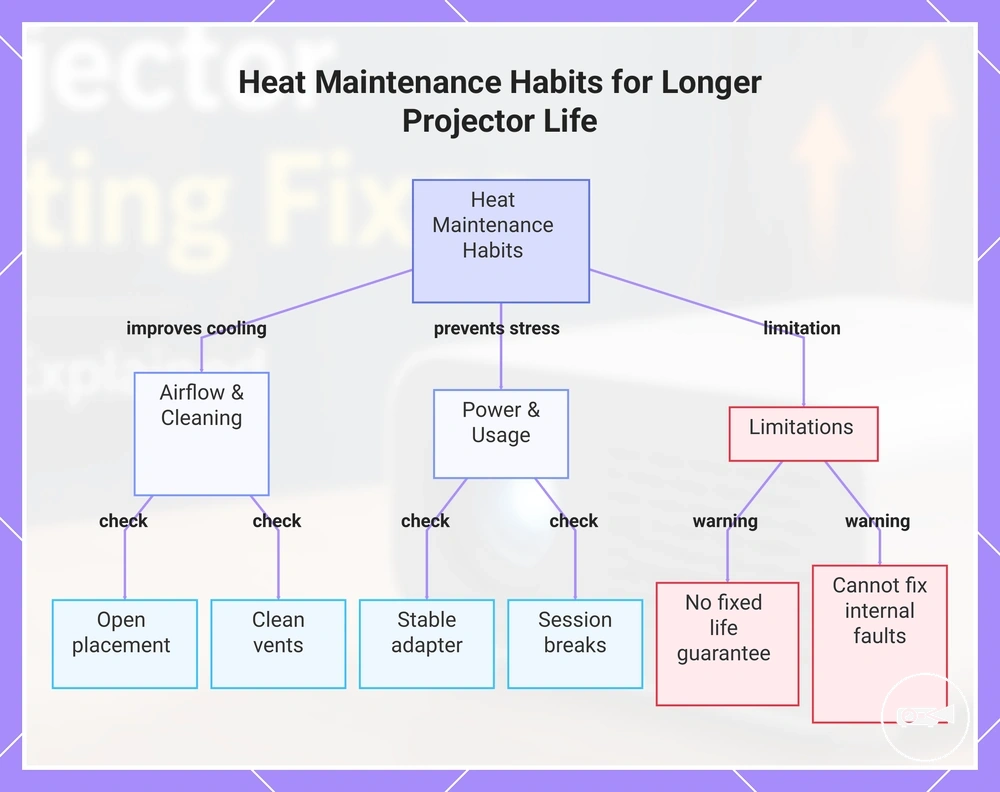
Restricted airflow, dust buildup, enclosed storage, unstable power delivery, and uninterrupted long sessions increase cooling demand. Clean vents, use open placement, keep the projector in cool storage, use a stable adapter that matches the manufacturer’s specified electrical requirements, and include session breaks during extended use. Apply these habit-to-outcome checks as routine care.
- Open placement: Keep every ventilation opening unobstructed during operation so heated air can leave the projector.
- Cleaning: Remove visible dust from accessible vents when buildup appears so airflow remains less restricted.
- Dust protection: Cover or enclose the projector only after it has cooled and is no longer operating, reducing dust exposure during storage.
- Cool storage: Store the projector in a dry, ventilated location rather than an enclosed space exposed to heat.
- Session breaks: Pause frequent long sessions when the projector remains hot or shows a temperature warning, allowing it to cool before reuse.
- Stable adapter: Use an adapter with the voltage, current type, connector, and polarity specified for the projector to maintain stable power delivery.
- Avoid hot environments: Keep the projector away from direct sunlight, enclosed cabinets, and other hot environments that increase cooling demand.
For example, a mini projector used for frequent long sessions requires more attention to session breaks, open placement, and vent cleaning than one used briefly and allowed to cool between uses. These maintenance habits reduce avoidable heat stress, but persistent overheating, shutdowns, or abnormal fan behaviour after routine care require further assessment because maintenance cannot resolve every internal fault.
This chart shows the key heat maintenance habits that reduce heat stress and extend projector life, along with important limitations.
This chart shows the key heat maintenance habits that reduce heat stress and extend projector life, along with important limitations.
When Overheating Needs Repair or Replacement
Repair or replacement becomes relevant when repeated overheating continues after safe airflow, cleaning, and power checks have been completed. Repeated overheating is a decision signal rather than proof that replacement is required, so the next step should reflect fault severity, safety risk, warranty status, repair cost, and device age.
Apply the following checklist before choosing the next step.
If the projector still shuts down after its vents have been cleaned, ventilation has been improved, and the specified adapter is in use, the fault has moved beyond routine maintenance. Fan failure signs, a burning smell, repeated shutdowns, and an adapter mismatch represent different escalation criteria. Warranty coverage, repair cost, and device age help distinguish professional repair from replacement, while smoke or a burning smell requires immediate stop-use action. Apply the following checklist before choosing the next step.
- Repeated overheating: Seek service when overheating or shutdown continues after failed cleaning, failed ventilation checks, and confirmation that the correct power adapter is connected.
- Fan failure: Arrange professional repair when the fan does not start, produces no detectable airflow, or repeatedly makes grinding or scraping noises.
- Burning smell: Stop using and unplug the projector, then seek qualified service rather than performing further test runs.
- Adapter mismatch: Replace the adapter first when its voltage, current type, connector, or polarity does not match the projector manufacturer's specification.
- Warranty: Use the authorised warranty process when coverage remains active before approving paid repair or opening the projector.
- Repair cost: Favour repair when the quoted work addresses a single confirmed fault at a proportionate cost; consider replacement when the quote approaches the cost of an equivalent device or includes multiple failing components.
- Device age: A newer projector with one repairable fault is a stronger repair candidate than an older unit with repeated overheating and multiple component failures.
- Safety risk: Smoke, a burning smell, visible melting, or repeated electrical shutdowns are stop-use signals that require qualified assessment.
For example, a projector that still shuts down after vent cleaning and open placement, then produces a burning smell during the next session, has moved beyond safe user troubleshooting. Continuing repeated test runs would add safety risk without resolving the persistent fault. Stop using the projector and seek qualified service; consider replacement only after warranty status, repair feasibility, repair cost, and device age have been assessed.