
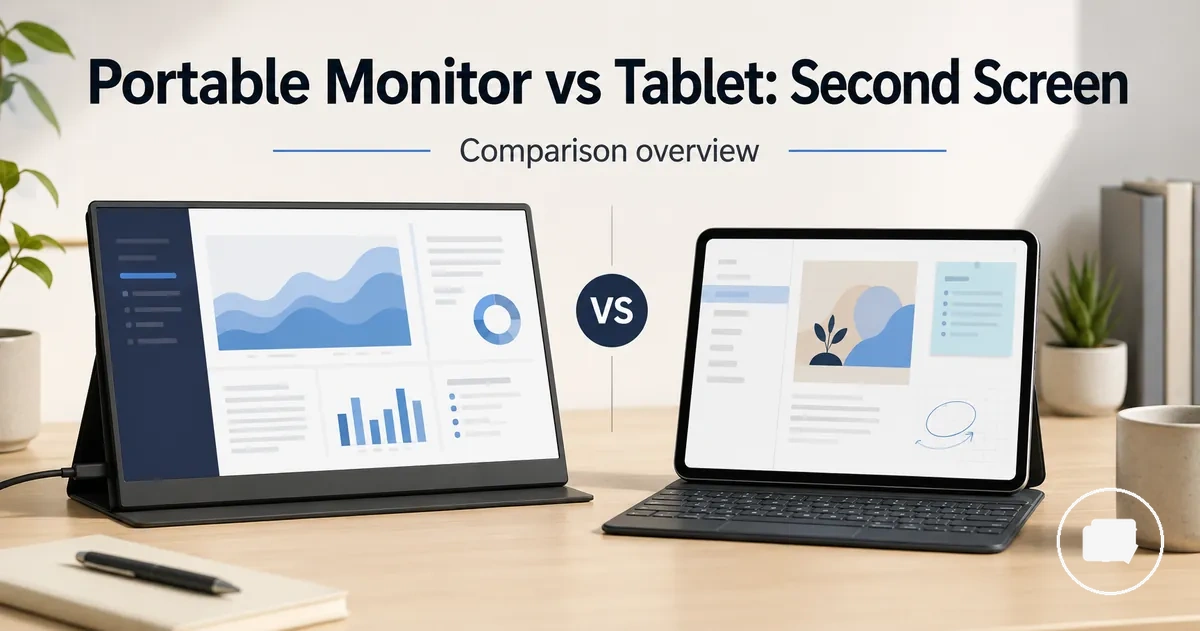
Portable Monitor vs Tablet for a Second Screen
A portable monitor or tablet can be the better second screen depending on your device, connection options, and workspace needs. This comparison helps you decide which option better suits a laptop, phone, iPad, or Android tablet by weighing USB-C support, screen extension, mirroring, portability, reuse value, and software limitations. Rather than assuming one option fits every situation, the choice depends on how you plan to use a second screen.
For a desk-based workspace, a portable monitor may be the more suitable option when the priority is a dedicated external display for a laptop and the required USB-C or other supported connection is available. For travel or mixed personal and work use, a tablet may provide greater flexibility because it can also function as a standalone device when its app support and ecosystem meet your needs. Compatibility, wireless latency, power requirements, screen extension, and mirroring can all vary by laptop, phone, iPad, Android tablet, and the software or cable support available.
A portable monitor primarily serves as a dedicated display, while a tablet combines second-screen capability with broader everyday use. Understanding these different roles makes it easier to compare display experience, portability, compatibility, and workspace fit without assuming either option is the right choice for every setup.
Second-Screen Roles for Portable Monitors and Tablets
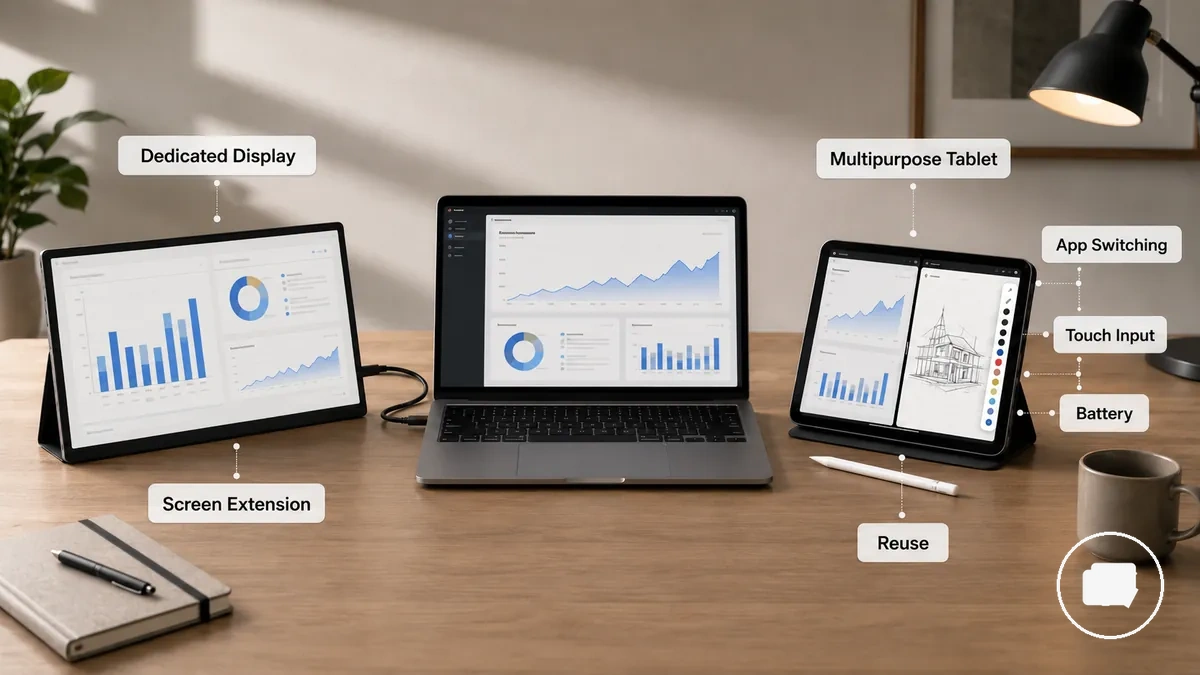
Second-screen roles for portable monitors and tablets depend on purpose and connection method. A portable monitor functions as a dedicated external display that expands available screen space, while a tablet is a multipurpose device that may also act as a second screen through compatible software or ecosystem features. Understanding these roles helps separate display purpose from connection method before comparing specific features.
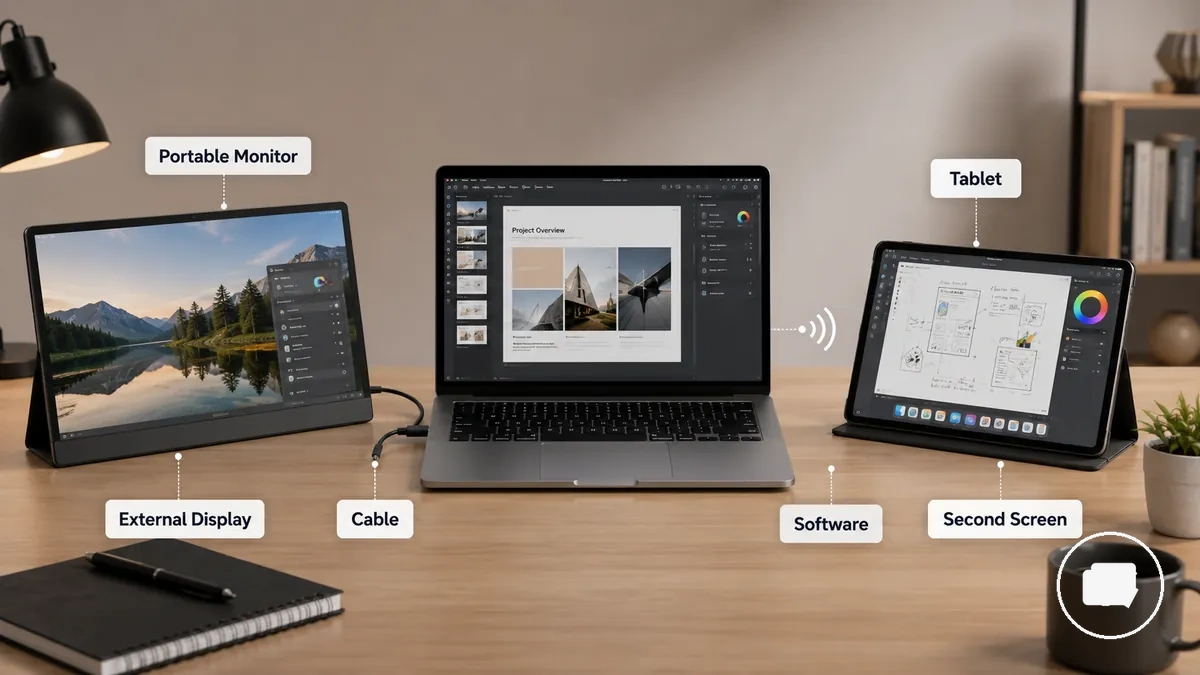
When the priority is an external display for a workspace, a portable monitor is designed around screen extension through a supported cable connection. A tablet can instead be reused as a second screen while continuing to serve as a multipurpose device for other tasks. Support for screen extension, mirroring, software, and app support can vary by ecosystem, device, and operating system, so the available experience depends on compatible hardware and software.
| Option | Second-screen role | Typical dependency | Main limitation |
|---|---|---|---|
| Portable monitor | Dedicated external display | Cable connection for screen extension | Depends on compatible display output and available power support |
| Tablet | Multipurpose device that can become a second screen | Software, ecosystem, and app support | Screen extension and mirroring capabilities may vary by device and operating system |
A tablet used as a second screen is not always equivalent to a plug-in external monitor because software-based display behaviour may differ from a direct cable connection. For broader context about dedicated external displays beyond this role comparison, see the portable monitor guide.
Core Differences Between a Portable Monitor and a Tablet
The core difference between a portable monitor and a tablet depends on whether you need a dedicated display or a multipurpose device with broader everyday use. A portable monitor is built around extending or mirroring a screen through a supported connection, while a tablet combines second-screen capability with touch interaction, battery-powered operation, and additional functions. The right choice depends on connection preferences, input method, and how much reuse value matters in your workflow.
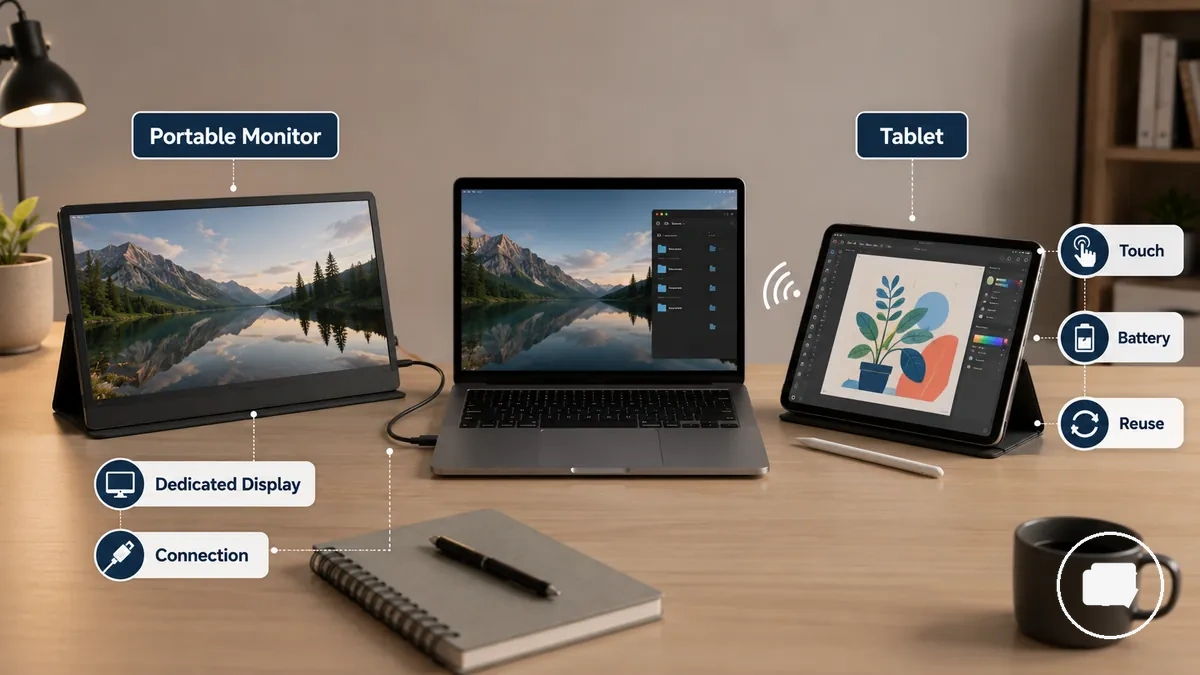
The comparison below focuses on the functional differences that typically influence a second-screen decision before considering detailed compatibility or pricing.
| Dimension | Portable monitor | Tablet | Decision effect |
|---|---|---|---|
| Function | Dedicated display | Multipurpose device | Defines the primary role |
| Connection path | Usually relies on a supported display connection | May depend on software or ecosystem features | Influences connection method |
| Touch/input | Touch support varies by model | Designed for touch interaction | Affects user interaction |
| Battery/power | Power requirements vary by model and connection | Typically operates from its own battery | Changes portability considerations |
| Reliability | Often depends on direct display support | May vary with software, wireless features, or device support | Can influence consistency |
| Reuse value | Focused on display tasks | Supports additional everyday uses | Affects long-term flexibility |
The biggest tradeoff is between display-focused simplicity and broader device flexibility. A portable monitor emphasizes a dedicated display role with fewer overlapping functions, while a tablet adds touch, battery-powered operation, and app-based use beyond serving as a second screen. Latency, reliability, and battery behaviour can vary depending on the connection method, software, and supported devices. If your priority is a dedicated external display, a portable monitor may suit your workflow better, while a tablet may offer greater reuse value when you also need a multipurpose device.
Dedicated Display Use vs Multipurpose Tablet Use
Dedicated Display Use vs Multipurpose Tablet Use depends on whether your priority is a device focused on second-screen work or a multipurpose tablet that also supports everyday tasks. A dedicated display is primarily intended for screen extension, while a multipurpose tablet combines second-screen work with app switching, touch input, battery-powered operation, and broader reuse. The practical difference usually appears in daily work mode rather than in a single feature.
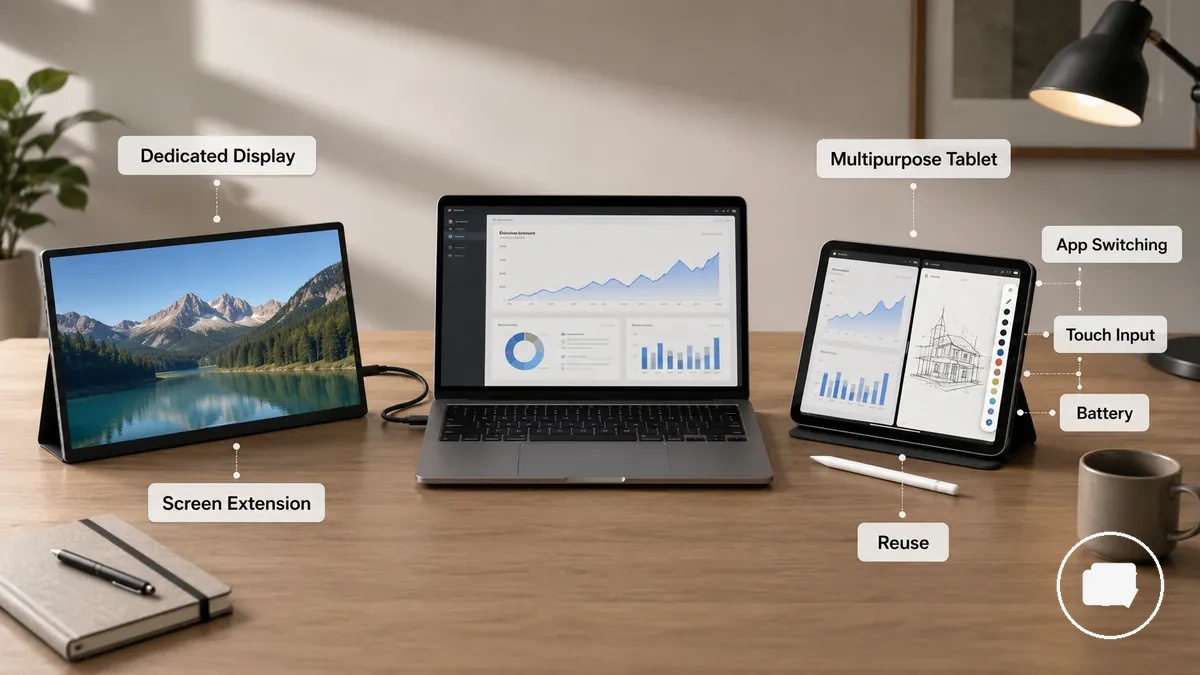
- A dedicated display keeps the focus on screen extension and functions as a single-purpose external screen.
- A multipurpose tablet supports app switching alongside second-screen work, although the available experience may depend on software and device support.
- Touch input is central to tablet use, while touch capability on a dedicated display varies by model.
- Battery behaviour differs because a multipurpose tablet typically runs from its own battery, while a dedicated display may rely on its connection or an external power source.
- Reuse value is broader with a multipurpose tablet because the same device can continue serving other tasks after second-screen work ends.
For example, a user who alternates between extending a laptop display and using productivity or media apps while travelling may value the broader reuse of a multipurpose tablet. A user whose workflow mainly centres on a single external screen may instead prefer the focused role of a dedicated display when display simplicity is the higher priority.
Mirroring, Extension, and App-Based Second Screens
Mirroring, extension, and app-based second screens differ by display mode and how the source device sends the image. Mirroring duplicates the same content on another display, while extension creates additional workspace. An app-based second screen may rely on software, the operating system, and either a wireless or cable connection, so available features and latency can vary depending on device support.
The checklist below highlights the main display mode differences without turning this subsection into a setup guide.
- Display mode: Mirroring shows the same screen, while extension creates a separate workspace. An app-based second screen depends on a software display method.
- Source device: Available display modes depend on the source device and its operating system.
- Connection path: A display may use a cable or wireless connection when the selected mode and supported devices allow it.
- Latency: Wireless or app-based display modes may introduce more latency than other supported display paths.
- Purpose: Mirroring is commonly used for shared viewing, extension supports larger workspaces, and an app-based second screen can act as a companion display when supported.
Setup steps depend on the selected display mode and supported hardware, so they remain supporting detail rather than the main focus here. For step-by-step guidance, see second screen setup.
Display Size, Visual Quality, and Touch Interaction
Display size, visual quality, and touch interaction influence whether a portable monitor or tablet feels more suitable as a second screen. The better fit depends on display size, resolution, brightness, colour, refresh behavior, viewing comfort, and touch interaction rather than on a single display specification.
The comparison below connects each display attribute with its likely condition and the practical effect it may have when choosing between a portable monitor and a tablet for second-screen use.
| Display factor | Portable monitor condition | Tablet condition | Decision effect |
|---|---|---|---|
| Display size | Often provides more workspace for side-by-side windows | May prioritise portability over screen area | Can influence productivity and text work |
| Resolution | Screen clarity varies by model | Screen clarity varies by model | May affect reading comfort and detail |
| Brightness | Viewing comfort depends on the display and room light | Viewing comfort depends on the display and room light | Can influence visibility in different environments |
| Colour | Image quality varies by panel characteristics | Image quality varies by panel characteristics | May matter more for media or design tasks |
| Refresh behavior | May affect motion appearance depending on the model | May affect motion appearance depending on the model | Can influence media viewing or gaming |
| Touch interaction | Touch support varies by model | Touch input is typically included | May benefit creative work or direct interaction |
| Viewing comfort | Depends on screen size, positioning, and display characteristics | Depends on screen size, positioning, and display characteristics | Can affect longer work sessions |
Screen size and resolution can improve text work by increasing available workspace and screen clarity, while brightness and colour may become more important in changing lighting conditions or media-focused tasks. Refresh behavior also varies by model and can influence how motion appears during gaming or video playback.
Touch interaction may be more valuable for drawing, annotation, or other touch-heavy workflows, while a larger display area can better support document editing and multitasking. The most suitable combination of display attributes depends on how the second screen will be used rather than assuming one device type provides the same visual experience in every situation.
Connection and Compatibility Conditions
Compatibility depends on the source device, available connection options, and display support rather than on whether you choose a portable monitor or a tablet. Before relying on either option, check USB-C capability, video output, power requirements, operating system support, app support, and wireless reliability because these conditions determine how the display behaves.
A laptop may connect directly to a portable monitor when it supports compatible video output and sufficient power delivery. A phone, iPad, or Android tablet may require different connection conditions, operating system features, or app support, and USB-C alone does not necessarily provide video output. Wireless reliability can also influence display behaviour when a cable connection is not used.
| Source device | Required condition | What to check | Decision effect |
|---|---|---|---|
| Laptop | Supported USB-C video output or another compatible display connection | Video output capability and power support | Determines whether an external display can be used |
| Phone | Supported display output or compatible connection method | Display support and any required adapter | May limit external display options |
| iPad | Supported operating system features and display capability | External display behaviour and connection support | Available display modes depend on device support |
| Android tablet | Operating system support and compatible app support | Display capability and software features | Second-screen behaviour may vary |
| Software-based tablet use | Compatible app support and wireless reliability | Connection quality and display mode | Latency and display behaviour may differ from a direct cable connection |
These checks provide a practical way to verify compatibility before depending on a second-screen workflow. Unsupported video output, operating system limitations, reduced app support, or lower wireless reliability can affect the final experience, so confirming these conditions first can reduce compatibility surprises. For a broader criteria checklist, see portable monitor device compatibility.
USB-C and Cable-Based Portable Monitor Connections
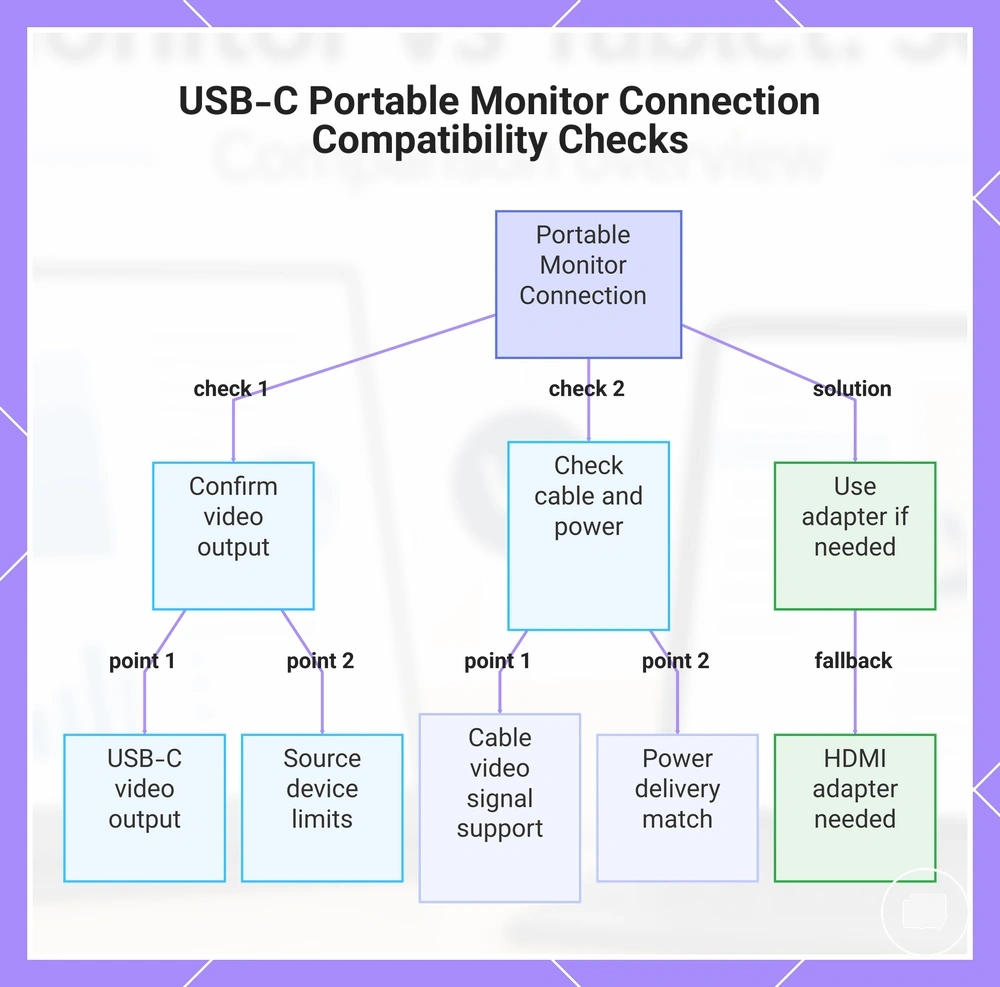
USB-C and cable-based connection compatibility depends on whether the source device supports video output, not simply on whether it has a USB-C port. Before connecting a portable monitor, confirm that the source device can send a display signal and that the cable-based connection matches the monitor's display requirements.
Use the following checks to verify whether a wired connection is likely to support an external display and to identify common compatibility limitations.
- USB-C video output: Confirm that the source device supports USB-C video output. A USB-C charging-only port can supply power without transmitting a display signal.
- Power delivery: Power delivery requirements may vary between the source device and the portable monitor, which can affect display stability or whether an additional power source is needed.
- HDMI adapter: When the source device does not provide a compatible USB-C display connection, an HDMI adapter or another supported display connection may be required.
- Cable quality: The cable should support the required display signal and, where applicable, power delivery. Not every USB-C cable carries video output.
- Source device support: Laptop compatibility depends on supported display output, while phones and tablets may have additional hardware or operating system limitations that affect cable-based display behaviour.
This chart outlines the essential checks for connecting a portable monitor via USB-C, including video output confirmation, cable and power requirements, and the adapter fallback.
Wireless and Software-Based Tablet Second-Screen Limits
Wireless and software-based tablet second screen use depends on ecosystem compatibility, app support, network quality, and the available display mode rather than on the tablet alone. Reliability and responsiveness can vary, so software-based connections should be evaluated against the source device, connection method, and operating conditions before being relied on for regular second-screen use.
Software-based tablet second screen functionality may depend on the operating system, compatible app support, and how the ecosystem handles external display features. Network quality may influence latency, while the selected display mode and available resolution can affect overall usability. Because these conditions differ between devices, the same tablet may provide a different experience when paired with different source devices or connection methods.
| Flexibility benefit | Reliability condition |
|---|---|
| Can work within a compatible ecosystem | Depends on available app support and operating system features |
| Supports wireless second-screen use without a display cable | Network quality may affect latency and connection reliability |
| Provides software-based display modes when supported | Display mode and resolution may vary by device capability |
| Offers flexible second-screen workflows | Usability depends on software compatibility and connection conditions |
Software flexibility can make a tablet a practical second-screen option in compatible environments, but that flexibility is balanced by greater dependence on ecosystem compatibility, app support, network quality, and connection reliability than a direct cable-based display connection.
Laptop, Phone, iPad, and Android Device Differences
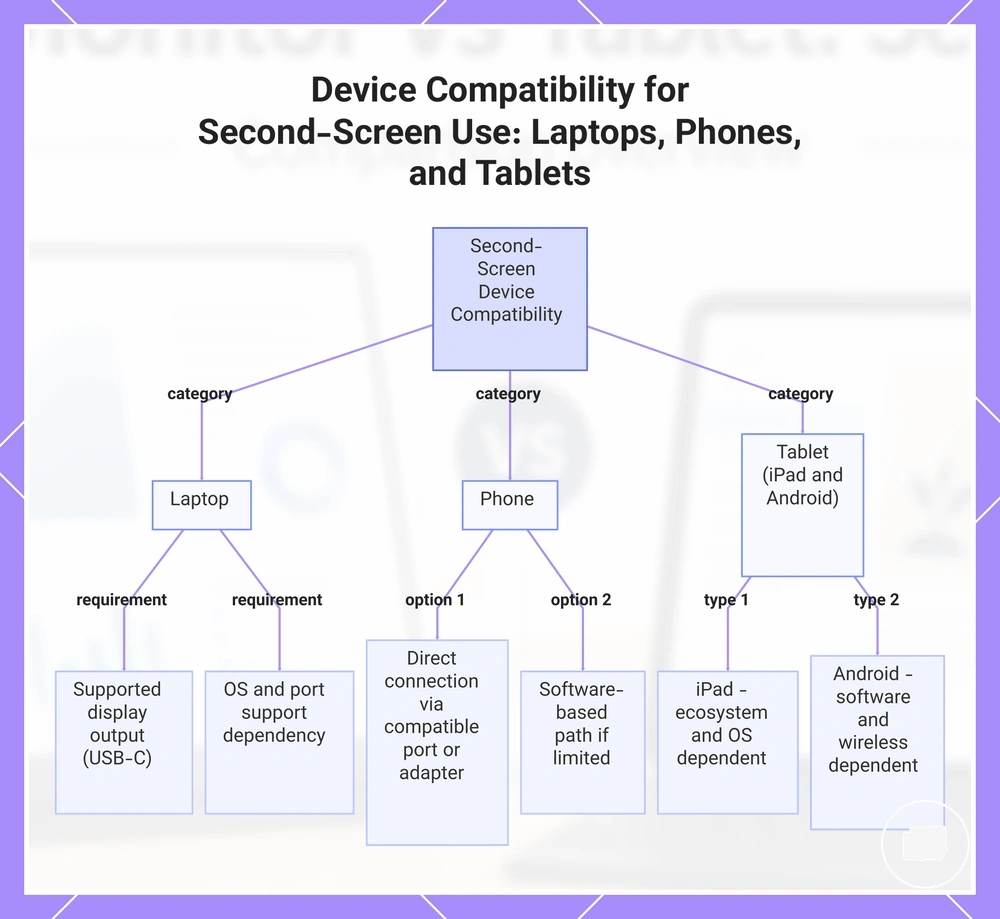
Laptop, phone, iPad, and Android tablet compatibility depends on the source device, operating system, port support, app support, and available display output. The choice between a portable monitor and a tablet as a second screen should be based on the connection conditions of the host device rather than assuming the same display behaviour across every platform.
Use the checklist below to compare the main device categories before deciding which second-screen approach is more suitable.
- Laptop: A laptop may support direct screen extension when compatible display output, such as supported USB-C or another display connection, is available. Compatibility depends on the operating system and port support.
- Phone: A phone may require compatible display output, port support, or an adapter before connecting to a portable monitor. If direct display output is limited, a tablet second-screen path may instead depend on software-based display features and app support.
- iPad: An iPad may provide different display modes depending on ecosystem features, operating system capabilities, and app support. The resulting display behaviour depends on the available device support.
- Android tablet: An Android tablet may rely on software compatibility, wireless features, app support, and operating system capabilities for second-screen use. Available display output and compatibility depend on the specific device conditions.
Checking the exact source device, operating system, port support, and display output before connecting can help reduce compatibility surprises. For broader condition checks, see portable monitor device compatibility.
This chart compares the key compatibility conditions for laptops, phones, and tablets when using a portable monitor or tablet as a second screen.
Portability, Power, and Desk Setup Tradeoffs
Daily-use portability depends on how and where the second screen will be used. Weight, stand stability, cable count, battery behaviour, charging needs, and desk footprint all influence whether a portable monitor or tablet feels more practical for a travel setup, home desk, or temporary workspace.
The comparison below focuses on handling tradeoffs rather than connection requirements or long-term maintenance.
| Factor | Portable monitor tradeoff | Tablet tradeoff | Practical effect |
|---|---|---|---|
| Weight | Often carried as a dedicated display | May combine second-screen and everyday device use | Can influence travel portability and carrying convenience |
| Stand stability | Viewing comfort depends on the built-in stand or support method | Viewing angle depends on the available stand or case | May affect desk setup comfort |
| Cable count | May require display or power cables | May reduce cable count when software-based methods are supported | Can change setup friction in temporary workspaces |
| Battery | Battery behaviour varies by model and power method | Typically operates from its own battery | May influence use away from a power source |
| Charging | Charging or external power needs depend on the display configuration | Requires battery charging during regular use | Can affect longer work sessions |
| Desk footprint | Usually adds a separate display to the workspace | May reduce the number of devices needed for some workflows | Can influence available desk space |
These tradeoffs become more noticeable as the workspace changes. A travel setup may prioritise lower weight and reduced setup friction, while a home desk may place greater value on stand stability and viewing comfort. For quick temporary setups, cable count, battery behaviour, charging needs, and desk footprint can all influence which option feels more practical, although the outcome depends on the workspace and device configuration.
Work, Travel, Gaming, and Casual Use Fit
The better second-screen option depends on your primary use case. Work, travel, gaming, media, drawing, and casual use each prioritise different attributes, so the recommended direction changes according to productivity needs, portability, latency, touch interaction, and everyday flexibility rather than one device being stronger in every situation.
The scenario matrix below compares common workflows and the conditions that can influence the decision.
| Use case | Stronger option when | Watch-out | Decision signal |
|---|---|---|---|
| Work | A larger dedicated workspace supports productivity | Workspace needs vary by desk and workflow | Screen extension is the priority |
| Travel | Portability and battery behaviour match travel use | Weight and charging needs may affect convenience | Carrying comfort matters more than screen size alone |
| Gaming | Latency and refresh behaviour fit the intended gaming use | Performance depends on the device and connection method | Responsive display behaviour is the key criterion |
| Media | Viewing preferences match the display experience you want | Display characteristics vary by model | Comfort during longer viewing sessions |
| Drawing | Touch interaction is an important part of the workflow | Touch capability depends on the selected device | Direct screen input is the deciding factor |
| Casual browsing | Everyday flexibility and tablet reuse are priorities | Second-screen features may depend on software support | Reuse value outweighs dedicated display space |
The strongest decision signals usually come from matching the required attribute to the workflow. Productivity-focused work may benefit from a dedicated display area, while creative touch tasks may favour direct touch interaction. Travel use often depends on balancing portability with power needs, and casual use may place greater value on reuse flexibility than on maximum screen space.
Gaming deserves separate consideration because latency, refresh behavior, and input responsiveness can influence the experience. If gaming is a primary requirement, compare those criteria before deciding between device types, and see portable monitor for gaming for a more focused discussion of gaming-specific considerations.
When a Portable Monitor Is the Better Second-Screen Choice
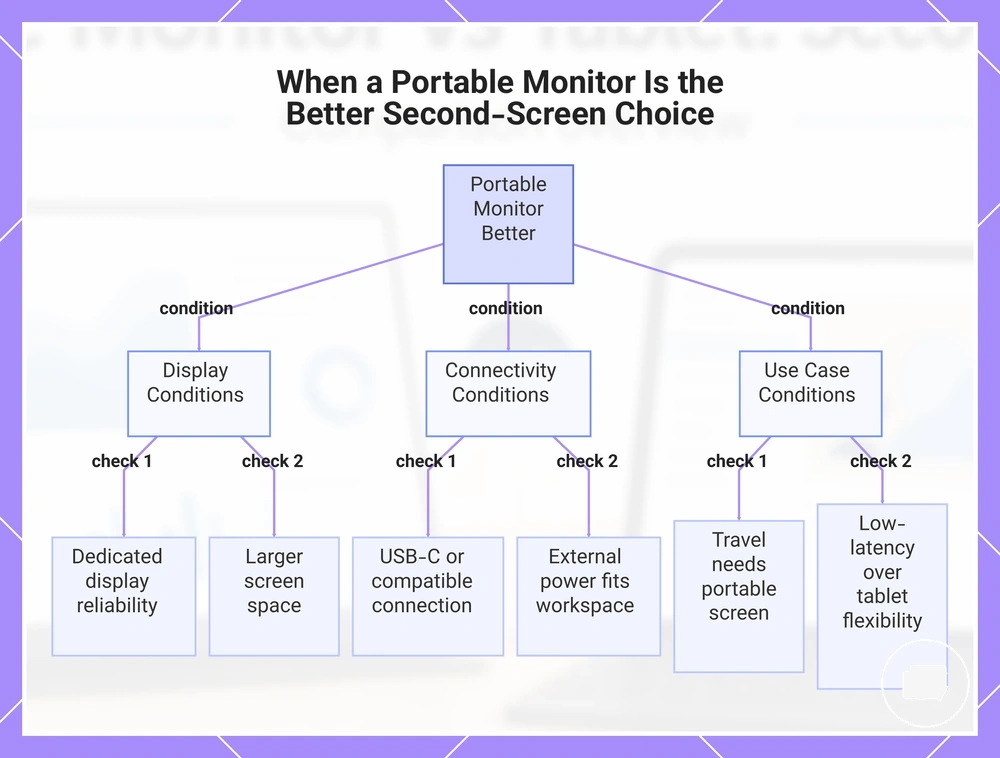
A portable monitor is the better second-screen choice when you need a dedicated display with reliable laptop extension, larger usable screen space, and lower setup friction through a supported cable connection. If your priority is an external display rather than another general-purpose device, a portable monitor may provide the more suitable direction.
A portable monitor can suit workflows that depend on reliable screen extension and consistent desk productivity. Larger screen space may make it easier to organise multiple windows, while a dedicated display keeps the second screen focused on workspace expansion instead of tablet functions.
USB-C support and other compatible cable connections may simplify laptop extension when the source device supports display output. External power requirements, display output capability, and cable compatibility still depend on the connected devices, so these conditions should be confirmed before relying on the setup.
Low-latency use may be more important than tablet flexibility when responsive display behaviour or productivity is the priority. If you are comparing whether these conditions match your workflow, see portable monitor worth it for broader decision guidance.
The checklist below helps interpret whether a portable monitor is the recommended direction for your situation.
- Dedicated display reliability is a higher priority than multipurpose device use.
- More screen space would improve laptop extension and desk productivity.
- USB-C support or another compatible display connection is available.
- External power requirements fit the intended workspace.
- Travel still requires a portable second screen rather than a general-purpose tablet.
- Low-latency use is more important than software-based display flexibility.
If these decision signals match your workflow, a portable monitor may be the stronger second-screen choice. If you also want touch-first apps, media use, or broader everyday flexibility, a tablet may remain the more suitable alternative.
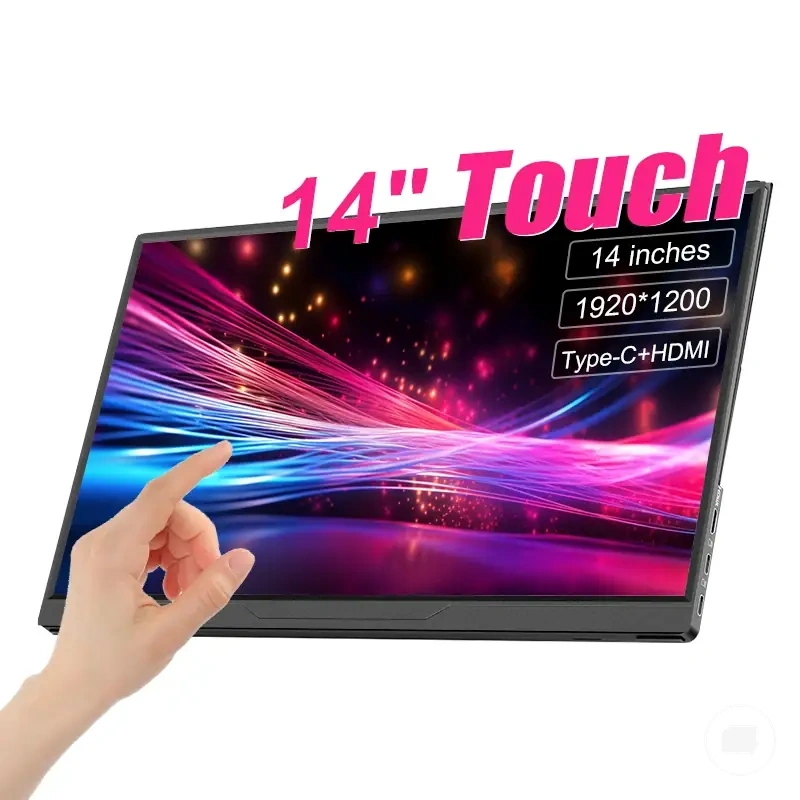
Here are product examples that may make comparison easier. Before buying, always review the compatibility criteria, essential features, and product details.
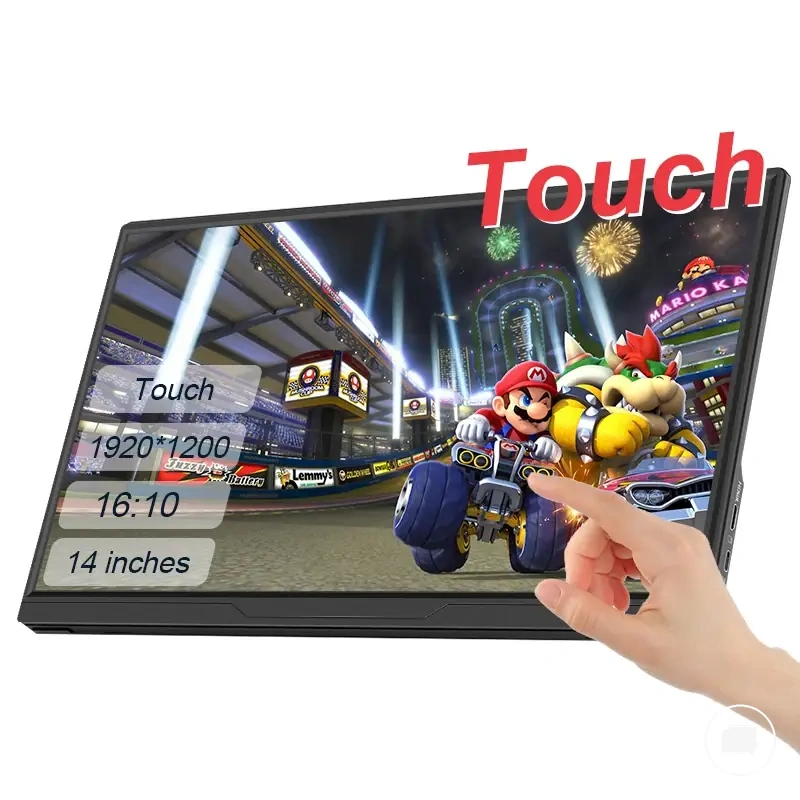
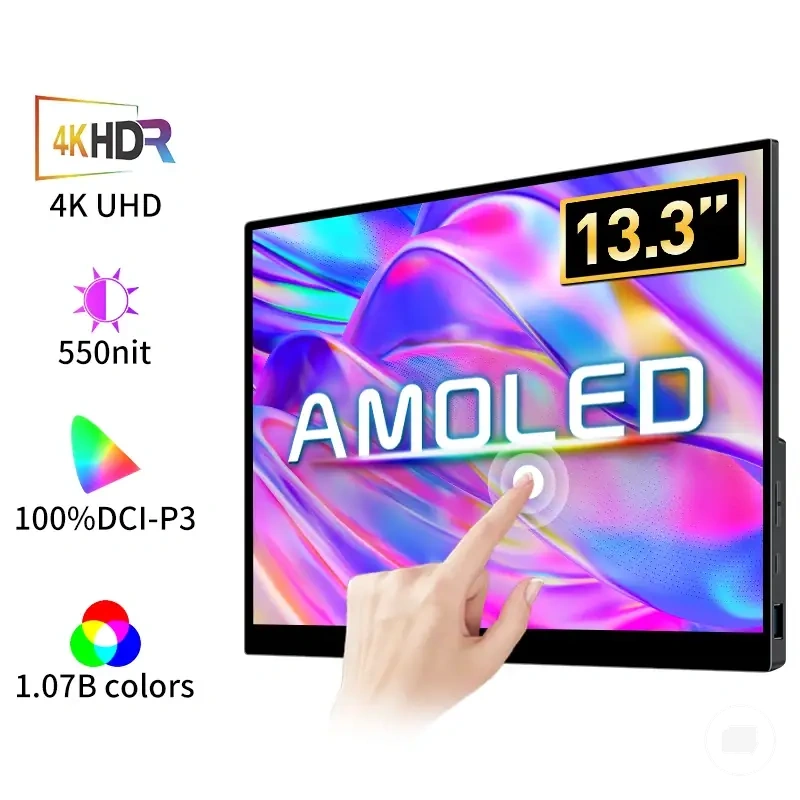
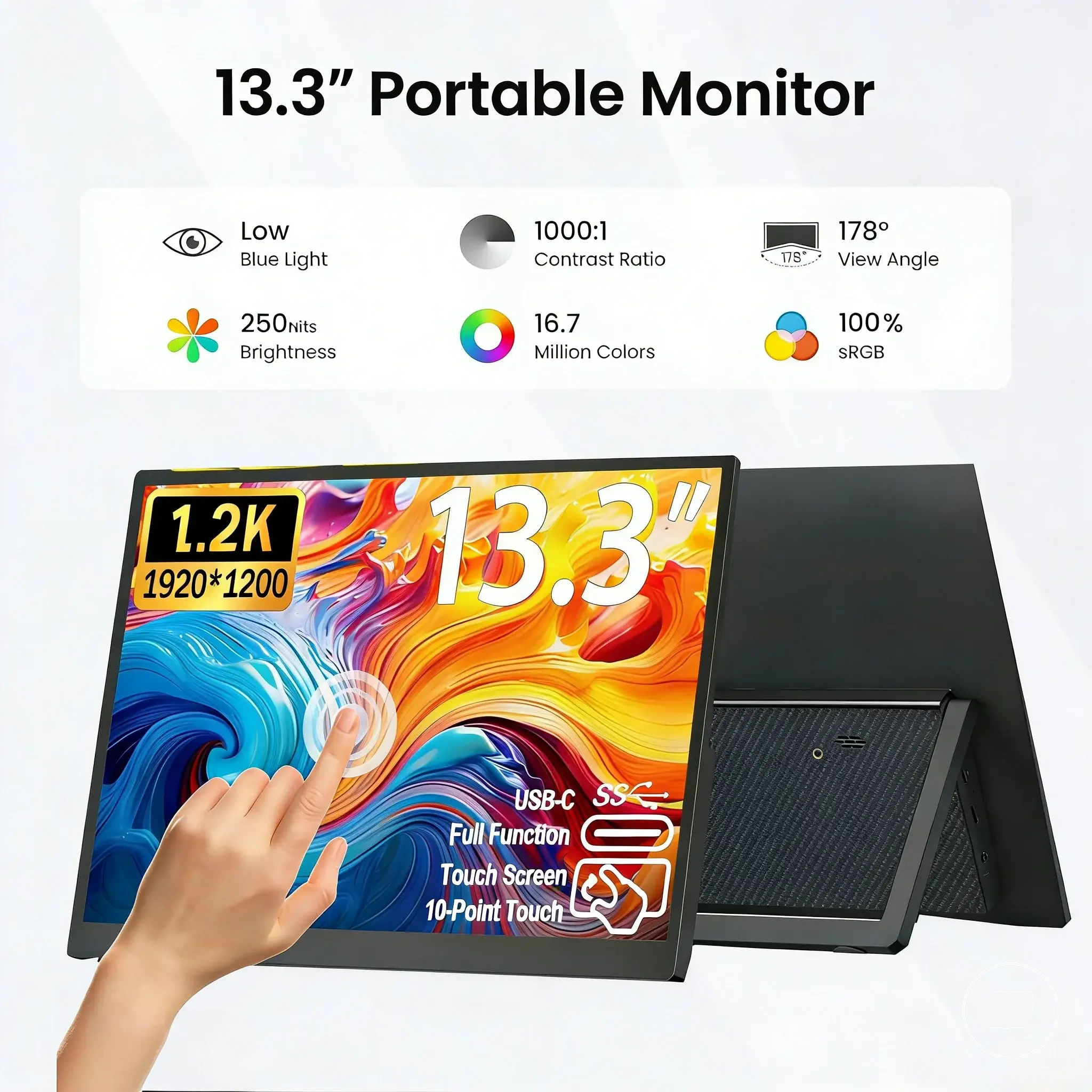
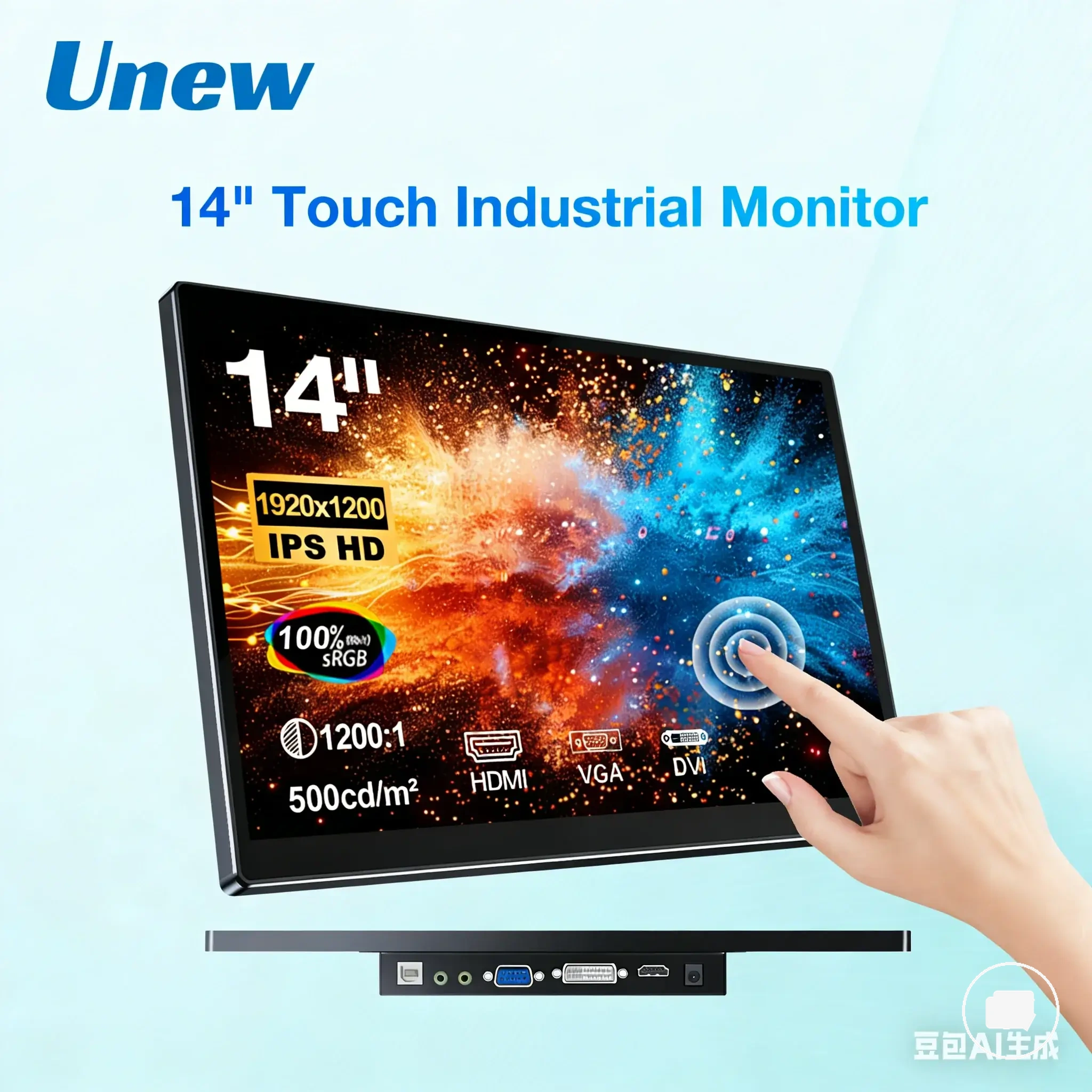
This chart shows the key conditions that make a portable monitor a better second-screen choice over a tablet, based on dedicated display needs, connectivity, and use case priorities.
When a Tablet Is the Better Second-Screen Choice
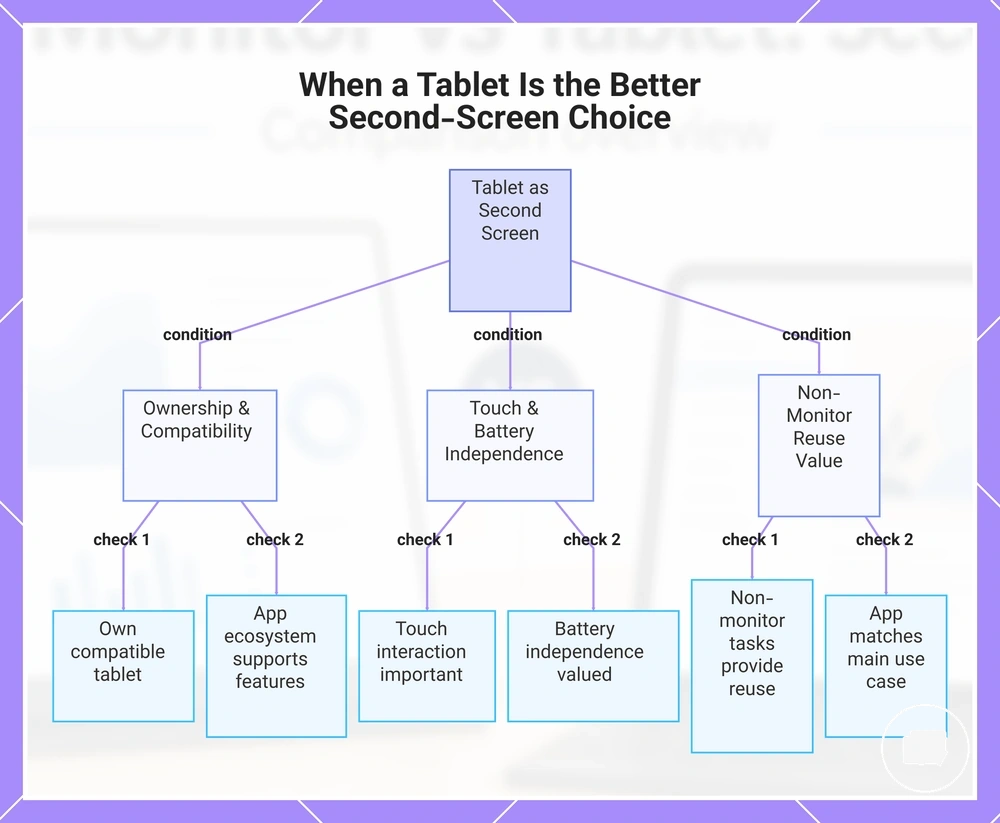
A tablet is the better second-screen choice when reuse value, touch interaction, battery independence, and non-monitor tasks are as important as second-screen performance. If you already own a compatible tablet and its app ecosystem supports your workflow, using it as a companion screen may provide better overall value than adding another dedicated display.
A tablet can suit workflows that combine drawing, note-taking, media, and other non-monitor tasks alongside second-screen use. Touch input, battery independence, and app ecosystem fit may make a multipurpose tablet more practical when these capabilities remain useful after the second-screen session ends. Second-screen performance still depends on software support, wireless conditions, and device compatibility.
The checklist below helps determine whether a tablet is the recommended direction for your situation.
- You already own a compatible existing tablet.
- Touch interaction is an important part of your workflow.
- The app ecosystem supports the second-screen features you need.
- Battery independence is more valuable than a permanently connected external display.
- App support matches your main use case and intended workflow.
- Non-monitor tasks provide meaningful reuse value beyond acting as a second screen.
If you already own a compatible tablet, using it as a second screen may provide strong value because the same device can continue serving other purposes. If you are buying mainly for dedicated second-screen work, compare whether long-term reuse value or a dedicated display better matches your intended workflow before making a decision.
This chart shows the key conditions that determine whether a tablet is the better second-screen choice for your workflow.
Price, Value, and Reuse Decision
Value depends on ownership status, reuse frequency, compatibility risk, and long-term purpose rather than on price alone. The better reuse decision comes from comparing purchase cost, display quality, accessory needs, and whether the device will continue serving useful roles after second-screen use.
The table below compares the main value conditions without using price promises or merchant-style offers.
| Option | Cost factor | Reuse condition | Value outcome |
|---|---|---|---|
| Buying a portable monitor | Purchase cost and possible accessory needs | Mainly used for laptop extension | May provide stronger value when a dedicated display is used frequently |
| Using an existing tablet | No additional device purchase if already owned | Regularly used for non-monitor tasks | Reuse value may improve total value when compatibility fits the workflow |
| Buying a tablet mainly for second-screen use | Purchase cost may exceed the second-screen role alone | Limited reuse outside second-screen tasks | Value depends on whether touch and other tablet functions will also be used |
| Needing both touch and display reliability | Accessory needs and compatibility risk may vary | Frequent use of both touch interaction and external display tasks | The better value depends on which requirement matters more long term |
Purchase cost is only one part of the value tradeoff. Compatibility risk, accessory needs, and display quality can affect long-term usefulness because adapters, software limits, or weak device support may reduce how often the second-screen setup is used.
Reuse frequency can change the value outcome. A tablet may offer stronger total value when it continues serving non-monitor tasks, while a portable monitor may make more sense when laptop extension and display quality remain the main long-term purpose.
If you are still comparing the long-term value of a dedicated display, see portable monitor worth it as a broader decision reference before making a final choice.
Choose the option that matches your ownership status, expected reuse frequency, compatibility conditions, accessory needs, and long-term purpose. A portable monitor may provide better value for dedicated laptop extension, while an existing tablet may provide better value when touch interaction and broader reuse remain part of everyday use.
Here are product examples that may make comparison easier. Before buying, always review the compatibility criteria, essential features, and product details.